

Back in the 50s, people hired knocker-ups to wake them in the morning. They were quickly replaced by alarm clocks after a few years, and by the 21st century, smartphones already came with built-in clock apps. They’re reliable for the most part. However, issues that’ll cause the volume on your iPhone alarm to be low could crop up at the randomest moments. You might miss important meetings, classes, and workout routines.
Don’t be too quick to blame your speakers. Here are some steps to try before heading to the nearest Apple Store for repairs.
Table of contents
What To Do if the iPhone Alarm Volume Is Too Low
 NOTE
NOTE
Before you start
- Make sure your iPhone isn’t set to Silent Mode (side switch on older models).
- Confirm your volume buttons are not locked to media only.
- Place your iPhone on a hard surface rather than under a pillow for maximum sound.
- Update to the latest version of iOS for alarm reliability.
How to Make iPhone Alarm Louder
1. Adjust Ringer and Alerts volume
Time needed: 3 minutes
It’s easy to miss, but the volume for your ringer and media apps is different. The alarm is tied to the Ringer and Alerts control. If you adjust the volume while playing or watching something, your ringer will stay the same. Unfortunately, this setup makes it easy to overlook the ringer volume. I suggest double-checking it in the Settings app.
- Open Settings > Sounds & Haptics.
- Locate the Ringer and Alerts slider.
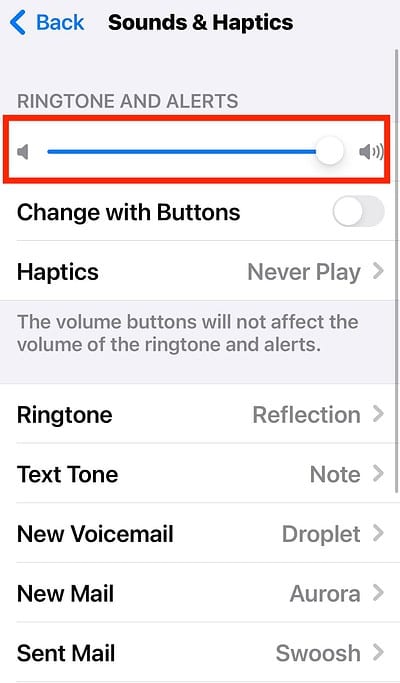
- Drag the slider to your desired volume level.

2. Pick a louder alarm sound
- In the Clock app, tap Alarm > Edit > [Alarm] > Sound.
- Choose a high-intensity tone like Radar or Alarm. Softer tones (like Silk) may not wake you.
For further reading, learn how to change your alarm sound on iPhone.
3. Disable Attention Aware Features (Face ID models)
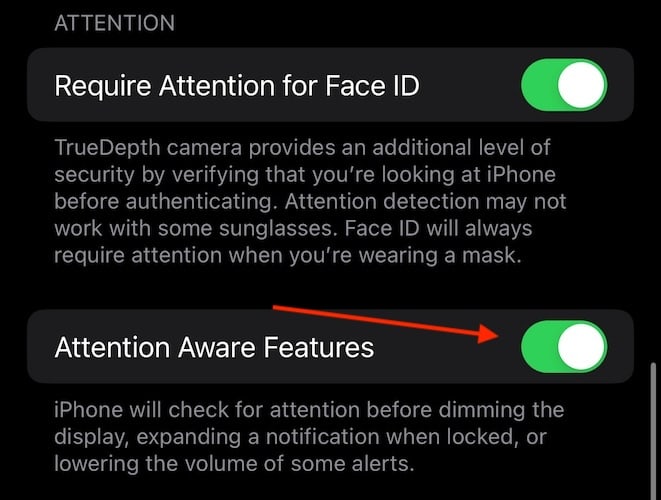
Attention Aware automatically lowers the ringer and media volume on your iPhone depending on movement. It uses Face ID to detect when you’re looking at your device. Although helpful for mobility-impaired individuals, your phone will rarely ring at full volume. Turn it off while you’re troubleshooting.
- Open Settings > Accessibility > Face ID & Attention.
- Toggle off Attention Aware Features.

4. Check Bedtime/Wake Up alarms in Health app
- If you’re using Sleep Schedule alarms, open Clock > Alarm > Change.
- Ensure the volume slider is set high within Sleep/Wake settings.
5. Clean your speaker and remove obstructions
- Dust or a case covering the speaker grille can reduce alarm volume.
- Gently clean with a soft brush or microfiber cloth.
6. Test with a quick alarm
- Set an alarm for a few minutes ahead.
- Confirm the sound is loud enough before relying on it overnight.
Tips
- Place your iPhone on a nightstand or upright dock for louder projection.
- Connect to a Bluetooth speaker or HomePod for maximum sound.
- Avoid Do Not Disturb/Focus mode silencing—alarms will still ring, but notifications may muffle sound if misconfigured.
- Vibrations can help if you’re a heavy sleeper—set Sound + Vibration for extra alertness.
FAQs
Because alarm volume depends on the Ringer and Alerts setting, not your media volume. If you only raise volume while watching videos, your alarm may stay quiet.
No. Even if Silent Mode is on, alarms will still sound, though notifications won’t.
Yes. In the alarm Sound menu, scroll to the top and choose None, then set a Vibration pattern.
On Face ID models, Attention Aware Features reduce volume if the iPhone detects you’re looking at it. Turning this off prevents volume changes.
Yes. If a Bluetooth speaker or HomePod is connected, alarms will play through it (unless you select otherwise).
Summary
- Open Settings > Sounds & Haptics and raise Ringer and Alerts volume
- Pick a loud alarm sound like Radar
- Disable Attention Aware Features on Face ID models
- Set Sleep/Wake alarm volume separately if needed
- Clean your speaker and test with a short alarm
Conclusion
If your iPhone alarm volume feels too low, the fix is usually just a setting or two away. By raising the Ringer and Alerts volume, choosing a stronger alarm tone, and disabling features that lower sound automatically, you can make sure your iPhone wakes you up reliably every morning. And if you’re a really deep sleeper, pairing your alarm with a Bluetooth speaker or using both sound and vibration will ensure you never miss an important wake-up again.


