

The iPhone 17 introduced subtle shifts in the way content is managed within the Messages app, causing some users to initially struggle with locating shared photographs. Traditionally, accessing an organized gallery of media sent in a conversation was straightforward, but the newer architecture requires a different approach, or sometimes, a simple troubleshooting step. I will clarify the primary method and provide essential fixes if your shared photo library seems missing.
Table of contents
Resolving Missing Photo Libraries in Messages
1. Use the Standard Conversation Details View
Despite interface changes, the core method for viewing all media remains within the conversation details. If the Photos section is visible, it provides an immediate, aggregated view of every image and video exchanged in that specific thread, simplifying media retrieval from your contacts.
- Open the Messages app and tap on the desired conversation.
- Tap the contact’s name or profile picture at the very top of the screen.
- Tap the Photos tab next to options like Links and Documents.
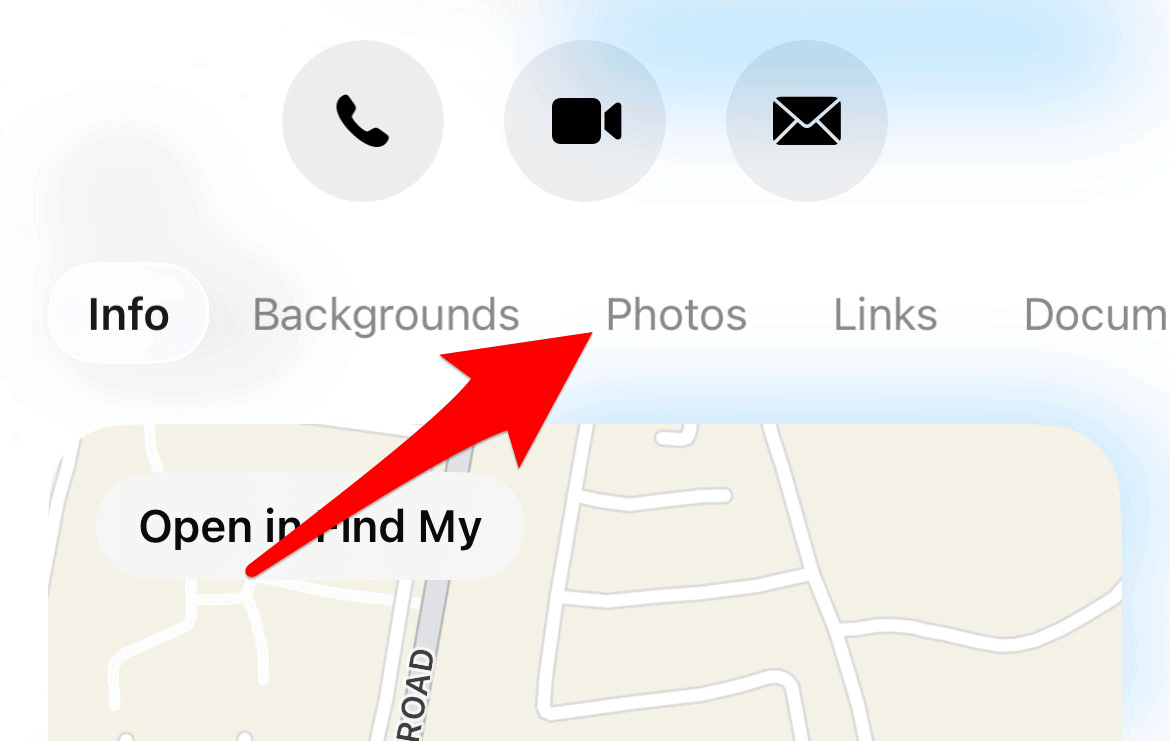
- Tap the filter icon at the bottom and tap All.

2. Allow Initial Device and iCloud Reindexing

When you set up a new iPhone 17 or complete a major iOS update, the system must reindex all message data. This crucial process aggregates all shared images from potentially thousands of texts. Depending on your message history’s size, the Photos tab may not appear until this indexing, which can take up to 72 hours, is fully complete.
- Keep your iPhone connected to Wi-Fi and power overnight.
- Use your device normally for a few days following the setup or update.
- Periodically check to see if the Photos tab has appeared.
3. Force a Content Search Update
If several days have passed and the shared media section is still unavailable, you can manually force the iOS search engine to re-scan and update its content index for the Messages app. This is a powerful troubleshooting step that often resolves indexing issues without requiring a full system reset. You can also explore how to fix all iOS Messages issues with other troubleshooting tips.
- Go to Settings and tap Search (or Siri & Search on some iOS versions).
- Scroll down and select Messages.
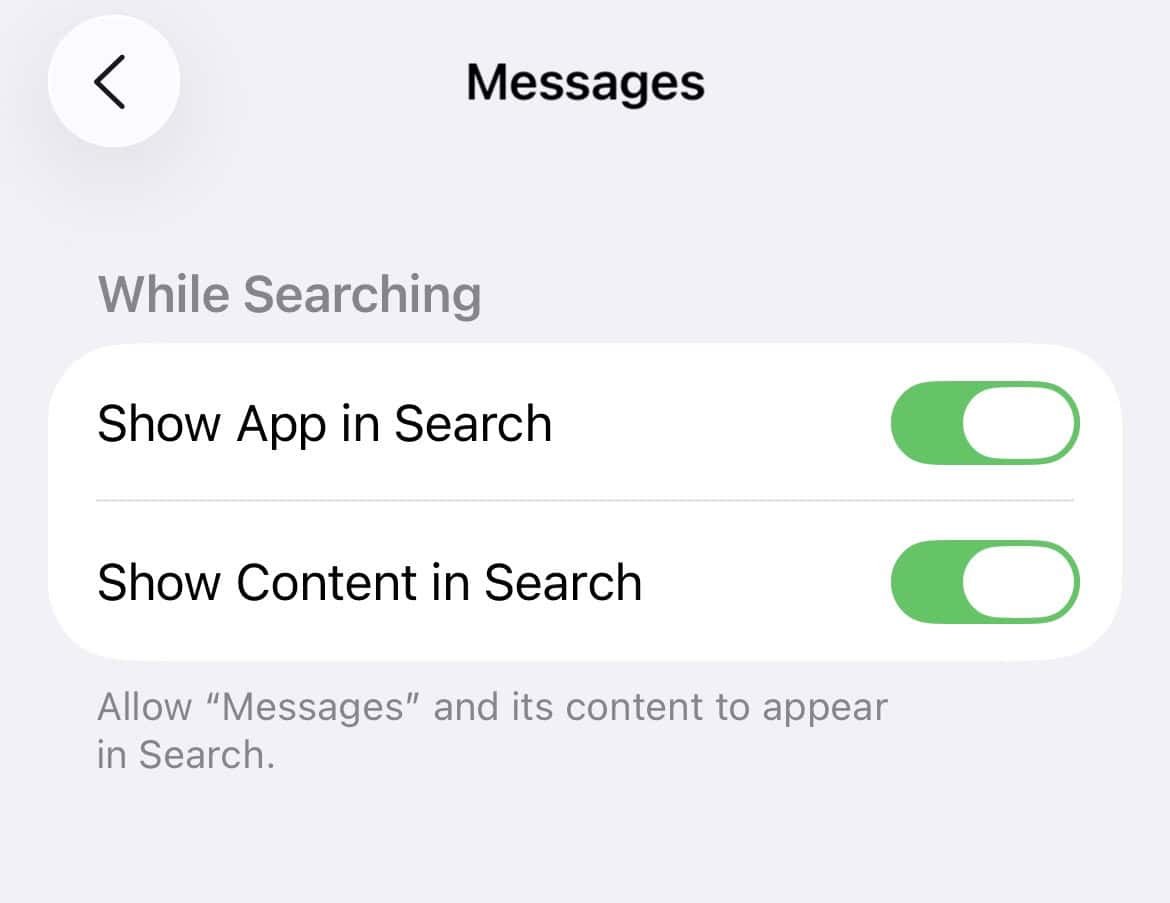
- Turn the toggles for both Show App in Search and Show Content in Search to the Off position.
- Wait five to ten seconds, then turn both toggles back on.

4. Re-sync Messages in iCloud
If your messages are backed up to iCloud, toggling the synchronization for the Messages app can often kickstart the shared media database. This action forces the device to pull down the latest, most complete version of your message history, which in turn populates the missing Photos section in the conversation view.
- Open Settings and tap your Apple ID at the top.
- Tap iCloud, then tap Show All under the list of apps using iCloud.
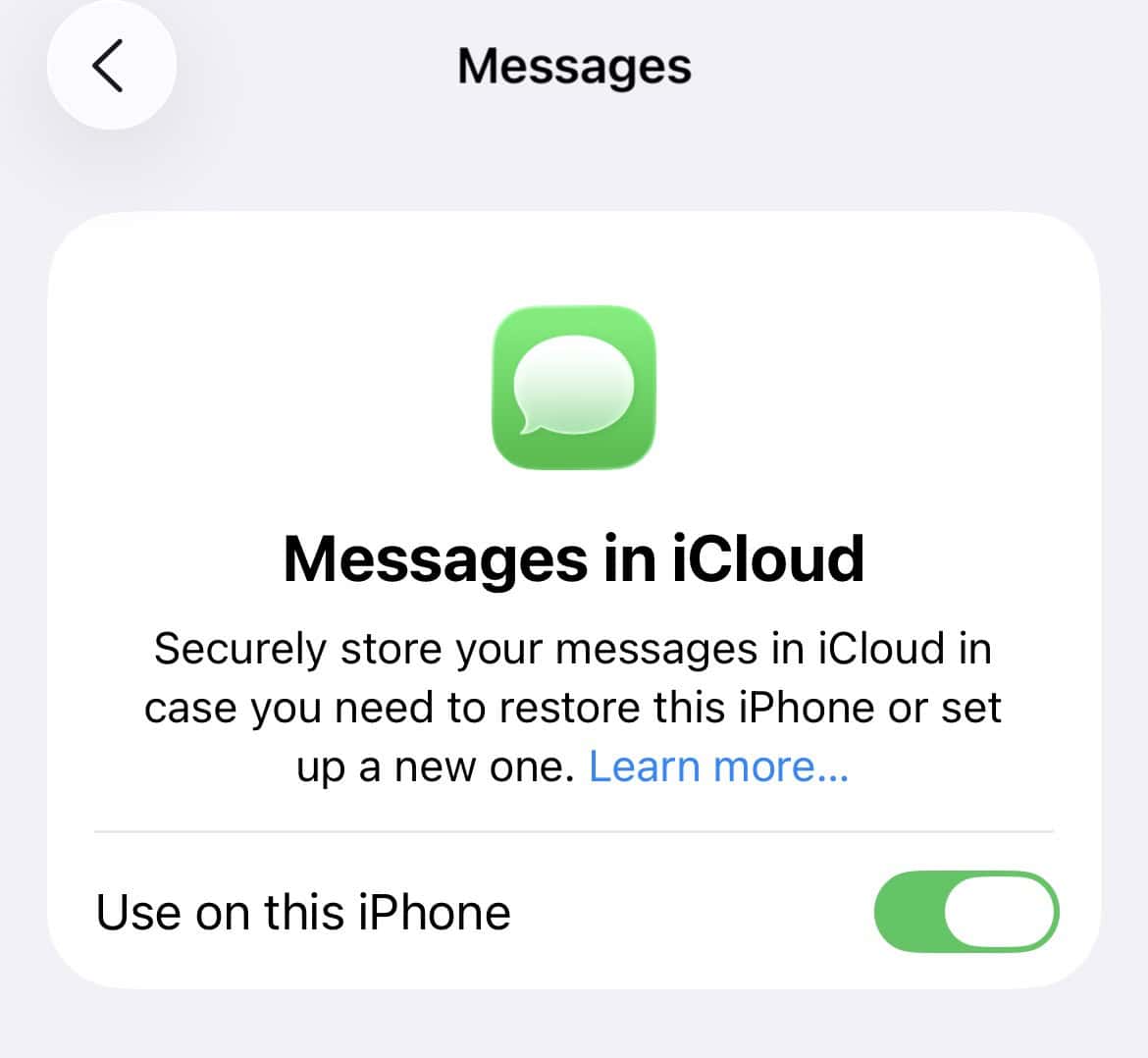
- Find and tap Messages (or Messages in iCloud).
- Turn the Use this iPhone toggle Off. Wait a moment, and then turn it back On.

5. Confirm Message Data Visibility
Another common area of confusion involves whether the messages and associated media are actually available to the device. Sometimes, an update or a setting change can affect what media your phone considers ‘available’ for searching. Understanding the subtle indicators in your chat can help, such as what certain iPhone text message symbols truly convey about message status.
- Ensure you have a strong Wi-Fi or cellular connection.
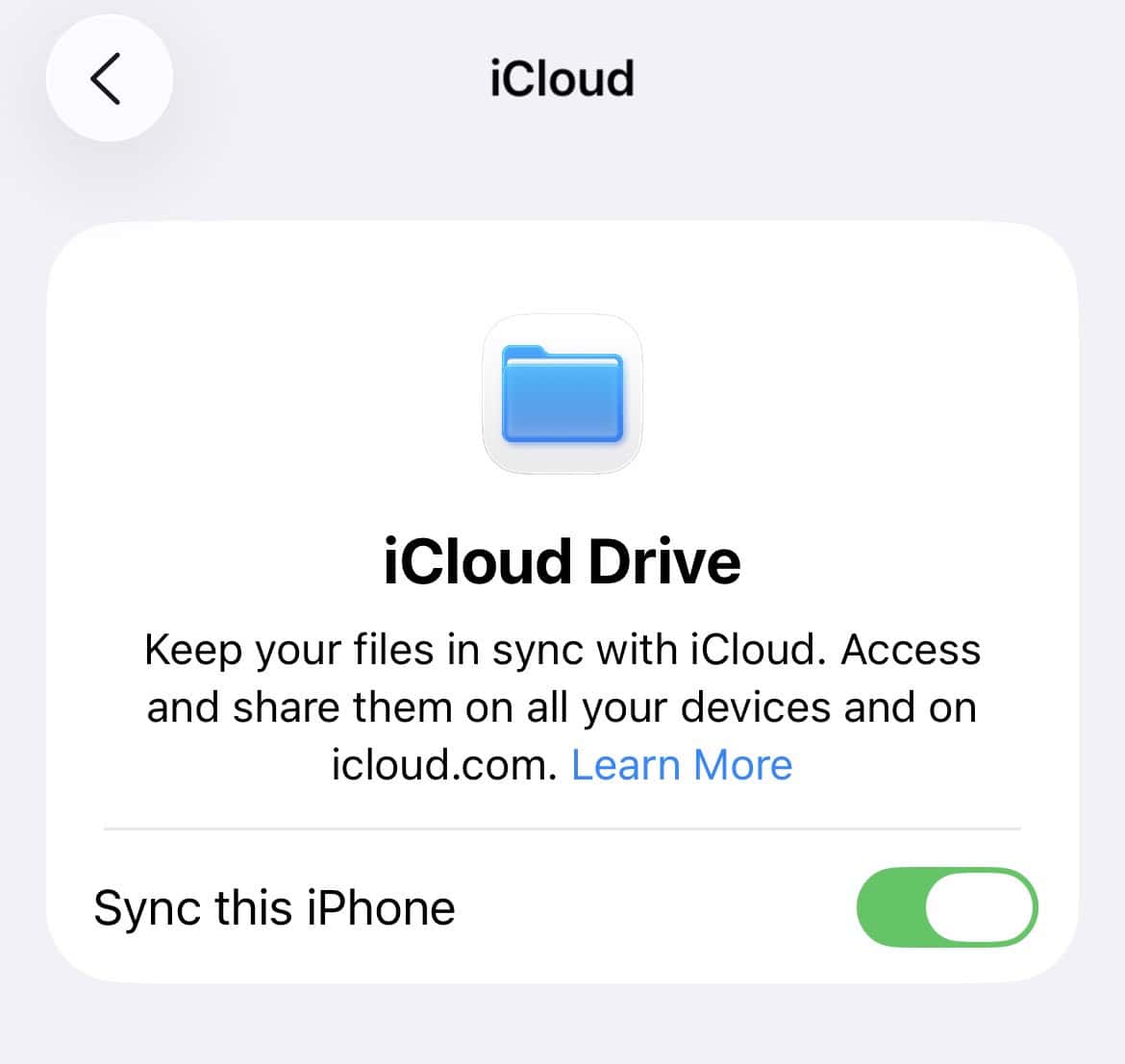
- Verify that iCloud Drive is enabled in your iCloud settings.
- If you are trying to find an older message, use the search bar at the top of the main Messages list to manually search for keywords or the person’s name, as this method sometimes loads the missing media faster.

FAQ
Apple often redesigns app interfaces to accommodate new functionalities or better integration with iOS features like Search and iCloud. While the core feature remains, its location and the underlying indexing process were adjusted for improved performance and data handling, leading to a temporary display issue for some users.
Yes, deleting the entire conversation thread typically removes all associated media, including photos, from the Messages app on your device and from iCloud (if enabled). These photos may still exist in your main Photos app if you saved them previously.
Photos that you explicitly save from iMessage appear in your main Photos app. However, the shared section in Messages is unique because it displays all photos sent in that conversation, even those you never explicitly saved.
Optimizing Media Management on Your iPhone
Successfully locating shared media is key to a smooth user experience. The iPhone 17 offers robust media management, but initial indexing issues are a known hurdle for new users. By understanding the reindexing process and using the toggle fixes provided, you can quickly restore the comprehensive Photos tab in your message conversations. For added peace of mind, know that iOS often retains a way to look at deleted messages, ensuring your valuable media library is protected.


