

It’s that time of year again. The feeds are flooded with Spotify Wrapped screenshots, and you’re just trying to open Apple Music Replay to see if you listened to enough “Sad Indie Pop” to qualify for therapy. But instead of a slick highlight reel, you’re getting a loading spinner, a black screen, or worse: mostly inaccurate data.
Since the full Replay 2025 experience just dropped this week (December 2nd), server traffic is high, but there are also some specific settings that might be tripping you up. If your Replay is ghosting you, here is how to get your stats back!
Table of contents
1. “Use Listening History” Toggle
This is the number one reason Replay fails. If you or a family member turned this off at any point in 2025 to hide a questionable Disney soundtrack obsession, Apple stopped counting your streams.
- On iPhone: Go to Settings > Apps > Music. Scroll down and ensure Use Listening History is toggled ON.

- On Mac: Open Apple Music, hit Settings (Cmd + ,), go to the General tab, and check Use Listening History.

The Catch: This setting is not retroactive. If it was off for six months, those six months of listening data are gone forever. Replay will only calculate based on the time it was active.
2. Force the Sync (Web vs. App)
Apple has been trying to make Replay more native to the app in iOS 19, but the web version is often still the most reliable way to force a refresh if the app is bugging out.
- Visit replay.music.apple.com on a desktop or mobile browser.
- Log out and log back in. This forces a server-side refresh of your stats.
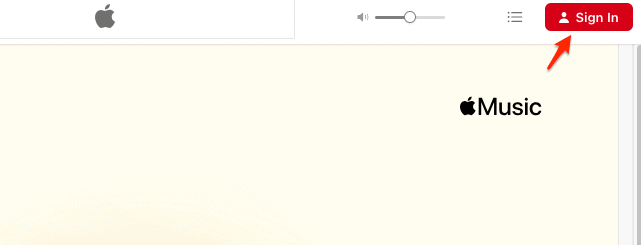
- Once it loads on the web, force-close the Apple Music app on your phone and re-open it. The data usually pushes through within minutes.

For more instructions, check out our full guide on how to use the Apple Music Web Player.
3. “Not Enough Data” Error
If you see a message saying you haven’t listened to enough music, you might be right on the threshold. Apple’s algorithm filters out “passive” listening.
- Skip threshold: If you skip a song before the 30-second mark, it doesn’t count as a play.
- Radio exclusion: Some Beats 1 or algorithmic radio station plays don’t always weight as heavily towards your top songs as manual library plays do.
4. Check for “Highlight Reel” Bug
A common bug popping up in late 2025 is the “Black Screen” when trying to view the Instagram-story-style highlight reel. This is almost always a cache issue.
- Clear the cobwebs: There is no “clear cache” button for Music on iOS, but offloading the app works. Go to Settings > General > iPhone Storage > Music > Offload App.
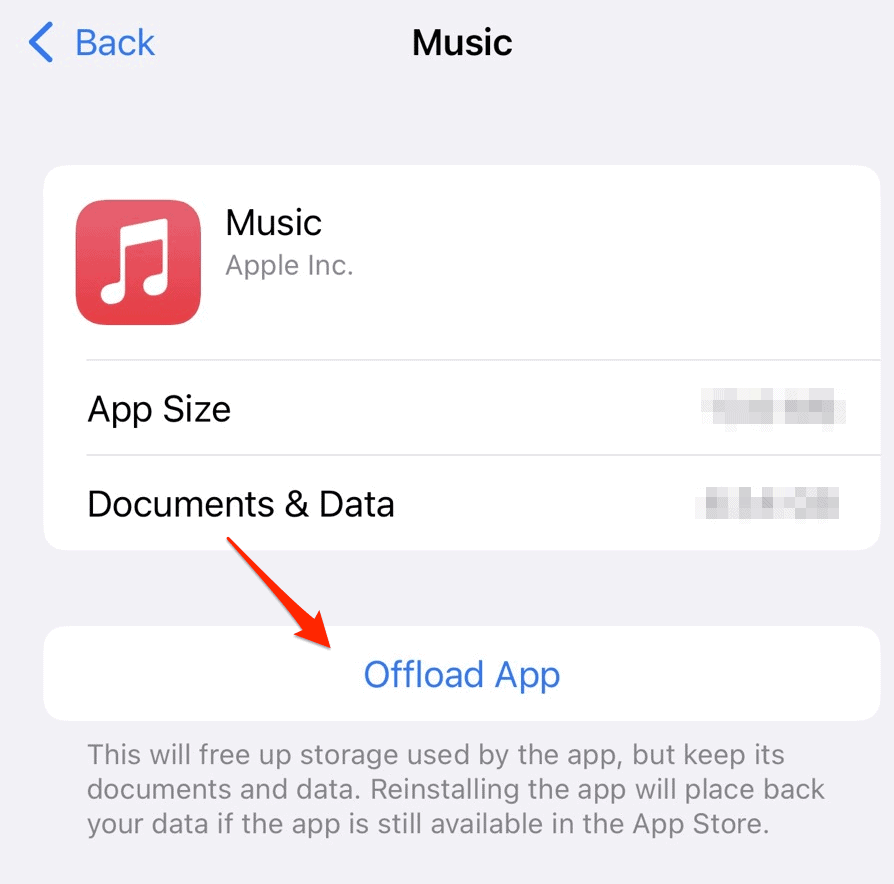
- Reinstall: Tap “Reinstall App” (your downloaded music stays, but the app code refreshes).

For more solutions, take a look at what to do if Apple Music is not working on iPhone.
Frequently Asked Questions (FAQ)
Do you have HomePods? If your family uses HomePods linked to your Apple ID, their requests count toward your stats unless you disable “Update Listening History” specifically for those devices in the Home app settings.
No. Apple ID data is siloed. If you started a new account halfway through the year, you’re splitting your stats.
It’s not instant. It usually takes 5–7 days of active listening for the algorithm to generate your first batch of Replay stats.
Summary
If you are skimming, here is the TL;DR checklist:
- Verify Settings: Ensure “Use Listening History” is ON in iOS Settings.
- Browser Refresh: Log into the Replay website to force a sync to your phone.
- HomePod Check: Make sure your kitchen HomePod isn’t logging your toddler’s “Baby Shark” marathons to your profile.
- Update: Ensure you are running the latest version of iOS (likely iOS 19.1 or later) as older versions may struggle with the new 2025 animation assets.
Apple Music Replay has come a long way, but it still lacks the bulletproof reliability of Spotify Wrapped. Usually, the issue resolves itself with a simple toggle check or a login refresh. If you’ve followed all the steps above and it’s still broken, you might just have to wait another 24 hours for the server strain to die down.


