

Here’s the thing about New Year’s Eve. Music matters more than almost anything else. Bad sound kills the vibe fast. Good sound makes the night feel intentional, even if the snacks are store-bought and the countdown is coming from someone’s phone. If you’ve got more than one HomePod sitting around, you already own a whole house party system. You just need to set it up the right way.
Table of contents
What you need before guests show up
Start simple. You need at least two HomePods of the same model. Two HomePod minis work. Two second gen HomePods work. Mixing models does not. All of them need to live in the same Wi-Fi network and be added to the same home in the Apple Home app.

If you want TV audio or countdown coverage, an Apple TV helps, but it’s optional. Music alone works fine.
Step one: create stereo pairs where it matters
Let’s break it down. Stereo pairs are your foundation. They give you left and right channels instead of a single blob of sound.
- Open the Home app on your iPhone or iPad.
- Tap one HomePod.
- Hit settings.
- Choose Create Stereo Pair.
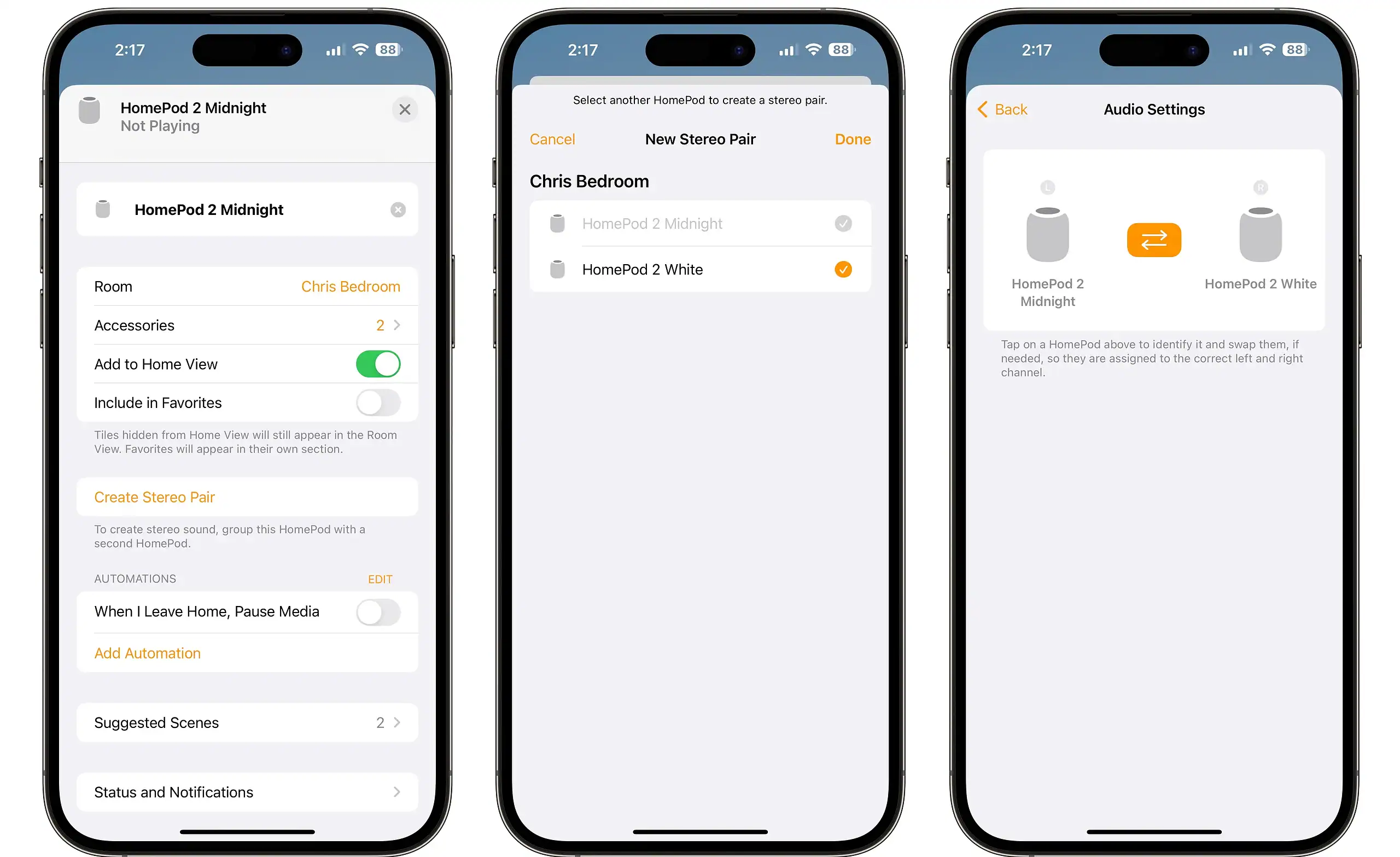
- The app walks you through the rest.

Do this in the rooms where people will actually hang out. Living room. Kitchen. Maybe the dining area if that’s where drinks live. Place the speakers a few feet apart and roughly at ear height. Apple suggests four feet. That’s a good baseline.
Once paired, only one speaker listens for Siri. That’s normal. Don’t fight it.
Step two: group rooms for whole house audio
Now comes the fun part. You don’t need to permanently merge everything. AirPlay lets you group rooms on the fly.
- Start playing music on one HomePod.
- Open the AirPlay picker.
- Select every room you want involved.
Boom. The same track flows everywhere, synced tightly enough that nobody notices delays while walking between rooms.
This works with Apple Music, Spotify via AirPlay, podcasts, and DJ playlists you made five minutes before guests arrived.
Step three: add the TV for countdown drama
If your party centers around the TV, set your stereo HomePods as the default audio output for Apple TV.
- In Apple TV settings, go to Video and Audio, then Audio Output.
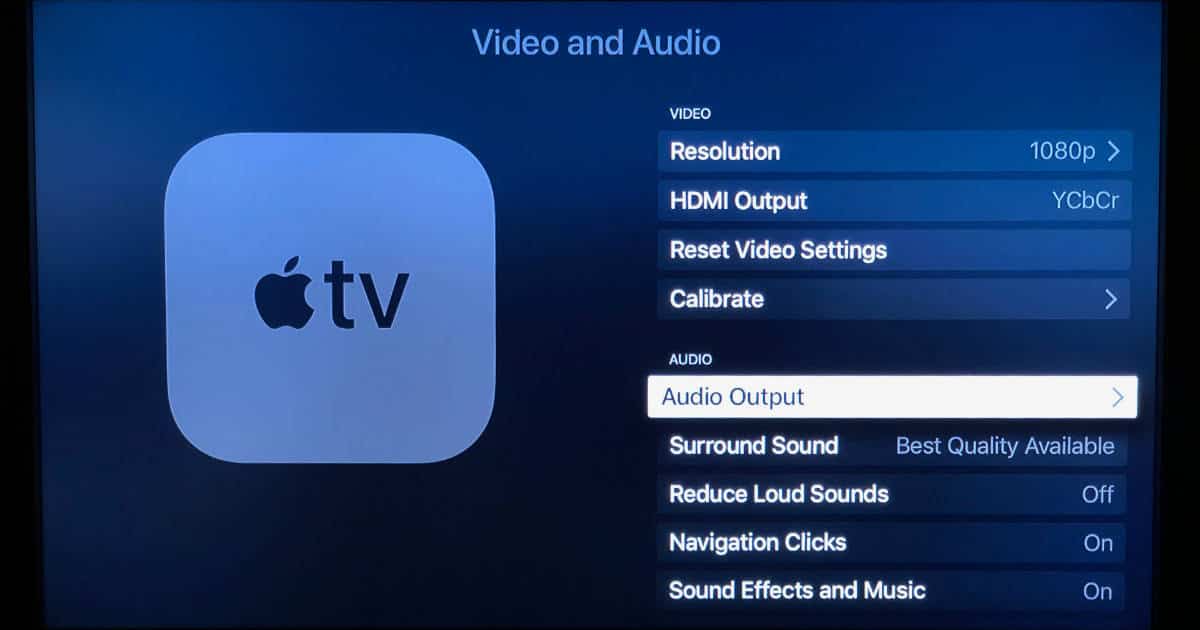
- Pick the room with your paired HomePods.

If your TV supports ARC or eARC, you can push all TV audio through the HomePods. Countdown shows. Fireworks. Late night movies when the crowd thins out.
Step four: test before midnight
Play a loud track. Walk the house. Adjust volumes per room. Swap left and right channels if something feels off. Do this early. Nobody wants troubleshooting at 11:58.
That’s it. You now have a whole house audio setup that feels planned, not hacked together. When midnight hits and the bass drops everywhere at once, it just works.


