

Microsoft Outlook users are facing login problems today as a growing number of people report service issues, while many iPhone users are also dealing with repeated Outlook password prompts that make email access even more frustrating.
Microsoft’s service health dashboard currently lists Outlook.com under “service degradation,” with users reporting sign-in failures, “too many requests” errors, and unexpected sign-outs.
Downdetector reports continue to rise as professionals across the U.S. and other regions struggle to access their inboxes during work hours. If Outlook is down globally, some login prompts on iPhone may simply reflect Microsoft’s server-side problems rather than an issue with your device.
Still, if your iPhone keeps asking for your Outlook password even when service stabilizes, iOS Mail settings or account authentication glitches often trigger the issue.
First, Check if Outlook Is Actually Down
Before changing settings on your iPhone, confirm whether Microsoft is experiencing a broader outage.
- Visit Microsoft’s Service Health page
- Check Downdetector for Outlook outage spikes
- Try logging into Outlook.com through Safari
- Open the Microsoft Outlook app instead of Apple Mail
If Microsoft’s servers are struggling, your best option is often to wait until service fully returns.
How to Fix iPhone Repeatedly Asking for Outlook Password
If the outage ends but your iPhone continues showing password requests, these steps usually solve it.
1. Disable and Re-enable Outlook Mail Sync
This refreshes your account connection inside iOS.
- Open Settings
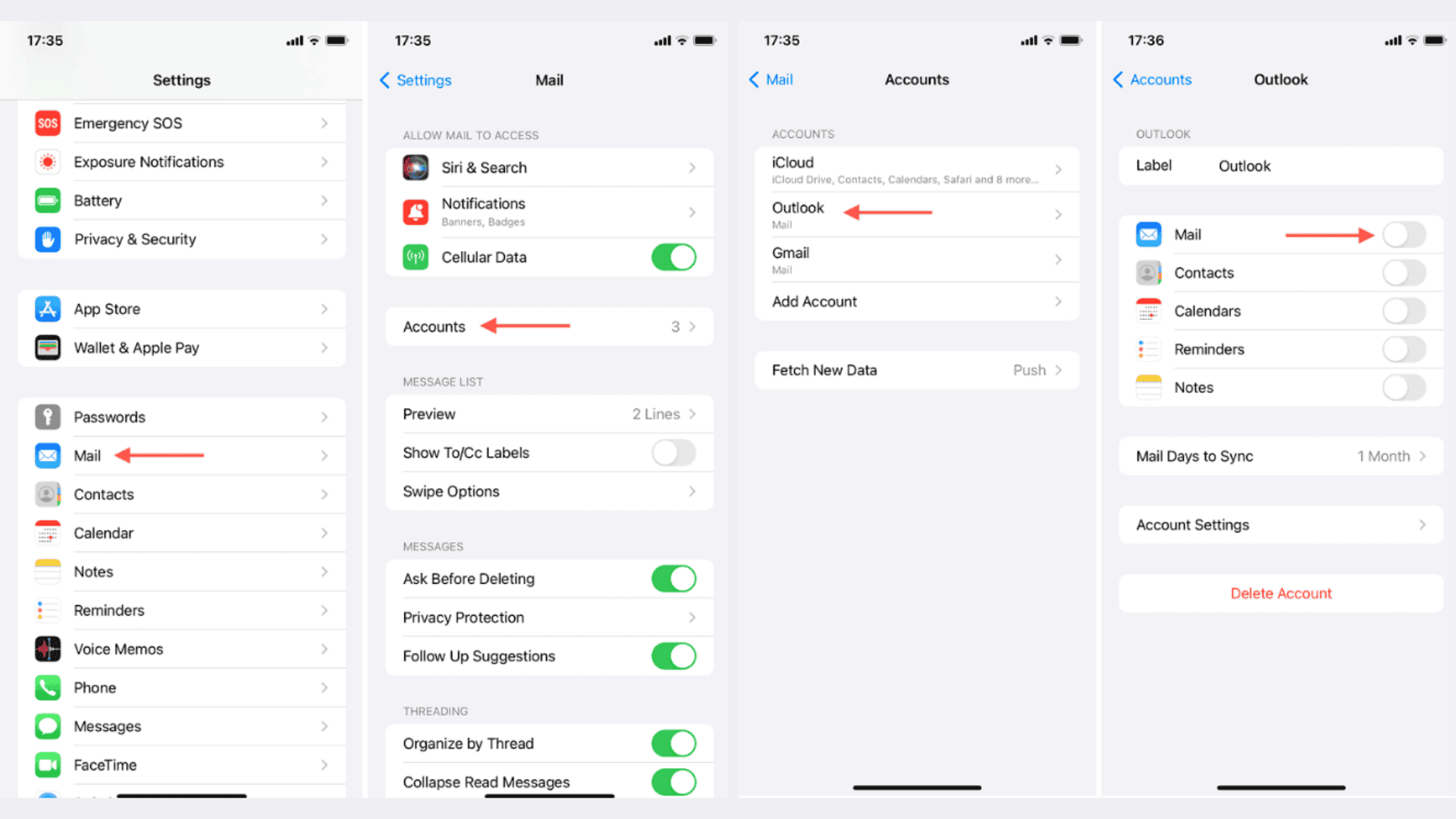
- Go to Mail > Accounts
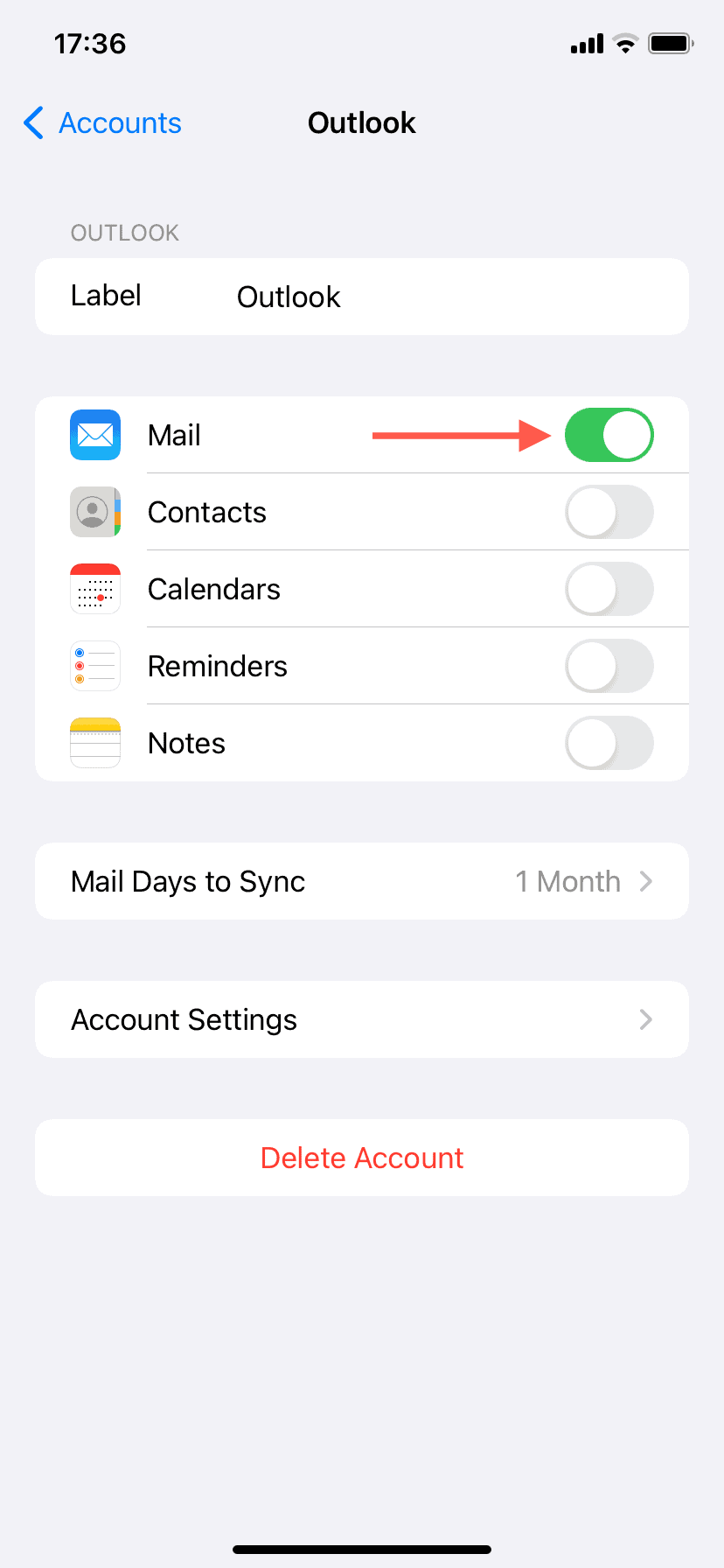
- Select your Outlook account
- Turn off Mail, Contacts, and related toggles
- Restart your iPhone
- Return and re-enable Mail

This often clears authentication loops caused by recent iOS updates.
2. Sign Into Outlook via Safari
Safari can refresh Microsoft’s login session.


- Open Safari
- Visit Outlook.com
- Sign in manually
- Tap Yes when asked to stay signed in
- Close Safari without signing out
- Reopen Apple Mail
This helps sync your credentials correctly.
3. Remove and Re-add Your Outlook Account
If authentication remains broken:
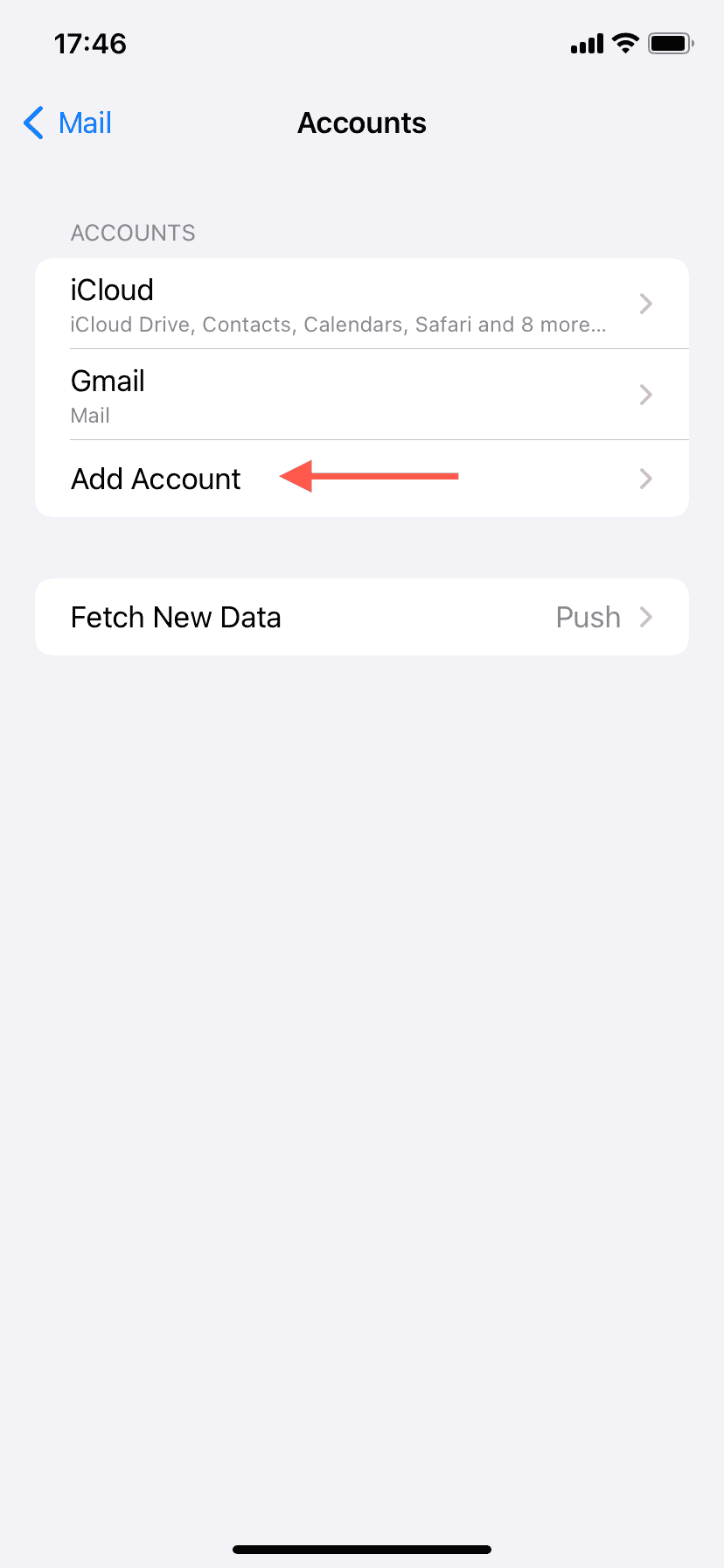
- Go to Settings > Mail > Accounts
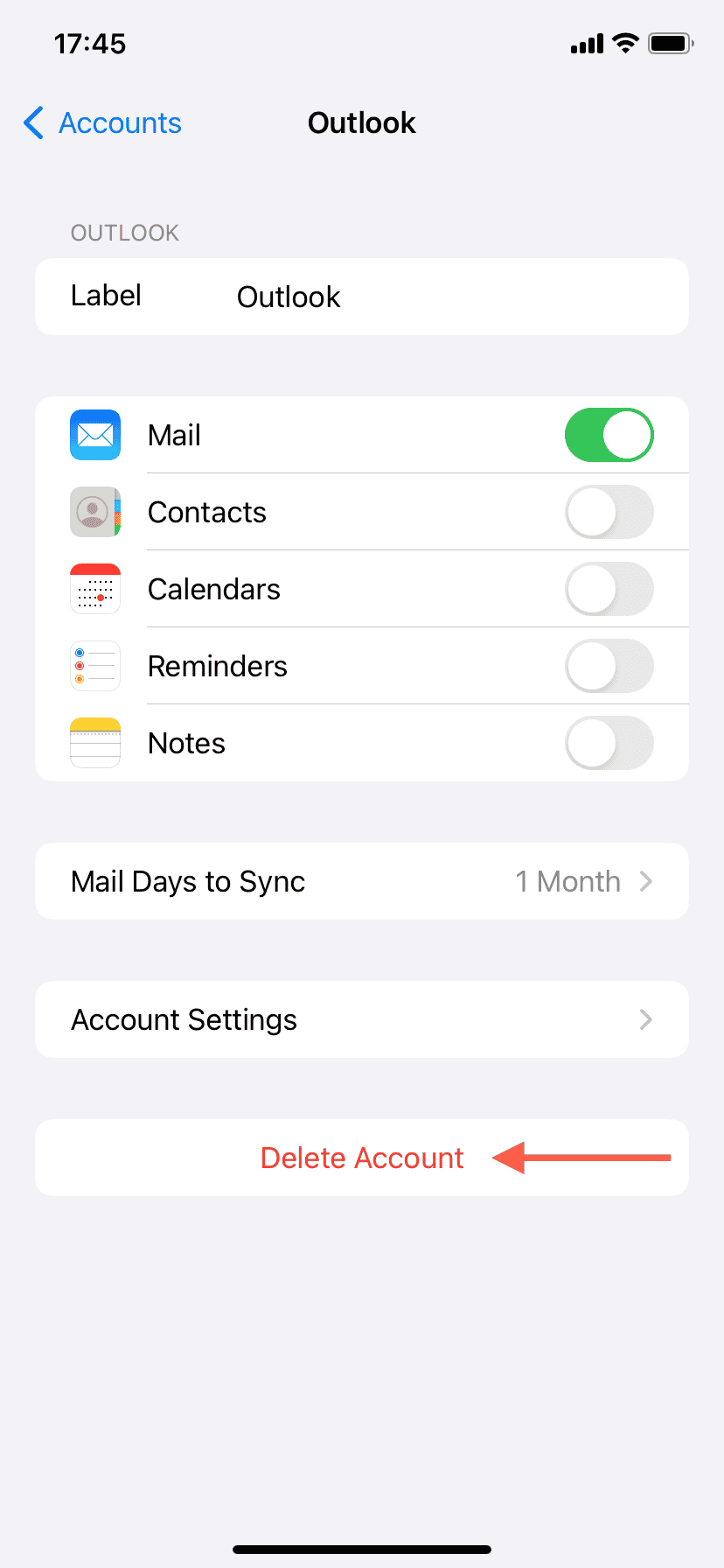
- Delete the Outlook account
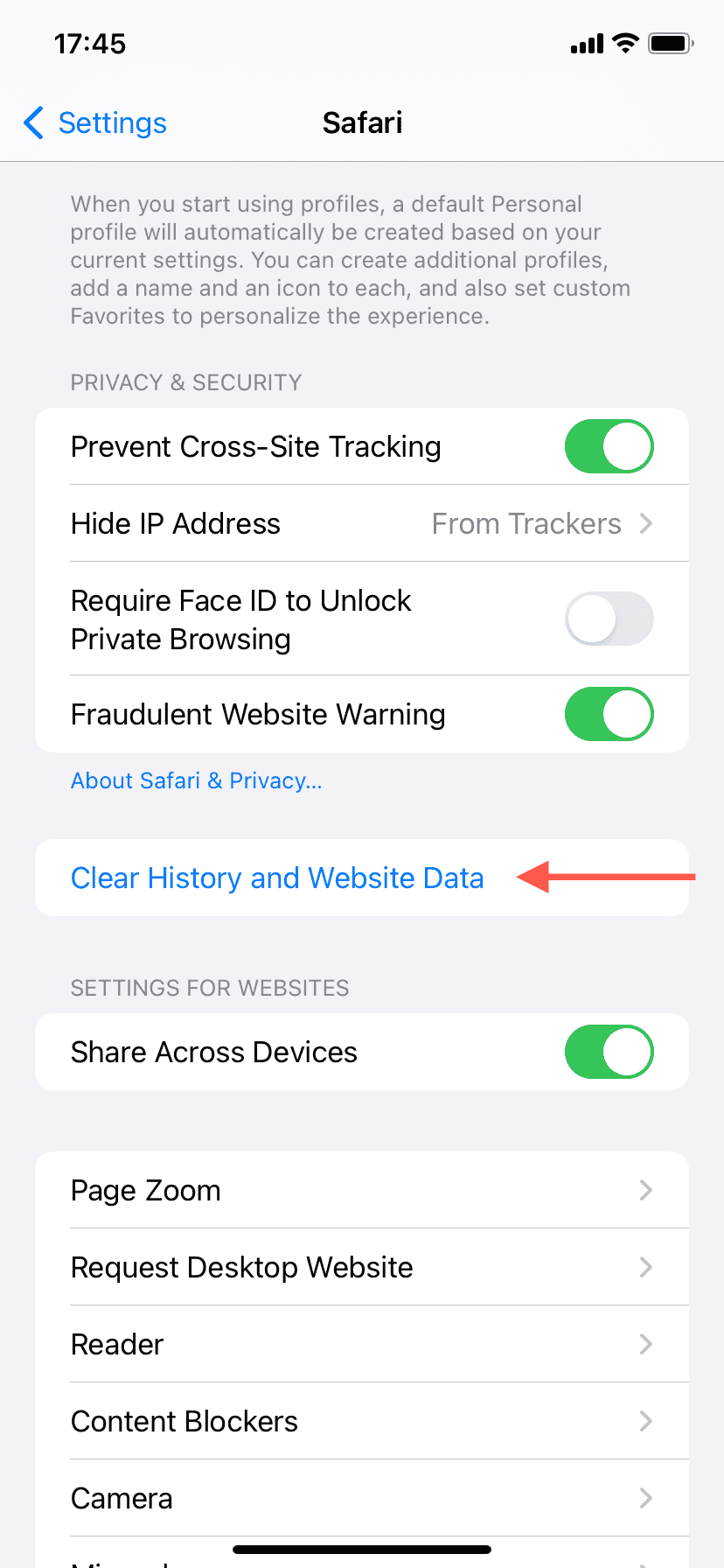
- Clear Safari history and website data
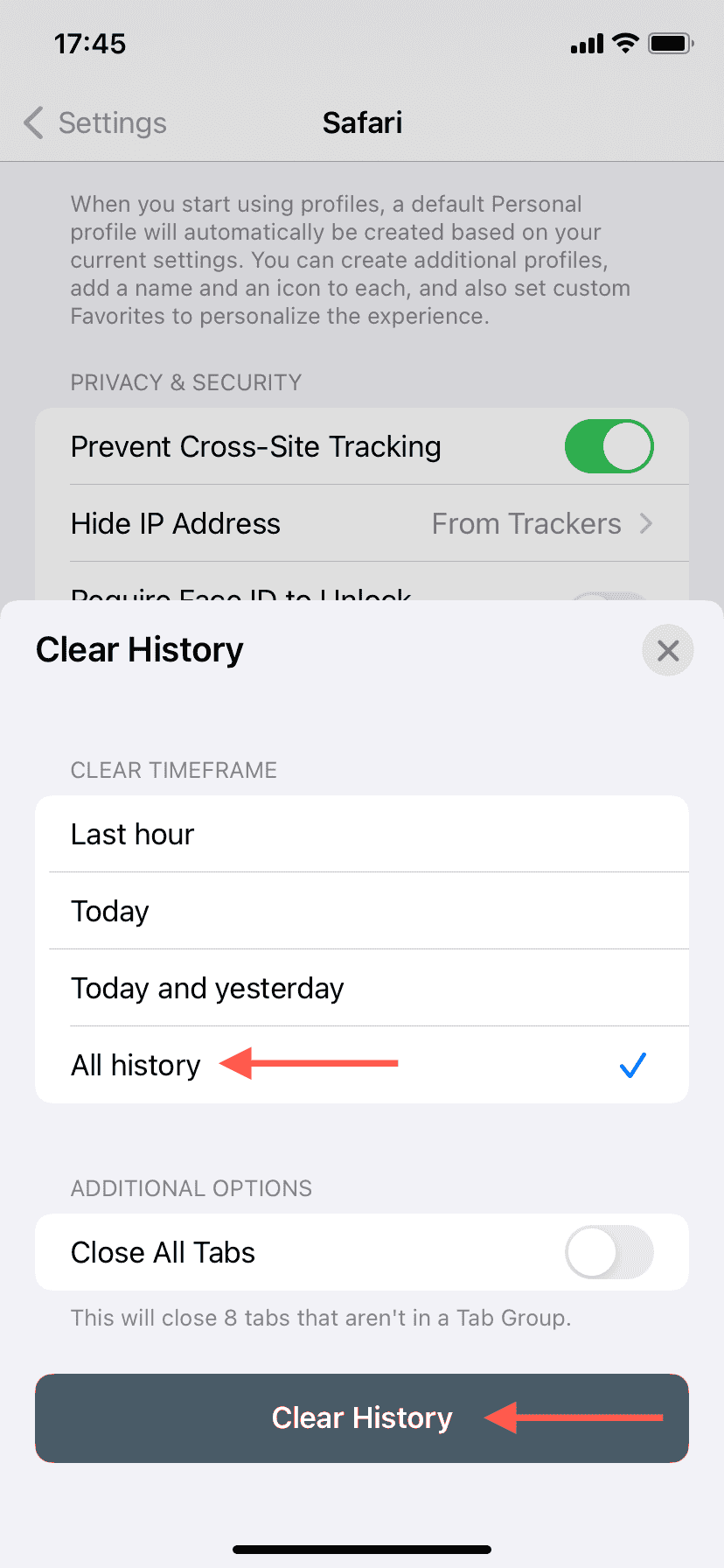
- Add Outlook again using the official Outlook.com option
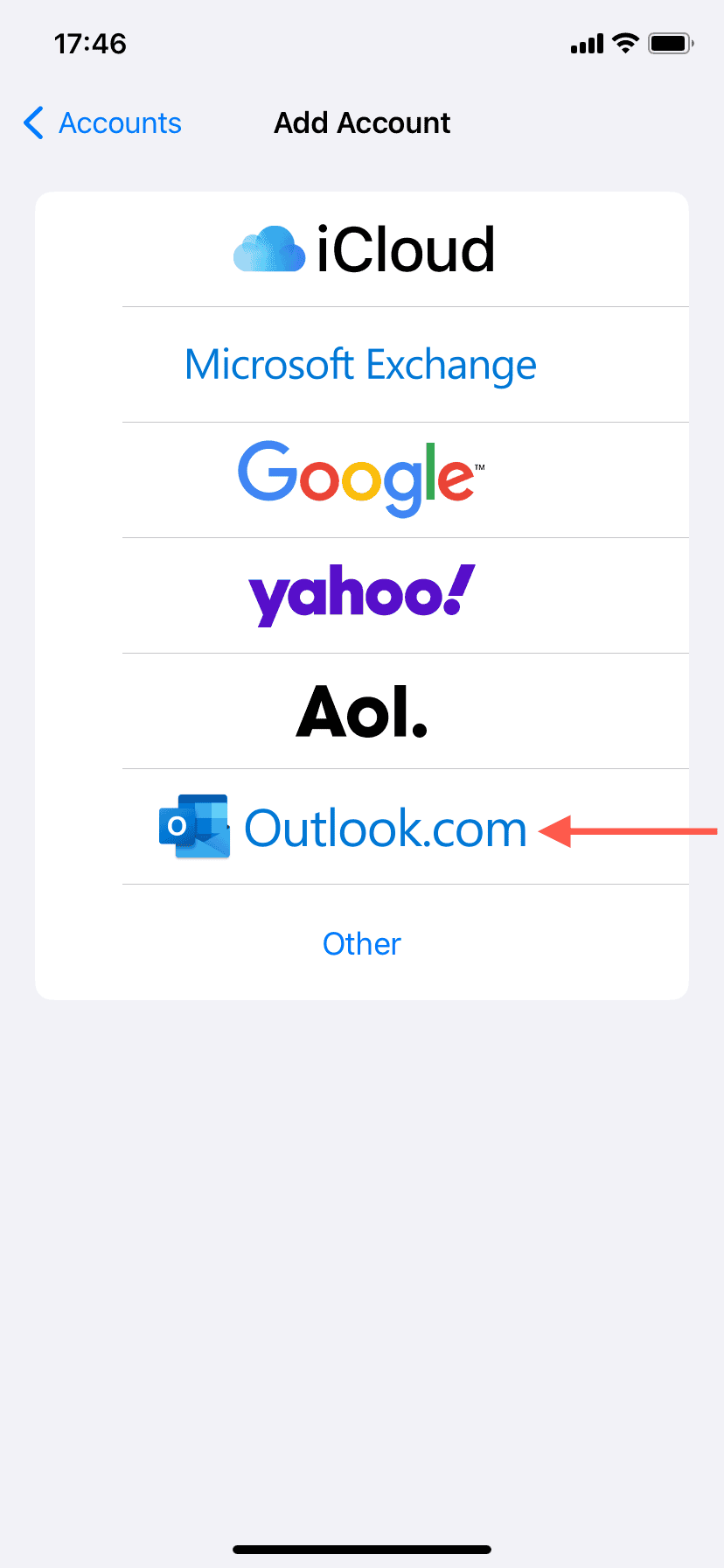


This resets outdated login tokens.
4. Change Your Outlook Password
Microsoft security systems sometimes reject older authentication sessions.


- Log into Microsoft Account settings on another device
- Change your password
- Re-enter the new password on iPhone
This forces a fresh authentication handshake.
5. Reset Network Settings
Corrupt network settings can interfere with Microsoft account verification.
- Open Settings > General > Transfer or Reset iPhone
- Tap Reset
- Select Reset Network Settings
You’ll need to reconnect to Wi-Fi afterward.
Why This Keeps Happening
Several factors commonly trigger Outlook password pop-ups on iPhone:
- Microsoft server outages
- iOS software bugs
- Outdated authentication methods
- Security verification loops
- Corrupt network settings
Today’s Outlook outage has likely increased these prompts for many users because Apple Mail struggles when Microsoft’s authentication systems degrade.
What You Should Do Right Now
If Outlook remains down globally, avoid repeatedly entering your password unless necessary, since failed authentication attempts can worsen account lockouts.
For immediate access:
- Use Outlook.com in Safari
- Use the official Microsoft Outlook app
- Monitor Microsoft’s status dashboard
- Wait for service restoration before making major account changes
Microsoft says it is actively investigating the issue, but until service fully stabilizes, iPhone users should expect some temporary login disruptions.


i cannot get into my outlook email.
even when i try to sign in on a laptop browser it does not let me.
it says i am typing an incorrect password but i know i am not.
i am so frustrated,
thanks for posting this, i thought i was going crazy
Not happening in Canada
Not true