

If you forgot the passcode to your iPhone or iPad, you can use Apple’s Recovery Assistant, erase the device through iCloud, or connect it to a Mac or PC to reset it. In many cases, you can recover access without losing your data. Here are the steps you need to follow.
Before we start with this guide, keep in mind that a professional third-party software, such as iMobie AnyUnlock, can greatly simplify this task as it is able to unlock most devices without any loss of data.
Table of contents
How to Reset Your iPhone/iPad Passcode
Step 1: Try Using Face ID or Touch ID (if set up)
If you’ve already enabled Face ID or Touch ID, your device may still allow temporary access. Use this window to:
- Back up your data to iCloud.
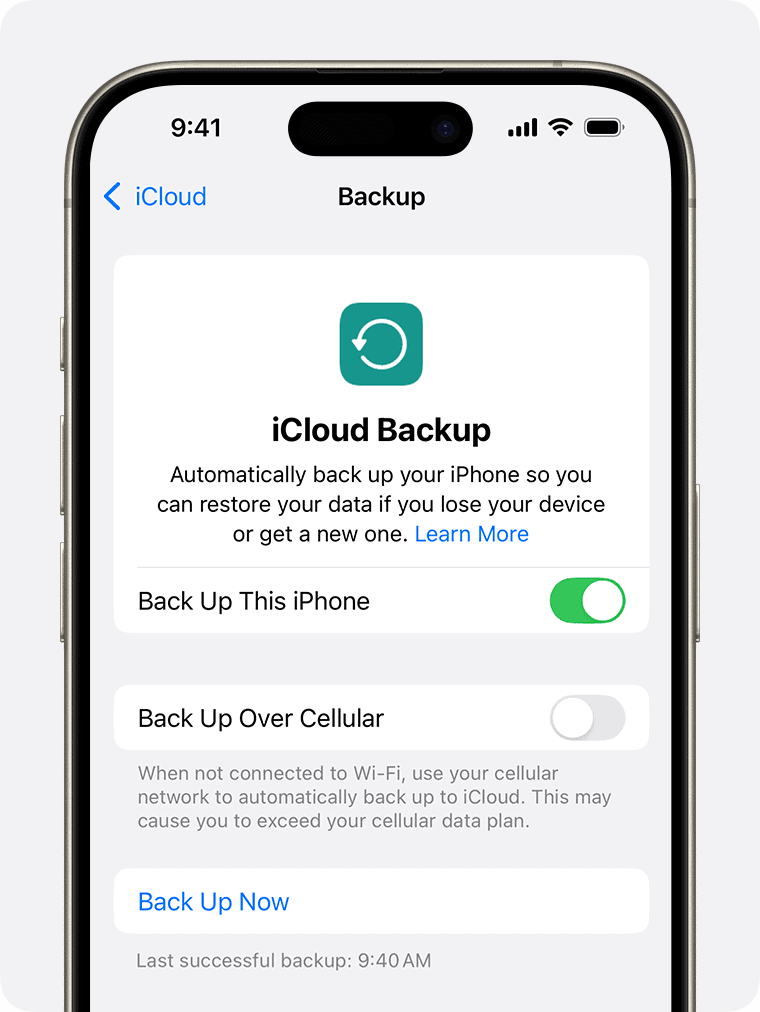
- Export important files.
- Prepare for a recovery step if needed.

Step 2: Use Apple’s New Recovery Assistant (2025)
The latest versions of iOS and macOS include Recovery Assistant, found in:
- iPhone/iPad: Open the Passwords app, tap Recovery Options
- Mac: Go to System Settings > Apple Account > Account Recovery
This feature helps you reset your device passcode without a full restore, as long as:
- You’re signed into your Apple ID(Apple Account)
- You’ve enabled iCloud Passwords
- You pass biometric or account verification
Step 3: Unlock with iCloud.com (if Find My is enabled)
If your device is locked and Recovery Assistant isn’t working:
- Visit iCloud.com and sign in.

- Click Find Devices, select your iPhone or iPad.
- Choose Erase iPhone/iPad.

 NOTE
NOTE
Step 4: Use a Trusted Recovery Contact (if set)
Apple allows you to assign Account Recovery Contacts, a trusted friend or family member who can help verify your identity.
- Go to Settings > [Your Name] > Sign-In & Security > Account Recovery.
- Tap your contact and follow the instructions to approve the reset request.

Step 5: Use Finder or iTunes Recovery Mode (last resort)
If the above options fail, use Recovery Mode:
- Connect your device to a Mac or PC.
- Put it into recovery mode (model-specific instructions apply).
- When prompted in Finder (or iTunes on Windows), select Restore.

This erases all data. You’ll only keep your info if you restore from a backup.
Tips for Preventing Future Lockouts
- Enable Face ID or Touch ID: Makes it easy to get back in if you forget your passcode.
- Set Up Account Recovery Contacts: It’s a lifesaver if you lose access.
- Keep iCloud Backups Enabled: So you don’t lose photos, messages, or apps if your device needs to be erased.
- Avoid Easy-to-Guess Passcodes: No birthdays, repeats, or “1234” sequences.
Frequently Asked Questions
Try Face ID, use Recovery Assistant (iOS 18 or macOS Sequoia), or erase your device via iCloud.com if Find My is enabled.
Yes, in some cases. If Face ID or Recovery Assistant works, you can regain access without a full restore.
Go to Settings > Screen Time, tap Forgot Passcode, and verify your identity using your Apple Account.
Visit iforgot.apple.com to recover your account.
No. If Activation Lock is turned on, you’ll need the Apple Account used during initial setup to regain access.
Summary
- Try biometric access first.
- Use Recovery Assistant in the Passwords app or Apple Account settings.
- Erase and restore from iCloud if needed.
- Leverage Account Recovery Contacts for extra help.
- Use Recovery Mode only if nothing else works.
Conclusion
Forgetting your iPhone or iPad passcode isn’t the end of the world. With Apple’s tools like Recovery Assistant, Account Recovery, and iCloud backup, you have multiple ways to regain access, often without losing your data. The key is acting quickly and setting up protections before problems happen.
If you haven’t already, consider setting a recovery contact and enabling iCloud Passwords. These simple steps can save you hours of stress later on.


