

The Apple Mail app is a core utility for managing email on iPhone, but it can occasionally stop updating. If your inbox fails to refresh or new messages do not appear, the issue may stem from misconfigured settings, connectivity problems, or software glitches. This guide outlines proven solutions to restore normal functionality and ensure your emails sync properly.
Table of contents
Common Reasons Why the Mail App Stops Updating

Several factors can prevent the Mail app from updating. These include disabled sync settings, incorrect fetch configurations, Low Power Mode, or network disruptions. Understanding these causes helps you apply the right fix without unnecessary troubleshooting.
Relaunch the Mail App
Sometimes, the Mail app may freeze or become unresponsive due to temporary glitches. Restarting the app can clear these issues.
- Swipe up from the bottom of the screen to open the App Switcher.
- Locate the Mail app and swipe it up to close.
- Reopen the Mail app from your Home Screen.
Check Mail Sync Settings
If synchronization is disabled, your inbox will not receive new messages. Verifying sync settings ensures your account is actively fetching data.
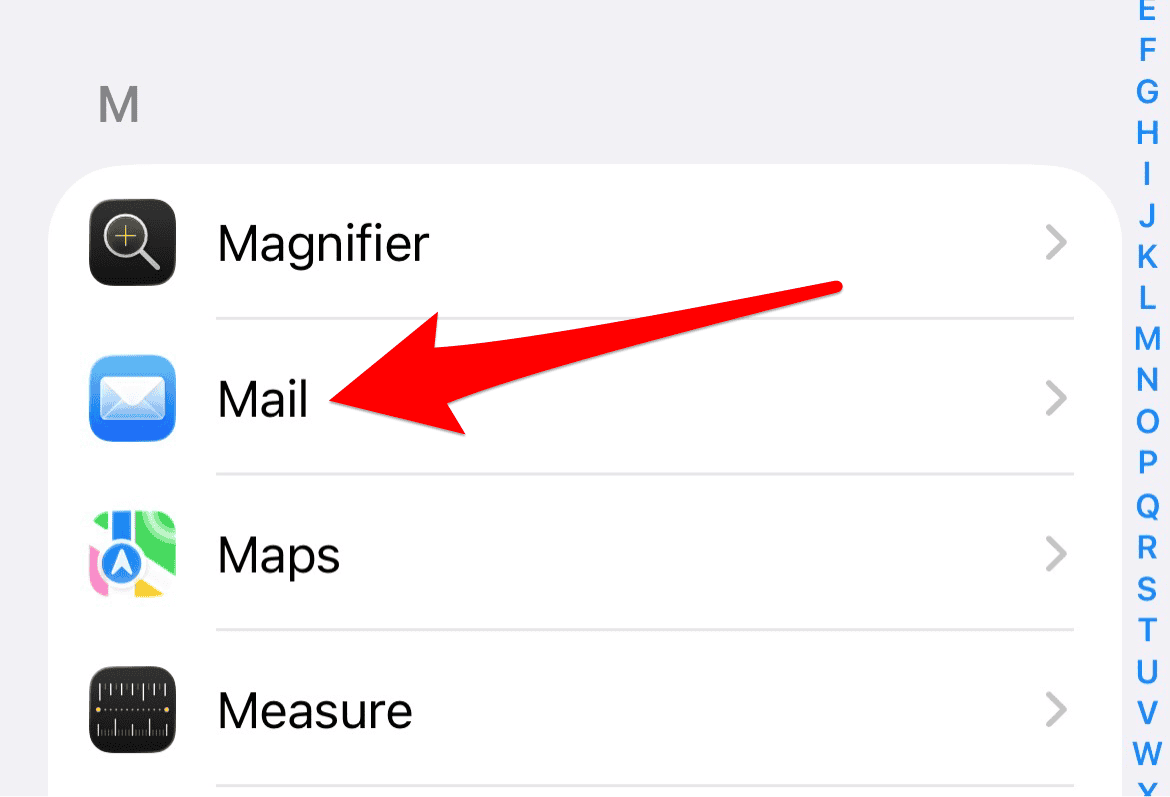
- Go to Settings > Apps > Mail.
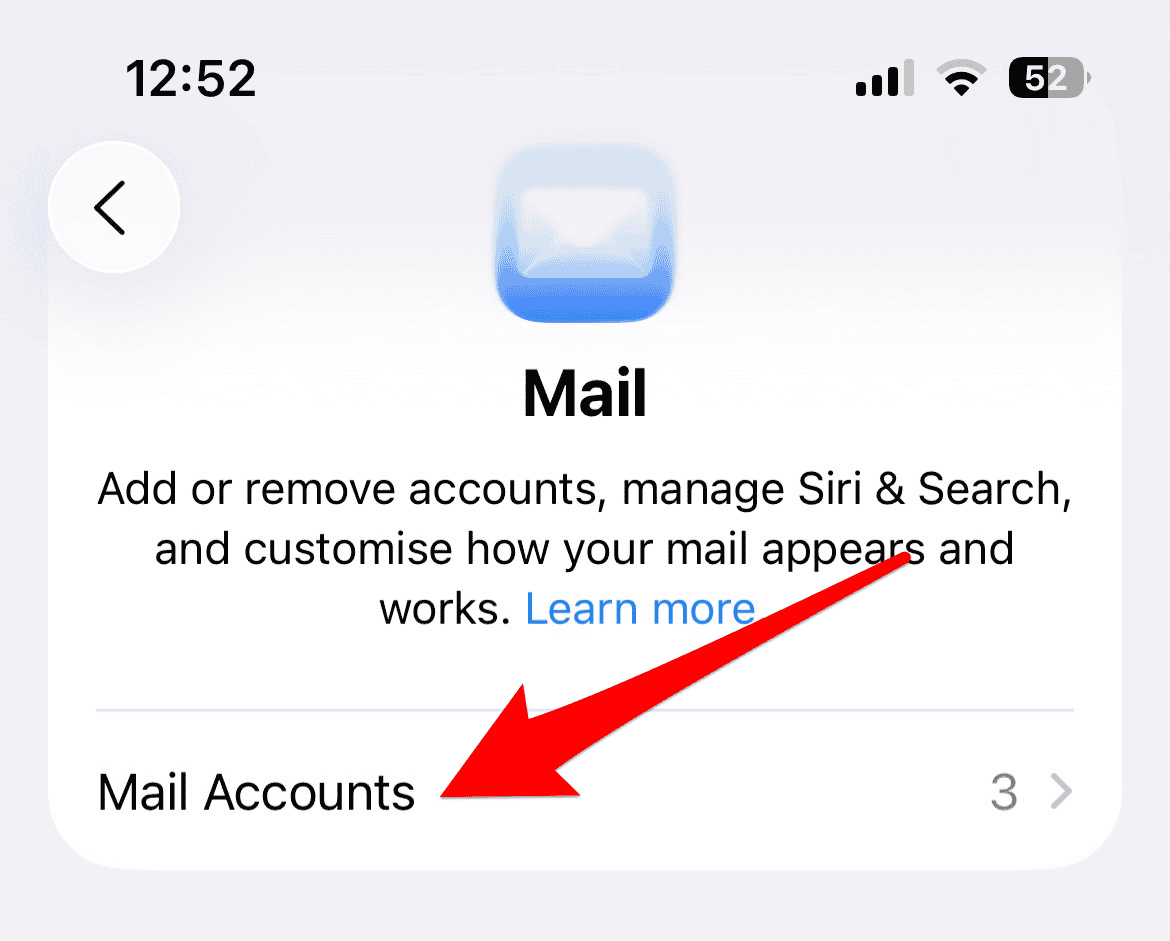
- Select Mail Accounts.
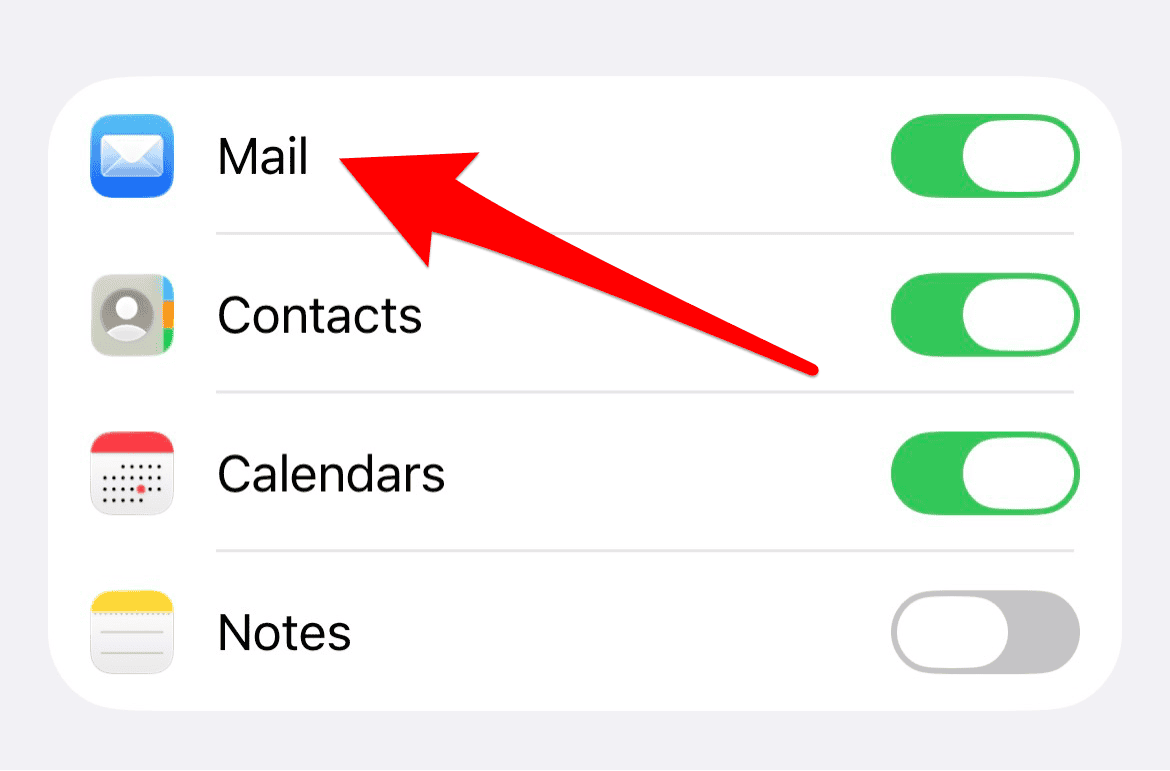
- Choose the affected email account.
- Ensure the Mail toggle is switched on.


Adjust Fetch and Push Settings
Incorrect fetch settings can delay or prevent email updates. Configuring these options allows the Mail app to retrieve messages more efficiently.
- Go to Settings > Mail > Accounts > Fetch New Data.
- Enable Push for accounts that support it.
- For others, select Fetch and choose a schedule such as Automatically or Hourly.
For persistent syncing issues, this fix the mail app not working on iPhone guide offers deeper troubleshooting steps.
Reset Network Settings
Network issues can block email synchronization. Resetting your network settings can resolve hidden connectivity problems.
- Open Settings > General > Transfer or Reset iPhone.

- Tap Reset > Reset Network Settings.

- Confirm your decision in the pop-up.


Disable Low Power and Low Data Modes
Power-saving features may restrict background activity, including email syncing. Disabling these modes restores full functionality.
- Go to Settings > Battery and turn off Low Power Mode.
- Navigate to Settings > Cellular > Cellular Data Options and disable Low Data Mode.
If your Mail app shows phantom unread messages, this fix for the Mail app showing unread emails walkthrough may help resolve the issue.
Re-add Your Email Account
If none of the above steps work, removing and re-adding your email account can resolve persistent issues.
- Open Settings > Mail > Accounts.
- Tap the account and select Delete Account.
- Re-add the account using the correct credentials.
Notification issues can also interfere with updates. This troubleshooting guide for the Mail app on iPhone covers how to fix alerts and badge counts.
FAQ
This usually means the app attempted to sync but failed due to a connectivity or server issue.
Yes, Apple Mail can be accessed via browser or third-party clients, depending on your email provider.
No, emails are stored on your provider’s server and will reappear once the account is re-added.
Restore Your Mail App’s Functionality
Resolving Mail app update issues on iPhone often requires a combination of settings adjustments and connectivity checks. By following the steps above, you can restore normal syncing and avoid missing important messages. If you’re working across platforms, you can also access the Apple Mail app on Windows, which may offer additional flexibility.


My Pages document attachment to Mail appears as grayed out. I cannot get the document to open once it is attached to the unsent mail. I have upgraded mail but no change. Any suggestions?