

You can change the desktop background in macOS directly from System Settings, Finder, or Control Center. macOS includes several built-in ways to update wallpapers and screensavers.
Table of Contents
Ways To Change the Desktop Background in macOS
Change Wallpaper Using System Settings
The main way to change the desktop background in macOS is through System Settings. This method gives access to Apple wallpapers, dynamic images, and custom photos.
Time needed: 3 minutes
- Open System Settings.
- Select Wallpaper in the sidebar.
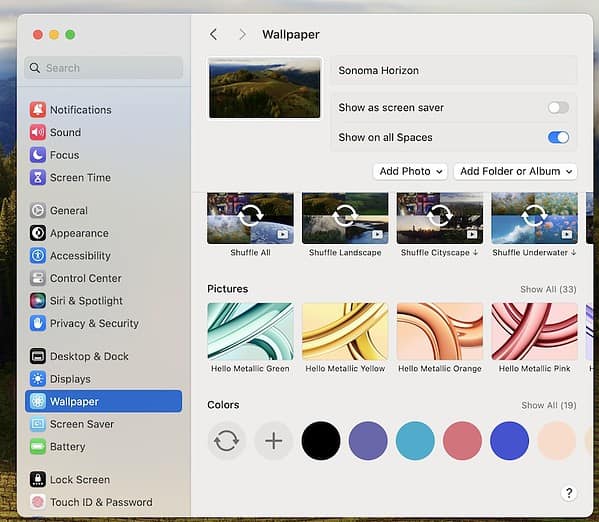
- Choose a built-in category or add your own image.
- Select the picture to apply it instantly.

This option lets you set different wallpapers for each display.
Change macOS Desktop Background From Finder
You can change the background on Mac by using Finder. This works well for photos stored locally.
- Open Finder and locate an image file.
- Right-click the image.
- Select Set Desktop Picture.
The image applies immediately without opening settings.
Use Control Center To Change Wallpaper in macOS
macOS Sonoma adds quick wallpaper access through Control Center. This method works for switching between recent backgrounds.
- Click the Control Center icon in the menu bar.
- Select Wallpaper.
- Choose a recently used background.
This option is limited compared to System Settings.
Link macOS Desktop Background Wallpaper and Screensaver

macOS allows linking the desktop picture and screensaver. This creates a smooth transition when the screen locks.
- Open System Settings.
- Select Wallpaper.
- Enable the option to use the same image for the screensaver.
This feature works with supported dynamic wallpapers.
Tips
- Use high-resolution Mac wallpapers for best results.
- Dynamic wallpapers adjust with time and lighting.
- Separate wallpapers help identify multiple displays.
- Organize custom images in a dedicated folder.
FAQ
Yes. macOS allows per-display wallpapers in System Settings.
Dynamic or rotating wallpaper settings may be enabled.
No. macOS does not support Live Photo wallpapers.
Summary
- System Settings offers full wallpaper control.
- Finder allows quick background changes.
- Control Center supports recent wallpapers.
- Screensavers can match desktop backgrounds.
Changing the wallpaper in macOS is quick and flexible. Using the right method helps keep your desktop organized and personal.


