

If you’ve ever relied on Split Screen on your iPad to multitask — maybe browsing the web while taking notes or checking your calendar during a video call — you know how powerful it can be. So when it suddenly disappears or stops working, it’s more than an inconvenience. It breaks your flow.
The thing is, the Split Screen feature on iPad isn’t broken most of the time — it’s just finicky. Maybe it’s disabled, or the app you’re trying to use doesn’t support it. Sometimes, it’s something small like having screen rotation locked. Whatever the cause, it’s fixable. Let’s walk through why Split Screen might be missing on your iPad and how to bring it back.
Table of contents
- Step 1: Make Sure Your iPad Actually Supports Split Screen
- Step 2: Check Whether the Apps Support Split Screen
- Step 3: Make Sure Screen Rotation Isn’t Locked
- Step 4: Double-Check That Multitasking Is Turned On
- Step 5: Update Your Apps
- Step 6: Restart Your iPad
- Step 7: Check for Software Updates
- Step 8: Reset All Settings
- Step 9: Learn the Correct Multitasking Gestures
- Step 10: When to Get Help
- Bottom Line
Step 1: Make Sure Your iPad Actually Supports Split Screen
Before you dive into settings, check that your iPad model supports multitasking. Split Screen only works on iPad mini 4 or later, iPad Air 2 or later, the fifth-generation iPad and up, and all iPad Pro models.
If you’re not sure what model you have, here’s a quick way to check:
- Open Settings.
- Tap General > About.
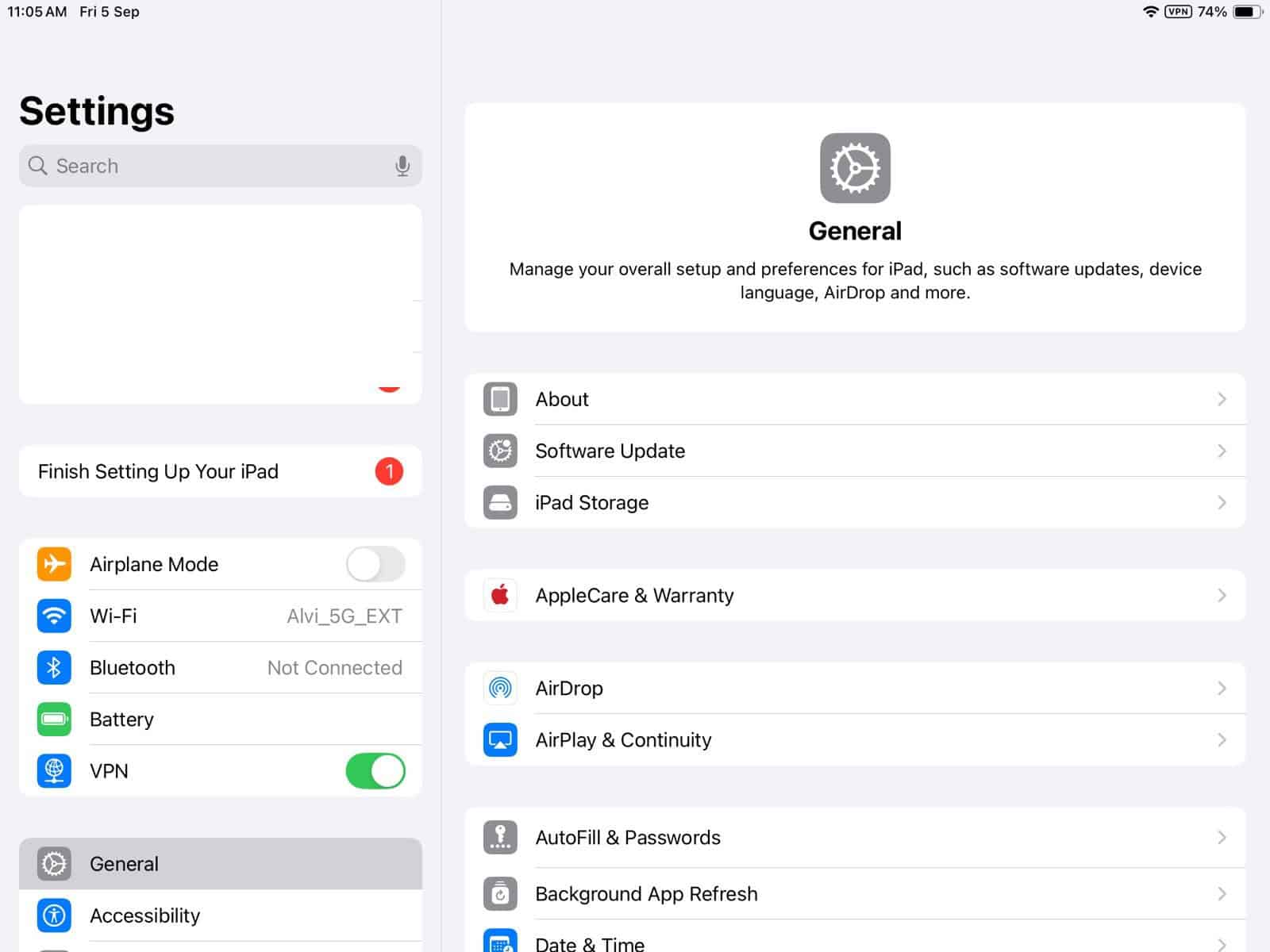
- Look for the Model Number and tap it once to see the version that starts with an “A” (like A1584).

You can cross-check that number on Apple’s website to confirm your model. If you’re using an older iPad, Split Screen might not be available — but Slide Over (the smaller multitasking option) might still work.
Step 2: Check Whether the Apps Support Split Screen
Not every app is built for multitasking. Safari, Notes, Files, and Mail work great in Split Screen. But some third-party apps, especially games or older ones, don’t support it at all.
Here’s a quick test:
- Open Safari, then swipe up gently from the bottom of the screen to reveal the Dock.
- Drag another app, like Notes or Messages, from the Dock to the left or right edge of the screen.
If it snaps into place, Split Screen is working — the issue is likely the app you were trying earlier. If nothing happens, keep reading.
Step 3: Make Sure Screen Rotation Isn’t Locked
Split Screen only works in landscape mode, so if your iPad is stuck vertically, the feature won’t show up.
- To check, swipe down from the top-right corner to open Control Center.
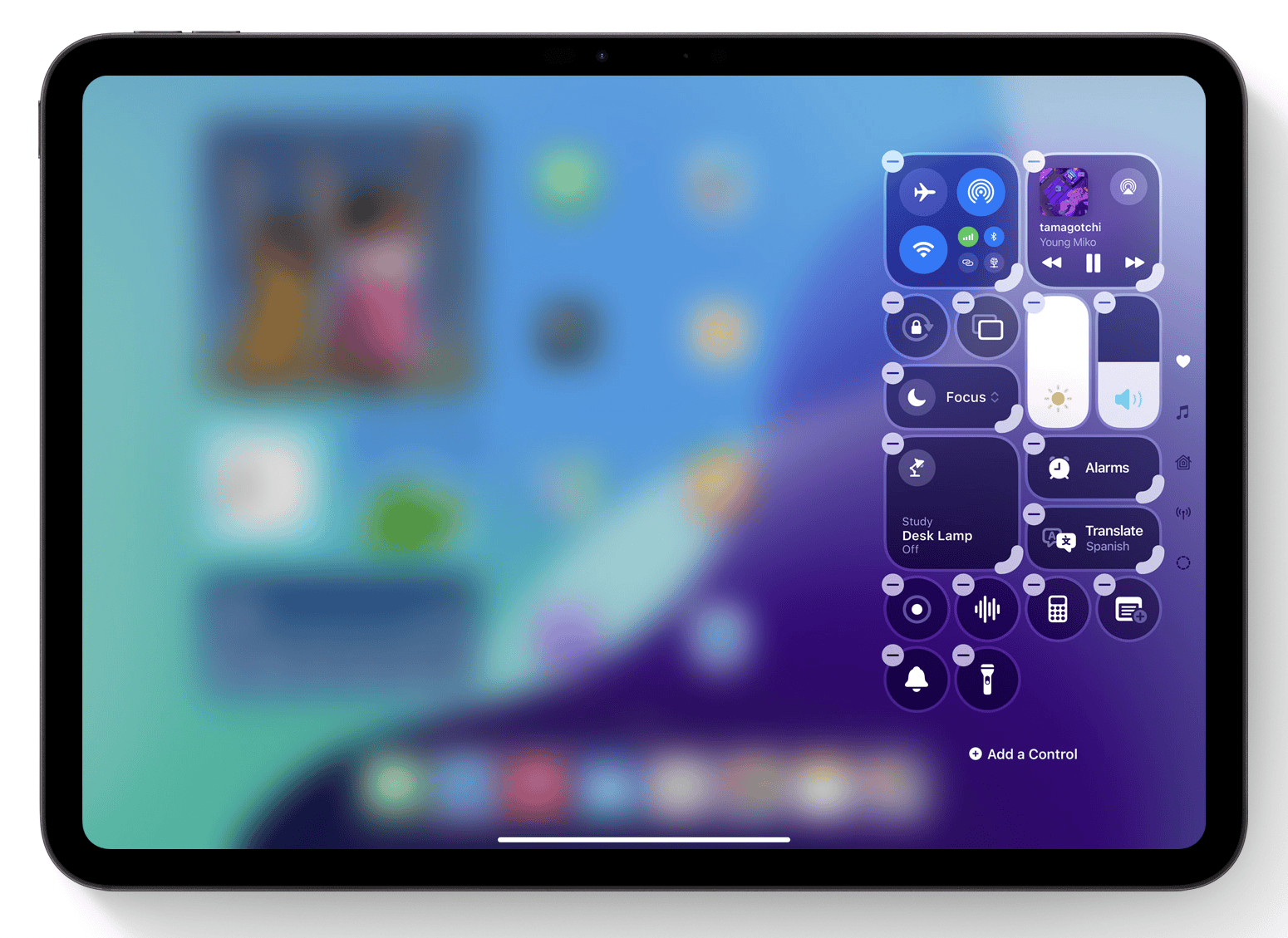
- If you see a lock icon with a circular arrow around it, that’s your Portrait Orientation Lock.
- Tap it once to turn it off.

Then rotate your iPad sideways — you should see the screen adjust. Try Split Screen again.
Step 4: Double-Check That Multitasking Is Turned On
Here’s the thing: Split Screen can be turned off entirely from Settings, and it’s surprisingly easy to forget.
- Go to Settings > Home Screen & Multitasking > Multitasking.
- You’ll see options for Allow Multiple Apps, Picture in Picture, and Gestures.
- Make sure Allow Multiple Apps is turned on. If it’s off, you won’t be able to use Split Screen or Slide Over at all.
- If it’s already on, toggle it off and back on again — that small reset can sometimes fix things.
Step 5: Update Your Apps
App updates aren’t just for new features — they also bring compatibility fixes. If Split Screen used to work and suddenly doesn’t, one of your apps may just be out of sync with iPadOS.
- Open the App Store, tap your profile icon at the top right, and scroll down to see pending updates.
- Tap Update All to bring everything up to date.
- Once done, reopen your apps and test Split Screen again.
Step 6: Restart Your iPad
When in doubt, reboot. Restarting clears small software hiccups that can break multitasking.
- If your iPad doesn’t have a Home button, press and hold either volume button and the top button until the Power Off slider appears.
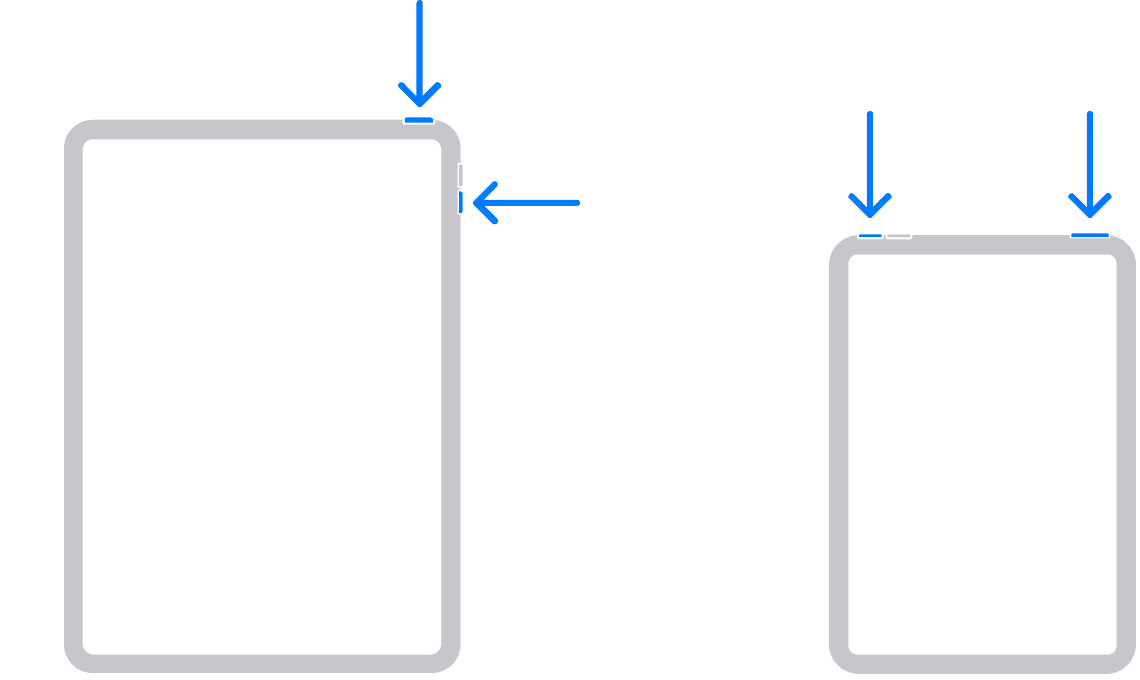
- Drag it to turn off, wait about 30 seconds, then hold the top button again until the Apple logo appears.
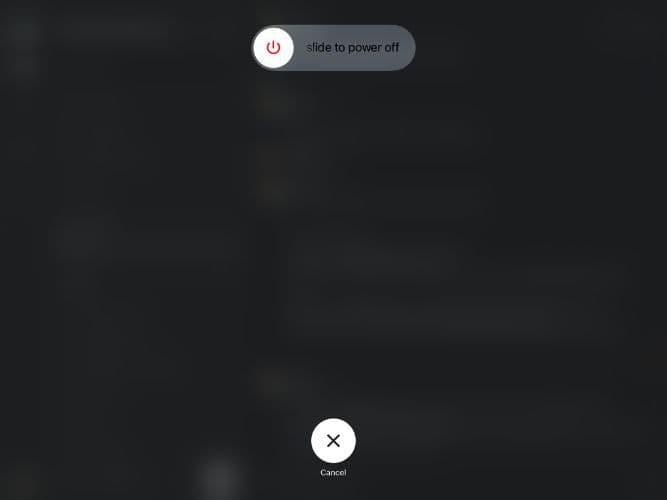
- If your iPad has a Home button just hold the top button until the slider appears.
- Same deal — slide to power off, then restart after half a minute.


Once your iPad is back on, open two supported apps and test Split Screen again.
Step 7: Check for Software Updates
Sometimes, the missing Split Screen isn’t about user error — it’s a system bug. Apple often patches these quietly in new updates.
- Go to Settings > General > Software Update and check if an update for iPadOS 26 is available.
- If there is, plug in your iPad, connect to Wi-Fi, and install it.
After updating, try multitasking again. Many users report that Split Screen starts working normally after a system update.
Step 8: Reset All Settings
If nothing else works, it might be a configuration glitch buried somewhere in your settings. Resetting them can help without wiping your data.
Go to Settings > General > Transfer or Reset iPad > Reset > Reset All Settings.
This will reset Wi-Fi networks, app layouts, and preferences — but your photos, apps, and files stay untouched. Once it restarts, check your multitasking settings again (see Step 4) and test Split Screen.
Step 9: Learn the Correct Multitasking Gestures
It’s worth taking a minute to revisit how Split Screen actually works, especially with iPadOS 26’s multitasking updates. There are three main gestures to know:
- Split View: Open one app, swipe up to reveal the Dock, then drag another app to the left or right edge until it splits the screen.
- Slide Over: Drag an app from the Dock into the center of the screen — it’ll hover over your main app instead of splitting.
- Picture in Picture: Start a video, then go Home — it’ll shrink into a small window you can move around.
If you’ve just updated your iPad, these gestures might feel slightly different. Apple occasionally tweaks them between versions, so spending a minute experimenting can make all the difference.
Step 10: When to Get Help
If Split Screen is still missing after all these steps, it could be a deeper software issue. At that point, you can contact Apple Support or visit an Apple Store for diagnostics.
You can also use Apple’s built-in feedback page to report bugs, especially if the problem appeared right after updating to iPadOS 26.
Bottom Line
Split Screen is one of the best parts of owning an iPad. It turns a tablet into something closer to a laptop — ideal for work, school, or just multitasking between a recipe and a playlist.
When it stops working, it’s rarely permanent. Usually, it’s just a switch turned off, a rotation lock left on, or an app that hasn’t caught up yet. Check your settings, update your apps, and restart your device. In most cases, that’s all it takes to get your multitasking back.


