

Resetting a Mac Mini to its factory settings is an essential process when preparing to sell your device, hand it over to someone else, or resolve persistent software issues. A complete reset erases all personal data, restores the operating system, and returns the Mac to its original configuration.
While the exact steps vary slightly depending on your macOS version and hardware type, Apple Silicon or Intel, the methods outlined below cover every scenario.
Table of contents
Why Reset Your Mac Mini
A factory reset removes all stored data, user accounts, and configurations, returning the device to its default macOS setup. It’s an important step when transferring ownership or troubleshooting major system problems that can’t be fixed through simple updates. Performing a reset also ensures that no personal or confidential data remains on the system.
If your Mac Mini runs macOS Sequoia, you can also refer to how to factory reset macOS Sequoia on Mac for version-specific instructions.
Before You Start
A factory reset will completely erase your Mac Mini’s drive, so preparation is key. Here’s what you should do before starting:
1. Back Up Your Data
Use Time Machine to create a complete backup of your system to an external drive. Alternatively, you can manually copy important files to iCloud Drive, Google Drive, or another cloud service. This ensures that documents, photos, and settings are preserved.
To create a Time Machine backup:
- Connect an external drive.
- Go to System Settings > General > Time Machine.
- Select your backup disk and click Back Up Now.
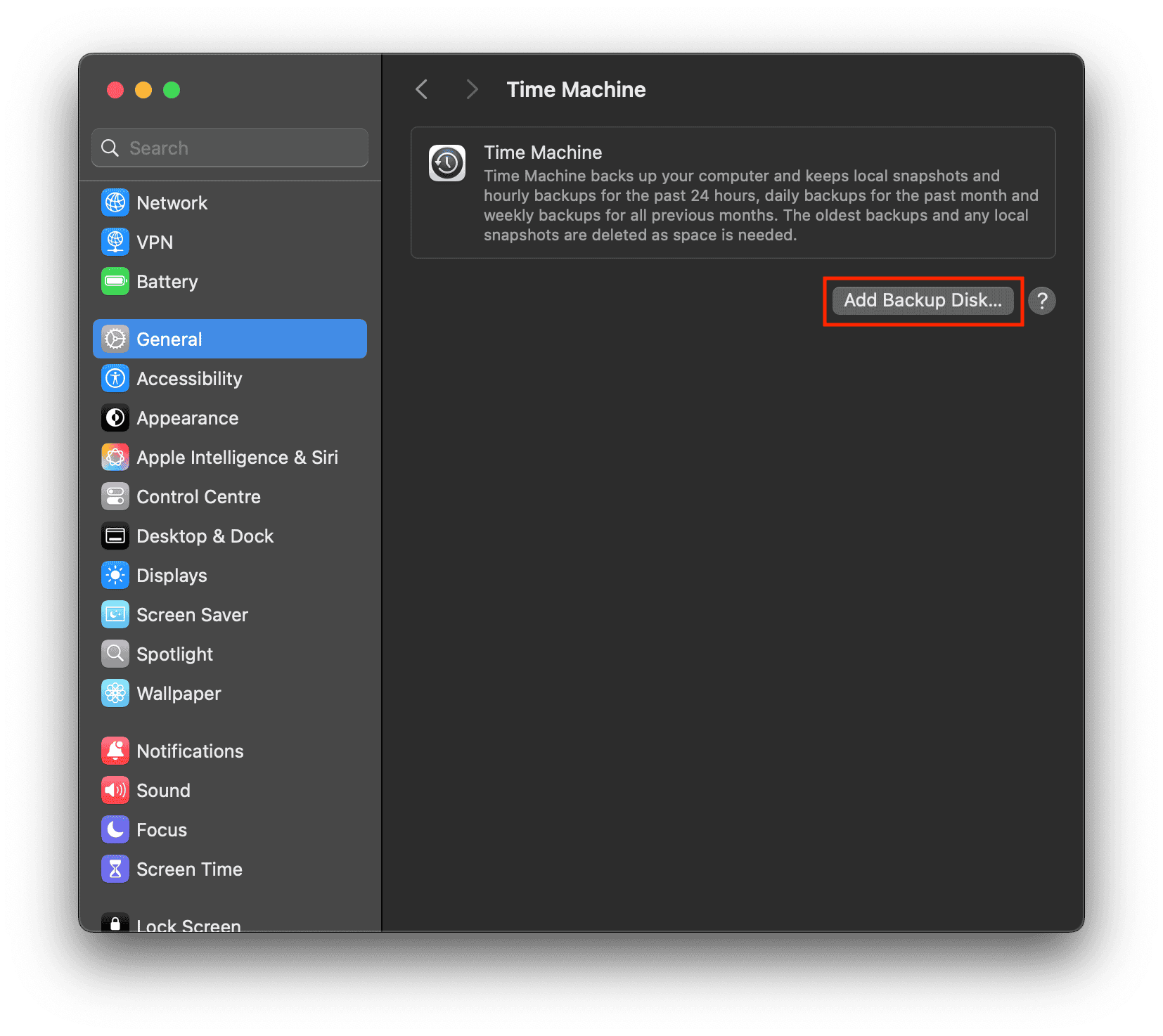

You can also back up your system with the help of professional tools such as EaseUS Data Recovery Wizard. This software works flawlessly for any computer, including Macs
2. Sign Out of Apple Services
Signing out of iCloud, iMessage, and other Apple services prevents activation issues for the next owner.
- Open System Settings > Apple ID, and click Sign Out.
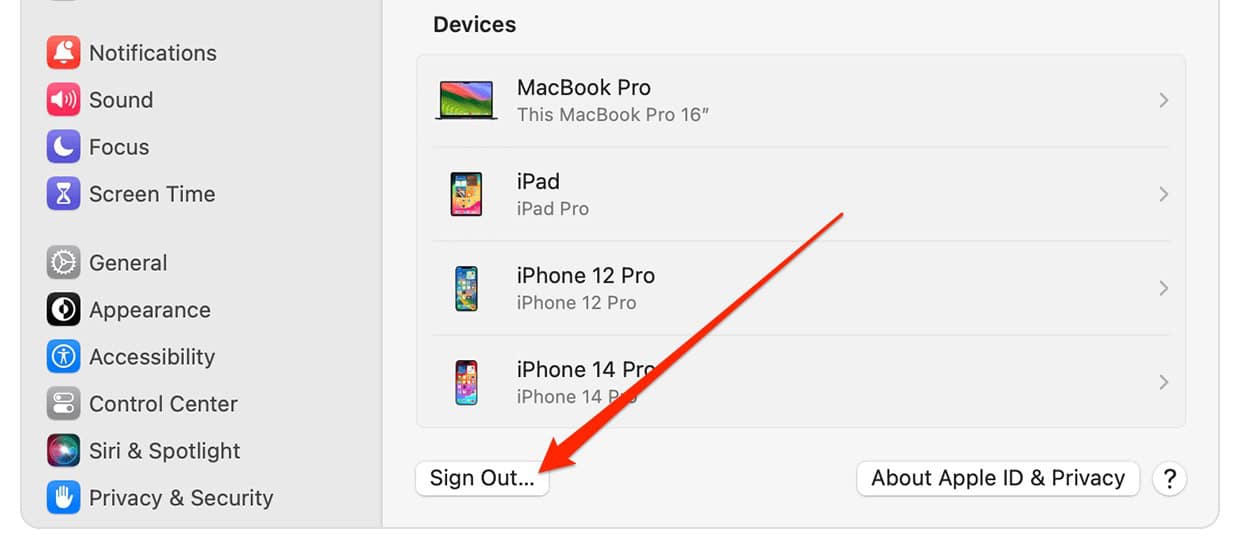
- In Messages, go to Settings > iMessage > Sign Out.
- Open Music or TV apps and sign out under Account > Sign Out.

3. Unpair Accessories and Remove Devices
Unpair any Bluetooth accessories like keyboards, trackpads, or headphones. This avoids confusion if you pair them with another Mac later.
- Go to System Settings > Bluetooth and click Disconnect or Forget for each device.
4. Deactivate Find My Mac
Disabling Find My Mac is essential before resetting.
- Open System Settings > Apple ID > iCloud, and toggle off Find My Mac.
This step ensures the activation lock is removed.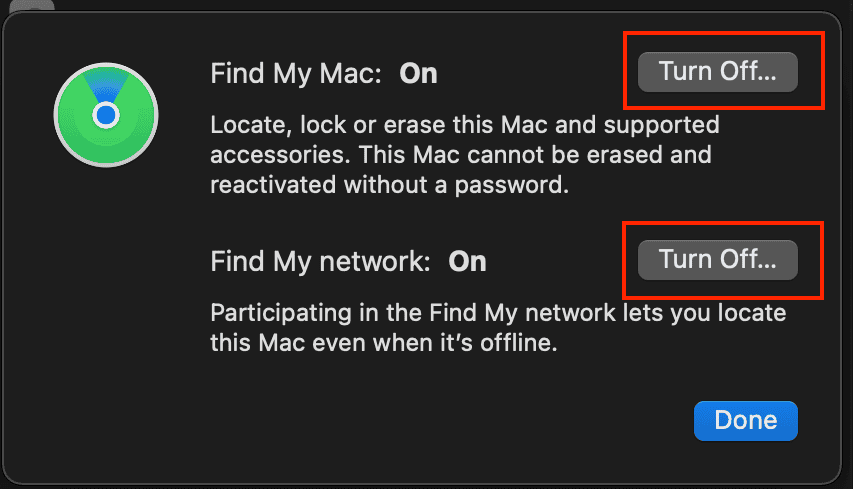

5. Check Internet and Power
Your Mac Mini must stay connected to the internet and plugged into power during the reset. macOS installation requires downloading files from Apple’s servers, so a stable Wi-Fi or Ethernet connection is important.
If you’re using an older Mac or planning to reinstall macOS later, you can learn more about setup differences in how to factory reset a MacBook Air.
All the Methods to Reset a Mac Mini to Factory Settings
Method 1: Use Erase All Content and Settings (macOS Monterey or later)
Apple introduced Erase All Content and Settings in macOS Monterey, making it faster to wipe your Mac without manually formatting drives. It’s available on Apple Silicon Macs and Intel Macs with the T2 Security Chip.
- Click the Apple menu and choose System Settings.
- Go to General > Transfer or Reset > Erase All Content and Settings.
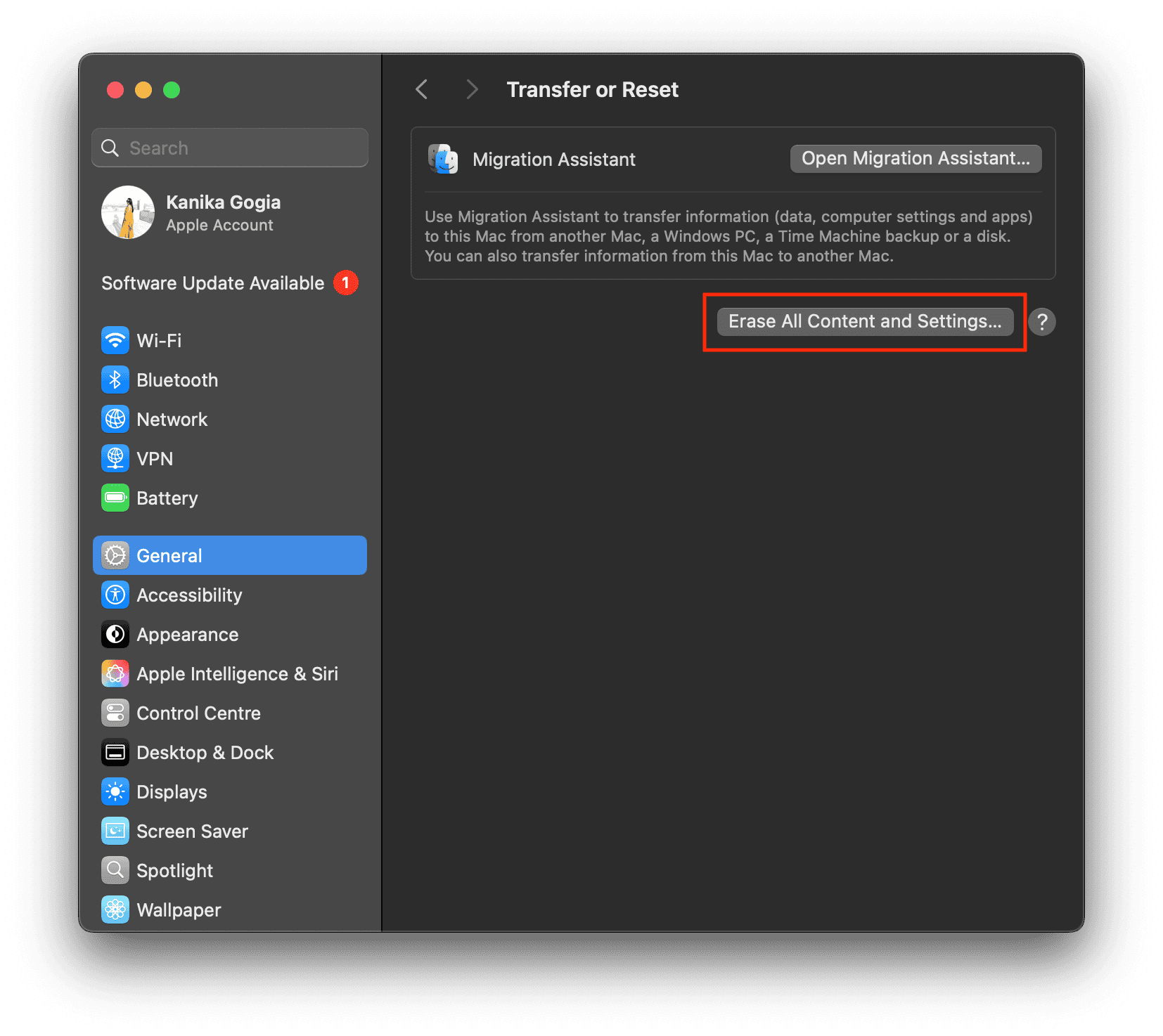
- Enter your administrator password.
- Review what will be erased, then select Continue.
- The system will restart, erase all data, and reinstall macOS automatically.

Once complete, your Mac Mini will reboot to the setup screen, ready to configure like a new device.
Method 2: Factory Reset Using macOS Recovery (All Versions)
If your Mac Mini doesn’t support the new reset option, use macOS Recovery. This is available on both Apple Silicon and Intel Macs.
For Apple Silicon Mac Mini (M1, M2, M3)
- Shut down your Mac Mini.
- Press and hold the power button until “Loading startup options” appears.
- Select Options, then Continue.
- Choose your user account and enter the password.
- In the macOS Utilities window, open Disk Utility.
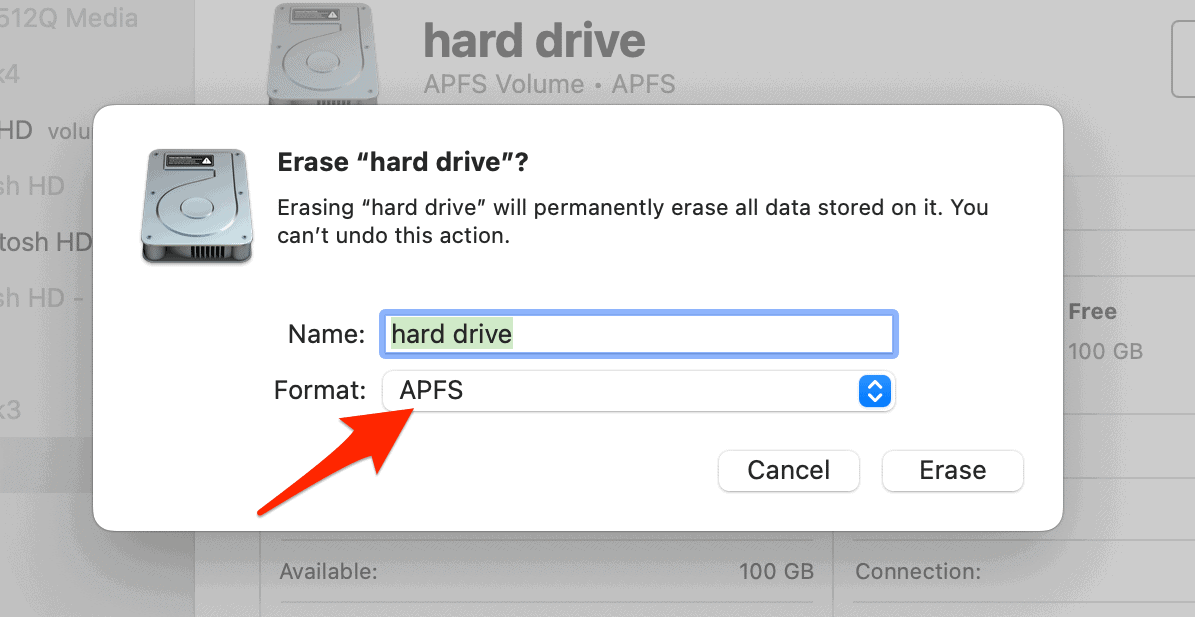
- Select Macintosh HD, then click Erase.
- Choose APFS format and confirm.
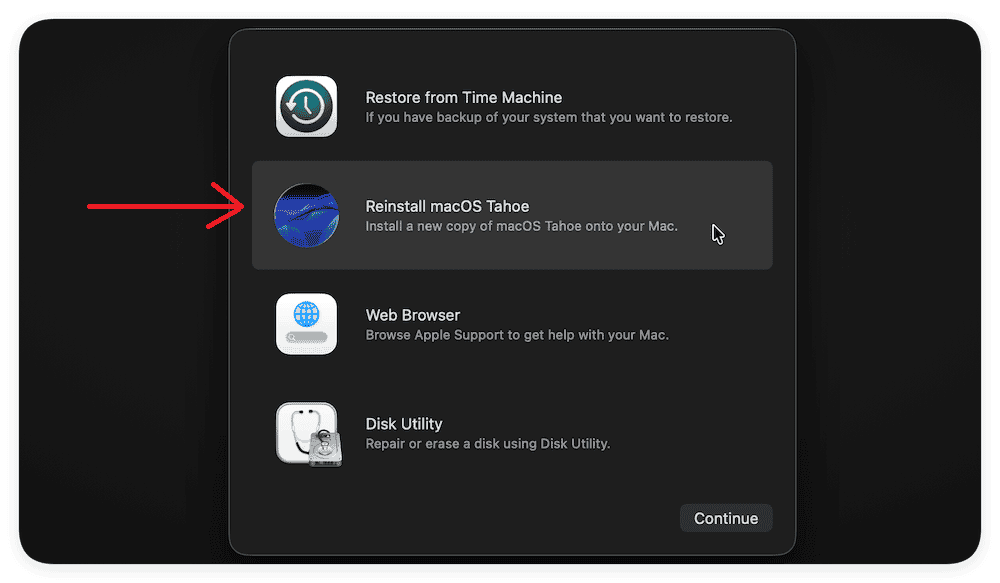
- After erasing, return to the main menu and click Reinstall macOS.

For Intel Mac Mini
- Restart your Mac and immediately hold Command + R.
- In Disk Utility, select your startup disk and click Erase.
- Use APFS or Mac OS Extended (Journaled) format.
- After erasing, close Disk Utility and select Reinstall macOS.

Method 3: Reinstall macOS Using Internet Recovery
Internet Recovery reinstalls macOS directly from Apple’s servers. It’s ideal when the local recovery partition is damaged or unavailable.
- Turn off your Mac Mini.
- Turn it on and press one of the following combinations:
- Command + Option + R: Install the latest compatible macOS.
- Command + Shift + Option + R: Reinstall the macOS that came with your Mac.
- Wait for the spinning globe icon to appear.
- Once the recovery screen loads, choose Reinstall macOS.
For a complete guide on reinstalling from Apple’s servers, see how to reinstall macOS using Internet Recovery Mode.
Method 4: Reset via Apple Configurator (Apple Silicon only)
If Recovery Mode doesn’t work, you can restore your Mac Mini using Apple Configurator from another Mac.
- Connect both Macs using a USB-C cable.
- Open Apple Configurator on the working Mac.
- Select your Mac Mini in the list.
- Choose Restore from the toolbar.
This will erase the system and reinstall macOS firmware and software from scratch.
Additional Tips
- Always back up data before erasing.
- Unlink your Apple ID and disable Find My Mac.
- Keep your Mac plugged into power and connected to Wi-Fi.
- For better stability, use a wired internet connection.
- If you’re having issues with other Macs, you can also reset the Touch Bar on MacBook.
Final Thoughts
A factory reset is the most effective way to give your Mac Mini a clean slate. Whether you’re running the latest macOS Sequoia or an older version, Apple provides multiple tools to securely erase and reinstall your system. Using Erase All Content and Settings is the fastest method, but macOS Recovery and Internet Recovery remain dependable alternatives. Once the reset is complete, your Mac Mini will be ready to set up as new or pass on to another user safely.
FAQs
Yes, all reset methods reinstall macOS once the data is erased.
Yes, if you’re on macOS Monterey or later, use Erase All Content and Settings.
Typically between 30 minutes and 2 hours, depending on download speed.
Yes, as long as you’ve signed out of your Apple ID and erased all content.


