

Restoring your iPhone might sound scary, but it’s not as complicated as it seems. In this guide, we’ll walk you through what “Restore iPhone” actually means, when you should use it, and how to do it safely, whether through iCloud, Finder, Recovery Mode, or even DFU. Let’s get started!
The best way to make sure you have a proper backup of your iPhone and do not lose any data is with the help of professional software such as Tenorshare iCareFone. This tool is very easy to use and allows you to create a full backup and then restore your iPhone in no time.
Table of contents
What Does “Restore iPhone” Mean?
When you restore your iPhone, you’re essentially wiping it clean and reinstalling the latest version of iOS. This process can fix bugs, free up storage, remove unwanted data, and reset everything to factory settings.
Think of it like hitting the reset button, but with a few smart steps to back up your data first.
When Should You Restore Your iPhone?
Here are some common situations:
- You’re selling or giving away your iPhone
- It’s stuck, glitchy, or won’t turn on
- You’re switching to a new iPhone
- You want to start fresh with no leftover clutter
- iCloud backup won’t complete, and you need a reset
How to Prepare Before Restoring
Before wiping anything, take a few key steps:
- Back up your data: Go to Settings > Apple Account > iCloud > iCloud Backup and tap Back Up Now. If iCloud backup won’t complete, try using Finder (macOS) or iTunes (Windows).

- Use Finder or iTunes to encrypt your backup
- Connect your iPhone to your Mac or PC.
- In Finder or iTunes, check “Encrypt local backup” to save passwords, Health data, and more.
- Click Back Up Now.
- Turn off Find My iPhone: Go to Settings > Apple Account > Find My > Find My iPhone and toggle it off. You’ll need your Apple ID password.
- Sign out of iCloud: This helps ensure the phone isn’t Activation Locked for the next user.
How to Restore iPhone (4 Methods)
Method 1: Restore Using Settings (Factory Reset)
- Open Settings > General > Transfer or Reset iPhone.
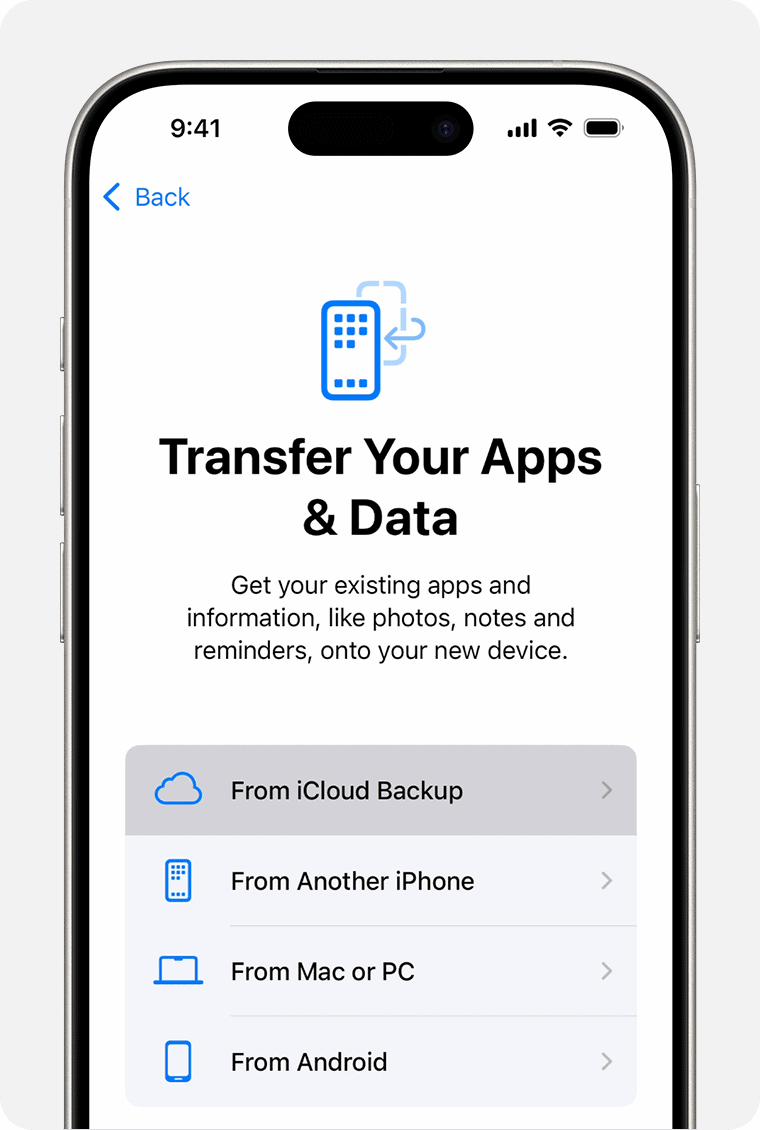
Image credit: Apple - Tap Erase All Content and Settings.
- Follow the prompts to confirm.

This is the easiest way if your iPhone is working normally.
Method 2: Restore Using Finder or iTunes (Mac/PC)
- Connect your iPhone to your computer.
- Open Finder (Mac) or iTunes (Windows).
- Select your device when it appears.
- Click Restore iPhone.
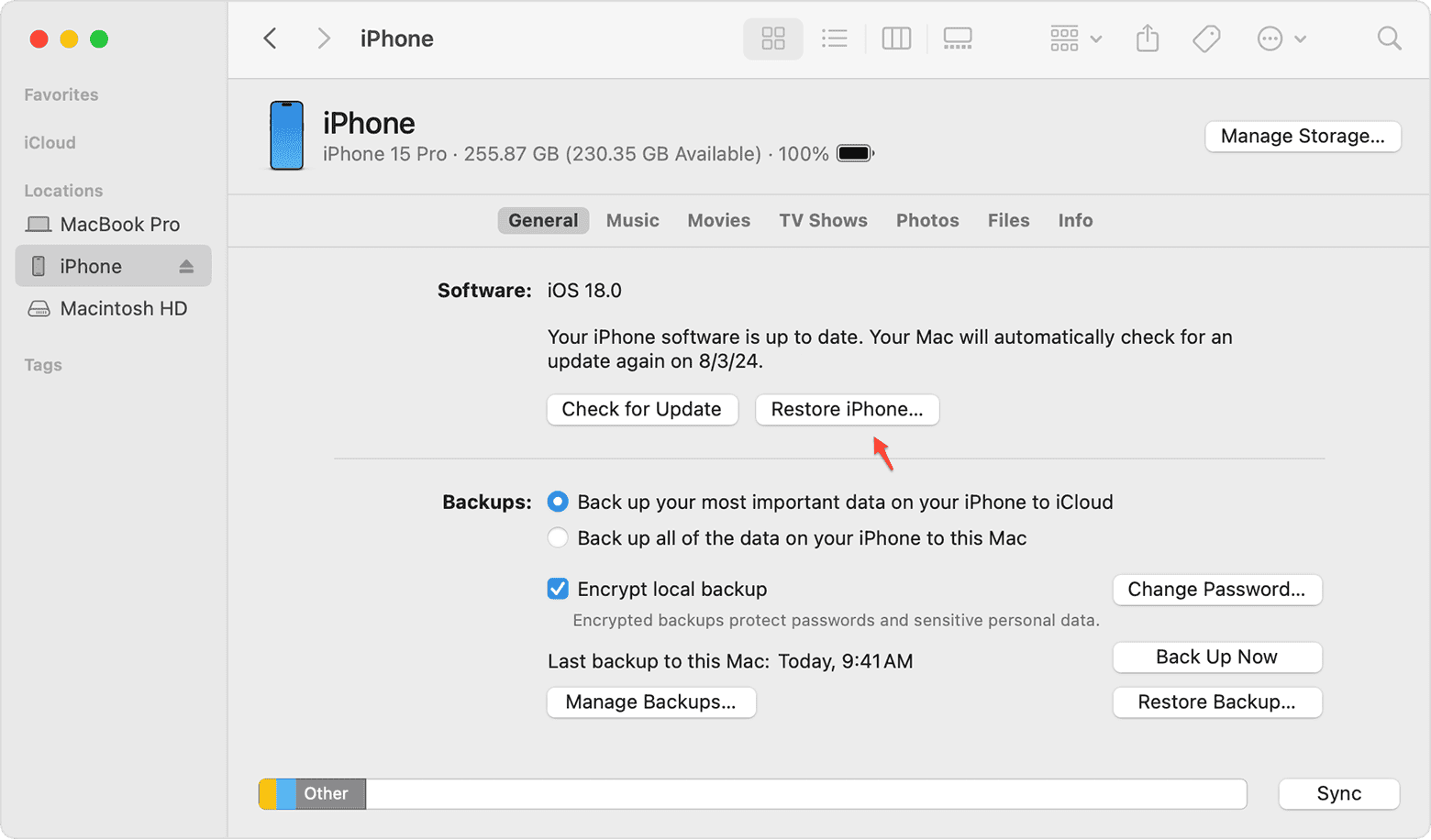
Image credit: Apple - Confirm and wait. Your iPhone will reboot like new.

Method 3: Restore in Recovery Mode (If Your iPhone Is Unresponsive)
- Connect your iPhone to a computer.
- Quickly press and release Volume Up, then Volume Down.
- Press and hold the Side button until you see the Recovery Mode screen.
- In Finder/iTunes, choose Restore.
Tip: Recovery Mode is useful if your iPhone is stuck on the Apple logo or in a boot loop.
Method 4: Restore in DFU Mode (Advanced)
DFU stands for Device Firmware Update. It’s the most in-depth restore method, ideal if other options don’t work.
- Plug in your iPhone.
- Quick-press Volume up and release.
- Quick-press Volume down and release.
- Long-press the Side button for 10 seconds.
- While long-pressing the Side button, long-press the Volume down button for 5 seconds.
- Release the Side button while continuing to long-press the Volume down button for an additional 10 seconds.
- Your screen will go black (no logo or text).
- Finder or iTunes will detect a device in recovery, then you have to click Restore.

Only use DFU if you’re comfortable following step-by-step guides or have experience.
Tips and Troubleshooting
- iCloud backup won’t complete? Try freeing up space or use Finder/iTunes for a manual encrypted backup.
- Backup taking too long? Use Wi-Fi and plug in your phone. Local (encrypted) backups via computer are faster.
- Encrypt your backups: This saves your Wi-Fi settings, passwords, and health data.
- Selling your iPhone? Make sure to sign out of iCloud and erase all content before handing it over.
Frequently Asked Questions
Quickly press Volume Up > Volume Down, then hold the Side button until the Recovery Mode screen appears.
It erases all data and reinstalls the latest iOS version. It’s like a factory reset.
It lets your iPhone connect to a computer for troubleshooting, updates, or a clean install of iOS.
Yes, unless you choose Update during Recovery Mode. Always back up first.
Summary
- “Restore iPhone” resets your device to factory settings
- Backup before restoring and use iCloud or Finder/iTunes
- Choose between Settings, Finder/iTunes, Recovery Mode, or DFU Mode
- Recovery Mode is great for stuck or frozen iPhones
- Always sign out of iCloud and erase everything before selling
Conclusion
Restoring your iPhone can free up space, fix bugs, or get your device ready for a new owner. With the right prep, like backups and Apple Account sign-out, it’s a smooth and stress-free process.


