

When Safari crashes the moment you close a tab, the timing feels almost personal. One click and the entire browser disappears. The good news is that this problem usually isn’t mysterious. It comes from memory overload, corrupted data, misbehaving extensions, or a browser that needs a tune up. Once you address the real cause, Safari goes back to behaving like a normal browser instead of a jumpy one.
Table of contents
Start by forcing Safari to quit
Here’s the thing. After a crash, Safari often leaves background processes running. Those leftovers can trigger another crash the next time you close a tab.
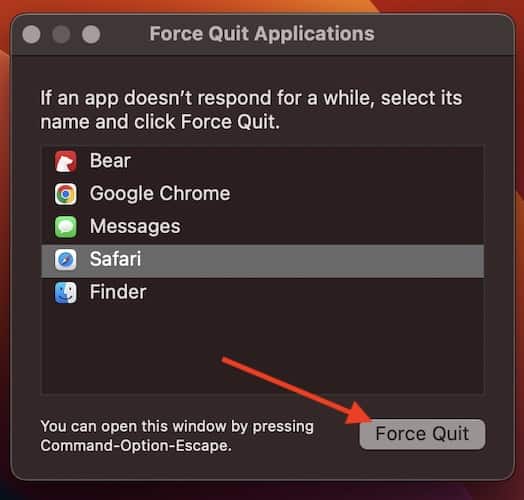
- Force quit Safari using Command + Option + Esc, choose Safari, then hit Force Quit.
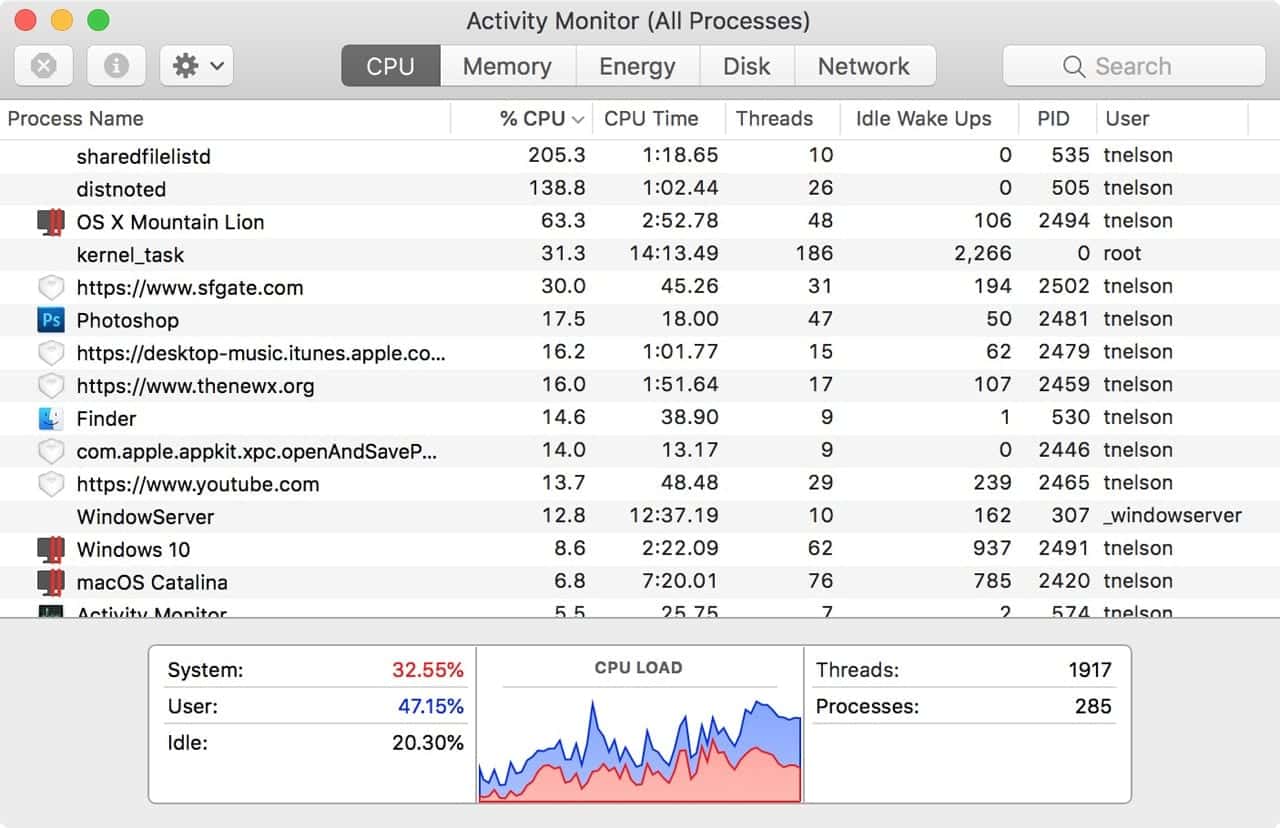
- You can also open Activity Monitor, find Safari, and force quit it there.


Once Safari is fully closed, you’re starting fresh instead of stacking problems on top of each other.
Clear out unnecessary tabs

If you keep dozens of tabs open, closing one can be the last push Safari needs to fall over. Tabs consume memory, and when memory runs low, crashes happen.
Right click the tab you want to keep and choose Close Other Tabs. This wipes the slate clean in one move and often stops the crash cycle instantly.
Restart your Mac
A restart resets everything Safari relies on. Memory clears, cached system processes reset, and anything stuck in a half frozen state disappears.
Click the Apple icon, choose Restart, confirm, and let the machine reboot before testing Safari again.
Clear Safari’s cache and cookies
Corrupted website data is another common cause of tab-closing crashes. When Safari tries to unload a tab and trips over bad cached data, it can crash instead of clearing it.
- Go to Safari > Settings > Privacy > Manage Website Data.
- Click Remove All, then Remove Now.
- Relaunch Safari.
Yes, this logs you out of most sites, but it also removes the junk files that keep tripping the browser.
Check your Safari extensions
If the crash always happens on the same site, or while closing a tab with a specific type of content, an extension may be the culprit. Ad blockers and script tools are frequent offenders.
- Open Safari > Settings > Extensions.
- Uncheck everything.
- Use Safari for a bit and see if the crashing stops.
If it does, turn extensions back on one at a time until you find the troublemaker.
Update Safari
If you’re running an outdated version of macOS, Safari is outdated too. Older versions have bugs that show up in weird ways, including crashes tied to closing tabs.
- Go to System Settings > General > Software Update.
- If there’s an update waiting, install it.
Safari updates alongside macOS, so this pulls in bug fixes that directly relate to browser stability.
Check for malware
While rare, malware or unwanted software can destabilize Safari and cause unexpected crashes when opening or closing tabs. If you’ve seen other strange behavior on your Mac, scan it.
Reset Safari preferences
If nothing else works, Safari’s preference files might be corrupted. When those files break, even simple actions like closing a tab can cause the browser to quit entirely.
- Quit Safari.
- Open Finder, hold Option, click Go, choose Library.
- Open Preferences.
- Delete files starting with com.apple.Safari.
- Empty the Trash and relaunch Safari.
This resets your settings, so back up anything important first.
How to avoid crashes going forward
A few habits help prevent Safari from crashing again:
- Keep your number of open tabs reasonable.
- Clear history and website data once in a while.
- Remove extensions you don’t use.
- Update macOS regularly.
Safari shouldn’t flinch every time you close a tab. With the fixes above, it goes back to feeling stable and predictable.


