

If Apple Music keeps playing after an album ends, you usually have Autoplay turned on. Autoplay is the feature that queues “similar songs” once your current queue finishes. Apple shows it as the infinity (∞) icon in the Playing Next queue.
If music starts the moment you connect to your car, Bluetooth speaker, or CarPlay, that is often a separate behavior. You can still reduce it with a few settings and a simple automation.
Turn off Autoplay on iPhone or iPad (the main fix)
- Open Music and start playing any song.
- Tap the mini player at the bottom to open the Now Playing screen.
- Tap Playing Next (queue icon).
- Scroll until you see Autoplay and tap the ∞ icon to turn it off.
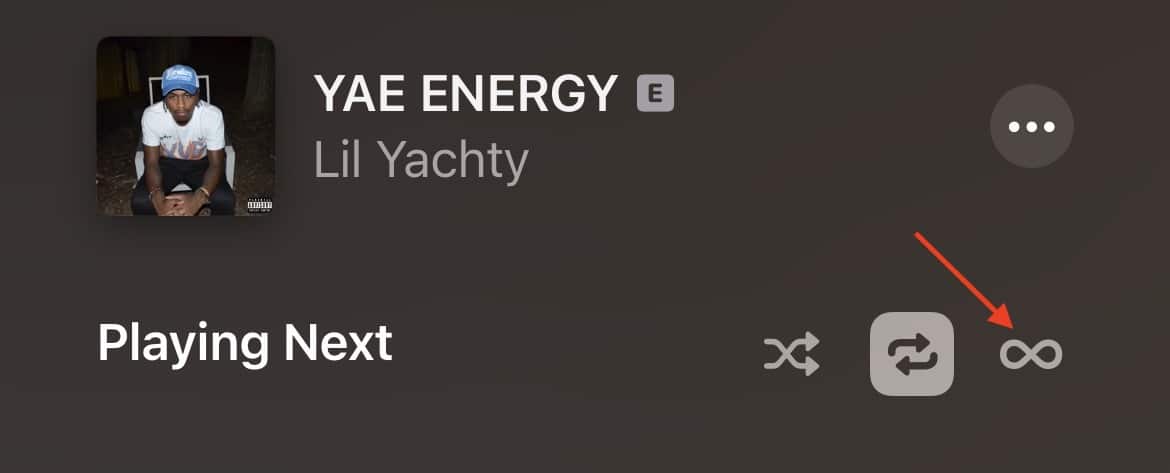
- Confirm the “Autoplaying similar music” section disappears or stops updating.


If Autoplay keeps coming back on, repeat the steps while music is playing. Autoplay is tied to the current queue, so it can look like it resets when you start playback a different way.
Turn off Autoplay on Mac (Music app)
- Open the Music app and play a track.
- Open the Queue or Playing Next panel using the top-right queue icon.
- Find the Autoplay (∞) control and click it to turn it off.
Turn off Autoplay on Android (Apple Music app)
The Android app also uses the same ∞ Autoplay control inside the queue. If you see Apple Music switching to similar songs, turn off the infinity icon in the Playing Next queue.
If Apple Music starts playing when you get in the car
This is the most annoying version because it feels like autoplay, but it often comes from how the iPhone reconnects to the car audio, not the Autoplay queue.
Try these fixes in this order:
- Enable Keep Audio with Headphones if your issue is audio jumping to the car when you already use AirPods or wireless headphones. Go to Settings > General > AirPlay and Continuity > Keep Audio with Headphones.
- Set Automatically AirPlay to Ask or Never if playback keeps routing to nearby speakers. Go to Settings > General > AirPlay and Continuity > Automatically AirPlay.
- Create a Shortcuts automation that runs Pause when your car Bluetooth connects.
Quick troubleshooting checklist
- Make sure you toggle Autoplay while a song is actively playing.
- Restart your iPhone if the infinity icon is missing or Music behaves oddly.
- If the problem occurs only with one headset, check its device-specific playback or wear-detection features.
Summary
To stop Apple Music from automatically playing, turn off Autoplay (∞) in the Playing Next queue on iPhone, iPad, Mac, or Android. If music starts when you connect to your car, adjust the AirPlay and Continuity settings, and use a Bluetooth pause automation for better control.


I do not see a Playing Next queue and no matter what I do it plays the next song in my library.
maybe because Autoplay is on. Open Now Playing > Queue (three lines at bottom right) and tap the infinity icon to turn Autoplay off