
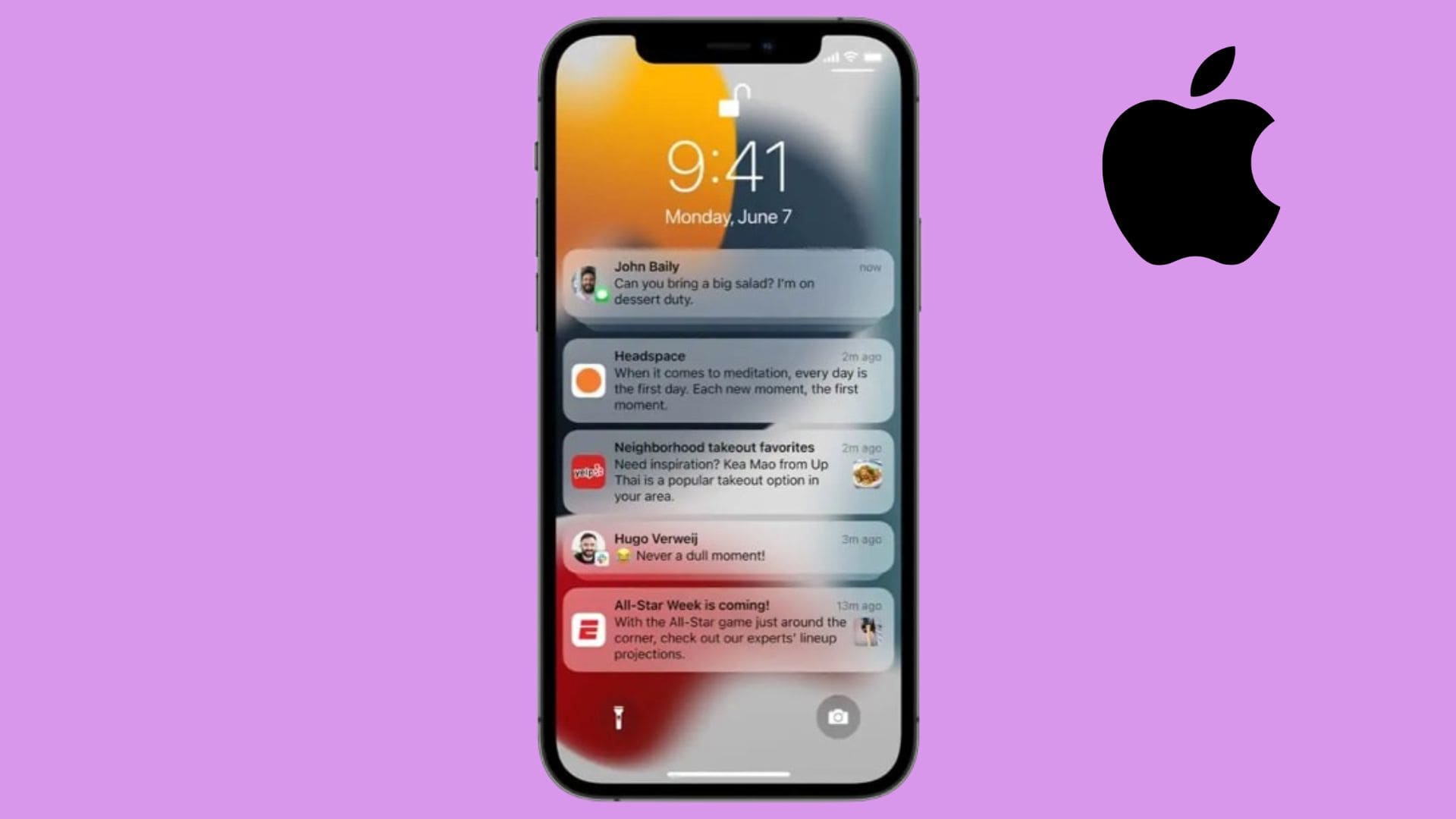
iOS 26 came with major redesign and new notification behaviors driven by the Liquid Glass interface and Apple Intelligence features. That redesign and the return of AI-driven notification summaries can change how alerts appear and when they arrive, leading to problems that persist even in iOS 26.1. If your iPhone misses, delays, or hides notifications after updating to iOS 26.1, the problem usually comes down to new display defaults, Focus and Power settings, adaptive battery controls, or app-level permissions. Here’s how to fix it.
Table of contents
- Methods to Fix
- 1. Check and Configure Notification Settings
- 2. Restart Your iPhone
- 3. Update iOS and Apps
- 4. Review AI Summaries and Notification Summarization
- 5. Disable or Reconfigure Focus Modes
- 6. Check Power Modes
- 7. Enable Background App Refresh
- 8. Uninstall and Reinstall Problematic Apps
- 9. Reset Network Settings
- 10. Ensure Notification Center and Lock Screen Access
- 11. Reset All Settings
- 12. Use iOS System Recovery Tools
- 13. Force Close and Reopen Apps
- Tips
- FAQs
- Summary
- Conclusion
Methods to Fix
Start with the basic checks below. If a problem persists, move to the advanced steps. Apple reorganized some settings in iOS 26, so I call out the exact paths and new names you need to know.
Don’t miss the best of The Mac Observer
Set us as a preferred source and our Apple reporting ranks higher in your Google Search results and Discover feed — one tap, no account changes.
1. Benachrichtigungseinstellungen prüfen und konfigurieren
iOS 26.1 still centralizes notification controls in Settings > Notifications, but the „Display As“ and summarization controls are more prominent. Confirm each app’s permissions and how notifications show on the Lock Screen and Notification Center.
- Open Settings > Notifications.
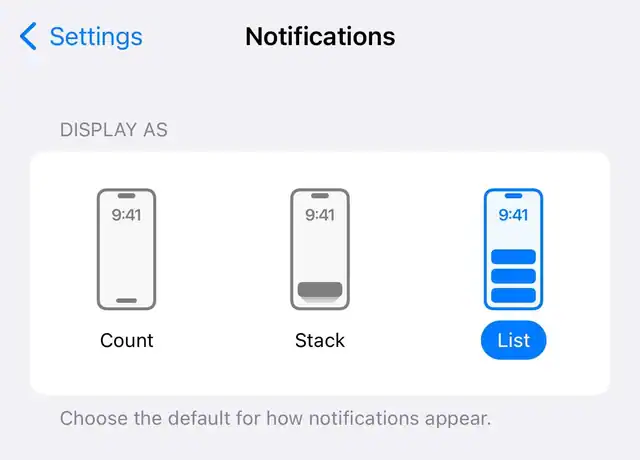
- Under Display As, choose List, Stack, or Count.
- Tap a specific app that has issues.
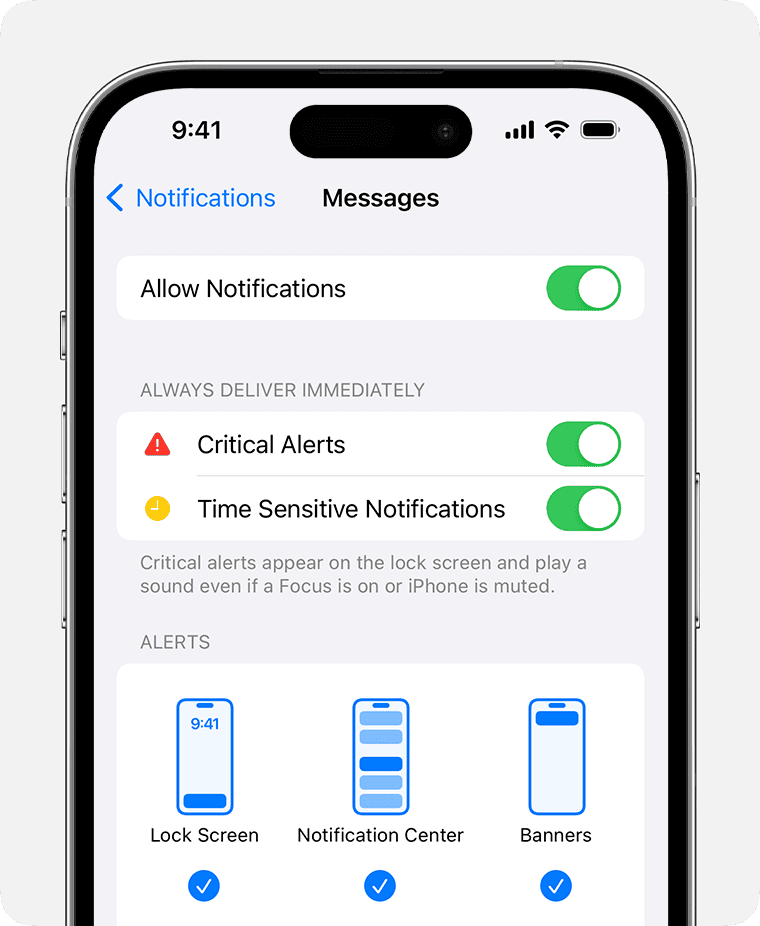
- Toggle Allow Notifications ON.
- Enable Lock Screen, Notification Center, and Banners.
- Turn ON Sounds and Badges.
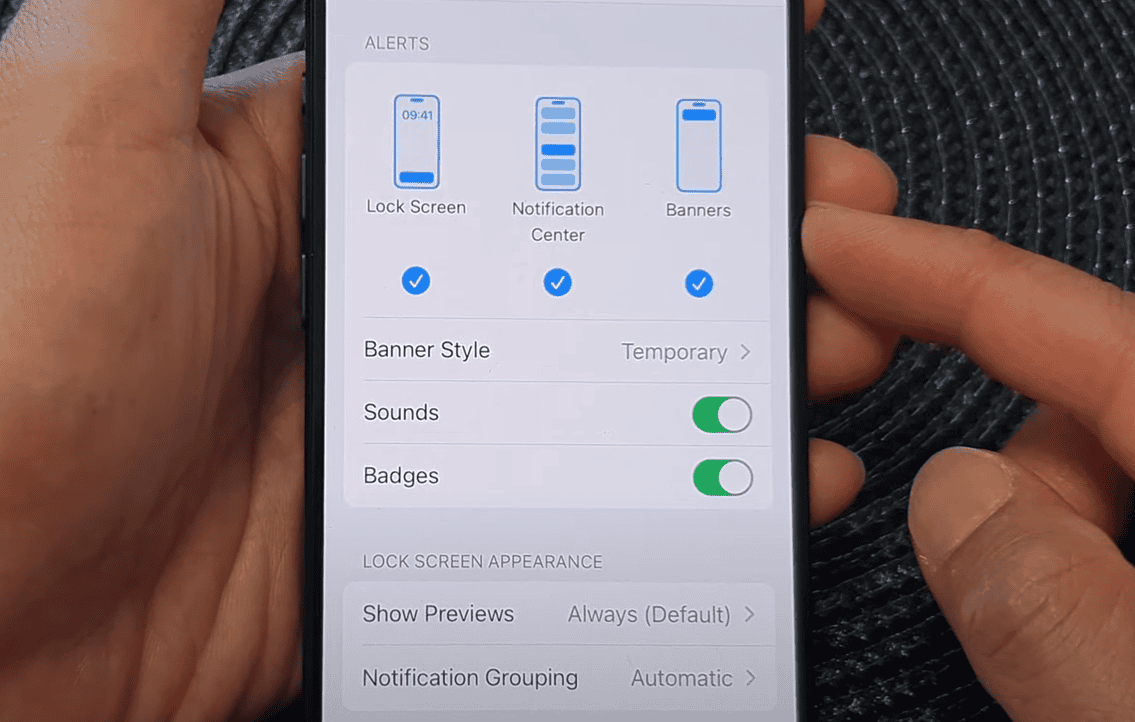
- Tap Show Previews and choose your preference.
- Adjust Summarize Notifications if needed.
2. Starten Sie Ihr iPhone neu
A restart clears temporary system service issues that affect delivery and display.
- Press Side Button + Volume Up (or Down) until the power slider appears.
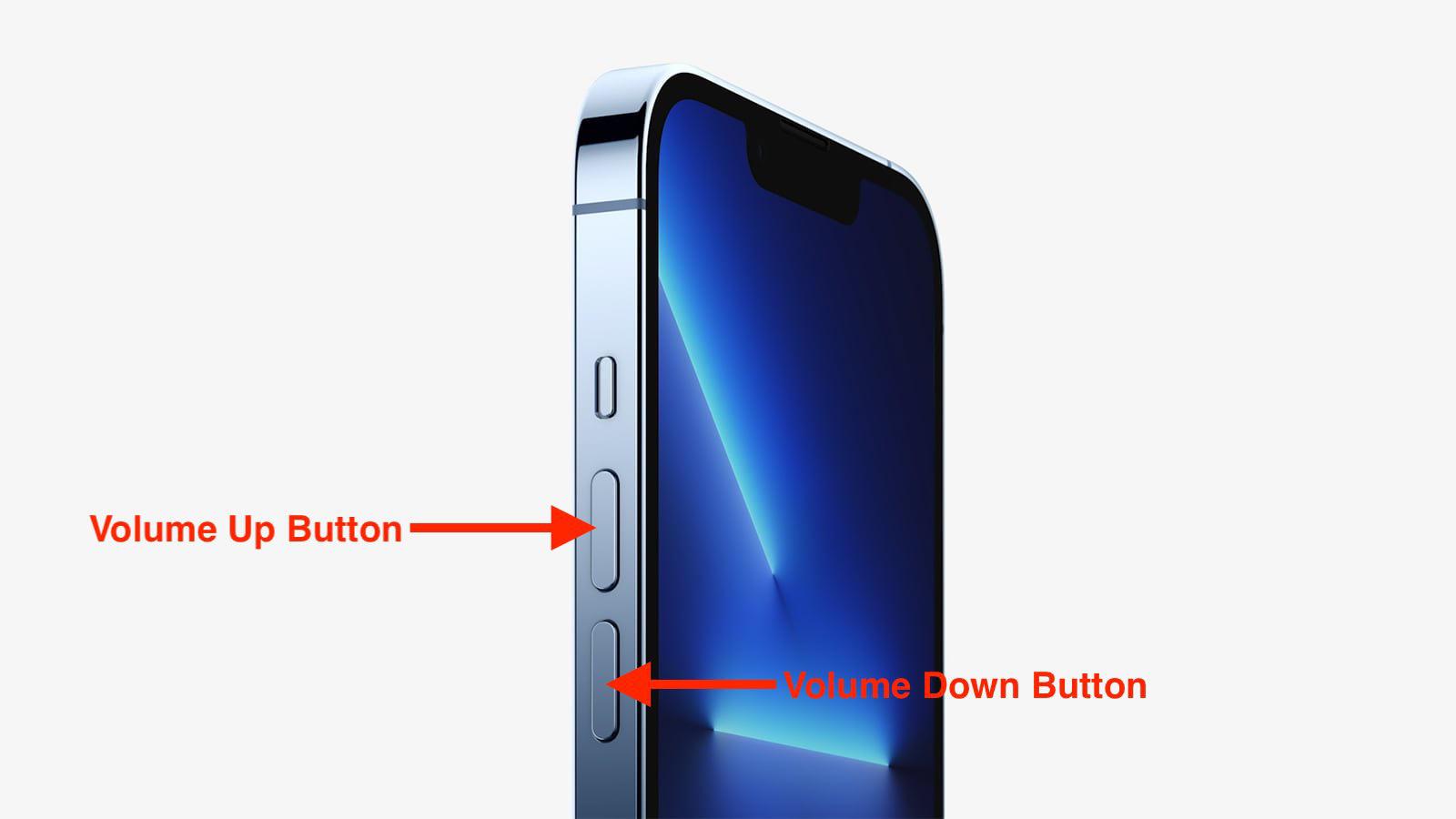
- Zum Ausschalten schieben.
- Wait 20–30 seconds.
- Halten Sie die Seitentaste gedrückt, bis das Apple-Logo erscheint.
- Testen Sie die Benachrichtigungen nach dem Neustart.
3. iOS und Apps aktualisieren
iOS 26.1 is fresh. App and system updates fix compatibility and notification bugs.
- Go to Settings > General > Software Update and install any updates.
- Open the App Store, tap your profile, and select Update All.
- Restart your iPhone after updates finish.
4. Review AI Summaries and Notification Summarization
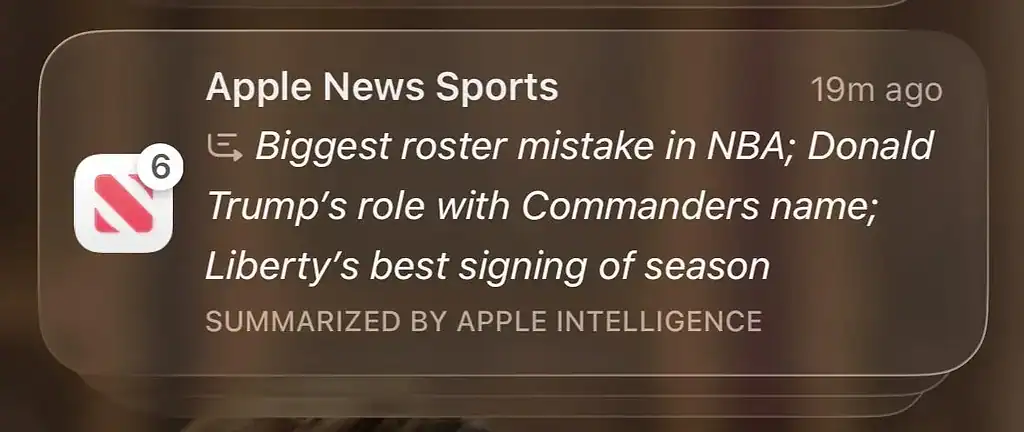
Some apps have AI-style notification summaries. If alerts look generic or collapsed after updating to iOS 26.1, check the Summarize Notifications settings.
- Open Settings > Notifications > Summarize Notifications.
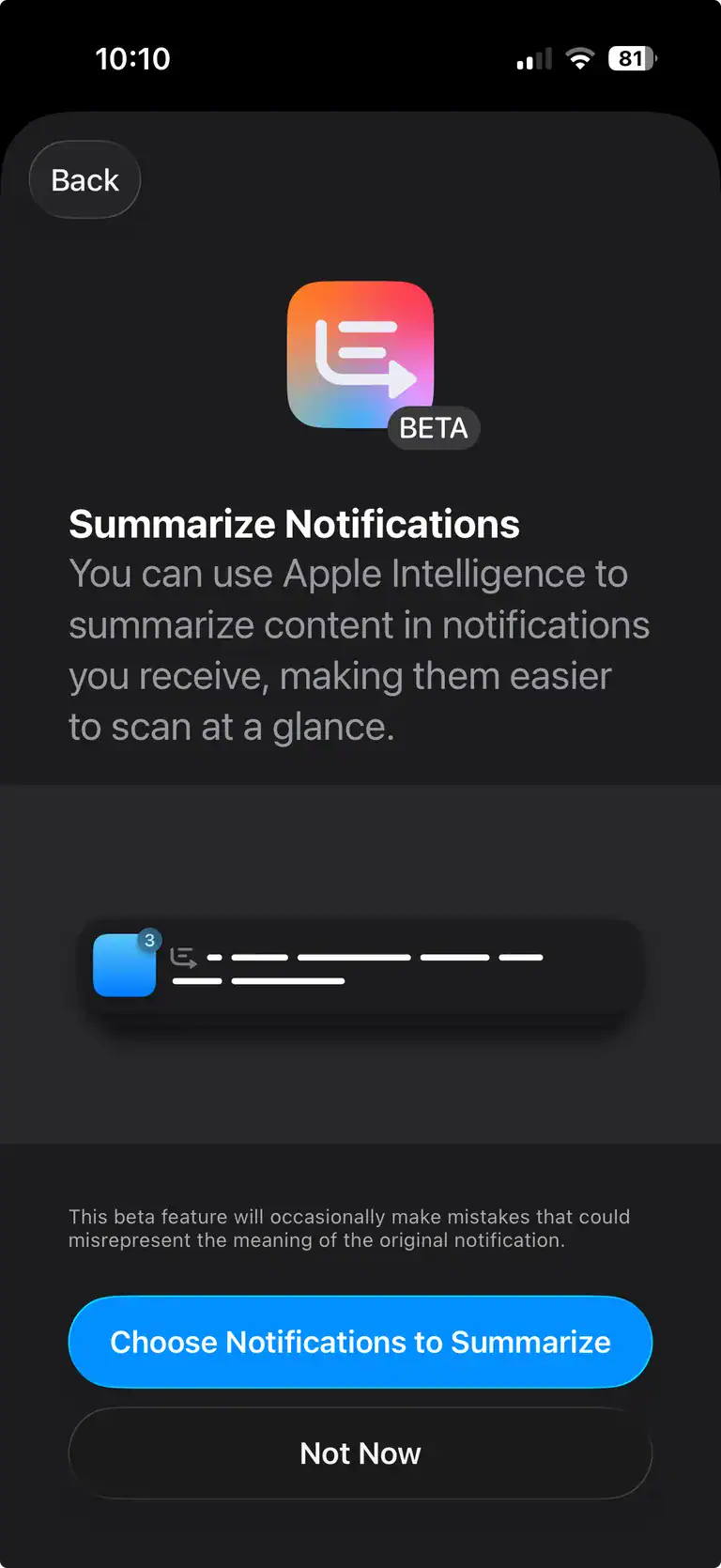
- Toggle Summarize Notifications ON or OFF.
- Choose which apps are summarized.
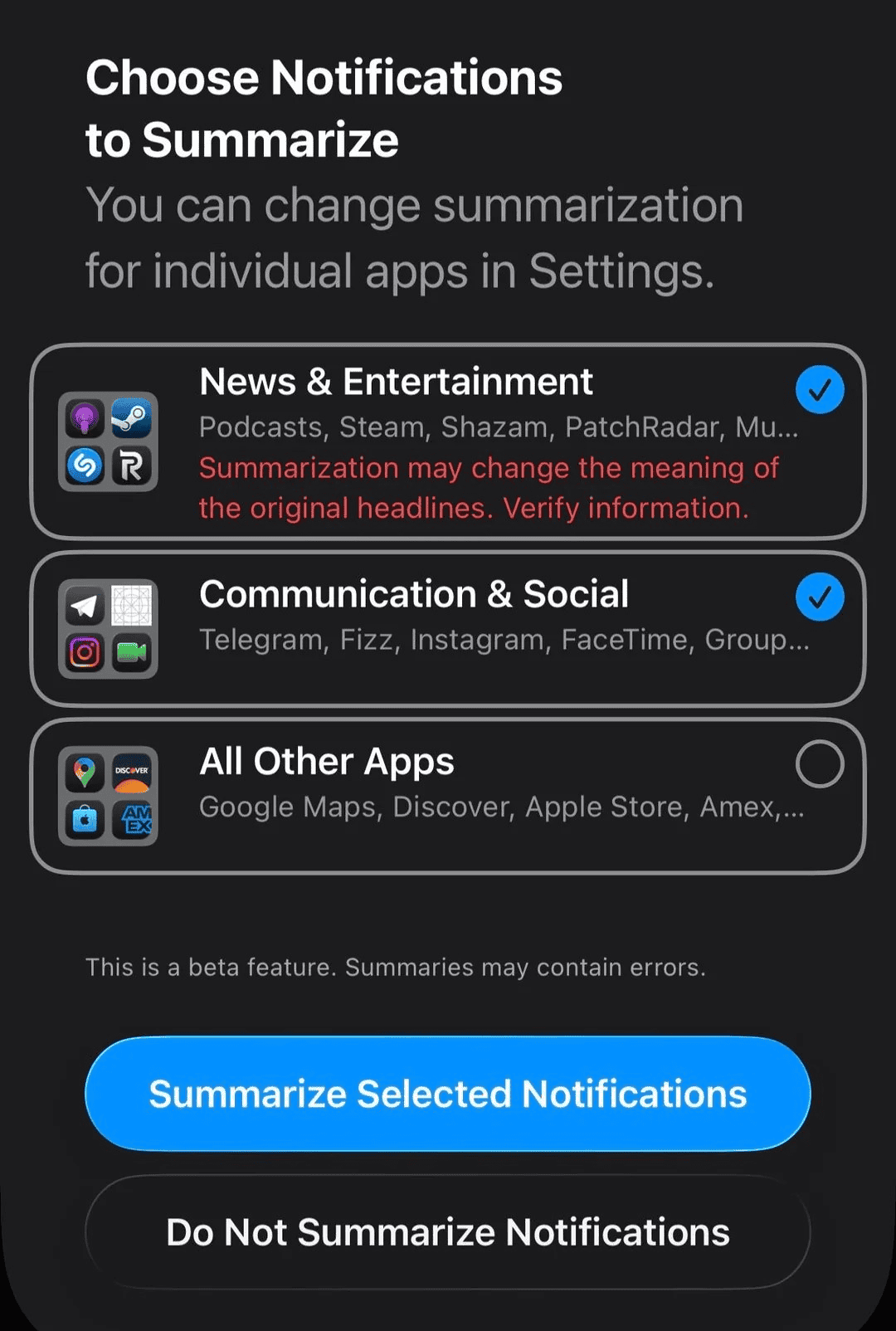
- Deselect apps you want to receive full alerts from.
5. Disable or Reconfigure Focus Modes
Focus remains central in iOS 26.1. Time-sensitive notifications can bypass Focus if you allow them.
- Swipe down to open Control Center, tap the Focus tile.
- Disable any active Focus modes.
- Open Settings > Focus to edit profiles.
- Allow important apps and people through.
- Enable Time-Sensitive Notifications where needed.
6. Check Power Modes
Adaptive Power Mode and Low Power Mode can delay alerts.
- Open Settings > Battery > Power Mode.
- Disable Adaptive Power Mode or Low Power Mode.

- Confirm the battery icon is not yellow.
7. Enable Background App Refresh
Background App Refresh must be enabled for apps to fetch content and push alerts.
- Go to Settings > General > Background App Refresh.
- Schalten Sie Hintergrundaktualisierung EIN.
- Select Wi-Fi & Cellular or Wi-Fi.
- Enable the feature for apps like messaging and email.
8. Uninstall and Reinstall Problematic Apps
Reinstalling resets the app’s push token and permissions.
- Long press the app icon, select Remove App > Delete App.
- Neuinstallation über den App Store.
- Reallow notifications when prompted.
9. Reset Network Settings
Push notifications rely on stable connectivity.
- Go to Settings > General > Transfer or Reset iPhone > Reset.
- Select Reset Network Settings.
- Reconnect to Wi-Fi and cellular.
10. Ensure Notification Center and Lock Screen Access
If Notification Center is disabled on the Lock Screen, alerts may not show.
- Open Settings > Face ID & Passcode (or Touch ID).
- Geben Sie Ihren Passcode ein.
- Under Allow Access When Locked, toggle Notification Center ON.
- Confirm app-level Lock Screen access is enabled.
11. Reset All Settings
This clears misconfigured preferences without erasing data.
- Open Settings > General > Transfer or Reset iPhone > Reset.
- Select Reset All Settings.
- Enter your passcode and confirm.
12. Use iOS System Recovery Tools
If the OS misbehaves, trusted recovery tools can reinstall firmware without data loss.
- Back up your device.
- Install a reputable recovery tool on your computer.
- Connect your iPhone and choose Standard Repair.
- Download firmware and complete the repair.
13. Force Close and Reopen Apps
If an app’s service hangs, force close and reopen it.
- Swipe up from the bottom, pause to open the app switcher.
- Swipe up to close the app.
- Reopen it and test notifications.
Tipps
- Review Summarize Notifications after updates.
- Allow Time-Sensitive notifications for key apps.
- Turn off Adaptive Power Mode or Low Power Mode if alerts are delayed.
- Add Focus and Power Mode toggles to Control Center.
- Enable Background App Refresh selectively.
FAQs
iOS 26.1 changes how notifications look and adds AI-driven summaries, which can alter or condense alerts.
Open Settings > Notifications > Summarize Notifications and deselect the app, or disable summarization entirely.
Apple’s developer notes list notification-related fixes and known issues in early builds. If you see inexplicable behavior after the update, check Apple’s release notes and install incremental updates as soon as they arrive.
Adaptive Power Mode and Low Power Mode can restrict background activity and delay notifications. Temporarily disable them while you troubleshoot.
Versuchen Sie Netzwerkeinstellungen zurücksetzen oder Alle Einstellungen zurücksetzen für eine umfassendere Lösung.
Zusammenfassung
- Confirm notification and app settings.
- Disable summarization for apps if needed.
- Check Focus and Time-Sensitive rules.
- Turn off Adaptive Power or Low Power Mode.
- Reinstall apps or reset network settings.
- Reset All Settings if problems persist.
- Use recovery tools as a last resort.
Fazit
iOS 26.1 changes how notifications look and how they are prioritized. Most delivery problems come from summarization, Focus rules, or power controls. Work step by step: check app permissions, adjust summarization and display, then review Focus and power settings. If the issue persists, reset network or system settings, or use recovery tools. These steps restore reliable alerts while letting you keep the new Liquid Glass and Apple Intelligence features.
Running into more problems after updating? Check the full list of iOS 26.1 bugs and fixes here.

Discussion