

AirPrint allows iPhone users running any iOS version to print wirelessly without installing extra drivers or apps. It connects directly to a Wi-Fi network to send documents, emails, and photos to a printer. If the printer does not show up or fails to respond, the issue is usually simple. It may be a network problem, an outdated firmware, or a small setup error. If you are facing the AirPrint not working issue on your iPhone, then follow the solutions below to fix it.
Table of contents
Why Is My iPhone Not Recognizing My AirPrint Printer?
When an iPhone can’t detect an AirPrint printer, it usually means there’s a problem with the local network. Both the iPhone and printer must be connected to the same Wi-Fi network for AirPrint to function.
Other possible causes include:
- The printer’s AirPrint feature is disabled.
- The printer or router has temporary network glitches.
- A VPN is interfering with local network detection.
- Outdated iOS or printer firmware.
- Weak or inconsistent Wi-Fi signal.
Before moving to advanced fixes, it’s important to confirm that your printer supports Apple AirPrint. You can check the official AirPrint printer list for confirmation.
Here Are the Ways to Fix AirPrint Issues
1. Check Printer Compatibility and Settings
- Make sure the printer supports AirPrint. If not, install the manufacturer’s app from the App Store.
- Confirm that AirPrint is turned on in the printer’s network or wireless settings.
- For newer printers, access the printer’s web interface through its IP address to verify AirPrint status.
You can learn more about compatible printers and printing options in this guide on printing documents from an iPad or an iPhone.
2. Restart iPhone, Printer, and Router
Temporary network glitches are common. Restarting devices helps refresh connections.
Steps:
- Turn off the printer and unplug it for about 30 seconds.
- Restart your Wi-Fi router.
- Turn off the iPhone, then power it back on.

- Reconnect all devices to the same Wi-Fi network and test AirPrint again.
3. Reconnect Printer to Wi-Fi
A printer connected to a different network or a guest network won’t appear on AirPrint.
Steps:
- Open the printer’s control panel or settings app.
- Go to Network or Wireless Setup Wizard.
- Select your main Wi-Fi network and enter the password.
- Print a network configuration report to confirm the connection.
If the printer connects via Ethernet, ensure the router’s wireless isolation mode is disabled.
4. Reset iPhone Network Settings
If Wi-Fi networks or connections are misconfigured, resetting the network settings often helps.
Steps:
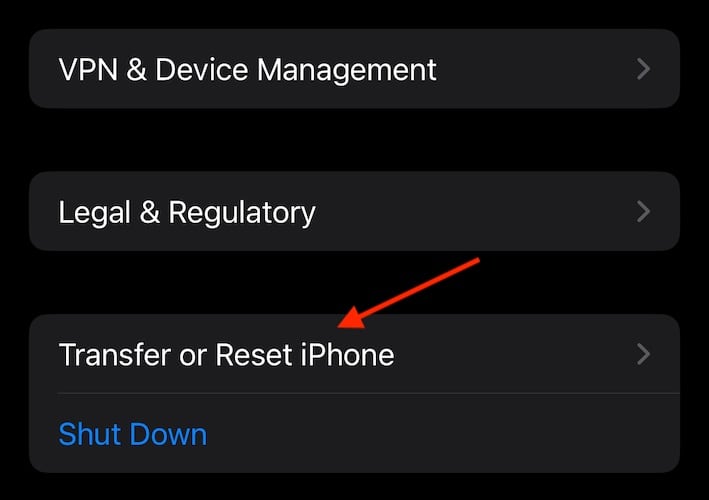
- Go to Settings > General > Transfer or Reset iPhone > Reset.
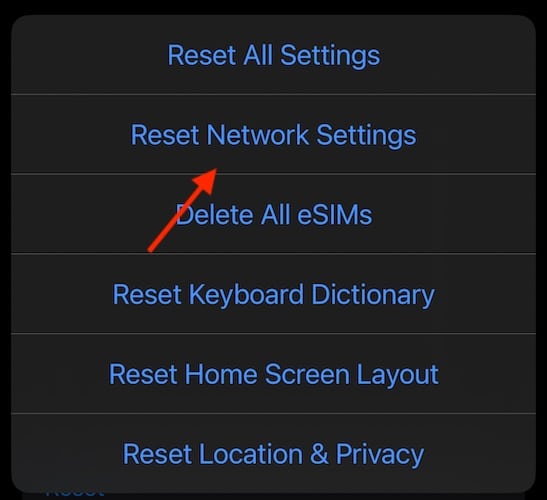
- Tap Reset Network Settings.
- Enter your passcode to confirm.


This will remove saved Wi-Fi networks and VPN configurations, so reconnect manually afterward.
5. Disable VPN
VPNs can block AirPrint traffic since they route all data through a virtual server.
Steps:
- Open Settings > VPN & Device Management.
- Turn off the active VPN connection.
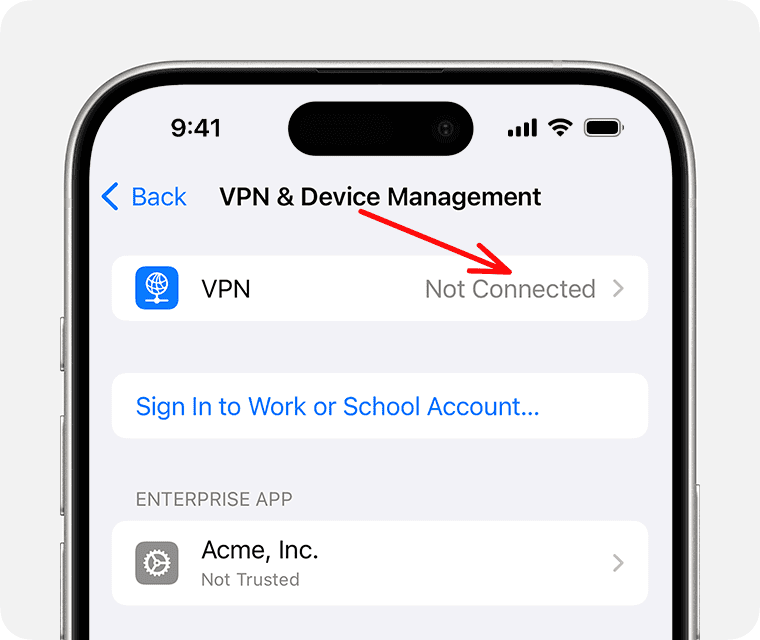
- Retry printing once it’s disabled.

If AirPrint works after disabling the VPN, consider using split tunneling (if your VPN supports it) to keep local connections active.
6. Update iOS and Printer Firmware
Outdated software may cause compatibility issues.
Steps:
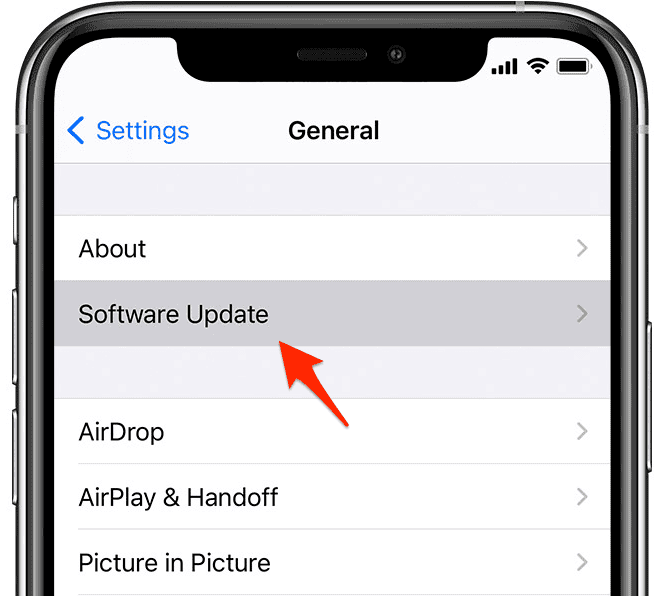
- On iPhone: Go to Settings > General > Software Update.
- On Printer: Visit the manufacturer’s website or app for firmware updates.

If you use AirPrint on a Mac as well, see how to add a printer to a Mac and fix printer connection problems in macOS.
Tips to Prevent Future AirPrint Problems
- Keep your printer’s firmware up to date regularly.
- Avoid using different network bands (2.4GHz vs. 5GHz) between the printer and the iPhone.
- Reboot your router once a week to clear old sessions.
- Place the printer within a strong Wi-Fi range.
- Avoid using VPNs during AirPrint sessions.
- Rename your Wi-Fi network to a simple SSID (no special characters).
Conclusion
AirPrint failures often come down to small network inconsistencies rather than hardware issues. Once both devices share the same Wi-Fi network and have updated firmware, printing should resume normally. Keeping VPNs off and resetting the network when needed can prevent repeated interruptions. With these practical checks, AirPrint should work reliably across all your Apple devices.
FAQs
No, AirPrint needs a shared local network connection. Some printers offer Wi-Fi Direct, which creates a temporary network that allows printing without a router.
This usually means the printer and iPhone are not on the same network, or AirPrint is disabled in the printer settings.
No. AirPrint is designed to work only on local Wi-Fi networks.
Install the printer’s dedicated app or connect the printer through USB using a Mac and share it via AirPrint.


I have been having issues printing lately also.
Today I turned off my VPN, and now it’s working fine.
Thanks!
Hard reset worked! AirPrint now ID’s Epson printer from iPhone post 17.1.2 upgrade.
First, we have to check for the settings. If that doesn’t work, we can try restarting the device. Restarting your iPad or iPhone will refresh the system, and the small Quick Notes bugs caused by system glitches will be resolved. If that still doesn’t work, third-party tools such as TunesKit iOS System Recovery can be tried.