
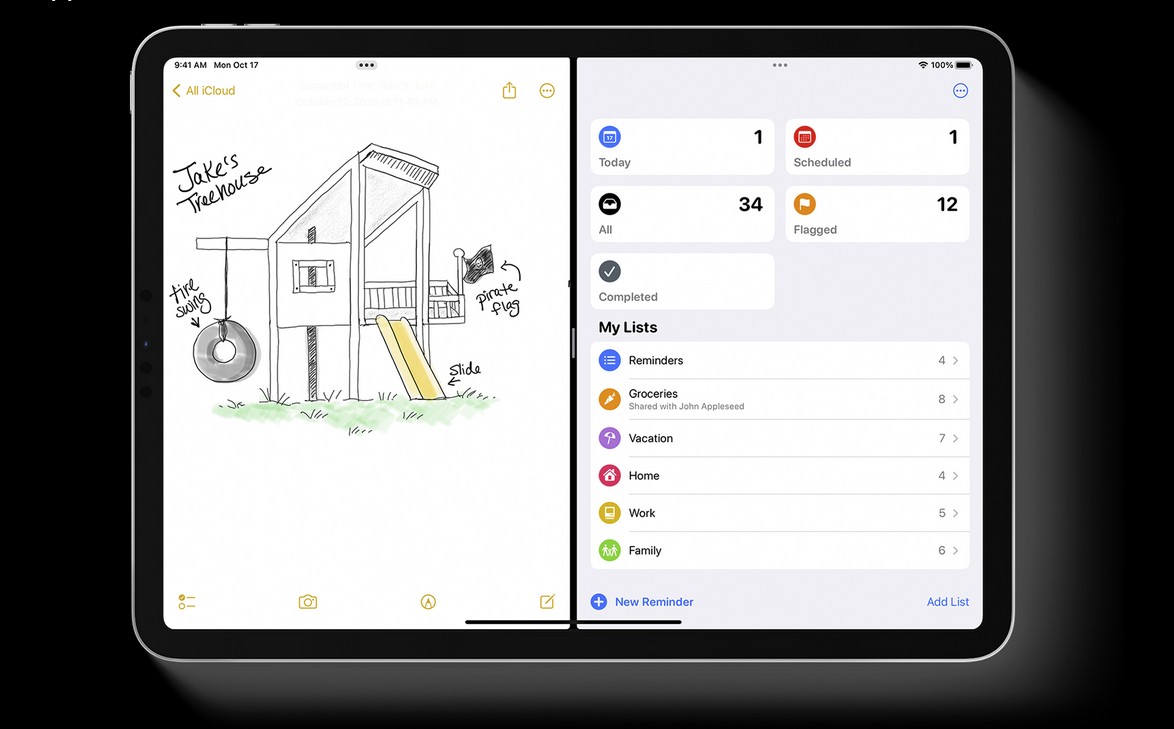
iPadOS 26 removes Slide Over. Apple retired both Slide Over and Split View in favor of a new windowed multitasking model that’s closer to a Mac experience, with Stage Manager still available as an optional mode. Here’s how to get the same quick, floating-panel workflow you used to have with Slide Over, using the new tools in iPadOS 26.
Before you start
- Update your iPad to iPadOS 26.
- For the best performance, use an M-series iPad, though the new windowing works on more models than before.
- Know the two modes: Windowed Apps (the new default windowing) and Stage Manager (grouped windows with a recent-apps strip).
- You can switch modes from Control Center.
1) Turn on the right multitasking mode
- Open Control Center.
- Long-press the multitasking control.
- Choose Windowed Apps to use freeform windows, or Stage Manager if you prefer grouped spaces with a sidebar.
Why this matters: Windowed Apps is the direct replacement for Slide Over/Split View. You can float a small window anywhere, resize it instantly, and keep it handy above your main app.
2) Recreate “Slide Over” with a floating tool window
- Open the app you want to keep handy (Calculator, Notes, a password manager, etc.).
- Drag from the bottom Dock to open it as a separate window, or launch it from Spotlight.
- Grab the window’s edge or corner and resize it to a tall, narrow panel.
- Park it along the left or right edge so it’s out of the way but visible.
- Use Command–Tab to jump back to your primary app while the small window stays on top.
Pro tip: Set your “tool” app to a slim width and medium height. This mimics Slide Over’s footprint with better control than before.
Don’t miss the best of The Mac Observer
Set us as a preferred source and our Apple reporting ranks higher in your Google Search results and Discover feed — one tap, no account changes.
3) Snap two apps side by side (Split View replacement)
- With your primary window open, drag a second window to an edge until you see a snap guide.
- Release to tile them.
- Drag the divider to resize either side.
- Add a third window on top if you need a small floating panel above the side-by-side pair.
4) Keep multiple mini-windows ready to swap
- Create two or three small windows for your most-used utilities.
- Use Command–` (backtick) to cycle windows of the current app, or Command–Tab to switch apps entirely.
- When you don’t need a utility in view, minimize it to the Dock; bring it back with a quick click.
This replicates Slide Over’s “stack of mini-apps” feel, without the old limitations.
5) Prefer grouped workspaces? Use Stage Manager
- Open Control Center and switch to Stage Manager.
- Build a “workspace” with your main app plus one narrow utility window.
- Add other task-specific workspaces (e.g., research, communication, editing), each with its own mini-window setup.
- Switch workspaces from the sidebar to stay organized, then return to Windowed Apps anytime.
6) External display and keyboard tips
- On compatible iPads, the new windowing and Stage Manager work with external displays.
- Keyboard shortcuts speed things up: Command–Tab (app switcher), Command–M (minimize), Command–H (go Home), Globe–Arrow keys for window movement on some keyboards.
- A trackpad makes resizing and snapping feel more Mac-like.
Troubleshooting
- I can’t find Slide Over.
- It’s gone in iPadOS 26. Use a small floating window in Windowed Apps or Stage Manager to replace it.
- My windows won’t snap.
- Drag to the very edge until you see the snap outline, then release. If snap hints don’t appear, update to the latest iPadOS 26 point release.
- The small window keeps disappearing behind my main app.
- Resize it slightly larger and keep it near an edge. If you’re in Stage Manager, make sure both windows are part of the same workspace.
- Performance feels sluggish with several floating panels.
- Close unused windows, reduce live widgets, and keep Low Power Mode off during heavy multitasking.
FAQs
Did Apple remove Slide Over and Split View on purpose?
Yes. iPadOS 26 consolidates multitasking around a modern windowing model. Stage Manager survives as an option for grouped workspaces.
Is this better than Slide Over?
If you liked a single floating utility, the new windowing can feel the same but more flexible. You can resize freely, stack, and snap without the old guardrails.
Will Slide Over come back?
There’s no sign of that. Apple has clearly shifted to the new windowing system plus Stage Manager.
Do I need an M-series iPad?
No, but M-series models offer the smoothest experience and broader external-display support. iPadOS 26 also expands Stage Manager to more devices than before.
Summary (ordered steps)
- Open Control Center and pick Windowed Apps or Stage Manager.
- Launch your utility app in a new window.
- Resize it to a slim floating panel and park it on an edge.
- Snap side-by-side windows when you need a Split View-style layout.
- Use Command–Tab to switch quickly and keep your mini-window ready.
- Optionally organize task-specific sets in Stage Manager.
Conclusion
Slide Over is gone, but you can replicate it in seconds with iPadOS 26. Create a slim floating window in the new windowing mode, snap when needed for two-up work, and lean on Stage Manager for organized workspaces. The result is more flexibility than the old Slide Over ever allowed, with fewer limits and a more Mac-like feel.



Ignoring the de setup time fort your slideover replacement, younger missed singing big… Requires keyboard. If I’m not using that, it’s useless.