

Highlighting text in Pages for Mac is more useful than most people realize. Whether you’re editing a draft, marking revisions, or emphasizing key sections for a final layout, Pages gives you two different ways to highlight. Once you understand how each one works, choosing the right tool becomes simple.
Table of contents
Two Types of Highlighting in Pages
Pages lets you highlight text in two ways:
- Review-style highlights, used for editing and comments
- Background color highlights, used for the final visual effect
Apple explains both methods clearly in its guide on highlighting and commenting on text in Pages for Mac, which covers collaboration-focused highlights, and its article on adding background highlight effects, which applies to permanent visual emphasis.
Don’t miss the best of The Mac Observer
Set us as a preferred source and our Apple reporting ranks higher in your Google Search results and Discover feed — one tap, no account changes.
How to Add Review-Style Highlights
Review highlights are the type you use when editing a document.
- Select the text
- Press Shift–Command–H
- Or choose Insert → Highlight


These highlights do not appear in printed or exported versions. They’re meant for editing, reviewing, and attaching comments. This is the best option when you’re working with collaborators or leaving notes for yourself during revision.
How to Add a Permanent Color Highlight
If you want a highlight that stays in the final document, use the Text Background option.
- Select the text
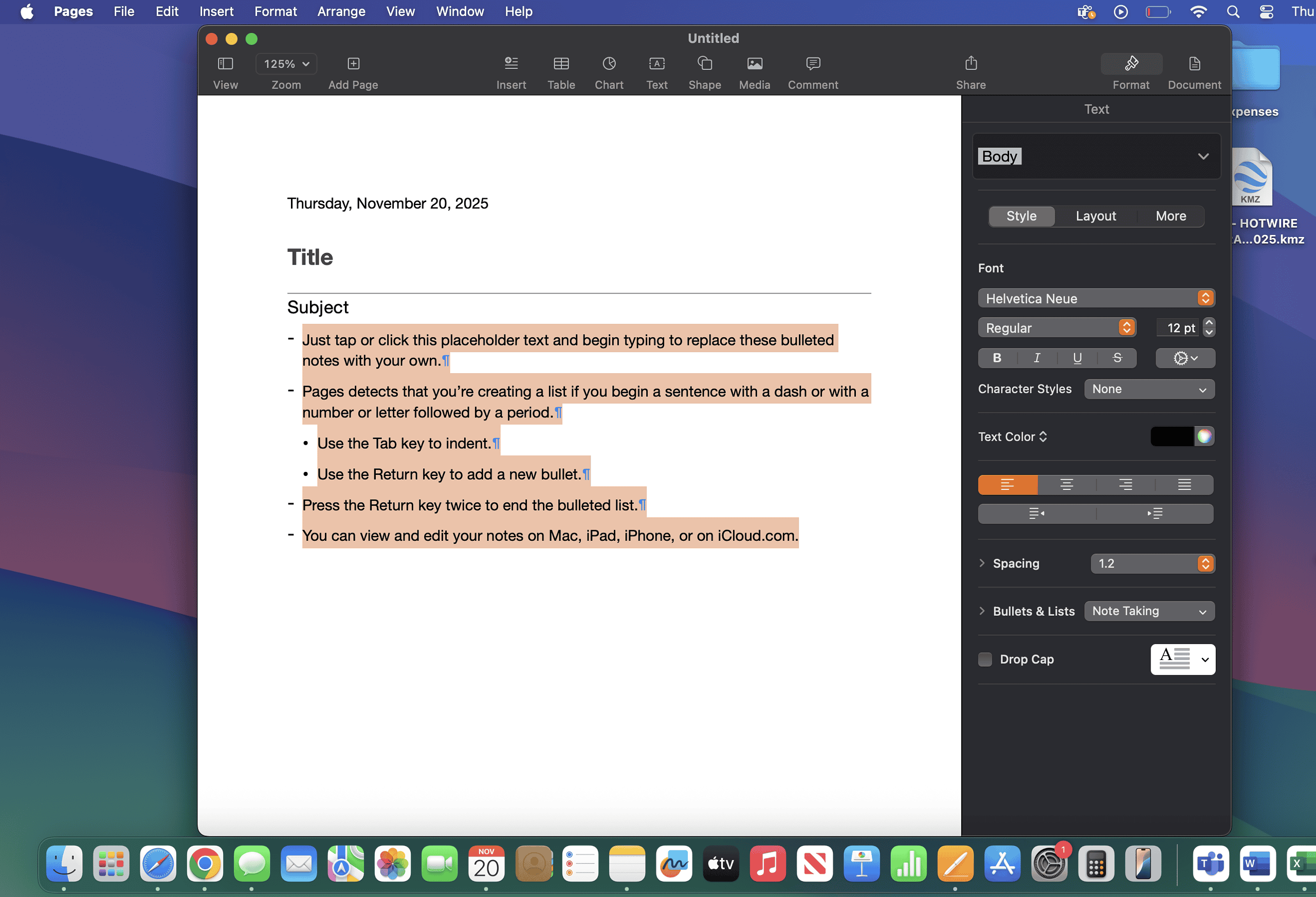
- Open the Format pane

- Choose Style → Text Background

- Pick a color


This creates a true visual highlight that shows up in exports and printed pages. Apple demonstrates the exact steps in its guide on adding highlight effects to text.
Choosing the Right Highlight for Your Document
Use review-style highlights for editing.
Use text-background highlights for the final design.
If you’re working on a longer document, these highlights pair well with organizational tools. For instance, the guide on adding word count in Pages helps when you’re editing toward a target length.
And once your sections are finalized and highlighted, you can structure them with a proper outline. MacObserver explains how to create a table of contents in Pages, which connects nicely with highlighted sections in larger files.
Selecting Text Cleanly Before Highlighting
Accurate selection is key to clean highlighting.
You can drag with the cursor, shift-click to extend, or double-click to select whole words. Triple-click selects entire paragraphs.
Once you know how to highlight and style text properly, Pages becomes a much stronger editing and formatting tool, whether you’re writing essays, reports, or long-form documents.
Final Thoughts
Highlighting in Pages is simple once you understand the two different methods. Use editing highlights for collaboration and feedback, and use background color highlights for visual emphasis in the final design. With the right combination of both, your workflow in Pages becomes clearer, more organized, and easier to manage.


Discussion