
If you’ve ever seen colored paper raining down across your screen during a message and wondered how it was done, you’re not alone. Apple’s built-in message effects allow you to add animations to your texts, and learning how to add confetti to iMessage takes only a few seconds once you know where to look.
Here’s the exact method to send the confetti effect on your iPhone or iPad.
Table of contents
What Is the Confetti Effect in iMessage?
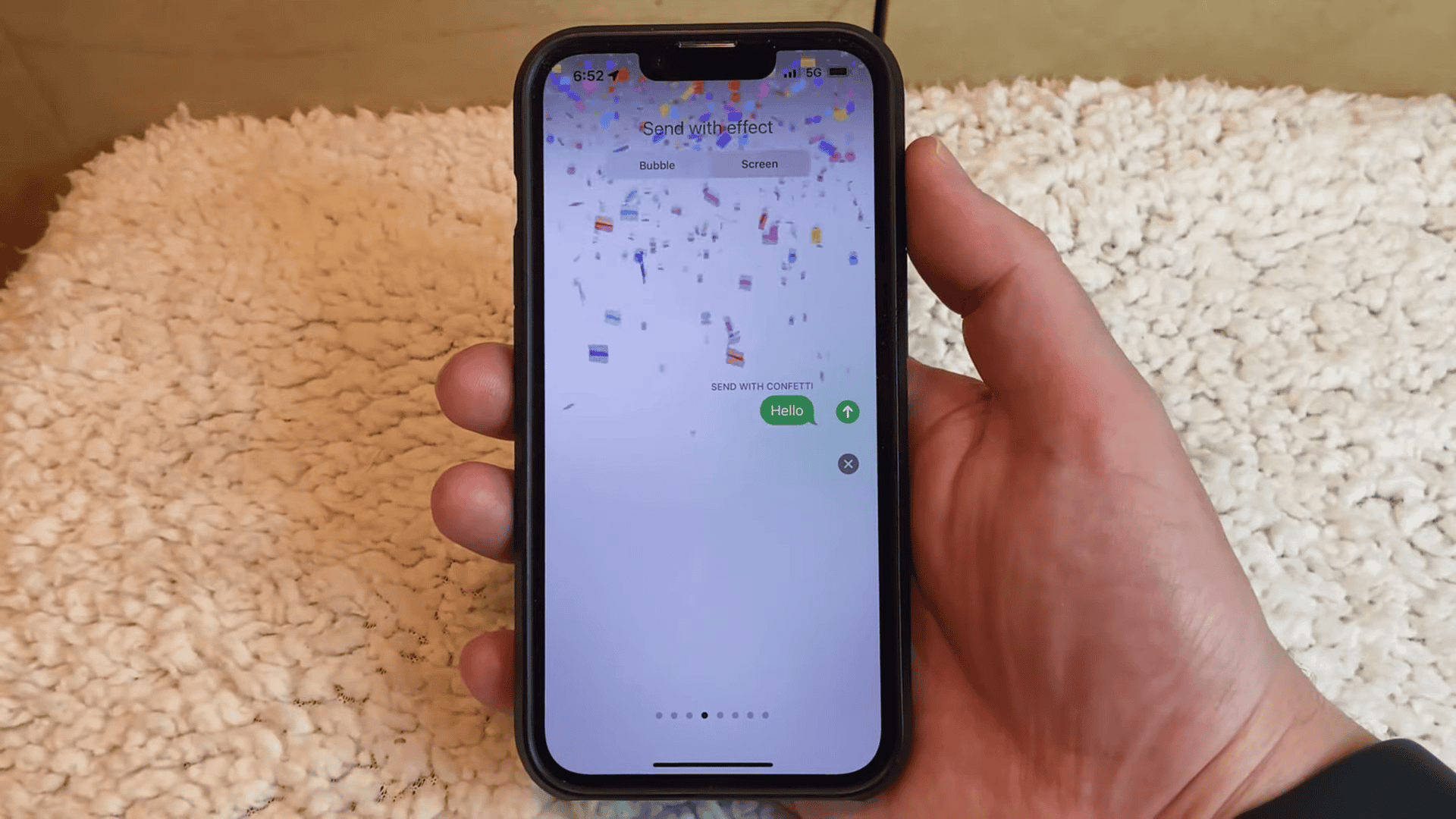
Confetti is one of Apple’s full-screen iMessage animations that fills the display with falling colored shapes when a message is delivered. It is commonly used for congratulations, birthdays, achievements, and announcements.
Don’t miss the best of The Mac Observer
Set us as a preferred source and our Apple reporting ranks higher in your Google Search results and Discover feed — one tap, no account changes.
Confetti is part of Apple’s broader set of animated screen effects. A complete breakdown of all the message effects you can send on Apple devices explains how each animation works and when to use it.
How to Add Confetti to iMessage on iPhone
Follow these steps to send a message with the confetti effect:
- Open the Messages app on your iPhone.
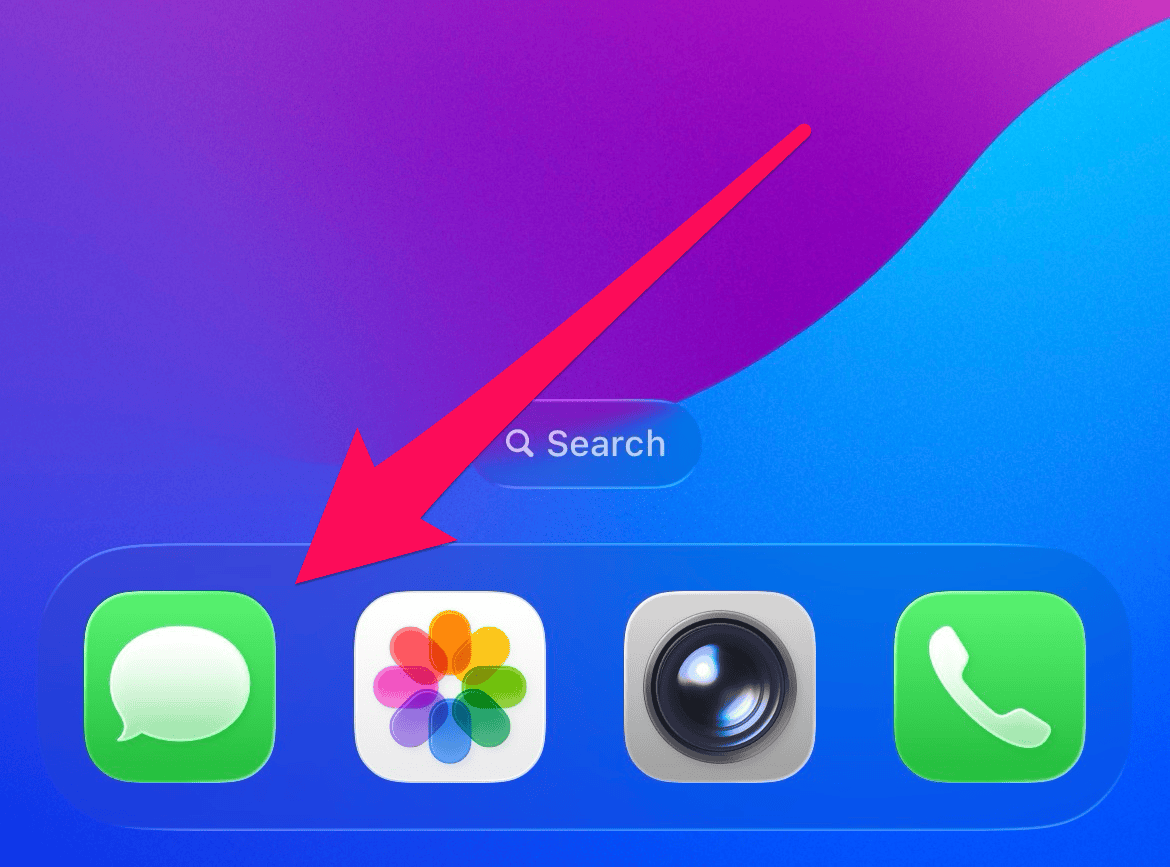
- Open an existing conversation or start a new one.
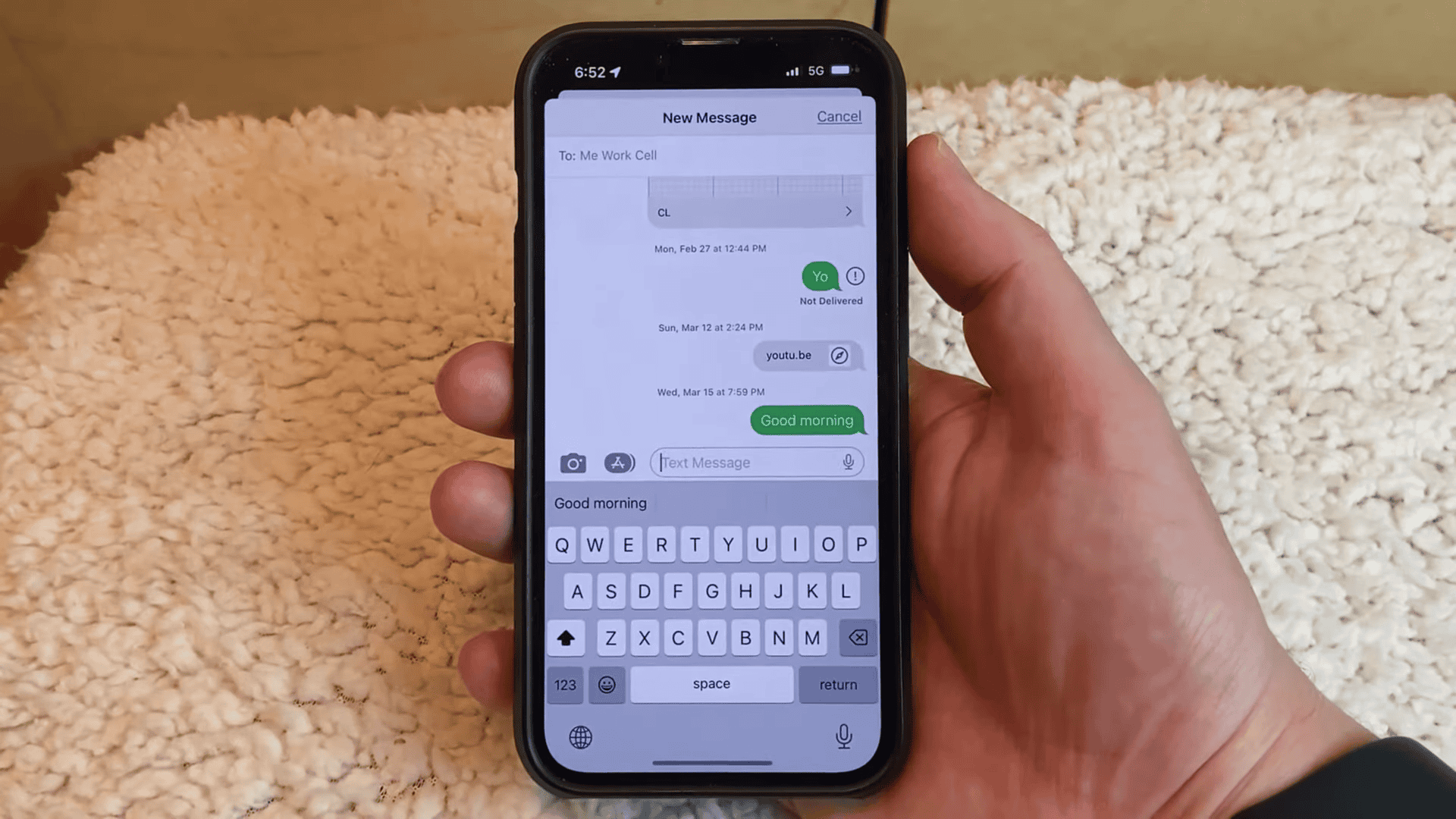
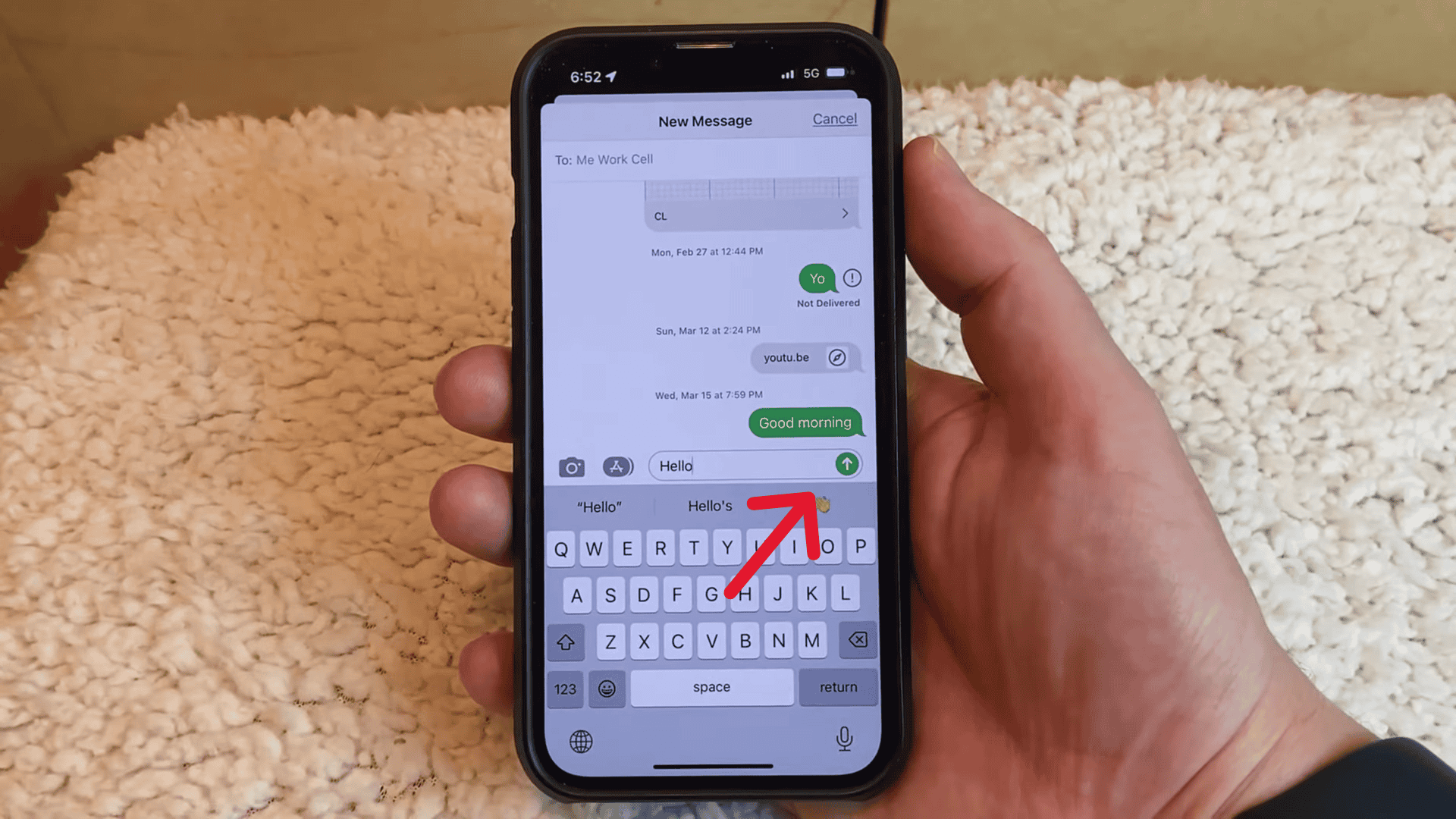
- Type your message in the text field.
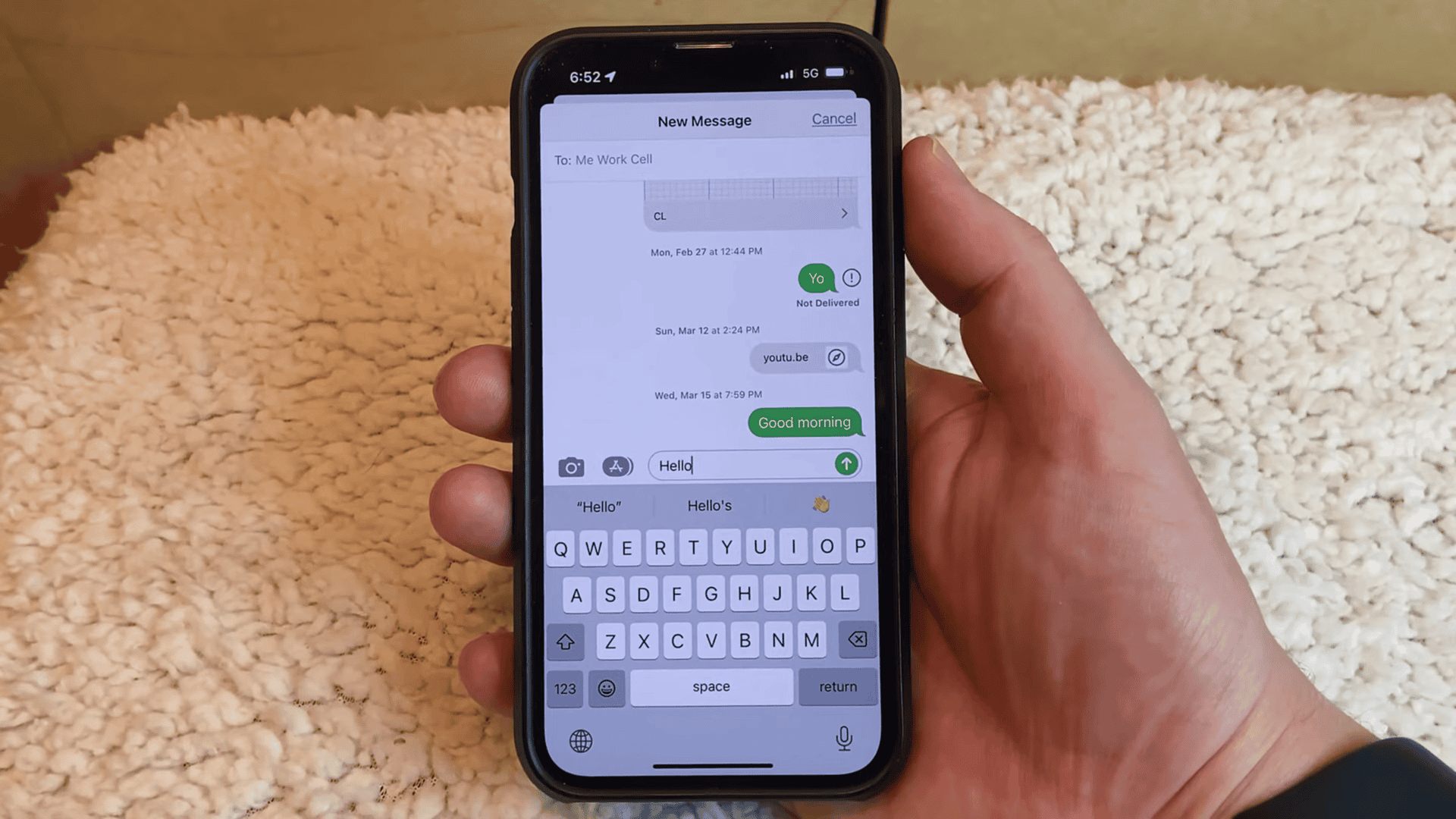
- Press and hold the Send button.
- Tap the Screen tab at the top of the effects panel.
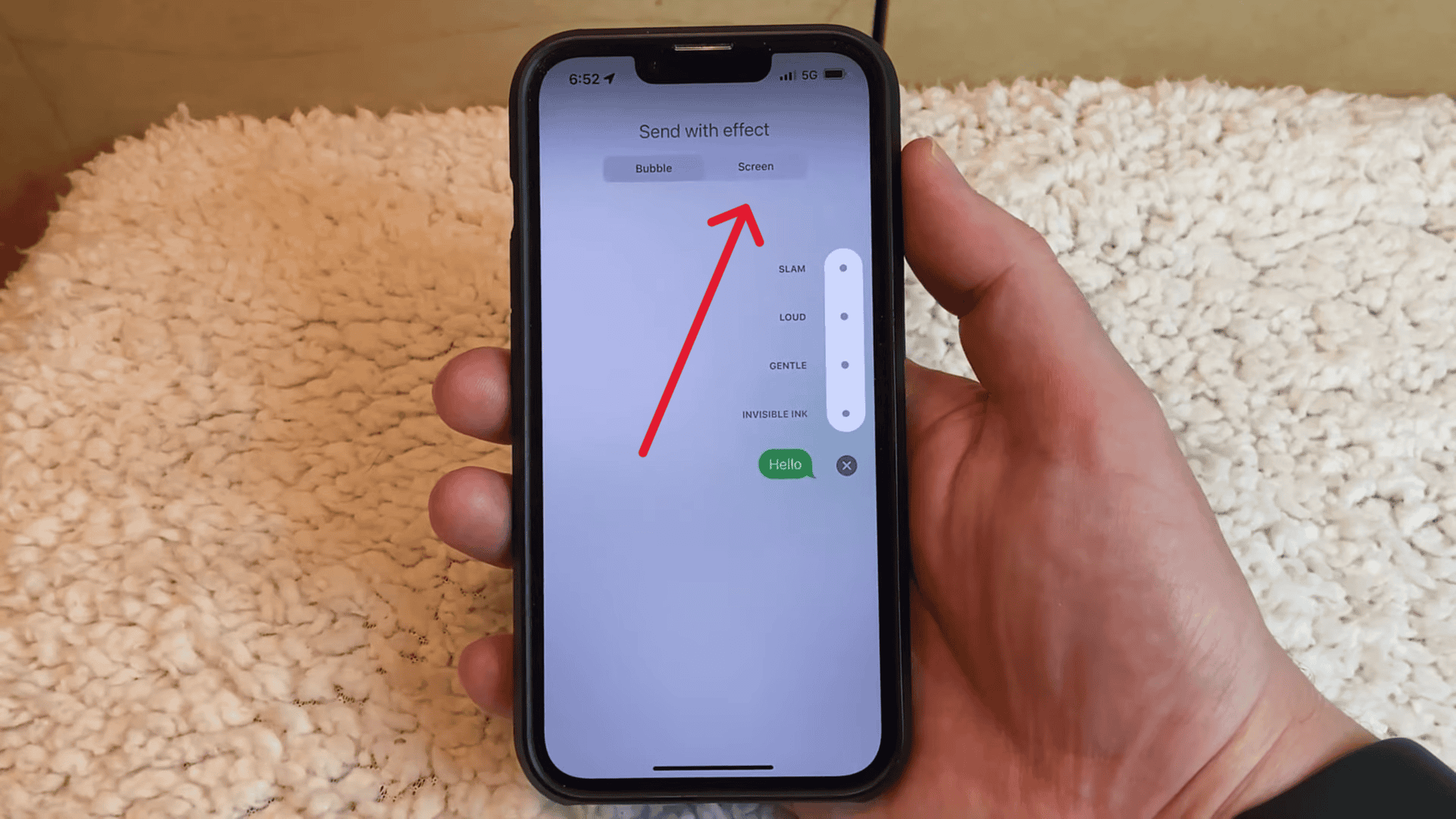
- Swipe left until the Confetti effect appears.
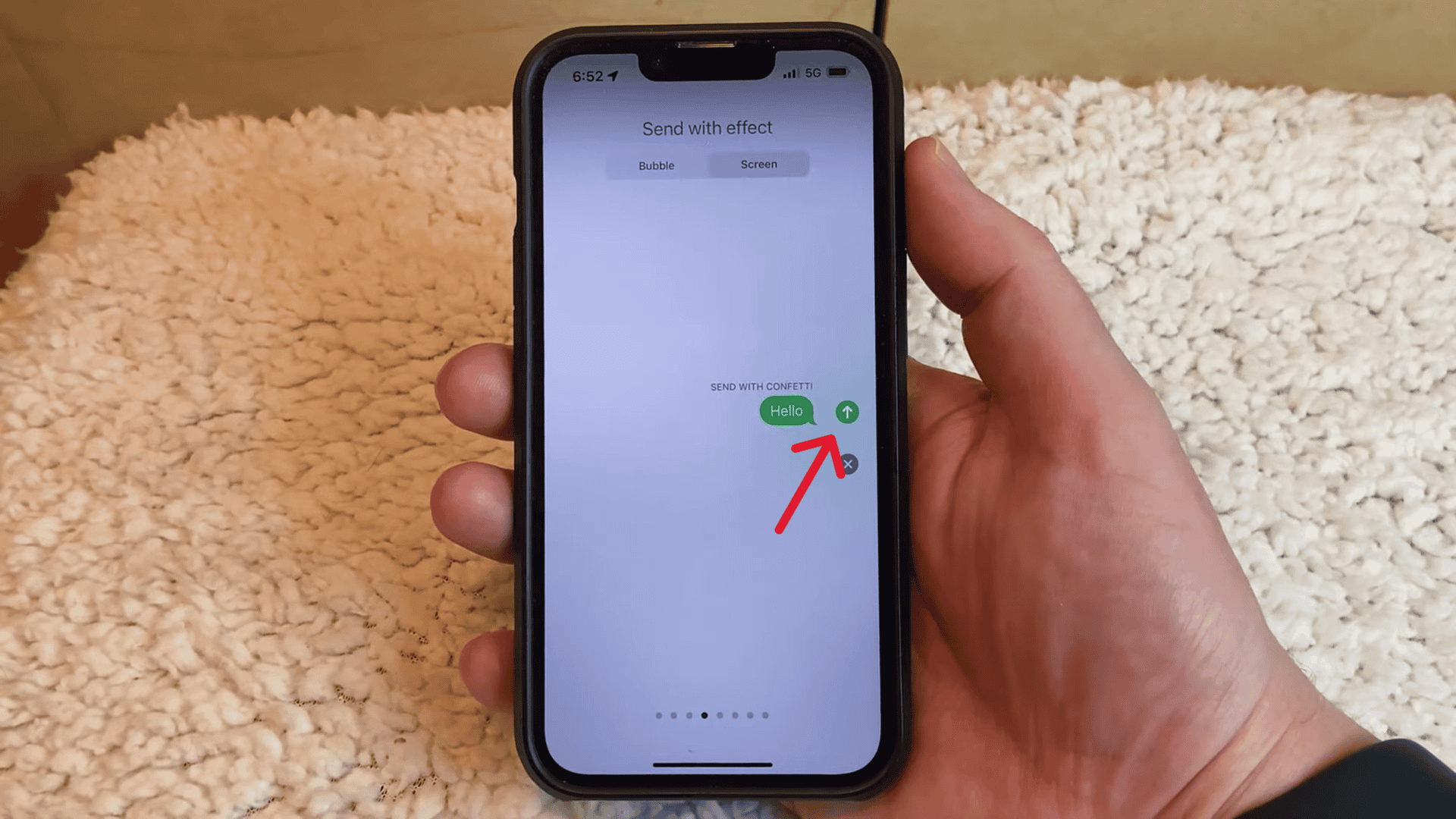
- Tap the Send button again to send the message with confetti.


Apple documents this process in its official instructions for using message effects with iMessage on iPhone and iPad, which covers both bubble and full-screen animations.
What to Check If Confetti Does Not Appear
If the confetti animation does not show after you follow the steps above, check the following settings:
- Low Power Mode is turned off
- Reduce Motion is disabled in Accessibility settings
- Your device is running a recent version of iOS
- Your message is being sent as iMessage (blue bubble), not SMS (green bubble)


If you are new to iMessage or unsure whether all features are enabled on your device, this beginner’s guide on how to use iMessage walks through the essential settings and features.
Can Confetti Be Triggered Automatically With Words?
Unlike some earlier effects that triggered automatically with certain phrases, confetti does not consistently launch based on keywords alone in current versions of iOS. The most reliable way to send it is by selecting it manually from the Screen Effects panel.
Apple confirms this behavior in its documentation on formatting text and animating messages on iPhone, where screen effects are listed as manual selections.
Does the Confetti Effect Work on iPad and Mac?
- The confetti effect works on iPhone and iPad through the Messages app.
- On Mac, users can usually view the effect, but the ability to send it depends on the macOS version and Messages settings.
If the recipient has animations disabled or uses an older device, the message may appear without the visual effect.
The Bottom Line
Knowing how to add confetti to iMessage is a simple way to make your messages more expressive. Press and hold the Send button, switch to the Screen tab, select Confetti, and send your message.
It is a small feature, but it adds a celebratory touch that plain text alone cannot deliver.



Discussion