

Apple keeps pushing personalization, and iOS 26 focuses almost entirely on how your phone looks and reacts. The update does not change the core layout much. Instead, it gives you finer visual control and faster interactions. You adjust animations, notifications, camera access, and even system gestures without digging through deep menus.
Most of the new tools live inside Display, Lock Screen, and Notifications settings. Once you update, the first thing you notice is the interface reacting to your habits. Buttons replace sliders, alerts behave differently at night, and the lock screen now acts more like a dashboard than a static wallpaper.
Below are seven new customization features and how you can actually use them.
Don’t miss the best of The Mac Observer
Set us as a preferred source and our Apple reporting ranks higher in your Google Search results and Discover feed — one tap, no account changes.
1. Change the Liquid Glass design look

iOS 26 introduces a refined “Liquid Glass” system style. Instead of a single blur effect, you now control how transparent or tinted the interface appears. This affects Control Center, widgets, and app backgrounds.
You can choose between clear, tinted, or adaptive modes. Clear keeps a minimal frosted look. Tinted blends colors from wallpaper. Adaptive changes depending on lighting conditions.
How to adjust
- Open Settings
- Tap Display & Appearance
- Select Liquid Glass Style
- Choose Clear, Tinted, or Adaptive
- Adjust intensity slider
The adaptive mode is useful outdoors because contrast increases automatically.
2. More tap actions instead of sliders

Several system toggles no longer require dragging. Volume, brightness, flashlight strength, and focus intensity now support step-based taps. Each tap jumps to preset levels.
This speeds up quick adjustments, especially with one hand.
How to enable tap controls
- Go to Settings
- Tap Accessibility
- In the Physical and Motor Section, Select Touch
- Enable “Perfer Single-Touch Actions“
After enabling, tapping icons cycles through levels instead of opening a slider.
3. New Flash for notifications

iOS 26.2 adds a subtle full-screen glow when notifications arrive. Unlike the old LED flash, this effect adapts to wallpaper colors and time of day.
You can assign different colors to different apps. For example, messages can glow blue and reminders yellow.
Set custom notification flash
- Open Settings
- Go to Accessibility
- Tap Audio & Visual
- Select “Flash for Alerts“
This works well when your phone is silent on a desk.
4. Camera swipe on Lock Screen

The camera shortcut has changed. Instead of holding the icon, you now swipe from the bottom right corner. The gesture works faster and avoids accidental launches.
You can also assign another app instead of Camera.
Customize the gesture
- Go to Settings
- Choose “Camera“
- Enable Lock Screen Swipe to Open Camera
The phone learns which app you use most at night and suggests replacing it automatically.
5. Weather and Astronomy section

The Weather app now contains an Astronomy tab that tracks sun angle, moon phase, lighting, and sky brightness. The lock screen can reflect these values in real time.
That means wallpaper lighting shifts at sunset and sunrise.
Turn on dynamic sky effects
- Open Settings
- Then go to Wallpaper > Add New Wallpaper.
- Select the Weather or Astronomy icon in the top row to display live conditions, the Earth, the Moon, or the Solar System.
- Tap “Add” and select “Set as Wallpaper Pair” to apply
This mainly affects Always-On Display devices, but still works on standard screens.
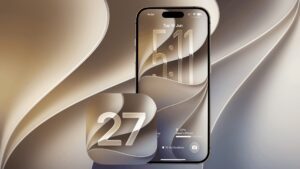
6. Lock screen clock adjustment

You now control the clock size beyond preset styles. Resize it freely and move it vertically to avoid covering wallpaper subjects.
Font weight and spacing are adjustable, too.
Modify the clock
- Long-press Lock Screen
- Tap Customize
- Select Clock
- Drag to reposition
- Use sliders for thickness and spacing
Portrait wallpapers automatically reposition the depth effect when you move the clock.
7. Notification summaries improvements

Notification Summary is smarter and more visual. Instead of plain stacks, summaries show grouped cards with priority ranking.
The system learns urgency patterns. Delivery apps remain immediate, while social notifications are delayed.
Configure summaries
- Settings
- Notifications
- Scheduled Summary
- Choose apps for instant or grouped alerts
- Set morning and evening delivery times
You also get preview thumbnails for supported apps.
The biggest improvement comes from combining features. For example, a tinted interface, plus a dynamic sky lock screen and colored alerts, makes the device feel visually consistent. Meanwhile, step controls and swipe camera access reduce interaction time.
iOS 26 focuses on personalization without adding complexity. Most settings sit within two menus, and changes apply instantly. After a few hours, the phone feels tuned to you rather than configured by default.


Discussion