

Resolutions fail for one boring reason: the work feels bigger than the day. iOS 26 gives Apple Intelligence a more practical role. It can shorten the parts you hate (reading, rewriting, sorting, translating) so you spend more time doing the thing you promised yourself you would do.
Apple Intelligence in iOS 26 works best when you treat it like a daily assistant, not a novelty. It can cut reading time with summaries, reduce distractions with smarter notifications, and turn vague intentions into repeatable workflows across Mail, Messages, Notes, Photos, and Shortcuts.
Don’t miss the best of The Mac Observer
Set us as a preferred source and our Apple reporting ranks higher in your Google Search results and Discover feed — one tap, no account changes.
Before you start: Apple Intelligence requires supported devices, and some features rely on on-device processing and Apple’s Private Cloud Compute for more complex requests.
1) Make “less distraction” your default with Reduce Interruptions Focus

Most people try to fix distractions with willpower. That fails by Tuesday. Reduce Interruptions Focus changes the rules by letting Apple Intelligence decide which alerts matter while silencing the rest.
Use it as your baseline during work blocks, workouts, reading time, and even the first hour after you wake up. You will still see what matters, but you will stop doom-scrolling your lock screen.
Set it up in minutes
- Settings > Focus
- Tap the plus button
- Choose Reduce Interruptions
- Customize allowed people and apps if needed
- Schedule it for your peak focus hours
2) Turn long emails into quick decisions with Mail summaries
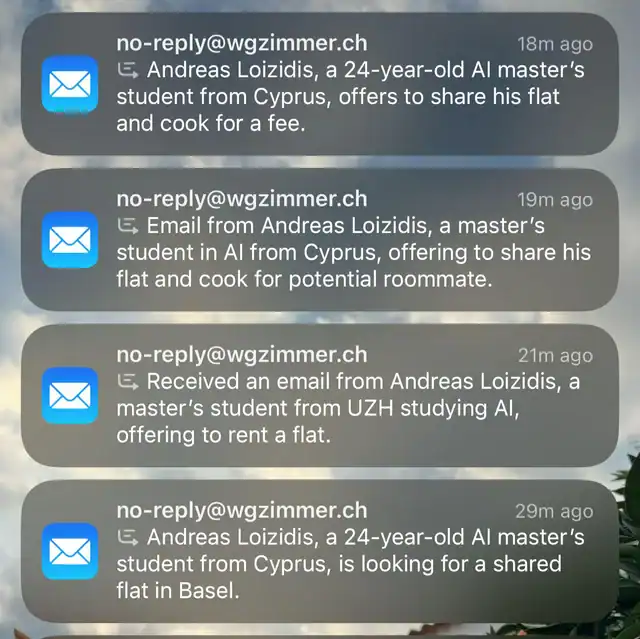
Inbox overload kills momentum. If your resolution includes “respond faster,” “reduce stress,” or “stop procrastinating,” summaries do the heavy lifting.
Apple Intelligence can summarize emails and threads so you can decide what needs action without reading everything line by line.
A simple habit that sticks
- Open a long email or thread
- Use the summary option in Mail
- Decide one of three outcomes: reply now, schedule it, or archive it
- If you reply, keep it short and direct
That last step matters. Speed comes from fewer decisions, not smarter ones.
3) Use Writing Tools as your “no excuses” engine for journaling and planning
Many resolutions collapse because you never write the plan down. Writing Tools can rewrite, proofread, and summarize nearly anywhere you type, so you spend less time polishing and more time doing.
This works especially well for:
- Daily journaling
- Weekly planning
- Job applications and outreach
- Reflection notes after workouts
A repeatable workflow
- Draft your raw thoughts in Notes
- Run Proofread to clean it up
- Run Summarize to create a 3-bullet “what I learned” recap
- Pin that recap at the top of the note for your weekly review
4) Stop missing important messages with Priority and Notification Summaries

If you want to be more responsive in 2026, you need fewer pings and a clearer signal. Apple Intelligence supports notification summaries and prioritization so the essentials rise above the noise.
This matters for relationships and work. It also matters for your mental health. You stay reachable without staying online.
Use it without losing control
- Keep summaries on for high-volume apps
- Turn them off for apps where wording matters
- Review your lock screen once a day and adjust
Apple has already tweaked how summaries appear and which categories are allowed in response to accuracy concerns, so treat summaries as a helper, not a source of truth.
5) Make “follow-ups” effortless with Smart Reply in Mail and Messages
Follow-ups tend to die in your head. Smart Reply helps you send quick, polite responses so conversations move forward.
Use it for:
- Confirming plans
- Acknowledging updates
- Saying “I’ll get back to you by Friday.”
- Keeping a conversation warm without writing a paragraph
A follow-up rule that works
- If a reply takes under 20 seconds, send it immediately
- If it needs thought, send a short acknowledgment and set a reminder
6) Build one-tap routines with “intelligent actions” in Shortcuts

Resolutions stick when you make the right action easier than the wrong one. Apple Intelligence can support intelligent actions in Shortcuts, which helps you turn routines into buttons.
You can build routines like:
- “Start Work”: Reduce Interruptions + open your task app + open your top doc
- “Gym Mode”: Focus + playlist + send ETA to a friend
- “Weekly Review”: open Notes folder + summarize your week’s notes + create next week’s checklist
Shortcut ideas to copy
- A morning shortcut that opens your journal note and starts a 5-minute timer
- A reading shortcut that activates Reduce Interruptions and opens your current book
- An end-of-day shortcut that opens Mail, filters unread, and forces a 15-minute cleanup window
7) Use Siri with ChatGPT only when you need depth, and keep it deliberate
Sometimes you need more than a quick answer. Apple Intelligence can integrate ChatGPT into Siri and Writing Tools, with user control over when it’s used.
This is ideal for:
- Brainstorm a meal plan from the ingredients you already have
- Turning a messy note into a structured plan
- Getting alternate wording for a sensitive message
- Explaining a concept you are trying to learn
Use it safely and cleanly
- Use ChatGPT for drafts, outlines, and options
- Verify facts separately when accuracy matters
- Do not paste sensitive personal details unless you are comfortable sharing them
8) Convert voice notes into action with transcription summaries in Notes
A lot of goals fail because you “meant to write it down.” Notes transcription summaries solve that by turning spoken thoughts into usable text and summaries.
A practical pattern
- Record a quick voice note right after a meeting, workout, or idea
- Generate a summary
- Pull out “next actions” into a checklist
- Set one calendar or reminder item for the most important action
This is one of the simplest ways to keep learning, fitness, and work goals moving without relying on memory.
9) Clean up Photos faster so you stop carrying visual clutter
Photos become a junk drawer. Apple Intelligence features like Clean Up can remove distracting objects in images, which helps if your resolution includes “organize my life” or “finish my backlog.”
It sounds cosmetic, but it changes behavior. When your photos look usable, you sort them, share them, and archive them instead of letting them pile up.
A weekly 10-minute photo reset
- Pick one day each week
- Favorite the 5 best photos you took
- Clean up the top 1 or 2 you want to share
- Delete obvious junk and duplicates
10) Use Visual Intelligence to act on the world faster
If your resolutions include “go out more,” “attend events,” or “learn new things,” Visual Intelligence can cut the friction of planning. Apple has highlighted features like pulling details from posters and recognizing things like plants and animals.
Ways to use it in real life
- Scan a flyer and add the event details to your calendar
- Identify a plant or animal on a walk and save it to a note
- Capture a sign, menu, or handout and summarize the key details
11) Turn “I’ll plan tomorrow” into a 60-second morning brief
If your resolution is consistency, start with clarity. Use Writing Tools to summarise a long note, a messy daily journal entry, or a chunk of text you pasted from yesterday’s messages. Then copy the short version into Reminders as your plan for the day. Writing Tools can summarise, proofread, and rewrite text in many apps, including third-party apps.
- Open your daily note (Notes, Mail, Messages, or any text field that supports Writing Tools).
- Select the text, open Writing Tools, then tap Summarise.
- Add the summary as your “Today” list in Reminders.
12) Use Live Translation to keep conversations moving

If your resolution involves travel, meeting new people, or doing more international work, translation has to be instant and low-effort. iOS 26 adds Live Translation across Messages, FaceTime, and Phone in supported languages when Apple Intelligence is enabled.
- Translate a message thread without switching apps
- Follow translated captions in FaceTime
- Hear translated audio during phone calls (when available)
A simple way to make these stick for all of 2026
Run them for a week. Then add Shortcuts or Writing Tools. When the system does the work, your resolution stops feeling like a daily negotiation.


Discussion