

Wondering why your iPad is so slow all of a sudden? Over time, even the fastest iPads can start to lag, whether it’s due to too many apps running, outdated software, or storage running low. A sluggish device can make everyday tasks frustrating, from browsing the web to streaming videos.
In this guide, we’ll explore the common reasons your iPad slows down and the most effective fixes to get it running smoothly again.
Sometimes there might be some system issues that cause your iPad to become sluggish. To check for those and fix them if that’s the case, we recommend employing the help of specialized tools such as Tenorshare Reiboot.
Don’t miss the best of The Mac Observer
Set us as a preferred source and our Apple reporting ranks higher in your Google Search results and Discover feed — one tap, no account changes.
Table of contents
Why is my iPad so slow?
- Too Many Apps Running – Having multiple apps open in the background can eat up memory and slow performance.
- Low Storage Space – When your iPad’s storage is nearly full, it struggles to process tasks efficiently.
- Outdated Software – Running an older iPadOS version may cause apps and features to lag.
- Old Battery Health – A worn-out battery can limit performance and make the device feel sluggish.
- Background Tasks – Automatic updates, syncing, or location services may slow things down in the background.
- New OS Processes (Indexing & Background Tasks) – After updating iPadOS, your device often performs tasks like re-indexing files, managing updates, or refreshing data in the background, which can temporarily strain performance.
How to fix a slow iPad and improve its performance?
1. Monitor Background Processes
Your iPad performs a series of intensive background tasks (e.g., reindexing files and updating app data) when installing iPadOS updates. They consume significant system resources. While some lagging is expected, performance dips that last more than a few days indicate underlying resources.
Time needed: 5 minutes
Unfortunately, the iPad doesn’t have an Activity Monitor like a Mac does. Here’s how you can monitor background processes instead:
- Go to Settings > Battery.
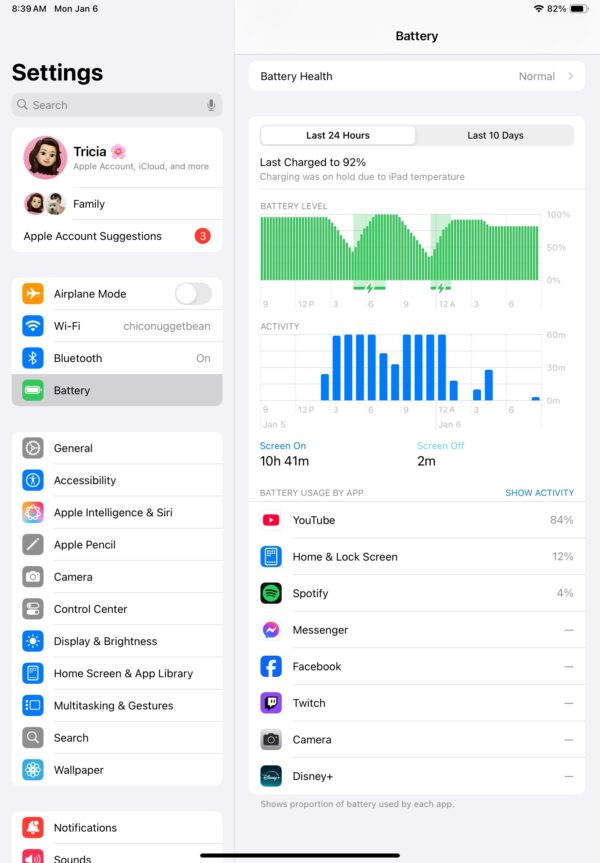
- Under Battery Usage by App, you’ll see which apps require the most power to operate. I suggest deleting the most RAM-heavy ones.
- You can also turn off Background App Refresh to minimize background processes. Go to Settings > General > Background App Refresh.


2. Free Up Storage Space
Your iPad needs free space to handle temporary files and execute processes. It’ll work harder and more efficiently as it runs low on memory. In these cases, you can either clear unused apps or upgrade your iCloud storage plan, although the latter will set you back by a few bucks every month.
- Go to Settings > General > iPad Storage. Review the storage breakdown to identify apps or files taking up space.

- For iCloud, return to Settings > [your Apple ID name] > iCloud > Storage.

 NOTE
NOTE
3. Update Apps
Some of your outdated apps may not be optimized for the installed iPadOS version. They might not do much damage alone, but when you run them simultaneously, you’ll notice significant slowdowns. Update all your apps to eliminate potential performance bottlenecks.
- Open the App Store.
- Tap your profile icon at the top right corner.
- Scroll to view available updates and tap Update All.
- For apps still causing issues, uninstall and reinstall them to reset their data.
4. Disable Apple Intelligence
Apple Intelligence is supported on iPads with M1 or later chips and the iPad mini (A17 Pro). However, compatibility doesn’t equate to optimization.
These features can demand significant system resources, especially during intensive tasks like predictive text generation or content analysis. Turn it off in the meantime.
- Open Settings > Apple Intelligence & Siri.
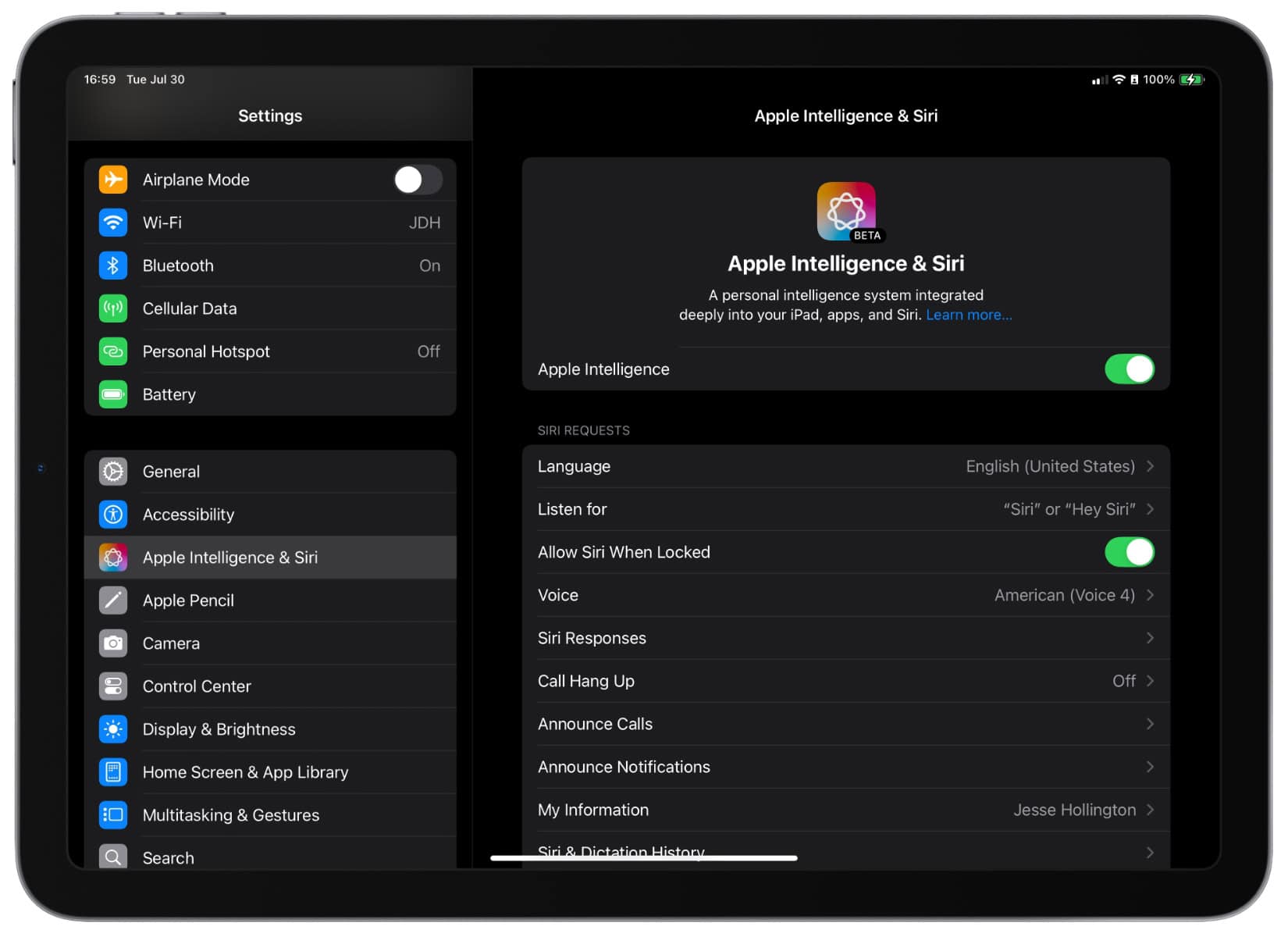
- Toggle off Apple Intelligence.

If you don’t see the option, find out why Apple Intelligence is not available.
5. Turn Off VPN
Try turning off your VPN while troubleshooting. They reroute your network traffic through external servers, which can add latency and strain system resources.
Issues are especially prominent on VPNs that aren’t optimized for the new iPadOS version yet.
- Open Settings > VPN.
- Toggle off VPN Status if it’s connected.
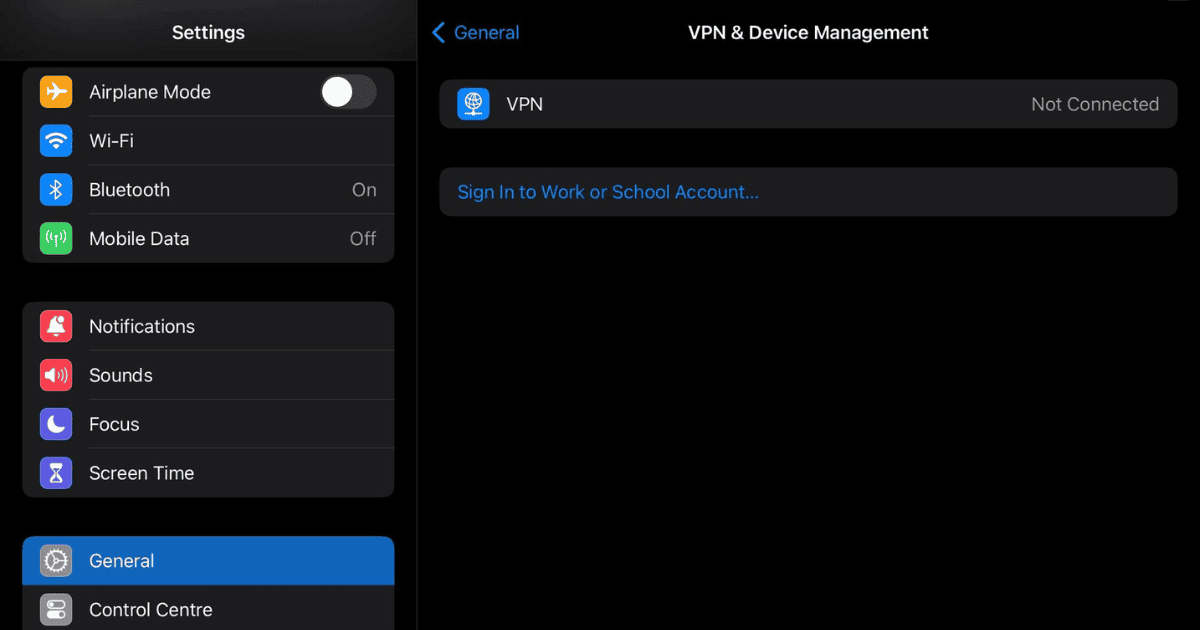
- Likewise, open any third-party VPN app and follow the on-screen steps to disable it.

6. Monitor Battery Health
A degraded battery can strain your iPad’s performance. It relies heavily on consistent power delivery for data processing. Check if your battery is due for maintenance. You might have missed it (then blame the update as a coincidence).
- Go to Settings > Battery and open Battery Health & Charging.
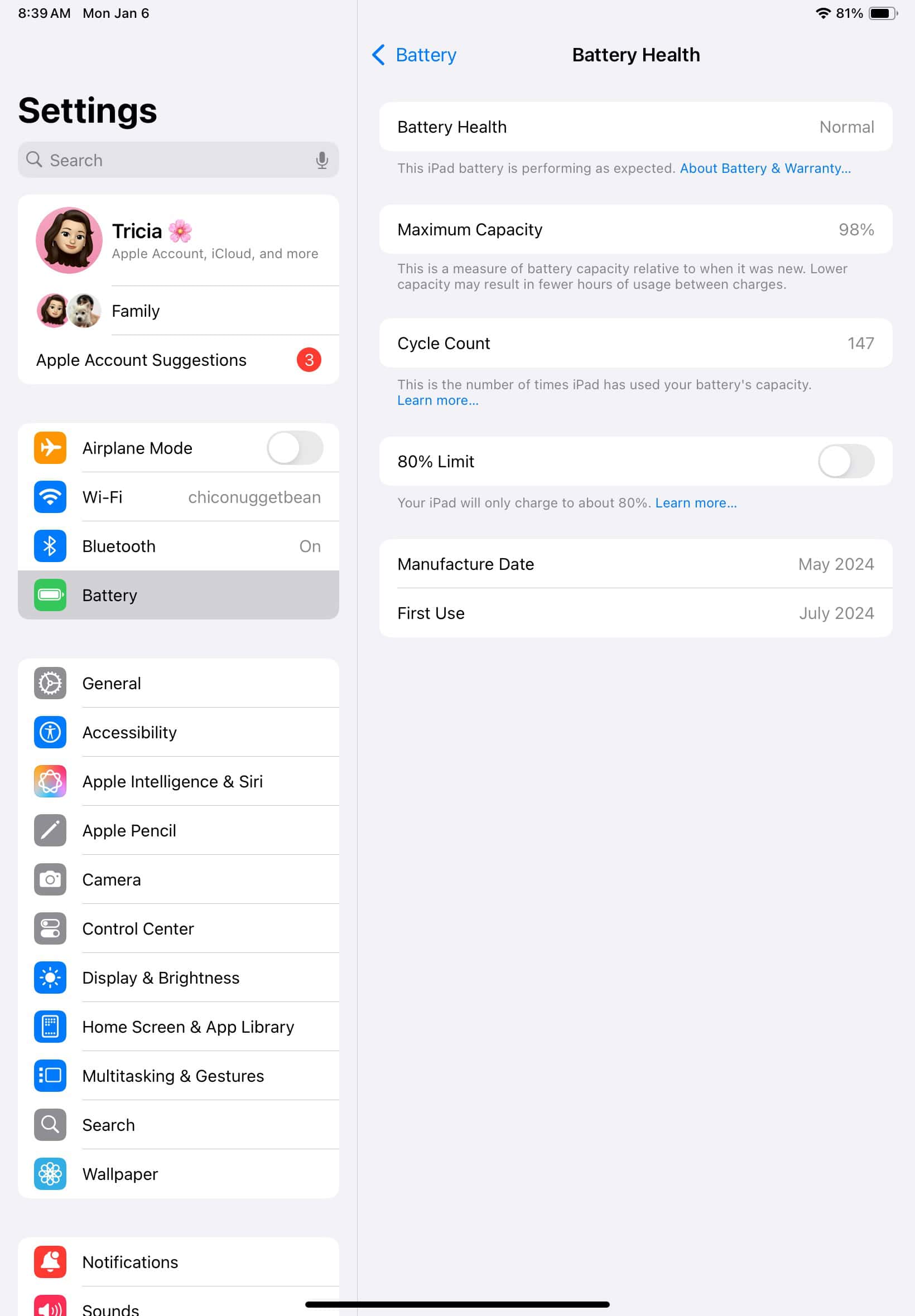
- If your Maximum Capacity drops below 80 percent, call Apple Support.

You might also want to learn about checking the battery health on iPad!
7. Factory Reset iPad
Consider factory resetting your iPad as a last resort. Misconfigurations and glitches can interfere with device performance, and since you can’t pinpoint the culprit, revert everything to its defaults. It’s a drastic yet potentially effective troubleshooting step.
Just remember to back up your data beforehand, or else you’ll lose it for good.
- Open Settings > General > Transfer or Reset iPad.
- Select Erase All Content and Settings.

- Enter your passcode to confirm the reset.
- Once the reset is complete, reconfigure your device through your iCloud Backup.

Should issues persist, you might have to call Apple Support. The one-year warranty only covers manufacturing problems. You can get accidental damage and battery depletion covered if you have an AppleCare+ plan for your iPad.
Tips to Speed Up Your iPad
- Close Unused Apps – Do not keep dozens of apps running in the background.
- Clear Safari Cache – Go to Settings > Safari > Clear History and Website Data.
- Reduce Motion & Animations – Settings > Accessibility > Motion > Reduce Motion.
- Restart Regularly – A quick restart helps clear memory and refresh processes.
- Update iPadOS Frequently – Stay on the latest version for bug fixes and optimizations.
Frequently Asked Questions
If your iPad cannot run the latest iPadOS updates or lags even after resets, it might be reaching the end of its hardware limits.
Updates often bring speed improvements, but they can also introduce new background tasks. Initial slowness after an update usually clears up in a few days.
Yes. Streaming, browsing, and cloud apps depend heavily on Wi-Fi speed, so a weak connection may feel like device lag.
Yes, but back up your data first. A reset erases everything, then restores performance by removing glitches and misconfigurations.
Yes. A degraded battery limits your iPad’s ability to deliver power, which can cause lagging and app crashes.
Summary
- Too many apps and low storage can slow down iPads.
- Outdated apps and software often cause lag.
- Battery health and background tasks affect performance.
- New iPadOS processes like indexing may temporarily slow things down.
- Fixes include freeing storage, updating apps, disabling Apple Intelligence, and factory resetting if needed.
Conclusion
If you have been asking yourself, “Why is my iPad so slow?”, the answer usually lies in storage, background tasks, outdated apps, or even battery health. The good news is, most of these issues are fixable with simple tweaks such as clearing storage, updating software, or disabling resource-hungry features.
And if nothing works, a reset or Apple Support can help make your iPad perform like new. With the right steps, your device can feel faster and more reliable again.



Discussion