

Amazon has recently been causing overheating on iPhone. While external factors like ambient temperature or low storage can contribute, the issue often stems from the app itself. Amazon app versions 25.10.x through 25.12.x are spiking CPU usage on iOS 18 builds running on iPhone 14, 15, and 16 lineups. To resolve, you can update or reinstall the app, use Amazon Lite via Safari, tweak location settings, or, in extreme cases, perform a factory reset.
Let’s go over what you can try first.
1. Update the Amazon App
Time needed: 5 minutes
Certain builds of the Amazon app have triggered high CPU usage due to inefficient background tasks. Updating installs performance patches that disable those problematic threads and reduce memory usage. Newer builds are optimized to work better with iOS 18 system constraints.
- Open the App Store.
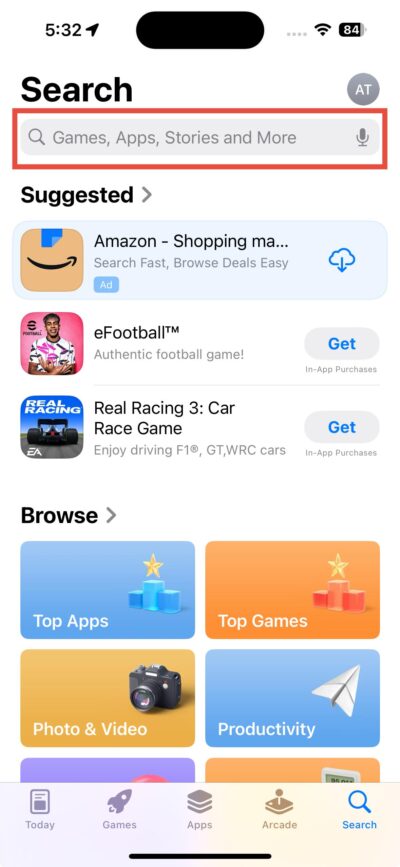
- Tap your profile icon in the top right.
- Scroll to find Amazon, then tap Update.

- Relaunch the app and check for performance changes.


2. Force Quit and Reopen the App
Apps can remain in a high-power loop when they don’t close correctly. Manually terminating the session clears any active processes. When reopened, the system assigns a fresh memory allocation, which often stops the CPU from idling at high usage.
Don’t miss the best of The Mac Observer
Set us as a preferred source and our Apple reporting ranks higher in your Google Search results and Discover feed — one tap, no account changes.
- Swipe up from the bottom and pause mid-screen.
- Locate Amazon in the App Switcher.

- Swipe it up and off the screen.
- Reopen the app from the Home Screen.

3. Use Amazon in Safari Instead
The native app runs multiple frameworks and background services that mobile Safari does not. The browser version limits polling, background access, and resource hooks. This reduces the thermal load and prevents the app from keeping your phone warm unnecessarily.
- Open Safari.
- Go to the Amazon website.
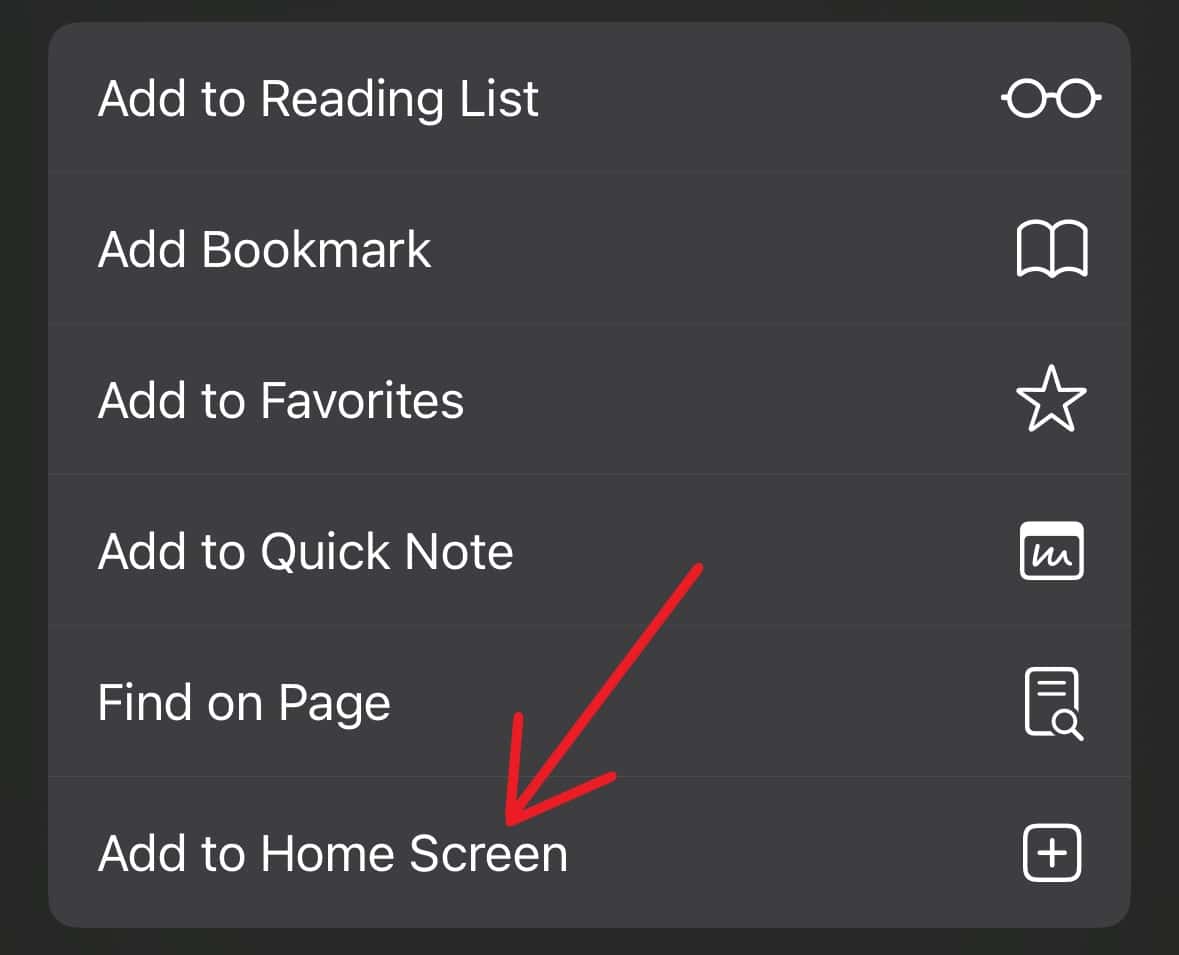
- Tap Share, then Add to Home Screen to use it like a native app.
- Avoid launching the Amazon app until fixed.

4. Turn Off Location Access
The Amazon app often accesses location data for tracking, nearby store features, or delivery sync. When set to “Always,” this can trigger repeated GPS and network lookups. Limiting it to active use helps lower thermal output.
- Open Settings.
- Tap Privacy & Security > Location Services.
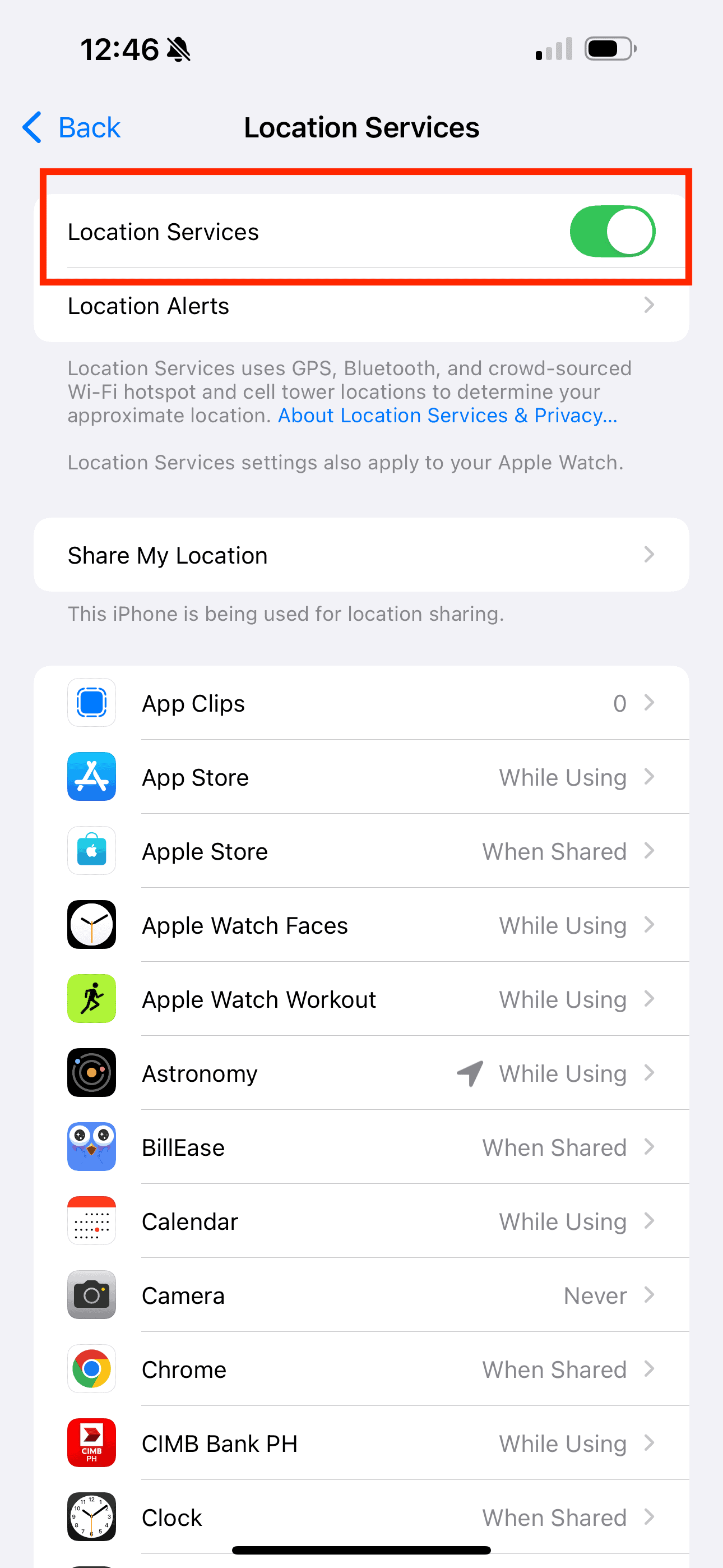
- Select Amazon from the list.
- Set location access to While Using the App or Never.

5. Delete and Reinstall the App
Cached data or corrupted settings can result in persistent background jobs. Reinstall the app removes all legacy data and downloads a clean build to minimize memory leaks or lingering code fragments that cause overheating.
- Tap and hold the Amazon app.
- Select Remove App, then tap Delete App.
- Open the App Store and search Amazon.
- Reinstall and sign in again.
6. Check Battery and CPU Load
iOS shows real-time app performance. If Amazon appears in the top battery usage with high background activity, it’s likely the cause. You might notice abnormal power draw.
- Open Settings > Battery.
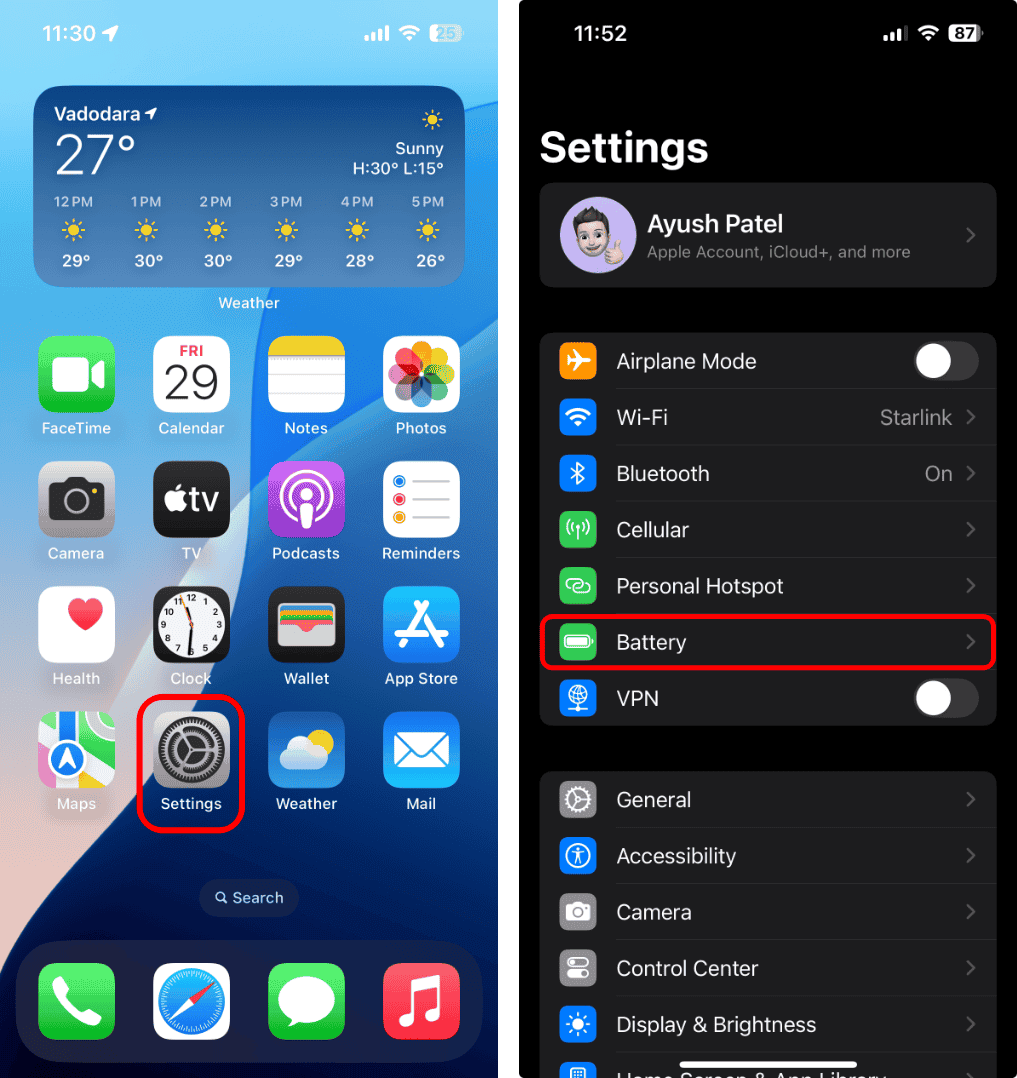
- Wait for usage stats to load.
- Look for Amazon under Battery Usage and check if it shows high activity.
- Use this data to support a reinstall or escalate to Amazon Support.

7. Factory Reset Your iPhone
Since you can’t pinpoint the issue, I suggest factory resetting your iPhone. You might be facing corrupted system settings or daemon-level resource conflicts. Reverting everything to their defaults could resolve misconfigured settings or app glitches that you’re overlooking.
- Open Settings.
- Tap General > Transfer or Reset iPhone.
- Select Erase All Content and Settings.
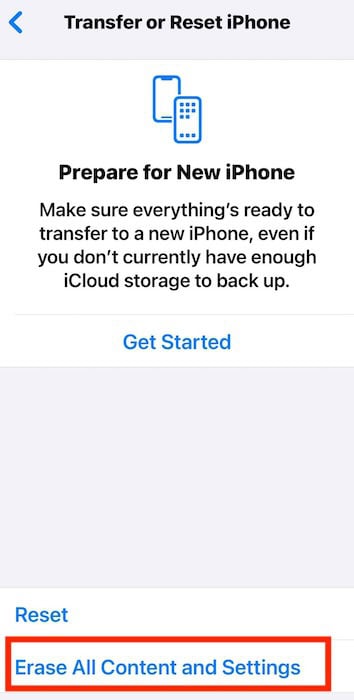
- Follow the prompts and confirm with your passcode.
- Set up your device fresh and reinstall essential apps only.

Should issues persist, contact Apple Support. They can help narrow down the root cause. Hardware faults are unlikely, but not impossible. You can also reach out to Amazon Customer Service, although keep in mind their support is mostly limited to account and order-related concerns, not app performance. Still, it’s worth reporting if the overheating continues.



Discussion