

The easiest way to force restart a Mac is to use the Power button. Apart from this, you can also use keyboard shortcuts, Apple menu, and Terminal commands to shut down an unresponsive or frozen Mac. Each method offers a way to handle different situations, whether you want to try a safe shutdown first or need to force your Mac to power off immediately.
 NOTE
NOTE
1. Force Restart Using Power Button
Time needed: 2 minutes
Every Mac has a power button. On a MacBook, the power button is located at the top-right of the keyboard and may also serve as a Touch ID sensor. On an iMac, you’ll find the power button behind the screen in the bottom-left corner (or bottom-right when viewed from the back). For a Mac mini, there’s a small circular button on the back of the device.
- Press and hold the Power button for about 10 seconds until the screen goes black.
- Wait a few seconds, then press the Power button again to turn it back on.
2. Use a Keyboard Shortcut
You can also shut down your Mac using two keyboard shortcuts. One tries to close apps safely, and the other forces an immediate shutdown. We recommend trying the safe method first to avoid losing unsaved work.
- Press Control + Option + Command + Power. Don’t hold the power button for too long.
- This will attempt to close all apps and shut down the Mac safely.
If the above shortcut doesn’t work, you’ll need to force your Mac to shut down.
Don’t miss the best of The Mac Observer
Set us as a preferred source and our Apple reporting ranks higher in your Google Search results and Discover feed — one tap, no account changes.
- Press and hold Control + Command + Power. Hold the keys until the screen goes blank and your Mac restarts.
- This forces the Mac to shut down without closing apps.
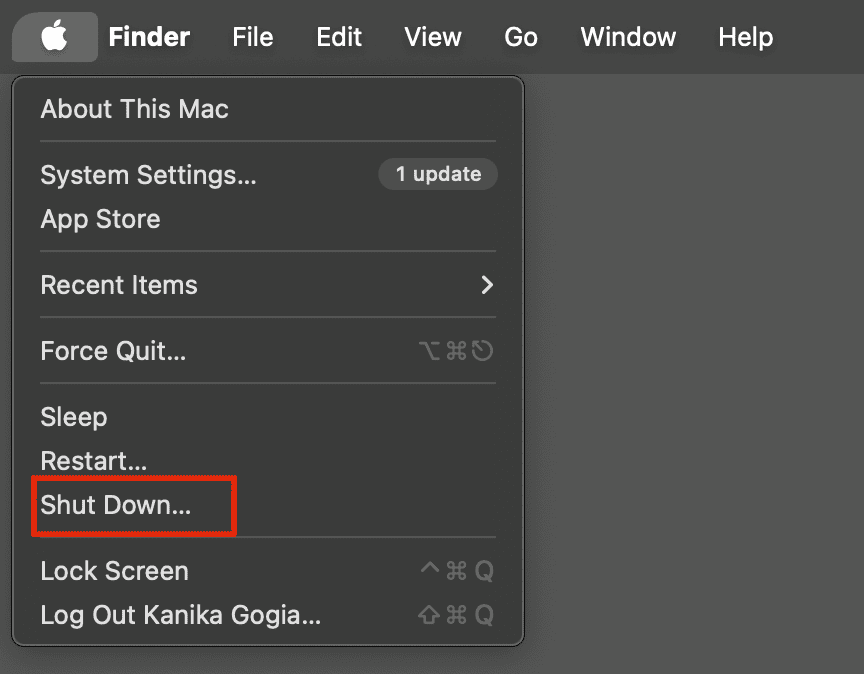
3. Using Apple Menu
If your Mac is responsive, you can use the Apple Menu to shut it down safely.
- Click the Apple icon in the top-left corner.
- From the list of options, select Shut Down.

4. Force Restart an App
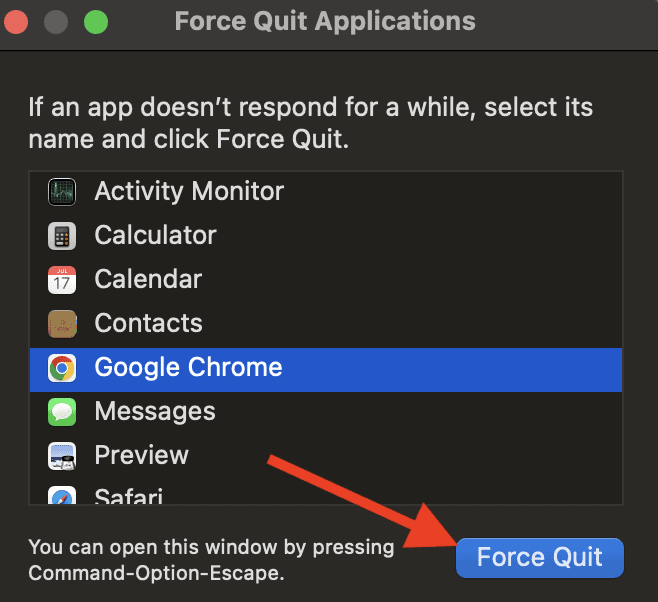
If only a specific app is frozen rather than the entire operating system, you can try to force quit the app.
- On your Mac’s built-in keyboard, press Command + Option + Esc.
- This will open the Force Quit Applications window.
- Select the unresponsive app and click Force Quit.

If this doesn’t work, here are other ways to force quit an app on a Mac.
5. Using Terminal
If your Mac is still responsive and you can open the Terminal app, you can shut it down using a simple command.
- Press Command + Space to open Spotlight Search.
- Start typing Terminal. When it appears, hit Return.
- You can also find Terminal under Applications > Utilities.
- Enter the following command and hit Return:
% sudo shutdown -r now
How Do I Force Shutdown My MacBook With the Keyboard?
You can force shut down your MacBook using a keyboard shortcut if it’s unresponsive and not responding to normal shutdown methods. Since this method immediately powers off your Mac without saving your work, we recommend using it only when necessary.
- Press and hold Control + Command + Power (or Touch ID button).
- Keep holding the keys for a few seconds.
- Your MacBook will shut down forcefully.
- After a few seconds, press the Power button again to restart.
How Do I Force Quit an Unresponsive Mac?
The easiest way to force quit an unresponsive Mac is to press and hold the Power key until the screen goes black. If your Mac’s screen was already black when you began the force shutdown, keep holding the power button until you see the Apple logo.
How To Force Shut Down a MacBook Pro Without a Power Button?
If your MacBook Pro doesn’t have a visible power button, it’s likely built into the Touch ID button at the top-right corner of the keyboard. Even though it may look like just a fingerprint sensor, it still works as the power button.
To force shutdown your MacBook Pro, simply press and hold the Power button for about 10 seconds until the screen goes black.
In case the power button isn’t working, you can press and hold Control + Command + Power/Touch ID button for a few seconds.




My 2017 MacBook pro is frozen and unresponsive; the power button does not do anything (and hasn’t for a few years); at first I was only able to move the cursor and view my app sidebar. After I was signed out, I tried to sign back in as a guest to restart my computer, as this is not the first incident and that has worked previously. However I cannot click “Cancel” or “Guest” and as I type my password nothing displays even though the caret is flashing. None of the above steps work to turn off or restart my computer. Is there anything I can do?
My MacBook Pro is stuck. A upgrade was scheduled to start overnight and it looks like the restart after is frozen. I have tried to restart using the power button after using the command control escape buttons and the command control restart buttons, the screen remains frozen.
This usually happens when a macOS update hangs during the first reboot. Don’t panic—try this in order:
1. Force shut down: Press and hold the power button for 10–15 seconds until the Mac turns off completely. Wait 30 seconds, then turn it back on.
2. If it freezes again, start in Safe Mode:
Intel Mac: Turn on and immediately hold Shift until you see the login screen.
Apple silicon: Hold the power button until Startup Options appear > select your disk while holding Shift > Continue in Safe Mode.
5. If Safe Mode won’t load, boot into Recovery:
Intel: Restart and hold ⌘R
Apple silicon: Hold power → Options → Continue
6. From there, run Disk Utility > First Aid on the internal drive, then restart.
7. If it still won’t move past the frozen screen, return to Recovery and choose Reinstall macOS (this does not erase your data).
My friend gave me a 2021 macbook pro air and I can’t get past the screen that tells me to connect to wifi. Cursor non responsive. I’ve been an android girl forever and can’t figure out if this is just busted and I got sold shit, or it’s a simple fix. I’ve tried all the restarting options and once it restarts it goes back to this screen. Should I try buying a mouse?
It sounds like your MacBook is stuck on the setup screen, and the built-in trackpad isn’t responding. Before assuming it’s broken, yes, you can try connecting an external mouse or keyboard via USB—sometimes the setup needs that to get past the initial screen. If that works, you should be able to continue the setup. If not, it might be a deeper software issue, like a corrupted macOS install, which could require reinstalling macOS using Recovery Mode.