

Changing your Apple ID (Apple Account) or password might be necessary if you’ve lost access, want to improve security, or are switching devices. It’s a simple process and typically takes around 10 minutes per device.
When handling passwords, it is important to exercise the utmost care. This is why we recommend employing the help of a professional password manager. Tenorshare 4uKey – Password Manager is one of the best password managers I have used on Apple devices.
Don’t miss the best of The Mac Observer
Set us as a preferred source and our Apple reporting ranks higher in your Google Search results and Discover feed — one tap, no account changes.
➡️Try Tenorshare 4uKey – Password Manager
Table of contents
How to Change Apple ID (Apple Account)
These steps work for iPhone, iPad, and iPod running iOS 16–18.
- Open Settings, tap your name at the top.
- Scroll down and tap Sign Out.
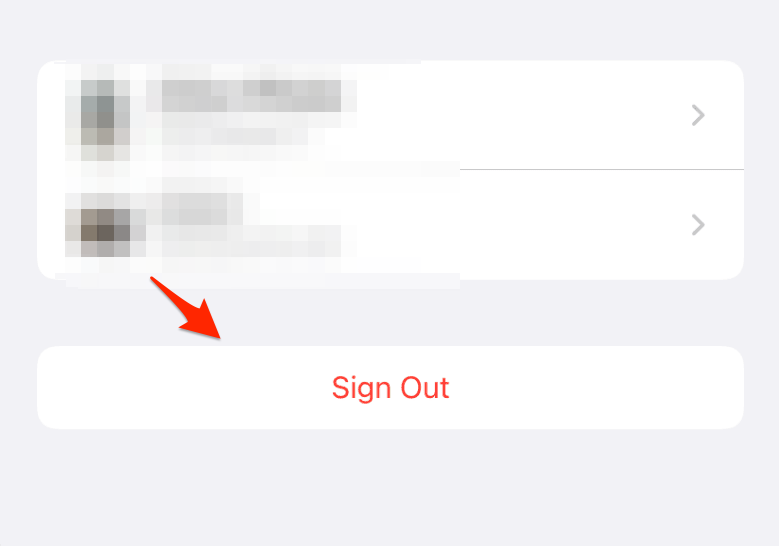
- Enter your old password, then choose whether to Keep on This [Device] or Remove from This [Device].
- Tap Sign Out at the top right.
- Return to Settings, tap Sign in to your [Device].
- Enter the new Apple ID (Apple Account) and its password, then follow on-screen prompts (e.g., 2‑Factor Authentication or merging data).

How to Reset Apple ID (Apple Account) Password
If you remember the Apple ID but forgot the password, there are two methods:
1. Via Settings (when signed in)
- Go to Settings > your name > Sign-in & Security.
- Tap Change Password.
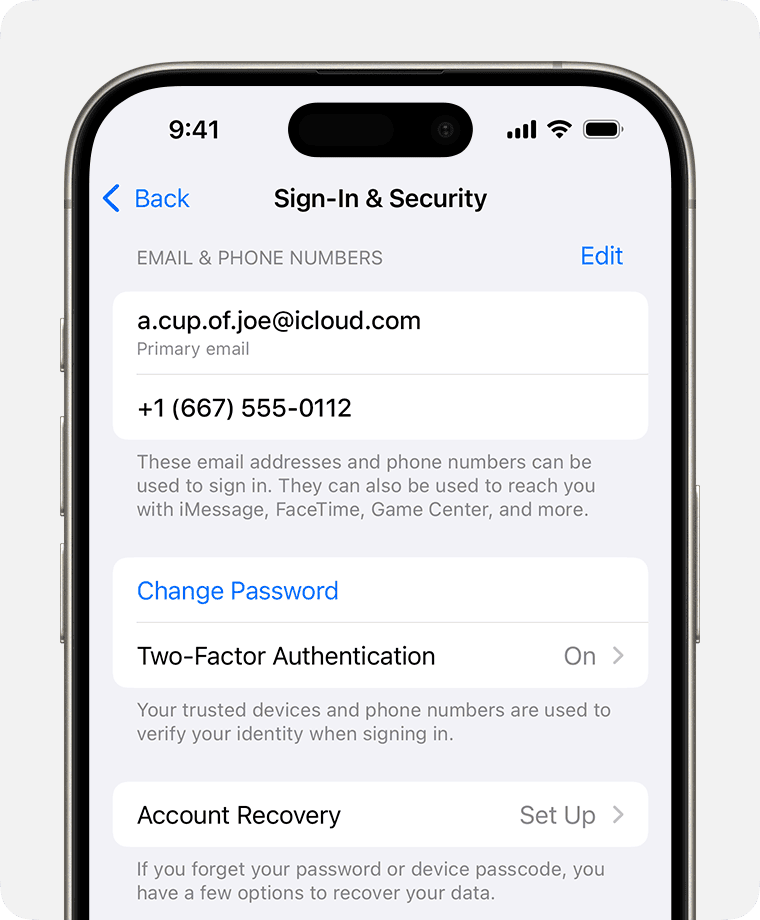
Image credit: Apple - Verify with device passcode and enter a new strong password.

2. If you don’t remember your password
- Go to Settings > your name > Password & Security.
- Tap Forgot Apple ID (Apple Account) Password?
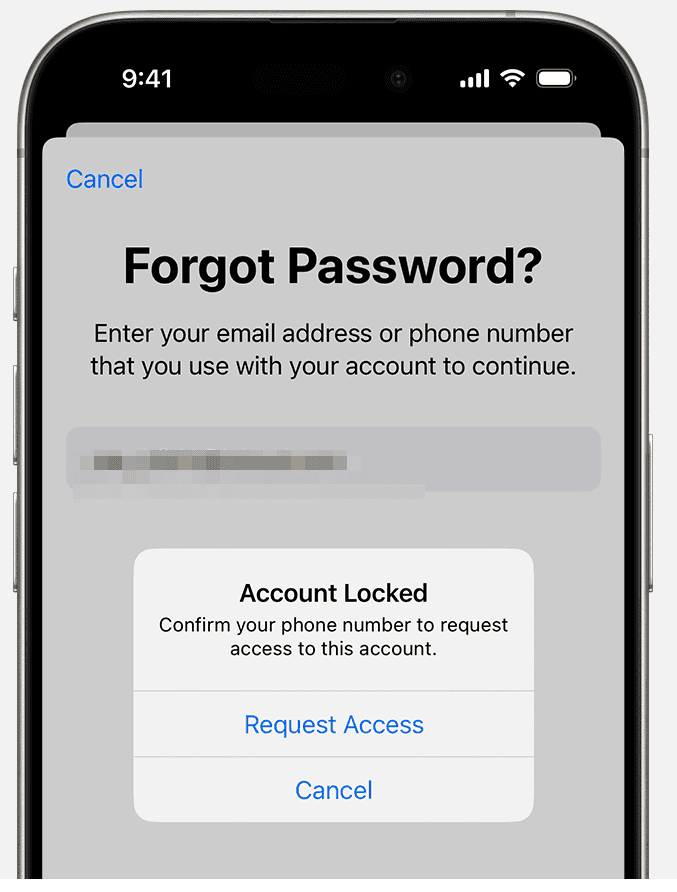
Image credit: Apple - Follow the on-screen steps to reset using email, security questions, or trusted device.
- Or visit appleid.apple.com, select Forgot Apple ID password, and follow instructions there.


Tips for Changing Your Apple ID or Password
- Use a strong, unique password (mix of letters, numbers, symbols).
- Enable 2‑Factor Authentication for enhanced security.
- After changes, update trusted devices and apps. Sign in again on iCloud, App Store, Apple Music, etc.
- Check app permissions and keychain for any disrupted access.
- Monitor devices in Settings to ensure no unknown devices are linked.
Frequently Asked Questions
Go to Settings > your name > Password & Security > Change Password.
If you forgot it, go to Settings > your name > Password & Security > Forgot Apple ID (Apple Account) Password? and follow the prompts.
Start by signing in at appleid.apple.com, then set your password. Once reset, return to your new iPhone’s Settings and sign in.
The term Apple Account clarifies that the ID encompasses broader access—not just device login, but everything tied to your Apple ecosystem (iCloud, purchases, subscriptions). It’s mainly a naming update; the functionality remains the same.
Your Apple ID (Apple Account) is your digital identity for Apple services. It authenticates you for iCloud, App Store, Apple Music, Messages, FaceTime, and more—it’s essential for device backups, purchases, and syncing.
Summary
- Change Apple ID: Sign out in Settings > sign in with new ID.
- Reset password (known): Settings > Password & Security > Change Password.
- Reset password (forgot): Use Forgot Password in Settings or on appleid.apple.com.
- Follow tips: Use strong password, enable 2FA, update apps and devices.
Conclusion
Updating your Apple ID (Apple Account) or password is a very quick process. Remember to sign out and back into services, enable 2‑Factor Authentication, and review trusted devices.


Discussion