

Restoring an iPad to factory settings is actually quite easy! Whether you’re preparing to sell your iPad, fixing persistent software issues, or simply starting fresh, in this guide, I will walk you through every possible scenario: from using Settings to restoring with a computer, even if you’ve forgotten your passcode.
When it comes to iPhone or iPad reset it is important to make sure you have backed up your data. Professional software such as Dr. Fone – Phone Backup is the easiest, fastest, and most secure way to make sure all your data is safe when you do a device reset.
Don’t miss the best of The Mac Observer
Set us as a preferred source and our Apple reporting ranks higher in your Google Search results and Discover feed — one tap, no account changes.
Table of contents
- Why and When Should You Restore Your iPad?
- What Happens When You Restore Your iPad?
- What You Need Before Restoring
- How to Backup Your iPad Before a Factory Reset
- How to Restore an iPad to Factory Settings
- How to Recover Your iPad Backup After Resetting
- Troubleshooting Issues While Restoring
- Frequently Asked Questions
- Summary
- Conclusion
Why and When Should You Restore Your iPad?
There are several reasons to reset your iPad to factory settings:
- You’re giving away or selling your device
- The iPad is slow or behaving erratically
- You’ve forgotten the passcode
- You’re locked out due to failed attempts
- You want a fresh start
A factory reset wipes everything and returns your device to a clean slate.
What Happens When You Restore Your iPad?
Restoring your iPad erases all personal data, settings, apps, and media. The device returns to the state it was in when it first came out of the box.
 NOTE
NOTE
What You Need Before Restoring
To ensure a smooth reset:
- Your Apple Account (Apple ID) and password
- A recent backup (via iCloud or computer)
- A Mac or Windows PC for some methods
- Stable internet connection
How to Backup Your iPad Before a Factory Reset
1. iCloud Backup
- Go to Settings > [Your Name] > iCloud > iCloud Backup.
- Tap Back Up Now.
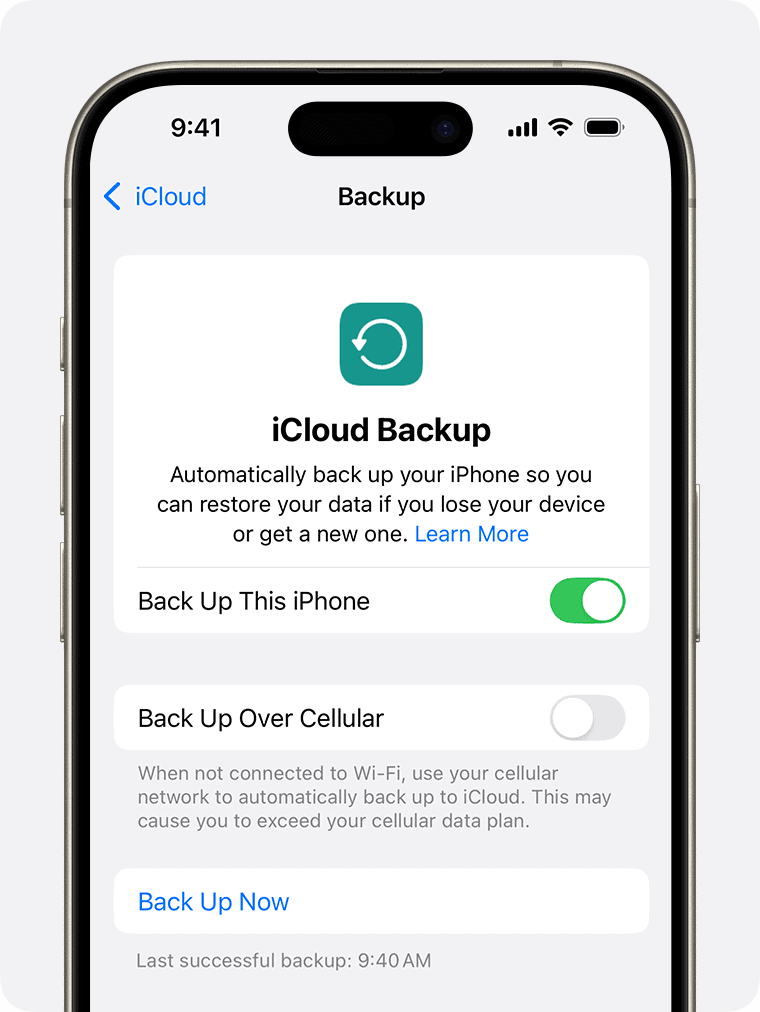
Image credit: Apple

2. Finder (macOS Catalina and later)
- Connect your iPad to your Mac.
- Open Finder.
- Select your iPad under Locations.
- Click Back Up Now.


3. iTunes (Windows/macOS Mojave)
- Connect your iPad to your computer.
- Open iTunes.
- Click the Device icon.
- Under Backups, select This computer.
- Click Back Up Now.
How to Restore an iPad to Factory Settings
1. Using Settings (When You Have Access)
Time needed: 1 minute
- Open Settings > General.
- Tap Transfer or Reset iPad.
- Select Erase All Content and Settings.
- Enter passcode/Apple Account (Apple ID) if prompted.
- Confirm to erase.
2. If Locked Out (No Passcode)
Use Recovery Mode:
- Connect your iPad to your computer.
- Open Finder (Mac) or iTunes (Windows).
- Force restart the iPad:
- Face ID models: Press and quickly release Volume Up, then Volume Down. Hold the Top button until the recovery screen appears.
- Home button models: Hold Home + Top button.
- Choose Restore in the pop-up window.
3. Using a Mac (Finder)
- Connect your iPad to a Mac.
- Open Finder.
- Select iPad.
- Click Restore iPad.
- Confirm and wait for the process to complete.
4. Using iTunes (PC or older Macs)
- Open iTunes.
- Connect your iPad.
- Select the device icon.
- Click Restore iPad.
- Confirm and wait.
5. Without a Computer (iCloud.com)
- Visit iCloud.com.

- Log in with your Apple Account (Apple ID).
- Go to Find iPhone > All Devices.
- Select your iPad.
- Click Erase iPad.

6. Without Apple Account (Apple ID) Password
If Activation Lock is enabled and you don’t have the Apple Account (Apple ID) password:
- You cannot bypass Activation Lock legally
- Contact Apple Support with proof of ownership.
How to Recover Your iPad Backup After Resetting
1. iCloud
During setup, choose Restore from iCloud Backup, sign in, and pick a backup.
2. iTunes
- Open iTunes.
- Connect your iPad.
- Click Restore Backup.
- Choose a backup.
3. Finder
- Open Finder.
- Connect your iPad.
- Select iPad > Restore Backup.
- Choose your most recent backup.

Troubleshooting Issues While Restoring
iPad Not Detected by iTunes or Finder
- Try a different USB cable or port
- Restart computer and iPad
- Update iTunes or macOS
Stuck in Recovery Mode
- Retry the process
- Use third-party tools like iMazing or Tenorshare ReiBoot (optional)
“Could Not Restore iPad” Error
- Restart everything and try again
- Ensure your software is up to date
- Check for enough disk space on your computer
Frequently Asked Questions
Yes. It removes all content and settings from the iPad.
Only if Activation Lock is turned off, otherwise, you’ll need the Apple Account (Apple ID).
Go to Settings > Screen Time > Forgot Passcode and follow the prompts.
Yes, including iPad, iPad mini, iPad Air, and iPad Pro models.
Yes, using Find My via iCloud.com or another Apple device.
Summary
- Back up your iPad before restoring.
- If locked out, use Recovery Mode.
- Use Finder or iTunes to restore from a computer.
- You need an Apple Account Apple Account (Apple ID) to bypass Activation Lock.
- Restore from iCloud or computer backup afterward.
Conclusion
Whether you’re selling your iPad, fixing a glitch, or just starting fresh, restoring to factory settings is a reliable solution. Remember to back up your data and keep your Apple Account (Apple ID) handy.




Discussion