

While you can’t get Apple’s Numbers app on Windows, opening a .numbers file is simple and straightforward. You can use Numbers via iCloud’s website, download the iCloud app, or convert the file into a format supported by Windows.
In this guide, I’ll walk you through all the practical methods that will help you open a Numbers file on Windows 10 and 11.
Table of contents
How to get Apple’s Numbers on Windows?
1. Use Numbers via iCloud
The easiest way is to use Apple’s free iCloud service:
- Go to iCloud in your browser.
- Sign in with your Apple ID.
- Click on the Numbers icon.

- Upload your .numbers file.
- You can edit it directly in your browser or download a copy as Excel or PDF.
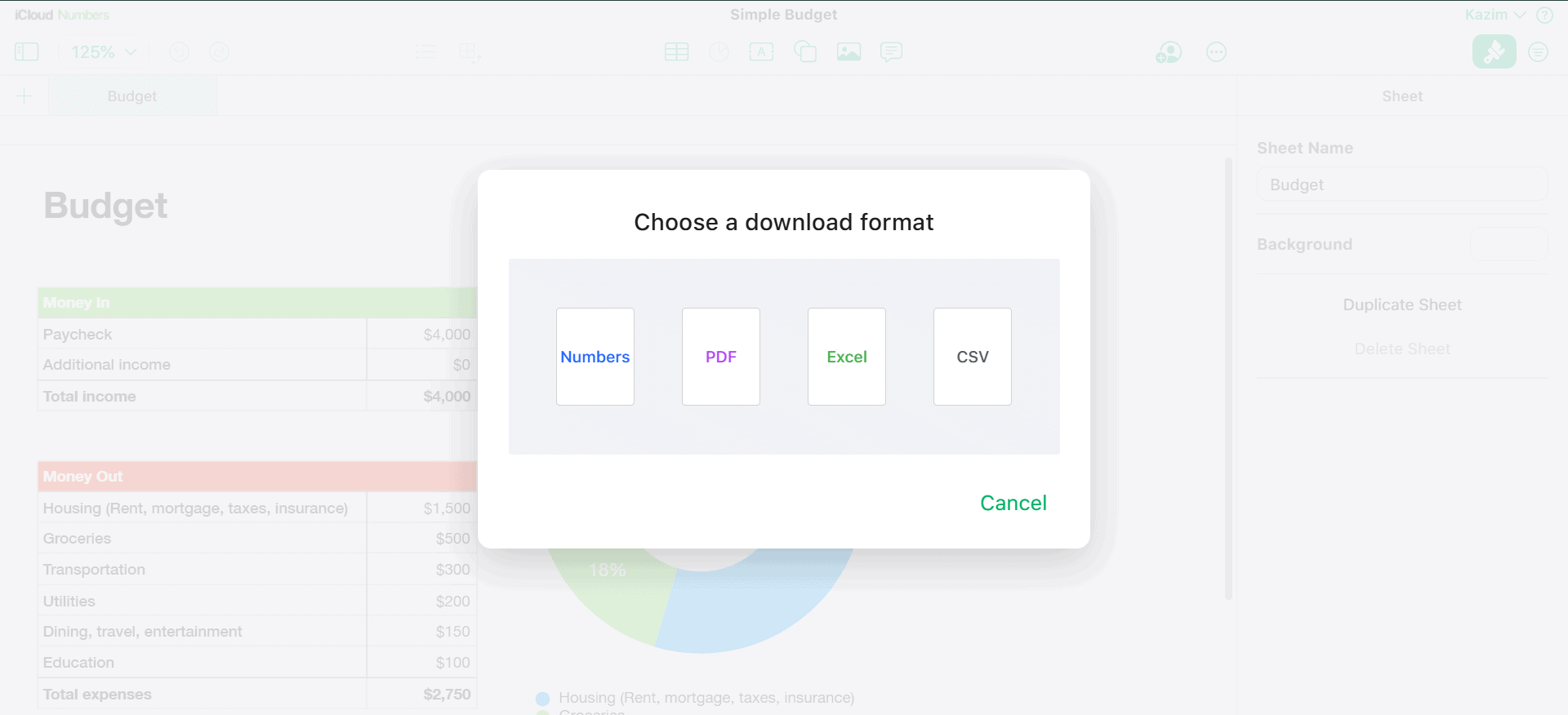


This method is quick and works on any modern browser, like Chrome, Edge, or Firefox.
2. Install iCloud for Windows and convert offline
Apple also offers iCloud for Windows.
- Download iCloud from the Microsoft Store.
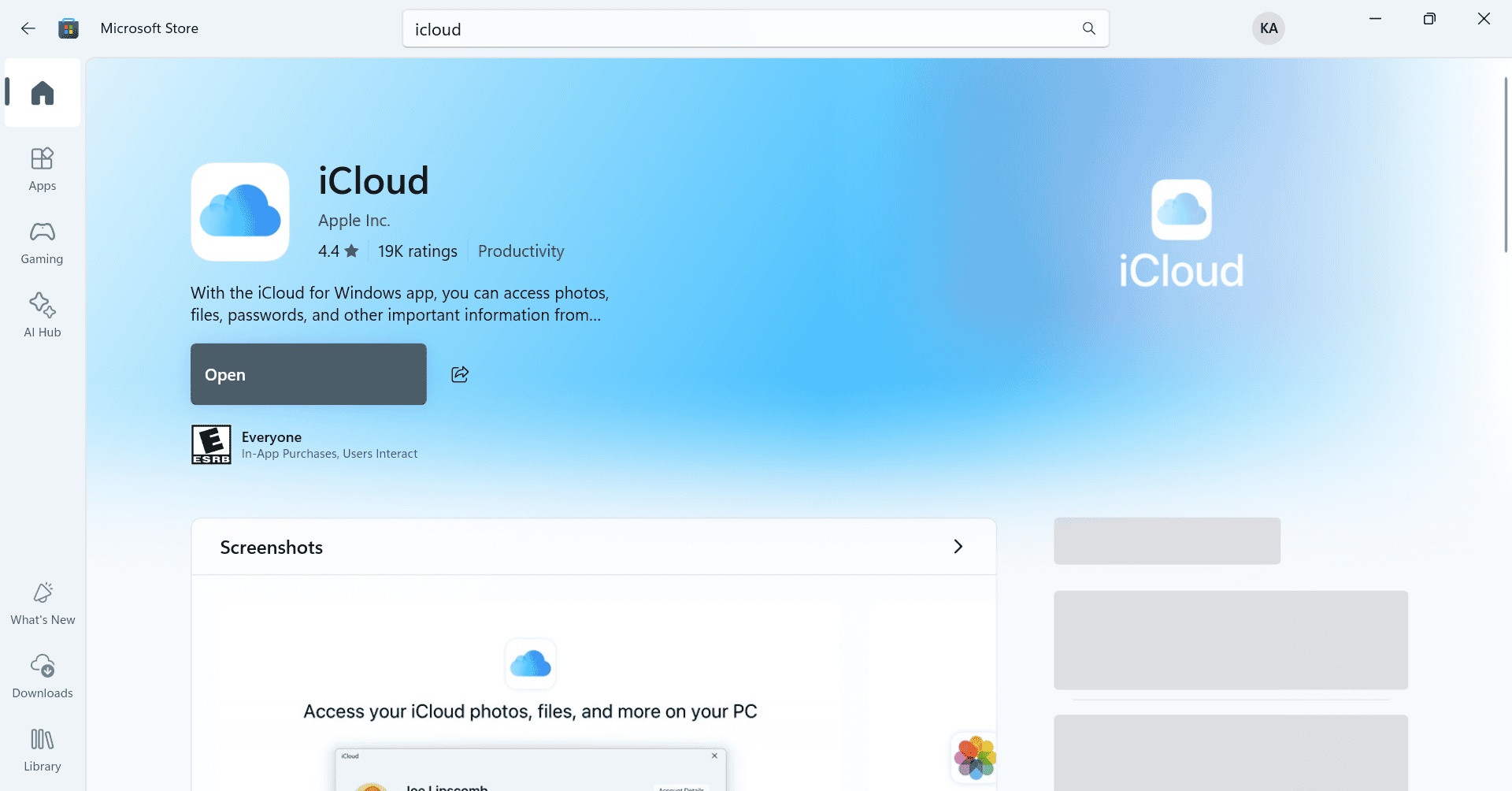
- Sync your files through iCloud Drive.
- Open the .numbers file via iCloud.
- Choose the option to download a copy in Excel or PDF format.

This way, you do not always have to log into the browser, and your files remain accessible from your PC!
3. Ask the sender to export as Excel or PDF
If you know the person who created the file, the simplest option is to ask them to export it before sharing:
- On their Mac or iPad, they can go to File → Export To → Excel or PDF.
- You will then receive a fully compatible file that opens easily in Windows apps.
This method saves you from converting the file yourself.
4. Use online file converters
There are several online tools that let you upload .numbers files and convert them into Excel or PDF. CloudConvert is a popular option.
Steps to convert a .numbers file into an Excel-readable format are:
- Upload the .numbers file.
- Select the format you need (like .xlsx).
- Download the converted version.
This works well if you do not want to use iCloud. But make sure you trust the converter before uploading sensitive documents!
Open converted .numbers files in Excel or alternatives
Once converted to Excel, you can open the file in:
| Application | What you get |
|---|---|
| Microsoft Excel | Full compatibility with most formatting and features |
| WPS Office | Free and lightweight, compatible with Excel formats |
| LibreOffice Calc | Free and open source, good for basic spreadsheets |
Tips for using Numbers on Windows
- Use a modern browser for iCloud, such as Chrome or Edge.
- Keep your Apple ID credentials safe if you use iCloud.
- Double-check formatting after conversion, as some charts or fonts may shift.
- Always save a backup of the original .numbers file before editing.
Frequently Asked Questions
No. Numbers is only available on macOS, iOS, and iPadOS. Windows users can only access it through iCloud or by converting files.
Yes, as long as you are using an updated browser on a desktop.
Most of the time, yes, but complex charts and custom styles may look slightly different after conversion.
Yes. iCloud, exporting to Excel, and most converters offer free options.
Summary
- Apple doesn’t have a dedicated Numbers app for Windows.
- Use iCloud.com to open and edit Numbers files directly online.
- Install iCloud for Windows to sync and convert files.
- Ask the sender to export the file as Excel or PDF.
- Use online converters to change .numbers files into .xlsx.
- Open the converted file in Excel, WPS Office, or LibreOffice.
Conclusion
Getting Apple’s Numbers to work on Windows might seem impossible at first, but it’s actually pretty straightforward once you know your options. You can use iCloud to edit online, install iCloud for Windows for offline access, or simply convert the file to Excel. If you want the fastest solution, just ask the sender to export it before sharing!
With these methods, you’ll never be stuck with a Numbers file you cannot open again.
Did you know, a similar approch helps get Apple’s iMessage on Windows.


