
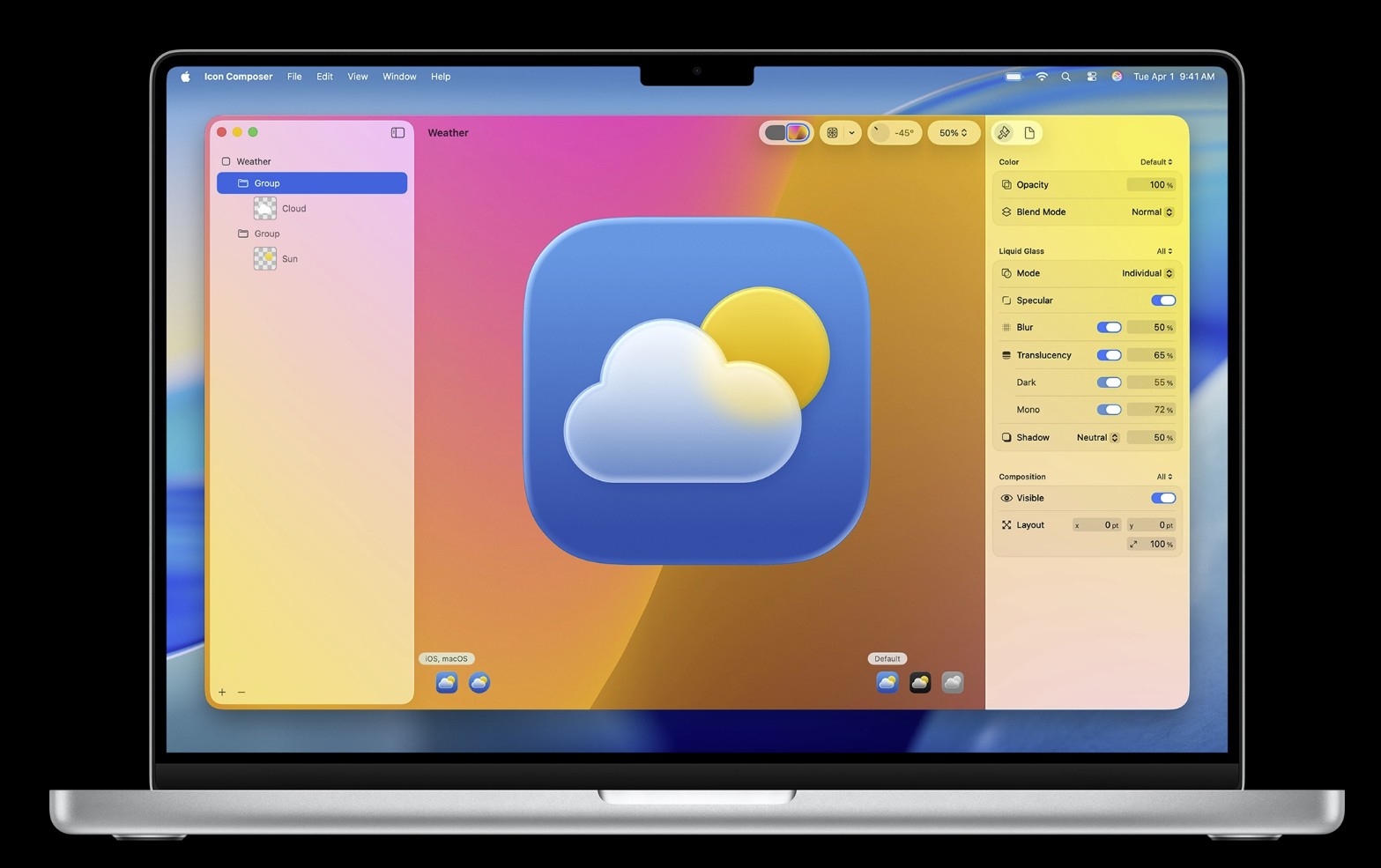
Apple now ships a modern Icon Composer for building Liquid Glass–ready app icons, alongside Xcode’s asset catalogs, iconutil for macOS .icns, and the SF Symbols app for in-app glyphs. We’ll map the whole toolchain, show fast workflows, and flag common App Store Connect pitfalls.
Who this is for
Developers and designers who need:
1) production-ready AppIcon sets for Apple platforms,
2) .icns icons for Mac apps and tools, and
3) symbol assets that align with San Francisco and Apple’s design language via SF Symbols. If you’re setting up a design-to-code pipeline (Figma/Sketch → Xcode), this will save you hours.
For UI kits, check Apple’s iOS/iPadOS UI Kit for Figma and MacObserver’s coverage. (Mac Observer)
TL;DR: Which tool when?
- Icon Composer (free, Apple): Craft Liquid Glass–aware app icons; export straight into AppIcon sets. Best for iOS/iPadOS/watchOS/tvOS/visionOS icons you submit with your app.
- Xcode asset catalogs (free): Where your AppIcon.appiconset lives; Xcode validates sizes, names, and builds. See Apple’s asset catalog docs.
iconutil(free CLI): Convert an .iconset folder → .icns for macOS apps/tools. Official usage is in Apple docs.- SF Symbols app (free, Apple): System-aligned symbols (not app icons) with animation/gradient features in SF Symbols 7—great for tab bars, toolbars, and status UI.
Quick start (most common): iOS/iPadOS app icon in 10 minutes
- Design the base: Create a square 1024×1024 PNG (no alpha), mindful of Liquid Glass highlights. If you need Apple’s latest visual references, grab Apple Design Resources and MacObserver’s iOS 26 design updates recap.
- Open Icon Composer: Start a new iOS/iPadOS project, drop in your 1024 image, tweak depth/lighting if you’re using the Liquid Glass presets, and export an AppIcon set. (Icon Composer targets the modern masking/corner radii used on device.)
- Add to Xcode: In Xcode, select your asset catalog (Images.xcassets) → + → App Icons & Top Shelf (or platform-specific). Drag the exported images into the correct wells. Apple’s “Configuring your app icon” guide shows the exact flow.
- Verify the build setting: Ensure ASSETCATALOG_COMPILER_APPICON_NAME points at your set (e.g.,
AppIcon). See Build settings reference. - Archive & validate: Submit to TestFlight/App Store. If App Store Connect complains about a missing 1024-px marketing icon or a specific slot, fix it in your AppIcon set; common validation messages are documented in Apple’s forums.
Want background on Apple’s icon direction and why they look different this cycle? See MacObserver’s icon redesign coverage and “clever math” tinting for dark mode to understand how system optics affect your icon. (Mac Observer)
macOS app icons (.icns) the right way (Icon Composer → iconutil)
- Create an .iconset folder: Inside
MyApp.iconset, include PNGs at these sizes (1× and 2×): 16, 32, 128, 256, 512 (macOS will scale beyond). - Generate the .icns:
iconutil -c icns -o MyApp.icns MyApp.iconset
Apple’s High-Resolution docs show both the one-liner and the reverse (icns → iconset) for debugging.
Don’t miss the best of The Mac Observer
Set us as a preferred source and our Apple reporting ranks higher in your Google Search results and Discover feed — one tap, no account changes.
3) Add to app: In your macOS target, set the app icon to MyApp.icns (or place it in the app bundle and reference from Info). Xcode can also generate .icns automatically from an AppIcon set if you prefer staying GUI-only.
Tip: If your .icns looks soft, check the source PNGs aren’t upscaled; use native-drawn vectors. (Bonus: sips can batch-resize during builds.)
watchOS, visionOS, tvOS specifics (what actually changes)
- Slots differ by platform: Xcode will display the platform’s required sizes and appearances. Stick to asset catalogs; they keep masks and rounds correct per device class.
- Marketing icon is universal: You still need a 1024×1024 PNG in the AppIcon set for submissions; missing it will block uploads. Apple’s validation notes call this out.
- Design intent: visionOS/tvOS favor clarity at larger scales and distance; watchOS icons need high contrast at tiny sizes. For up-to-date design kits and platform patterns, check Apple Design Resources and MacObserver’s visionOS/iOS design pieces.
SF Symbols vs. app icons (don’t mix them up)
- App icons brand your app on Home Screen, App Library, Spotlight, and the store.
- SF Symbols are in-app glyphs that align with San Francisco, scale with Dynamic Type, and (as of v7) support Draw animations and gradients. Use the SF Symbols app to browse, export SVGs, or create Symbol Image Sets in Xcode. See Apple’s HIG for SF Symbols and the WWDC25 “What’s new in SF Symbols 7” session.
Alternate icons & theming (iOS/macOS)
- iOS/iPadOS: Add additional AppIcon sets in your asset catalog and implement
setAlternateIconNameat runtime. Validate that the primary icon remains complete; App Store Connect errors often mean a missing size in the main set. Apple’s forum threads show typical failure messages. - macOS: You can ship alternates, but most Mac apps stick with a single .icns for consistency with Spotlight/Quick Look.
Automation: one-click exports (CI-friendly)
- From vectors to all sizes: Keep a single vector master (Figma/Sketch). Export 1024×1024, then let Icon Composer produce platform sets. For macOS builds, have CI run
iconutilon a checked-in.iconset. (Apple Developer) - Quality gate: Add a script to fail the build if any AppIcon slot is empty or if the 1024 marketing icon is missing; this prevents App Store Connect rejections later. Apple’s validation notes in the forums list the exact error text. (Apple Developer)
Troubleshooting (fast fixes)
- “Missing 1024×1024 marketing icon.” Add the 1024 image to the Any Appearance well of your AppIcon set. Re-archive. (Apple Developer)
- Icons look soft on Mac. Rebuild your
.iconsetwith true 1×/2× PNGs; regenerate .icns withiconutil. (Apple Developer) - Wrong icon at runtime. Confirm ASSETCATALOG_COMPILER_APPICON_NAME matches your AppIcon set name. (Apple Developer)
- Design kits out of date. Re-download Apple’s Design Resources and SF Symbols; MacObserver tracks when Apple updates these packages. (Apple Developer)
FAQs
Is Apple’s Icon Composer replacing third-party generators? For most teams, yes. It understands current masks, radii, and Liquid Glass—so exports land correctly in Xcode. You can still hand-craft with Photoshop/Affinity and just use Icon Composer/Xcode to package. (Apple Developer)
Do I still need .icns on macOS? Yes—your bundle carries a single .icns (or Xcode generates it from your AppIcon set). iconutil remains the canonical converter. (Apple Developer)
Where do I get official symbol/glyphs? The SF Symbols app. It’s free and updated (v7) with animations/gradients; MacObserver frequently covers these updates. (Apple Developer)
Related reading (MacObserver)
- Apple releases updated design resources for iOS 26, iPadOS 26 and macOS Tahoe 26—what changed for designers and developers. (Mac Observer)
- Apple releases updated iOS & iPadOS UI Kit for Figma—great for icon framing and grid consistency before you export to Icon Composer. (Mac Observer)
- Apple’s icon direction heading into iOS 19—context on shapes, contrast, and the move toward Liquid Glass. (Mac Observer)
Summary (copy/paste checklist)
- Design 1024×1024 base artwork →
- Use Icon Composer to generate platform sets →
- Add to Images.xcassets in Xcode; set ASSETCATALOG_COMPILER_APPICON_NAME →
- For Mac, create
.iconsetand runiconutil -c icns→ - Validate (look for the 1024-px marketing icon requirement) →
- Submit.
If you want, I can tailor a team-ready template (Figma export settings + Icon Composer presets + Xcode asset catalog skeleton) that matches your platforms and CI setup.


Discussion