
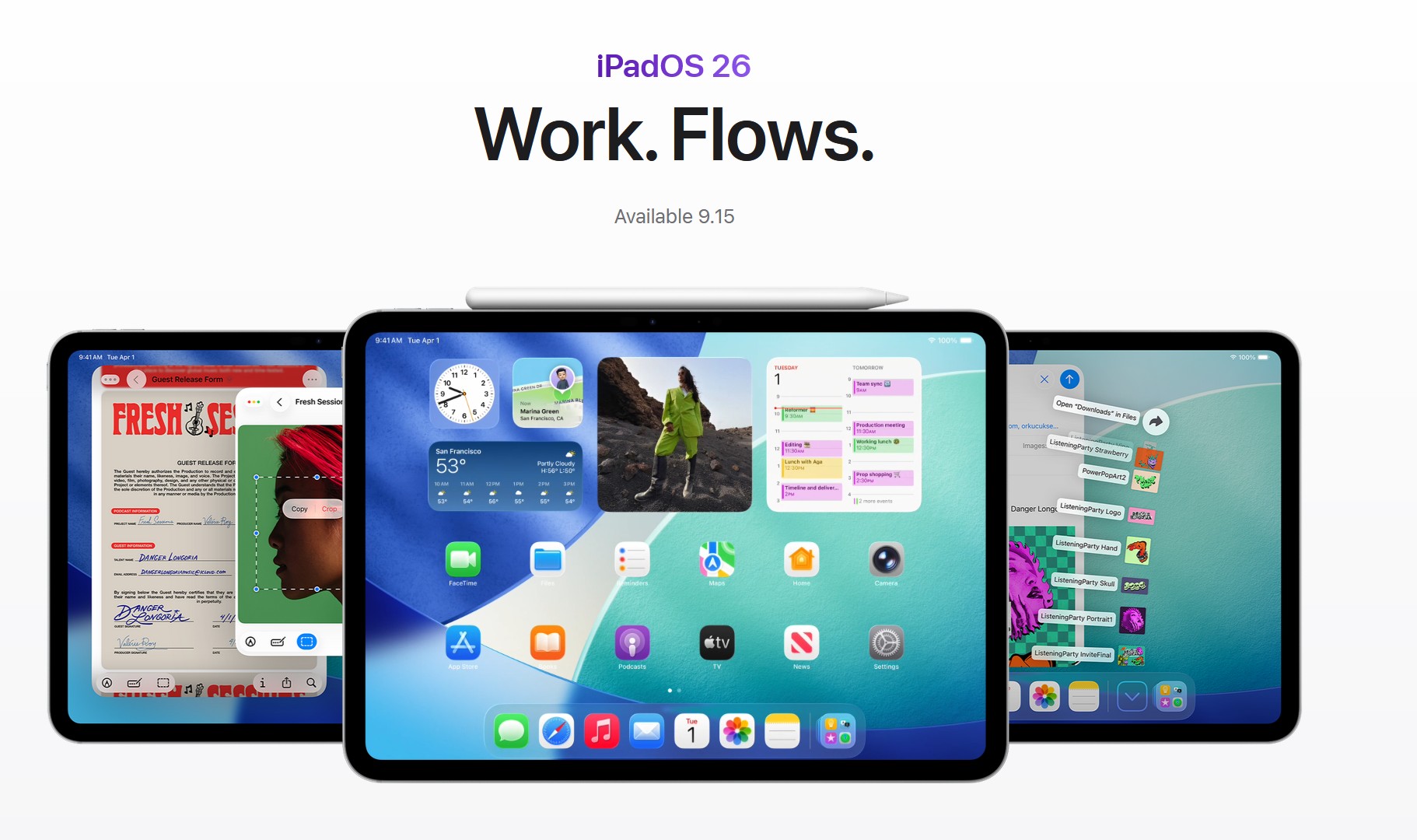
iPadOS 26 removes the old Split View “split screen” control and replaces it with a proper windowing system. You can still put two apps side by side (and more), but you’ll do it with snapping and resizable windows instead of the classic Split View handle.
Before you start
Update your iPad to iPadOS 26, sign in with your Apple ID, and make sure Multitasking is enabled (Settings > Multitasking & Gestures). M-series iPads feel the smoothest, but these steps work on supported models.
1) Open two apps side by side (the new Split View)
- Open your first app.
- Swipe up slightly to reveal the Dock, then drag the second app’s icon toward the left or right edge until a snap outline appears.
- Drop to tile the second app.
- Drag the divider to resize either pane; both remain fully interactive.
Tip: You can also start the second app from Spotlight (⌘-Space) and drag its window to an edge until it snaps.
Don’t miss the best of The Mac Observer
Set us as a preferred source and our Apple reporting ranks higher in your Google Search results and Discover feed — one tap, no account changes.
2) Add a floating tool window (replaces Slide Over helpers)
- With your side-by-side pair open, launch a third app from the Dock or Spotlight.
- Resize it to a slim panel and park it along an edge.
- Use it for quick tasks (notes, calculator, password manager) without covering your main panes.
Want the full story on Slide Over’s removal and the best replacements? Read our micro-guide on the new Slide Over alternatives in iPadOS 26.
3) Snap three (or more) apps
- Keep your two tiled apps.
- Open a third window, then drag and drop until you see a snap outline on a free edge or layer it as a floating panel.
- Repeat as needed; you can combine tiling and floating for flexible layouts.
4) Use Stage Manager if you prefer grouped workspaces
- Open Control Center and toggle Stage Manager.
- Build a workspace with two tiled apps plus one floating utility.
- Switch to other workspaces from the sidebar to keep projects separate.
- You can go back to standard windowing anytime from Control Center.
5) Master the essential keyboard and trackpad moves
- ⌘-Tab to switch apps fast.
- ⌘-M to minimize the front window; click in Dock to restore.
- Drag a window by its title bar (or top edge) and push it to an edge until it snaps.
- Corner-drag to resize precisely; the new UI remembers sizes per app.
6) Make phone calls while you multitask
If you work with an iPhone nearby, the new Phone app on iPad lets you take calls while running side-by-side apps, great for desk setups. Calls route through your iPhone, but the iPad gets the full, big-screen UI.
Troubleshooting
Windows won’t snapDrag to the very edge and wait for the outline. If you never see outlines, restart the iPad, then check Settings > Multitasking & Gestures.
My third window keeps hiding behind othersResize it slightly larger and park it near an edge. In Stage Manager, be sure all three windows belong to the same workspace.
Apps reopen in full screen, not tiledOpen the second app from the Dock or Spotlight and drag until the snap guide appears—don’t just tap it.
Performance feels laggy with multiple panesClose unused windows, disable Low Power Mode, and keep background widgets/lightning effects to a minimum. M-series models handle the most windows smoothly.
FAQs
Is Split View actually gone?
Yes. The control is removed in iPadOS 26. You now tile and resize windows with snapping. It’s more flexible once you learn the gestures.
Can I still get a “phone-sized” mini panel?
Yes—make a small floating window and park it on an edge. It behaves like a smarter Slide Over.
Do I need Stage Manager?
No. Standard windowing is enough for “split screen.” Stage Manager is optional if you like project-based workspaces.
Will this work on external displays?
Yes on supported iPads. You can tile and float windows on the external monitor with a keyboard/trackpad for a near-desktop feel.
Summary (ordered steps)
- Open app A.
- Drag app B from Dock/Spotlight to an edge until it snaps.
- Resize with the divider as needed.
- Add a third floating window for quick tools.
- Optionally use Stage Manager to organize separate workspaces.
- Use ⌘-Tab and window snapping to move fast.
Related reading
- New Slide Over alternatives in iPadOS 26
- iPadOS 26 Phone app: how it works and who it’s for
- Should you update to iPadOS 26? Our verdict



I don’t like the split screen. It is annoying. How do I get rid of it?