

macOS Tahoe brings a polished interface and powerful AI features, but many users are reporting a frustrating side effect: accelerated battery drain. Whether you’re using a MacBook Air or MacBook Pro, the drop in battery performance after upgrading is hard to ignore. From background indexing to GPU-intensive visuals, several factors contribute to this issue. If you’ve recently decided to use a macOS Tahoe, you may already be experiencing the problem firsthand.
Table of contents
Why macOS Tahoe Is Causing Battery Drain
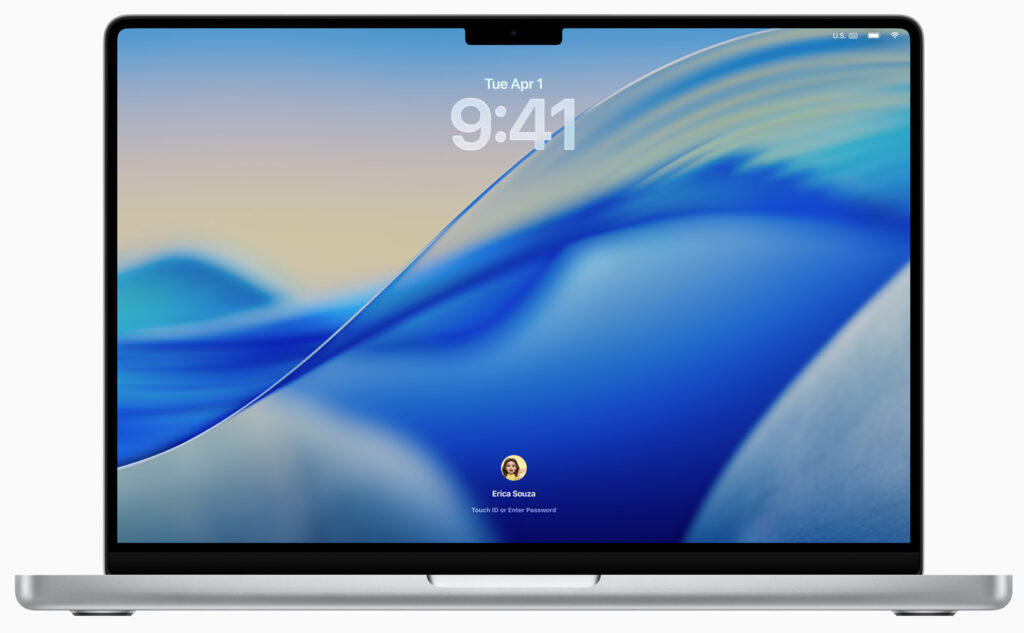
The battery drain in macOS Tahoe stems from system-level changes and post-update processes. The Liquid Glass UI, Apple Intelligence features, and aggressive Spotlight indexing all place additional demands on your Mac’s resources. Users have reported up to a 20 percent drop in battery life within the first few days of updating. While some of this drain is temporary, other factors like app incompatibility and background syncing persist longer. According to macOS Tahoe reviews, this is a widespread concern.
Fixes to Improve Battery Life

Let Post-Update Indexing Finish
One of the most common causes of early battery drain is the system reindexing your files after installation.
Don’t miss the best of The Mac Observer
Set us as a preferred source and our Apple reporting ranks higher in your Google Search results and Discover feed — one tap, no account changes.
- After installing macOS Tahoe, Spotlight and Photos begin reindexing your system.
- Avoid heavy usage during this period to allow indexing to complete faster.
- Once finished, battery performance should stabilize.
Use Activity Monitor to Identify Power-Hungry Apps

Monitoring energy usage helps pinpoint which apps are draining your battery the fastest.
- Open Activity Monitor from Applications > Utilities.
- Click the Energy tab.
- Sort by Energy Impact to find apps consuming the most power.
- Close or uninstall apps with consistently high energy usage.
Adjust Display and Sleep Settings
Tweaking display brightness and sleep intervals can significantly reduce power consumption.
- Open System Settings and go to Displays.
- Lower your screen brightness manually or enable Auto-Brightness.
- Navigate to Battery and set your display to sleep after a shorter period of inactivity.
- Disable notifications that wake your Mac unnecessarily.
Check Battery Health and Cycle Count
Understanding your battery’s condition helps determine whether hardware is contributing to the issue.
- Click the Apple logo and select About This Mac > System Report > Power.
- Review Cycle Count and Battery Condition.
- If your cycle count is high or health status is poor, consider a battery replacement.
- Enable Optimized Battery Charging under Battery Settings.
Disable Unused Background Services
Reducing background activity can free up system resources and extend battery life.
- Open System Settings > Apple ID > iCloud.
- Turn off syncing for apps you rarely use.
- Go to Privacy & Security > Location Services and disable for non-essential apps.
- Quit cloud storage apps like Dropbox or OneDrive when not needed.
FAQ
No. Even older Intel Macs running macOS Tahoe are affected, although macOS Tahoe features coming to older Macs may behave differently.
Apple typically releases incremental updates to address performance issues. Keep your system updated.
Manage macOS Tahoe Battery Drain
Battery drain after upgrading to macOS Tahoe is a common concern, but it’s manageable. By allowing indexing to complete, monitoring app usage, and adjusting system settings, you can regain much of your lost battery life. While some features may continue to consume power in the background, these steps offer a practical path to optimization. For users still deciding whether to upgrade, reviewing the macOS Tahoe features coming to older Macs may help you weigh the pros and cons.


Discussion