

If your iPhone 17 Pro Max shows very low speaker output, you can restore normal volume by checking a few settings and connections. Start by ensuring the volume isn’t limited, the phone isn’t connected to a muted accessory, and no software bug holds the sound down.
Table of Contents
Solutions
1. Verify Volume Limit Is Disabled
Time needed: 5 minutes
- Open Settings > Sounds & Haptics > Volume Limit on your iPhone 17 Pro Max.
- If Limit Maximum Volume is enabled, toggle it off.
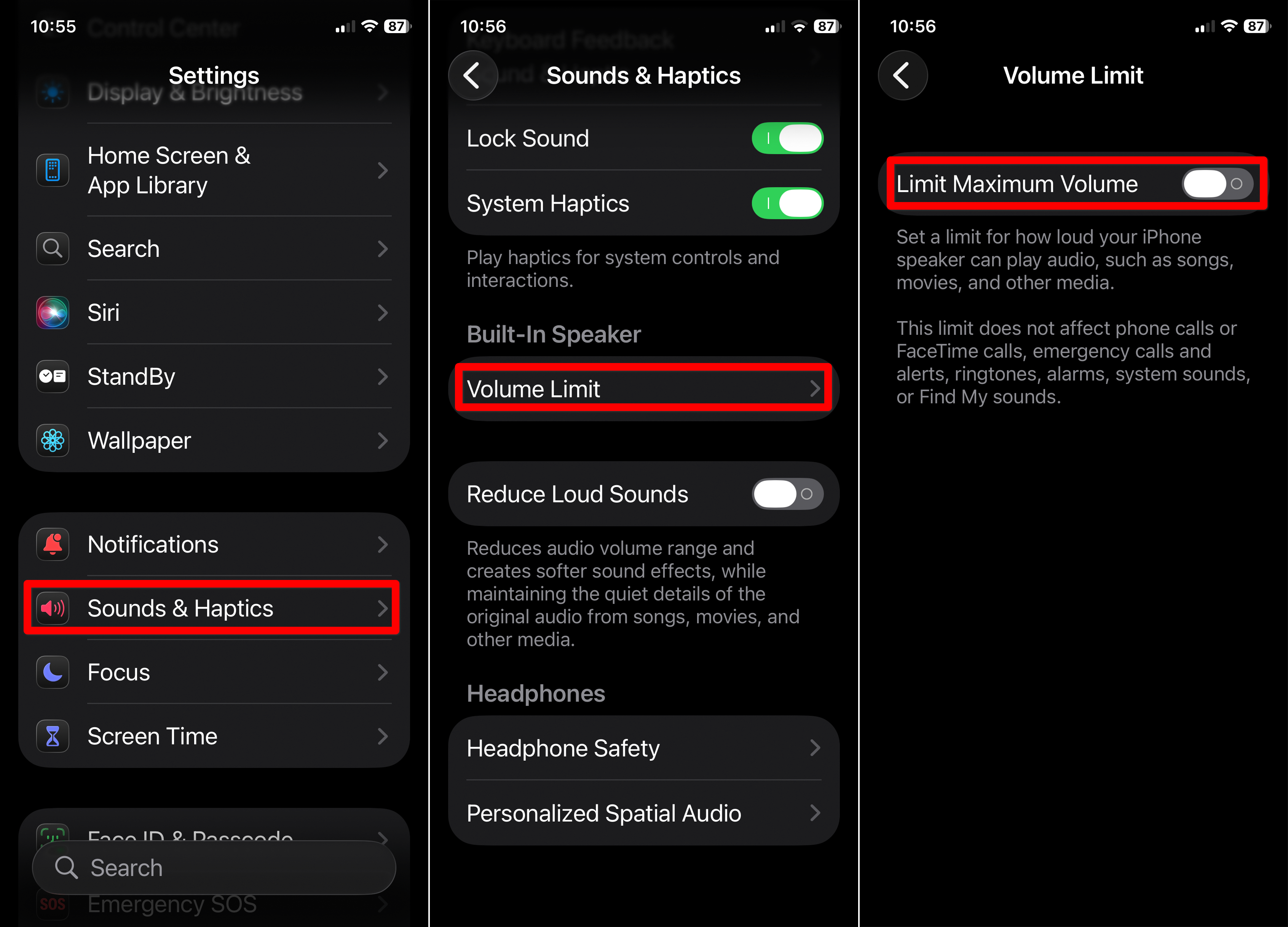
- Drag the volume slider to the highest level permitted.
- Play a video or music and check if the sound is now louder.
2. Turn Off Bluetooth to Rule Out Accessory Interference
- Go to Settings > Bluetooth and switch Bluetooth off.
- Disconnect any Bluetooth speakers, headphones, or car audio systems.
- Play audio on the iPhone’s built-in speakers and note if volume improves.
- If sound returns to normal, reconnect accessories one by one to isolate the problem.
3. Clean and Inspect the Speaker and Receiver Openings
- Remove any case or screen protector that might block sound.
- Use a clean, soft-bristled brush to gently clean debris near the bottom-facing speaker.
- Open Settings > Sounds & Haptics and move the volume slider for ringtone and alerts.
- If no sound emerges or remains low, the speaker hardware may require service.
4. Check Balance and Audio Accessibility Settings
- Open Settings > Accessibility > Audio & Visual.
- Ensure the Balance slider sits in the centre between left and right.

- Tap Headphone Accommodations and turn it off if enabled (older models only).
- Test with audio again through the built-in speaker of the iPhone 17 Pro Max.
Tips
- Keep your iPhone updated via Settings > General > Software Update.
- Restart the phone after any setting change, especially after a Bluetooth disconnect.
- Use the volume buttons on the left side while music plays to adjust media volume.
- Avoid using third-party cases that cover speaker grilles or obstruct sound output.
- If you use headphones and still hear low sound, test the built-in speakers to isolate the issue.
iPhone 17 Pro Max Speaker Volume Low: FAQ
Yes. In that situation the issue could lie with the built-in speaker or the output route, not the accessory.
No. The volume-limit feature typically affects media playback and built-in speaker output, not phone calls or FaceTime.
It could. Persistent low volume or muffled sound after updates may hint at a software bug or hardware issue requiring service.
Summary
- Disable volume limit
- Turn off Bluetooth
- Clean speaker openings
- Check audio balance
- Update software
Follow these steps on your iPhone 17 Pro Max to address unusually low volume and restore full sound output. If the volume remains muted or muffled after trying all the fixes above, contact Apple Support or visit an authorized service provider for further diagnostics.
Don’t miss the best of The Mac Observer
Set us as a preferred source and our Apple reporting ranks higher in your Google Search results and Discover feed — one tap, no account changes.


Discussion