

macOS Tahoe has introduced new privacy settings that prevent many printers from connecting properly. The most common issue stems from Local Network access permissions that block printer communication, though driver compatibility and antivirus software can also cause problems. I’ll show you the working solutions from Apple Support Communities that have resolved printer issues for thousands of users.
Table of contents
Why Tahoe Broke Your Printer
macOS Tahoe introduced stricter privacy controls for Local Network access. Apps and printer drivers that previously had unrestricted network access now require explicit permission. When you update to Tahoe, these permissions aren’t automatically granted, blocking your printer from communicating with your Mac.
This affects all printer brands, but Epson and HP users report the most issues. Symptoms include:
Don’t miss the best of The Mac Observer
Set us as a preferred source and our Apple reporting ranks higher in your Google Search results and Discover feed — one tap, no account changes.
- The printer shows as offline despite being connected
- “Communication error” messages when attempting to print
- Printer missing from the “Format for” dropdown in Page Setup
- Print jobs stuck in the queue with “Printer not responding” errors
- Scanner functionality is not working
Additionally, some antivirus programs like ESET and SentinelOne have compatibility issues with Tahoe that block printer access entirely.
If your printer isn’t working in macOS Tahoe, then follow these steps
1: Enable Local Network Access (Epson Printers)
The most common fix for Epson printers comes directly from Apple Support Communities and Epson’s official support documentation. Users report that this solution works for communication errors, offline printers, and missing format options.
- Open System Settings on your Mac.
- Click Privacy & Security in the sidebar.
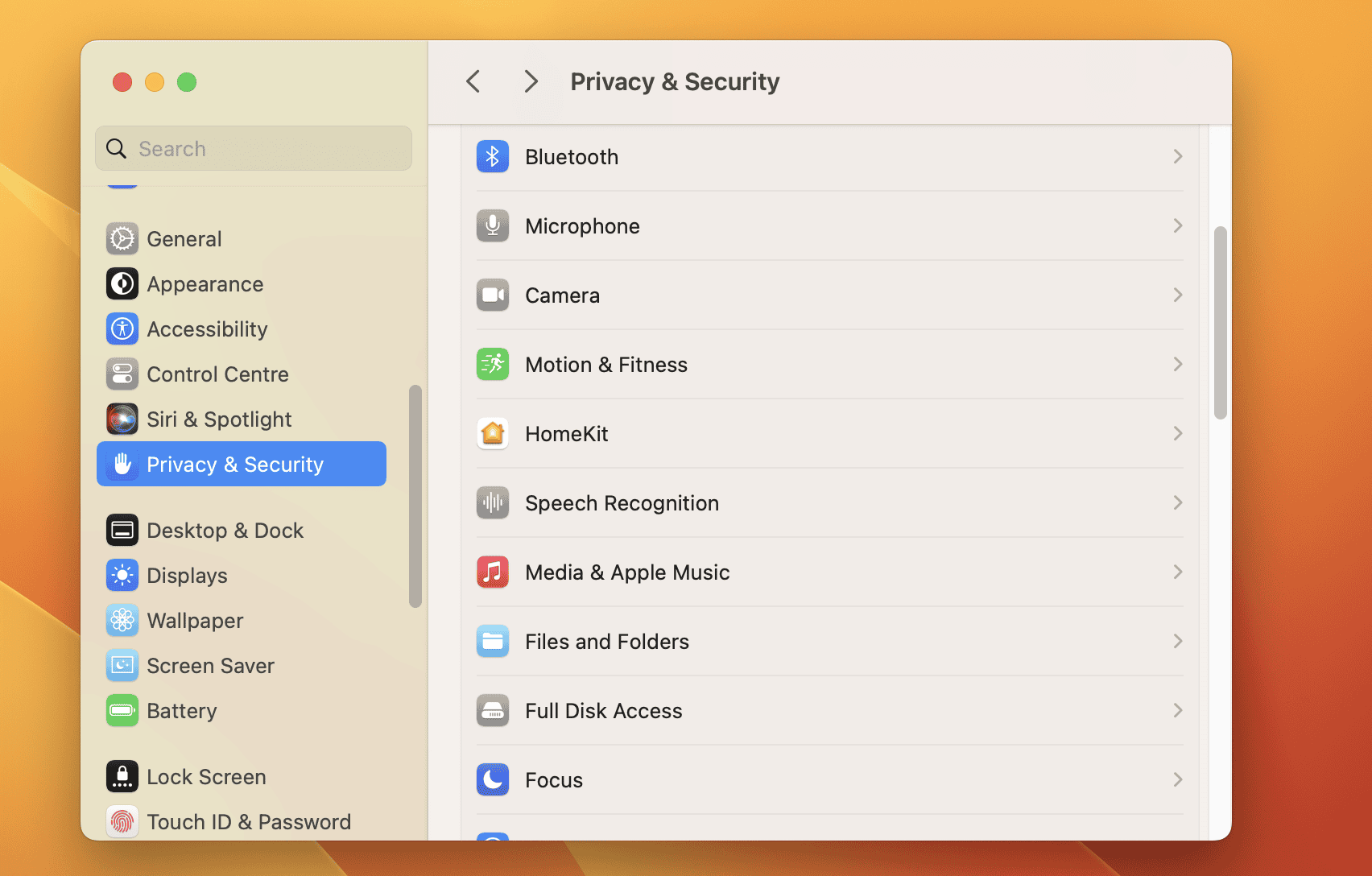
- Scroll down and click Local Network.
- Look for rastertoescpll in the list of applications.
- Enable the toggle next to rastertoescpll.
- While you’re here, enable all Epson-related applications, including:
- epsonfax
- EPIJAutoSetupTool2
- commandtoescp
- Epson Connect Printer Setup
- EPSON Software Updater
- EPSON Software Updater Agent
- Close System Settings and try printing again.

According to Apple Support Communities, this fix works immediately for most users. If you don’t see rastertoescpll in the list, you may need to reinstall your Epson drivers first (see Fix 6).
2: Enable Local Network Access (HP Printers)
HP printers require similar Local Network permissions, particularly for the HP Smart app and HP printer utilities.
- Open System Settings on your Mac.
- Click Privacy & Security.
- Select Local Network.
- Enable all HP-related applications:
- HP Smart
- HP Printer Utility
- Any other HP applications listed
- If HP Smart isn’t listed, toggle it off and back on if it is present.
- Restart your Mac.
- Open the Mac App Store, search for HP Smart, and update it if available.
- After updating, check Local Network permissions again and ensure HP Smart is enabled.
For users still experiencing issues after enabling permissions, HP Support recommends using the Diagnose & Fix feature in the HP Smart app to repair common printing problems.
3: Reset the Printing System
If enabling Local Network access doesn’t resolve your issue, resetting the printing system often clears corrupted printer configurations that Tahoe update may have created.
- Open System Settings on your Mac.
- Click Printers & Scanners in the sidebar.
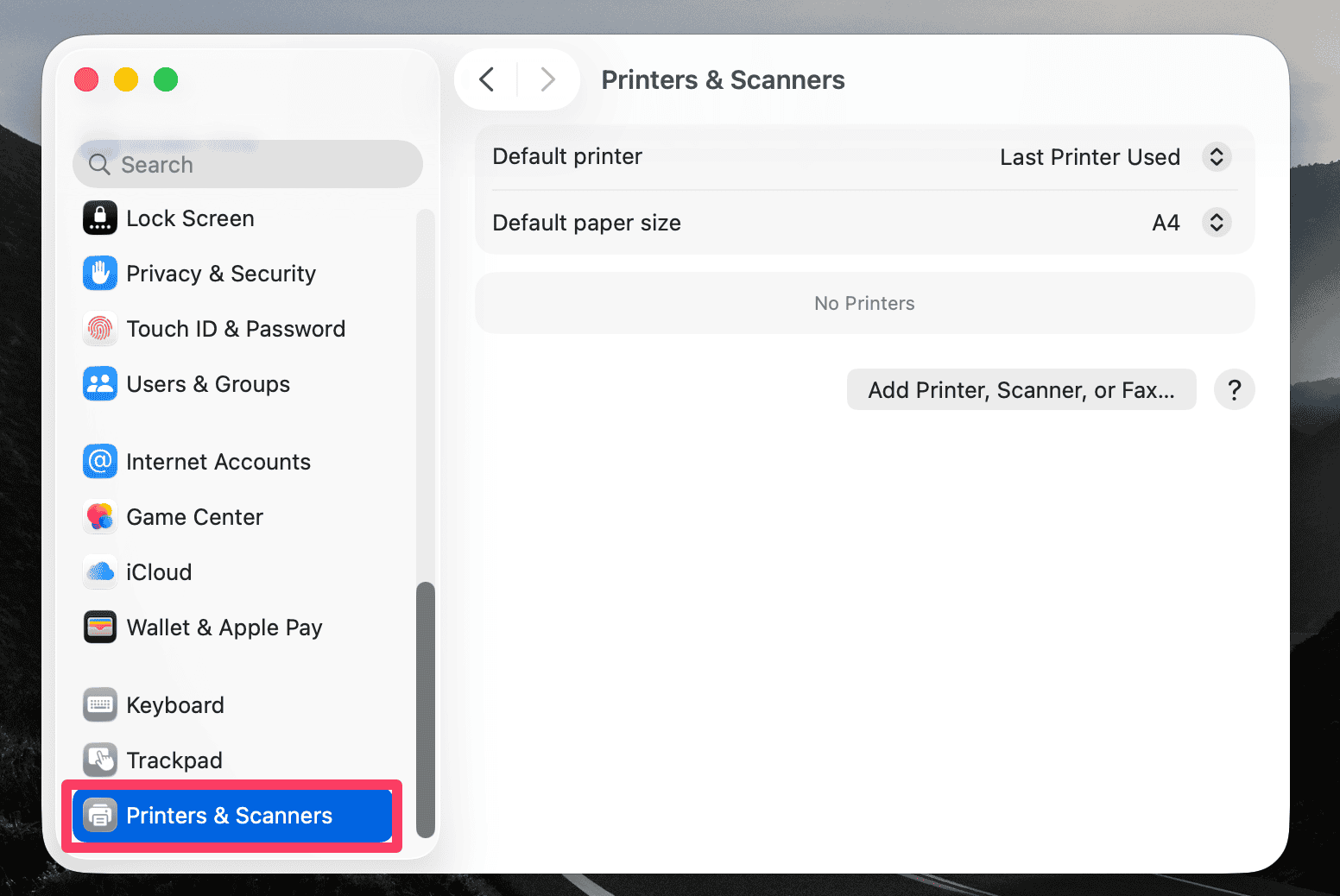
- Right-click (or Control-click) anywhere in the printers list on the right side.
- Select Reset printing system from the menu.
- Enter your administrator password when prompted.
- Click Reset to confirm.
- Wait for the system to clear all printers and settings.
- Power cycle your printer (turn it off, wait 30 seconds, turn it back on).
- Return to Printers & Scanners and click the + button to add your printer.
- Select your printer from the list (it should appear automatically via Bonjour or AirPrint).

Based on solutions from Apple Support Communities, this method resolves issues for many HP, Brother, and Canon printers that stopped working after the Tahoe update.
4: Add Printer Using IP Address
When Bonjour discovery isn’t working properly in Tahoe, manually adding your printer via IP address bypasses the automatic detection issues.
- Find your printer’s IP address:
- For Epson: Use the Epson Scan 2 utility or check printer menu: Settings > General > Network Status > Wired LAN/WiFi
- For HP: Check the HP Smart app or printer control panel
- For Canon/Brother: Check the network settings menu on the printer display
- Open System Settings > Printers & Scanners.
- Click the + button to add a printer.
- Click the IP tab (globe icon) at the top.
- Enter the following:
- Address: Your printer’s IP address (e.g., 192.168.1.100)
- Protocol: Select Internet Printing Protocol – IPP
- Name: Enter a descriptive name
- Location: Optional
- For Use, select your printer model from the dropdown menu. If it’s not listed, select Generic PostScript Printer.
- Click Add.
Users in Apple Support Communities report that switching from HP Jetdirect Socket protocol to IPP resolves many connection issues with Tahoe.
5: Disable Third-Party Antivirus Firewall
Multiple users in Apple Support Communities discovered that antivirus software, particularly ESET and SentinelOne, blocks printer access in macOS Tahoe due to compatibility issues.
For ESET Users
- Open ESET antivirus software.
- Navigate to Settings.
- Find Firewall settings.
- Temporarily disable the firewall.
- Try printing to confirm the firewall was blocking access.
- If printing works, keep ESET firewall disabled and enable Apple’s built-in firewall:
- Go to System Settings > Network > Firewall.
- Turn on the Firewall.
For SentinelOne Users
SentinelOne has known compatibility issues with Tahoe. If you no longer need this software (often installed by previous employers), you’ll need to uninstall it completely:
- Restart your Mac and hold Command + R during startup to enter Recovery Mode.
- Open Terminal from the Utilities menu.
- Follow SentinelOne’s official uninstallation guide for Mac agents.
- Restart normally and test printing.
After removing the conflicting security software, printers typically reconnect immediately without requiring additional configuration.
6: Update Printer Firmware and Drivers
Printer manufacturers have released Tahoe-compatible drivers and firmware updates. Outdated software often causes communication errors and missing functionality.
For Epson Printers
- Visit Epson’s support website at epson.com/support.
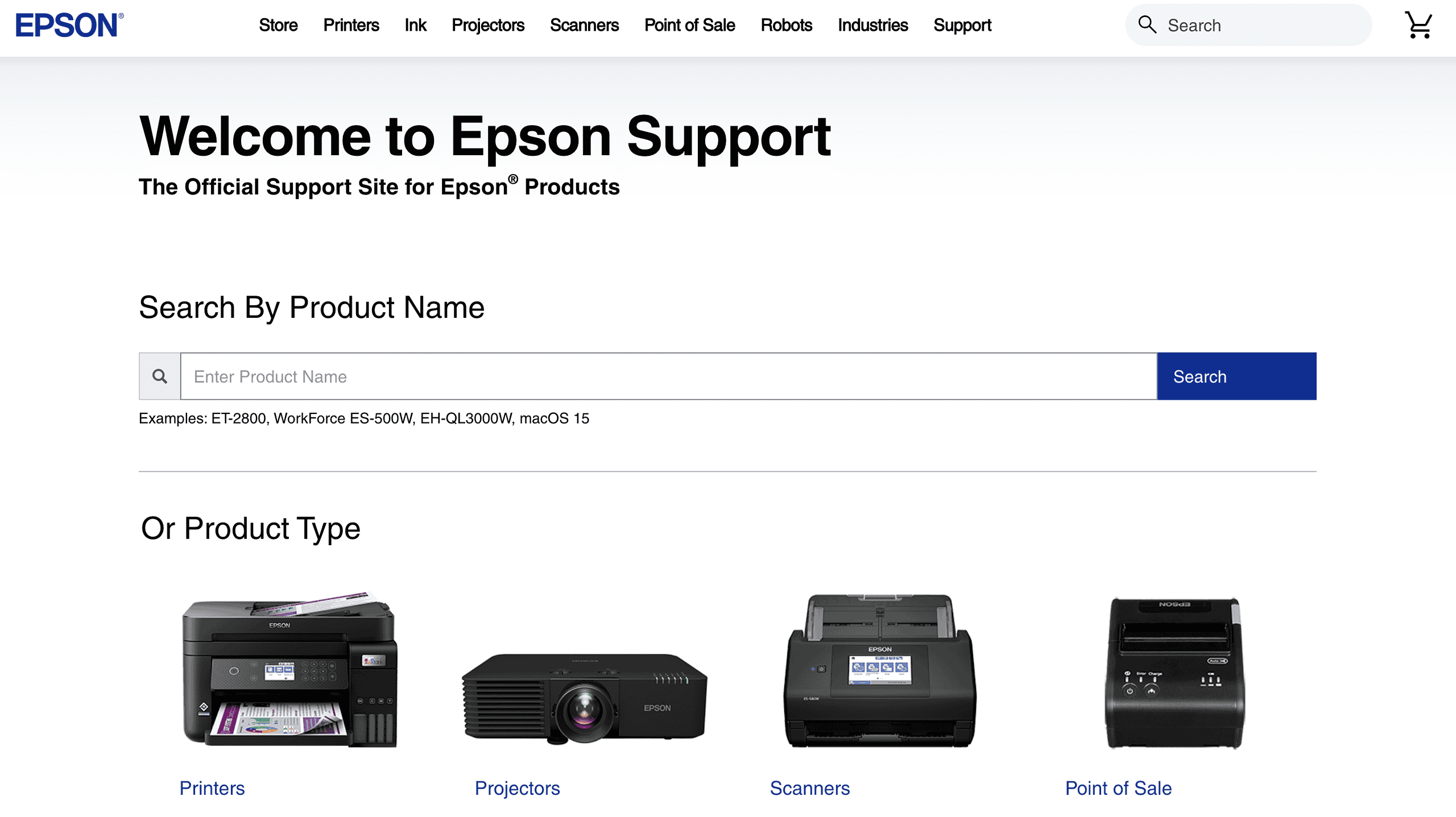
- Search for your printer model.
- Under Operating System, select macOS 15.x.
- Download all available software:
- Printer driver
- Scanner driver (if applicable)
- Epson Scan 2 utility
- Epson Software Updater
- Before installing, uninstall old drivers:
- Run the Epson Uninstaller (found in Applications > Epson Software)
- Manually delete any remaining files in Library > Printers > Epson folders
- Install the new drivers.
- Restart your Mac.
- Check System Settings > Privacy & Security > Local Network and enable all Epson applications.
- Add your printer in System Settings > Printers & Scanners.

For HP Printers
- Visit HP’s support website at support.hp.com.
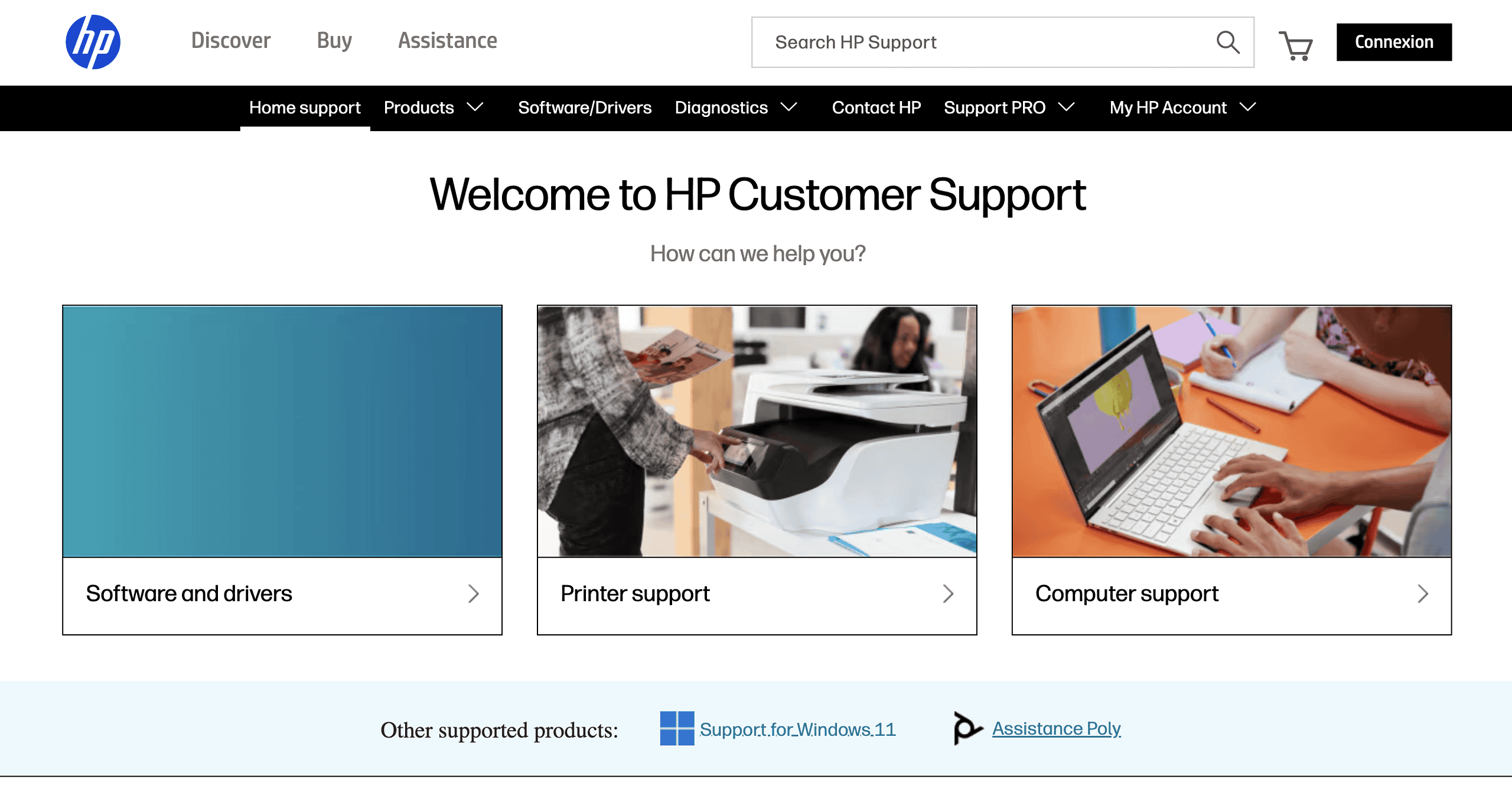
- Enter your printer model.
- Download the latest driver package for macOS Tahoe.
- Remove your printer from System Settings > Printers & Scanners before installing new drivers.
- Install the downloaded software.
- Update HP Smart app from the Mac App Store.
- Restart your Mac.
- Reconnect your printer, preferably using AirPrint if supported.

According to HP Support Communities, many HP printers work best with AirPrint in Tahoe rather than using HP-specific drivers. Check if your model supports AirPrint at support.apple.com/HT201311.
For Brother Printers
Brother printers often show as offline after the Tahoe update, even when connected properly.
- Reset the printing system (see Fix 3).
- Visit Brother’s support website at support.brother.com.
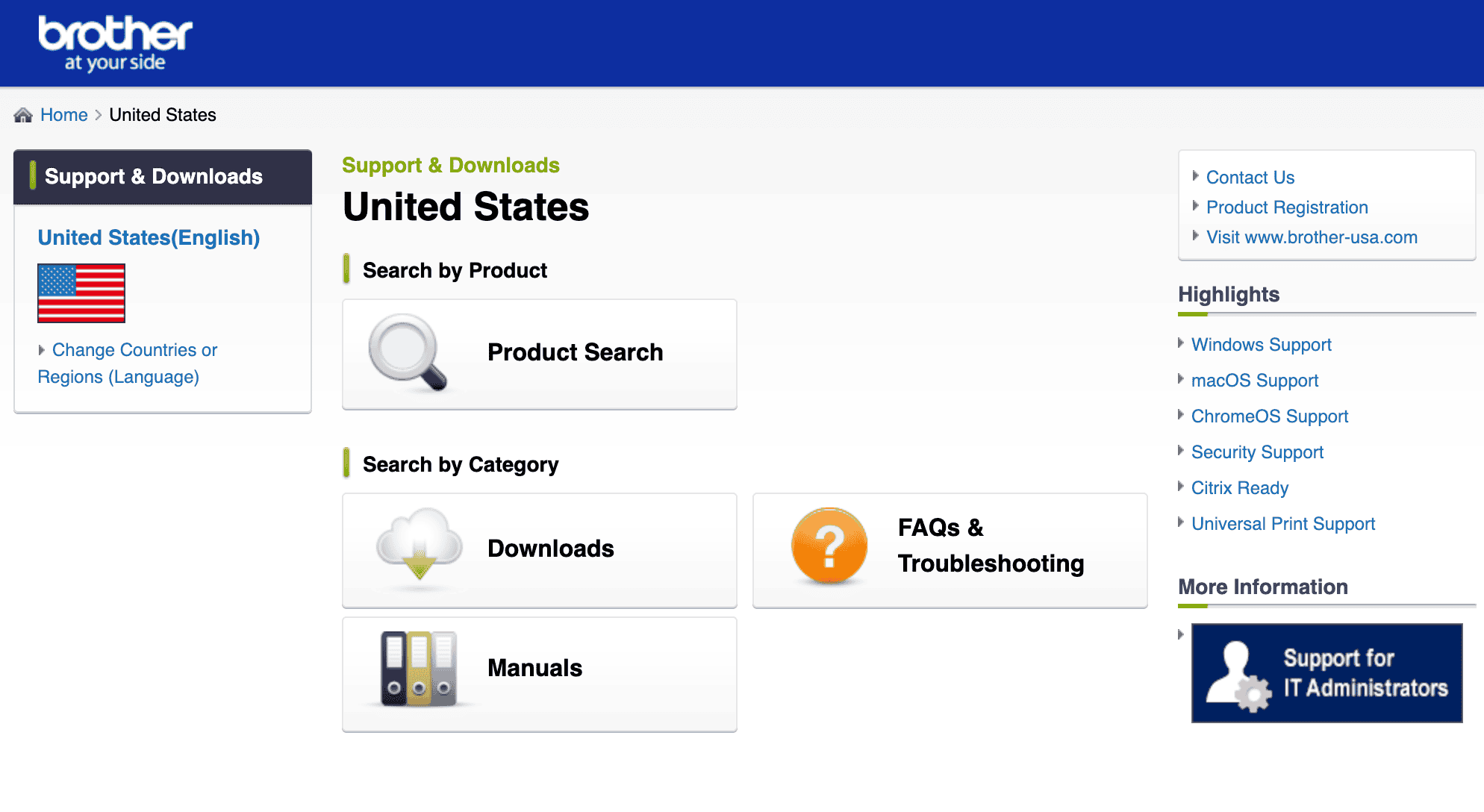
- Search for your printer model and download the latest macOS driver.
- Install the driver.
- If your printer supports AirPrint, add it without installing drivers:
- Go to System Settings > Printers & Scanners
- Click + to add a printer
- Select your printer (it should show “AirPrint” in the description)
- If the printer still shows offline, manually add it using the IP address (see Fix 4).

Multiple users in Apple Support Communities report that Brother printers work more reliably with AirPrint in Tahoe than with manufacturer drivers.
For Canon Printers
Canon printers face similar Bonjour connectivity issues in Tahoe, with printers appearing offline or failing to maintain connections.
- Verify your Canon printer is listed as AirPrint-compatible at support.apple.com/HT201311.
- Perform a full power cycle sequence:
- Turn off your Wi-Fi router
- Turn off your printer
- Shut down your Mac
- Wait 30 seconds
- Turn on the Wi-Fi router and wait for it to fully boot (2 minutes)
- Turn on the printer
- Start your Mac
- If AirPrint-compatible, remove the existing printer and add via AirPrint:
- Delete printer from System Settings > Printers & Scanners
- Click + to add a printer
- Select your printer with the “AirPrint” designation
- If not AirPrint-compatible, add using the IP address with the LPD protocol:
- Get the printer IP from the printer menu
- Add a printer using the IP tab
- Select Line Printer Daemon – LPD as protocol
- Choose your Canon printer model or Generic PostScript Printer
Users in Apple Support Communities report that switching from Bonjour to direct IP with LPD protocol resolves Canon communication issues in Tahoe.
Tips for Preventing Future Printer Issues
Based on our tests and community feedback, here are the best practices for maintaining printer connectivity in macOS Tahoe:
- Use AirPrint when possible. AirPrint printers avoid manufacturer driver compatibility issues and work more reliably across macOS updates.
- Check Local Network permissions after every macOS update. Apple sometimes resets these permissions during system updates.
- Keep printer firmware updated. Many connectivity issues stem from outdated printer firmware that doesn’t communicate properly with newer macOS versions.
- Avoid third-party security software on Mac. macOS has robust built-in security that doesn’t interfere with printer connectivity.
- Document your printer’s IP address. If automatic discovery fails, you can always manually add the printer via IP.
- Consider replacing very old printers. Printers more than 8-10 years old may lack driver support for current macOS versions.
- Power cycle your network regularly. Router issues can cause printer connectivity problems that appear to be Mac-related.
Conclusion
Printer issues in macOS Tahoe primarily stem from new privacy restrictions that block Local Network access for printer software. The most effective solution depends on your printer brand: Epson users need to enable rastertoescpll in Local Network settings, HP users should update HP Smart and enable its network access, while Brother and Canon users often have better luck using AirPrint or manually adding printers via IP address. If standard solutions don’t work, check for conflicting antivirus software and ensure you have the latest Tahoe-compatible printer drivers installed.
FAQs
Tahoe’s new Local Network privacy settings block printer communication by default. Go to System Settings > Privacy & Security > Local Network and enable all printer-related applications, particularly rastertoescpll for Epson printers.
This usually means your printer drivers aren’t properly installed. Download the latest Tahoe-compatible drivers from your printer manufacturer’s website, install them, restart your Mac, then check Local Network settings again.
Yes, resetting the printing system removes all printers and their configurations. You’ll need to add your printers again afterward. However, this often fixes corrupted settings that prevent printing after the Tahoe update.
If you’re using ESET or SentinelOne and experiencing printer issues, disable their firewalls and enable Apple’s built-in firewall instead. macOS has strong native security that doesn’t interfere with printer connectivity.
Toggle HP Smart off and back on in Local Network settings, update the app from the Mac App Store, then restart your Mac. If that doesn’t work, uninstall HP Smart completely, restart, reinstall from the App Store, then enable permissions again.
Yes, but it requires erasing your Mac and restoring from a Time Machine backup made before updating to Tahoe. Before going that route, try all solutions in this article and contact Apple Support for additional assistance.


After hours of trying to fix my printer/ new MAC problem, wandering all over the internet looking for answers — including the HP and Apple sites, — you solved it for me! THANK YOU! I had no idea the problem was Tahoe.
Thank you very much.
Good article!
Resetting the print system and adding the printer again did the trick for.
After installing upgrading to Tahoe 26.5.1 MacOS was not communicating with the HP printer at all.
Very elaborate and I found a solution that worked for me quickly. Thank you, indeed!
Thank you!!!