

If you’ve ever tried opening a photo from your iPhone on your Mac and got hit with a strange file extension, HEIC instead of JPG, you’re not alone. Apple switched to HEIC (High-Efficiency Image Container) to save space without losing image quality. It’s great for your iPhone storage, but not every app or website plays nice with it. That’s where a good HEIC to JPG converter for Mac comes in. Let’s break down the best tools you can use, both offline and online, to make that conversion quick, clean, and hassle-free.
Table of contents
- Why You Need to Convert HEIC to JPG
- iMazing HEIC Converter — Free and Lightweight
- FonePaw HEIC Converter — Reliable and User-Friendly
- TunesBro HEIC Converter — Great for Large Photo Collections
- Pixillion Image Converter — All-in-One Format Support
- Online Options for Quick Conversions
- Apowersoft and Convertio — Reliable Web-Based Alternatives
- Choosing the Right HEIC to JPG Converter for You
- Final Thoughts
Why You Need to Convert HEIC to JPG
HEIC files are efficient, but compatibility is their biggest weakness. If you’re sharing photos with Windows users, uploading them to certain websites, or editing in older apps, HEIC files might not show up at all. Converting them to JPG fixes that instantly, since JPG is still the most universally accepted image format. The goal is to find a converter that does this without ruining image quality or stripping out important data like timestamps or camera info.
iMazing HEIC Converter — Free and Lightweight
iMazing HEIC Converter is one of the easiest free tools out there. Just drag your photos in, pick JPG or PNG, and hit convert. It preserves EXIF data and works offline, meaning no need to upload your private photos to the internet.
Don’t miss the best of The Mac Observer
Set us as a preferred source and our Apple reporting ranks higher in your Google Search results and Discover feed — one tap, no account changes.

Image Source: iMazing
It’s perfect for small batches of photos or quick conversions. The only downsides? You can’t adjust output quality, and it sometimes struggles with very large HEIC files. But for a no-cost, no-nonsense converter, it’s a solid pick.
FonePaw HEIC Converter — Reliable and User-Friendly
FonePaw offers a clean interface and fast conversions. It works offline on both Windows and Mac, converting HEIC to either JPG or PNG. You can also adjust output quality if you want smaller file sizes or higher detail.

Image Source: YouTube
It’s great for people who want something stable and straightforward. The only drawback is its limited output formats—it doesn’t go beyond JPG and PNG, but for everyday photo sharing, that’s all you really need.
TunesBro HEIC Converter — Great for Large Photo Collections
TunesBro is designed for people who need to handle bulk conversions. It can process up to 500 HEIC files in one go, saving hours if you’re dealing with big photo libraries. It also lets you preview files before converting and control output quality.
Like FonePaw, it’s an offline desktop tool, which is great for privacy. The only downside is that it doesn’t offer online conversion, so you’ll need to install it first. Still, if you’re converting dozens or hundreds of images, this one’s a powerhouse.
Pixillion Image Converter — All-in-One Format Support
Pixillion does more than just HEIC to JPG. It supports over 50 image formats, from BMP to GIF to RAW files. You can also resize, rotate, and watermark images during conversion, making it ideal for photographers or creators managing mixed media.
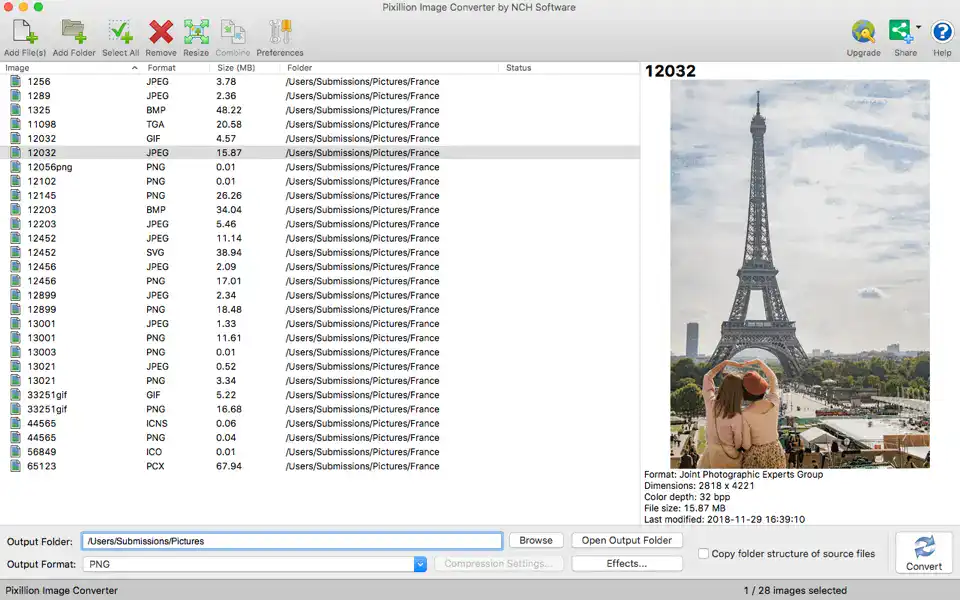
Image Source: Apple
The interface feels a bit dated, and the Mac version has slightly different format support than the Windows one. But if you want flexibility and extra editing options, Pixillion earns its place on the list.
Online Options for Quick Conversions
If you just need to convert a few photos without installing anything, online converters can get the job done.
AnyGet HEIC Converter (iMobie) lets you upload HEIC files directly from your browser and choose between JPG, PNG, or GIF output. It’s free and works across all devices. The main limitation is file size; you’re capped at 50MB per session, and there’s always some privacy risk with uploading photos to a server.

Image Source: HEIC info
CloudConvert is another popular option that supports a ton of file types, not just images. It preserves image quality well and even allows minor adjustments before conversion. You’ll need an internet connection, and the free version limits how many conversions you can do per day.
HEICtoJPEG is probably the easiest of the bunch. Just drag and drop your photos, wait a few seconds, and download your JPGs. It automatically deletes uploaded files within 30 minutes, which adds a small layer of privacy protection.
If you want something clean and ad-free, Waltr HEIC Converter is worth trying. It’s available both online and as a Mac app, and it supports batch conversions. It’s not packed with features, but it’s fast and doesn’t require sign-ups or subscriptions.
Apowersoft and Convertio — Reliable Web-Based Alternatives
Apowersoft HEIC Converter offers both online and offline options. It’s user-friendly and keeps EXIF data intact. You can convert up to 30 photos per batch, though the free version adds a small watermark.
Convertio, on the other hand, works entirely online and handles bulk conversions smoothly. It supports drag-and-drop uploads from your Mac or cloud storage like Google Drive. The best part is its sharp output—Convertio’s codec preserves pixel integrity extremely well. Just keep in mind that privacy-conscious users may want to delete their uploads right after conversion.
Choosing the Right HEIC to JPG Converter for You
If you prefer free and simple, iMazing HEIC Converter is your best friend.
If you often deal with large batches, pick TunesBro HEIC Converter or Pixillion for their bulk processing and extra editing tools.
And if you only need an occasional quick fix, one of the online converters—like AnyGet or HEICtoJPEG—will handle it without downloads or setup.
Final Thoughts
HEIC files are here to stay, but compatibility doesn’t have to be a headache. The right converter will keep your photos sharp, private, and ready to use anywhere from Photoshop to social media.
For most Mac users, Coolmuster HEIC Converter offers the best balance between convenience, quality, and control. But the beauty of these tools is choice. Whether you want an offline workhorse or a quick browser-based fix, there’s an option that fits how you work.
So next time your iPhone drops a HEIC file on your Mac, don’t panic. You’ve got plenty of smart, safe ways to turn it into a clean, universal JPG in seconds.


Discussion