

AirPods 4 can connect to any laptop that supports Bluetooth. You can pair them with macOS or Windows in a few steps. I show how to do it, explain what to check when they do not appear, and share quick tips to improve connection stability.
Table of Contents
Ways To Connect AirPods 4 to a Laptop
1. Connect AirPods on macOS
Follow these steps to connect your AirPods 4 to a Mac laptop. If your Mac uses recent versions of macOS, it usually detects AirPods automatically after the first pairing with an iPhone. If not, pair them manually.
Time needed: 5 minutes
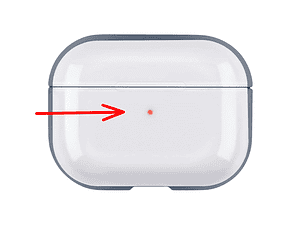
- Put your AirPods 4 in the charging case and open the lid. Hold the setup button on the case until the status light flashes white.

- On your Mac, open System Settings and select Bluetooth.
- Find your AirPods 4 in the list, then click Connect.
- Once connected, choose them as the audio output: Control Center > Sound > select your AirPods 4.


2. Connect AirPods 4 to a Windows Laptop
Any Windows laptop that supports Bluetooth can connect to your AirPods 4 for audio. AirPods pair to non-Apple devices like regular Bluetooth earbuds.
Don’t miss the best of The Mac Observer
Set us as a preferred source and our Apple reporting ranks higher in your Google Search results and Discover feed — one tap, no account changes.
- Put your AirPods in the case and open the lid. Press the setup button until the status light flashes white.
- On your Windows laptop, open Settings > Bluetooth & devices > Add device.
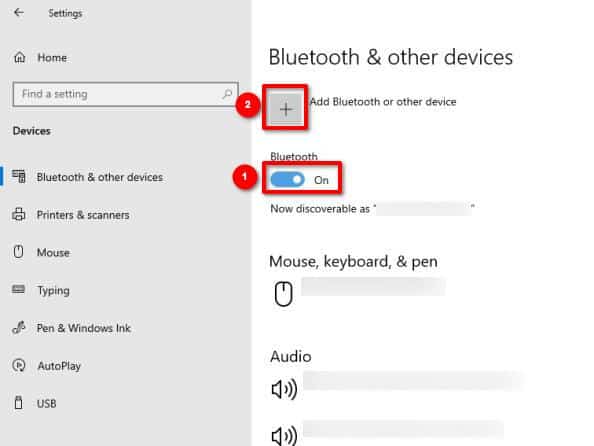
- Select Bluetooth, choose your AirPods from the list, then click Connect.
- After pairing, select them as the playback device: Click the Sound icon on the taskbar > choose your AirPods from the list.

3. Switch AirPods From Another Apple Device
If your AirPods connect to your iPhone instead of your laptop, switch them manually.
- On your Mac, open Control Center > Sound.
- Choose your AirPods as the audio output.
Connect AirPods 4 to Laptop: Tips To Improve Connection Quality
- Keep the laptop within six feet of the AirPods case.
- Update macOS and Windows Bluetooth drivers.
- Turn off other nearby Bluetooth devices that might compete for the signal.
- For Windows, check the Bluetooth version. Older adapters might not support high-quality audio.
FAQ
Your laptop might use an outdated Bluetooth driver. Restart Bluetooth, then reset your AirPods by holding the button until the light flashes white.
Yes. Select AirPods as both playback and microphone in Settings > System > Sound.
No. Spatial audio works only on Apple devices.
No. Bluetooth handles the connection.
Summary
- Open the case and hold the button until the light flashes white.
- On macOS, connect from System Settings > Bluetooth.
- On Windows, connect from Settings > Bluetooth & devices.
- Select AirPods as the audio output device.
- Update drivers or toggle Bluetooth if the laptop does not detect them.
You can connect AirPods 4 to your laptop in less than a minute, regardless of the operating system. For the best experience, keep your Bluetooth drivers updated and confirm that your laptop outputs audio to your AirPods.


Discussion