

You plug in your external monitor expecting your usual dual-screen setup, but your Mac acts like nothing’s there. No flicker, no detection, no second display. It’s a frustrating moment — especially if everything worked fine before upgrading to macOS 26. The truth is, updates sometimes reset or interfere with the way macOS handles display recognition. The good news? You can fix it.
Let’s break down why this happens and how to get your monitor back online.
Why your Mac isn’t recognizing the external display
After upgrading to macOS 26, some users have reported their MacBooks — Airs and Pros alike — suddenly stopped detecting external monitors. The causes range from simple connection hiccups to deeper software or compatibility issues. Here are the usual suspects:
Don’t miss the best of The Mac Observer
Set us as a preferred source and our Apple reporting ranks higher in your Google Search results and Discover feed — one tap, no account changes.
- Temporary system glitches from the update
- Incorrect display settings or reset preferences
- Incompatible or faulty cables and adapters
- Loose connections or debris in the ports
- Outdated drivers for docks or hubs
- Power-saving or Focus settings interfering with detection
In short, it’s rarely a hardware failure. Most of the time, your Mac just needs a little nudge to remember it has a second screen.
Fix 1: Restart your Mac
Start simple. Restarting your Mac often clears temporary bugs that appeared during the upgrade process. Keep the external monitor connected while restarting — this forces macOS to rescan for connected displays during boot-up.
To restart, click the Apple logo > Restart, or hold the power button until your Mac shuts down, then press it again to start up.

Fix 2: Check your cable and ports
Here’s the thing — display issues are often just connection issues. Unplug the cable and plug it back in, making sure it’s fully seated in both the Mac and the monitor. Inspect both ports for dust or bent pins.
If you’re using an adapter or dock, confirm it’s compatible with macOS 26. Some third-party docks need updated firmware after system upgrades.
Fix 3: Use the right connection type
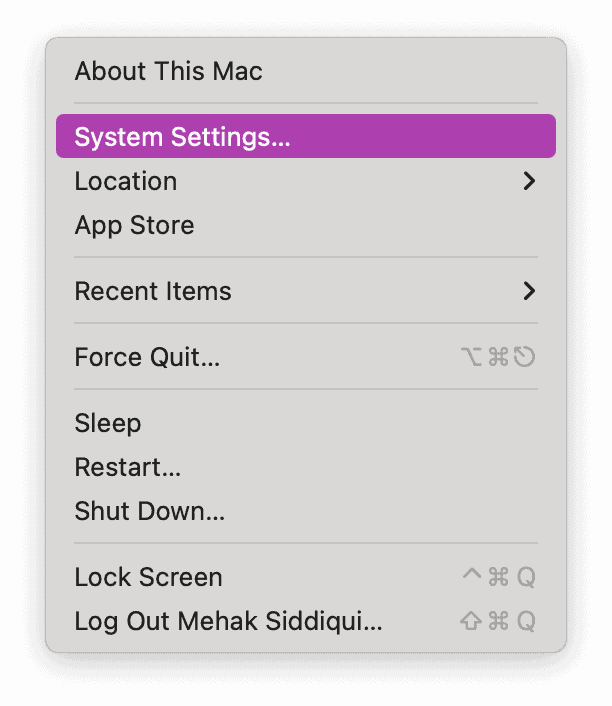
Different Macs support different display connections. Newer models use USB-C or Thunderbolt, while some Pros still offer HDMI. You can check what your Mac supports by going to Apple menu > System Settings > Help > [Your Mac Model] Specifications, then scrolling to Display Support or Video Support.

If one port isn’t working, try another. Swapping cables or adapters can also rule out hardware issues.
Fix 4: Manually detect displays
Sometimes macOS just needs a reminder to look for a second monitor.
- Open System Settings
- Go to Displays
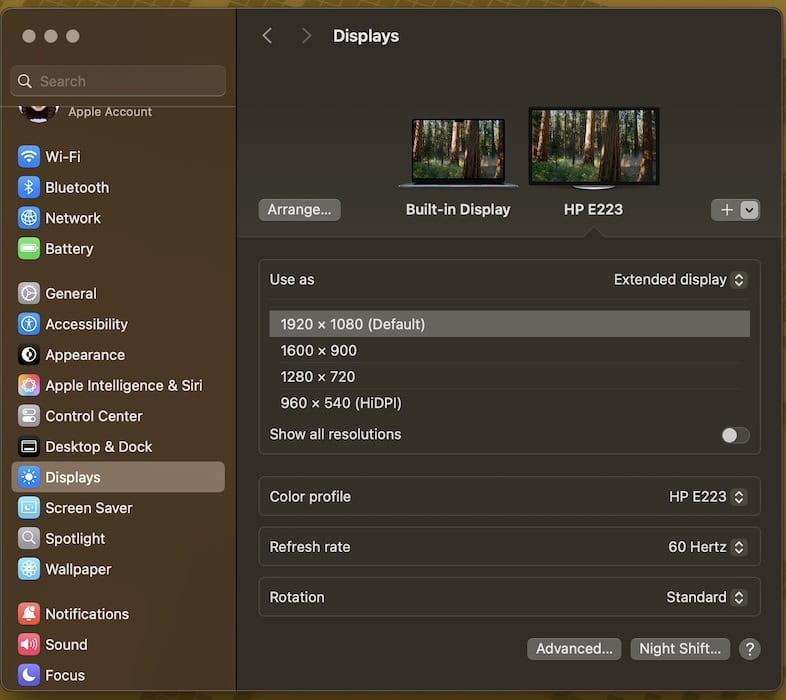
- Hold the Option key — this reveals the hidden Detect Displays button
- Click it to force your Mac to search for external displays


This simple trick often solves the “external monitor not detected” problem instantly.
Fix 5: Check for hardware damage
If nothing else works, take a closer look at the hardware. Try connecting your monitor to another computer. If it still doesn’t turn on, the issue might be with the display itself. Likewise, if another monitor works fine with your Mac, the problem is your cable or adapter — not macOS.
Fix 6: Update macOS again
Yes, even though you just upgraded, Apple may have already pushed a follow-up patch to address display bugs. Go to Apple menu > System Settings > General > Software Update, and install any available updates.
Extra tip: Improve your Mac’s performance
A sluggish system can sometimes slow down or delay display detection. Free up RAM and storage, close background apps, and manage startup items to give your Mac a clean slate. Tools like BuhoCleaner can make that easier, but you can also handle it manually through Activity Monitor and Login Items in System Settings.
The takeaway
If your Mac stopped recognizing your external monitor after the macOS 26 upgrade, don’t panic. Start with the basics — restart, recheck cables, and use the Detect Displays button. If that doesn’t work, verify compatibility and update your software. In most cases, it’s a quick fix, not a hardware disaster. Once it’s sorted, your dual-screen setup will be back in business.


Discussion