
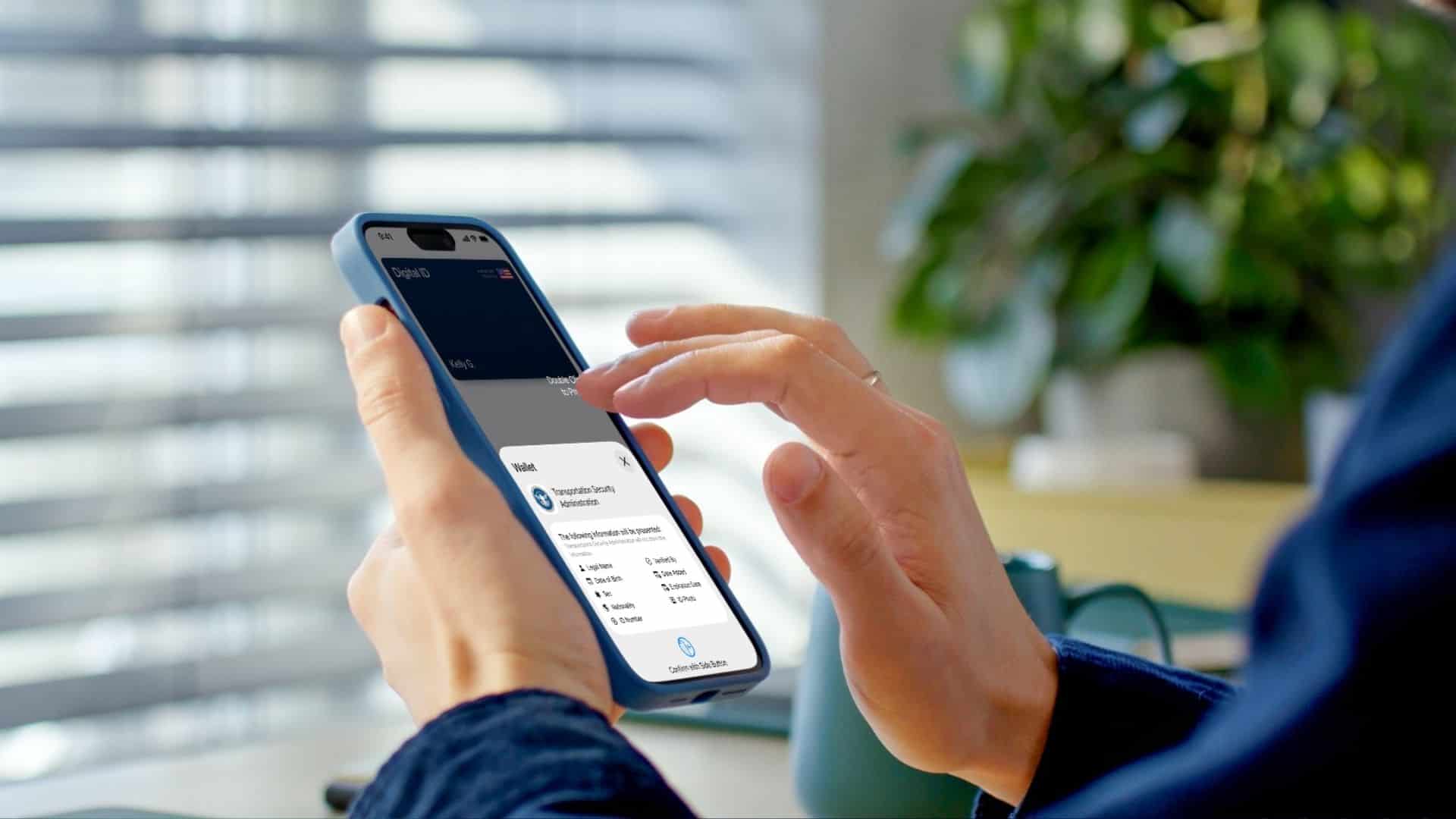
With iOS 26, Apple introduced a “Digital ID” feature that lets eligible U.S. passport holders store a digital version of their passport in Apple Wallet for certain domestic travel uses. While it’s not a complete replacement for the physical passport, you’ll find it a convenient option for identity verification at supported TSA checkpoints and other use cases. Here’s how to do it and what you need to know.
Table of contents
Check Device and Eligibility Requirements
Before you begin the process, make sure your equipment and credentials are compatible.
- Your iPhone must be a model supported for Digital ID. For many U.S. users, that means an iPhone 11 or later running iOS 26.1 or later.
- Your paired Apple Watch (if you want to use it too) must also meet the required watchOS version.
- You must have a valid U.S. passport (not expired), and the passport must support chip scanning.
- You need Face ID or Touch ID set up, a strong passcode, and two-factor authentication enabled for your Apple ID.
- The feature is currently for domestic use only (within the U.S.) at select locations; international travel still requires your physical passport.
Once you confirm all that, you’re ready to add the passport.
Don’t miss the best of The Mac Observer
Set us as a preferred source and our Apple reporting ranks higher in your Google Search results and Discover feed — one tap, no account changes.
Step-by-Step: How to Add Your Passport to Apple Wallet
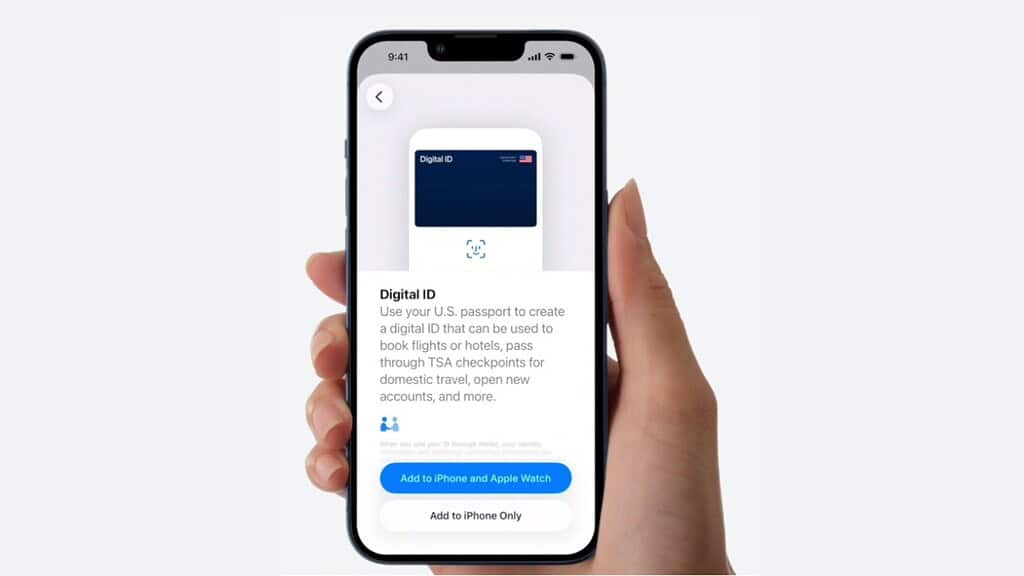
Here are the steps to follow to successfully add your passport:
- Open the Apple Wallet app on your iPhone.
- Tap the + button at the top-right of the screen.
- Select Driver’s License & ID Cards (or Digital ID when the option shows up).
- Choose the Add to iPhone and Apple Watch or Add to iPhone Only option (depending on your setup).
- Follow the prompts to scan the photo page of your physical passport using the iPhone camera.
- Then hold your iPhone near the chip embedded in the back cover of the passport (the NFC chip) so that your iPhone reads the data.
- Next, you will be asked to take a live selfie and perform certain head movements (e.g., turn your head, blink) to verify that you are the person holding the passport.
- After verification, you’ll receive a notification that your passport credential has been added to Apple Wallet.
- Once added, you can access it via Wallet and present it when a supported reader requests ID verification.
How to Use Your Digital Passport
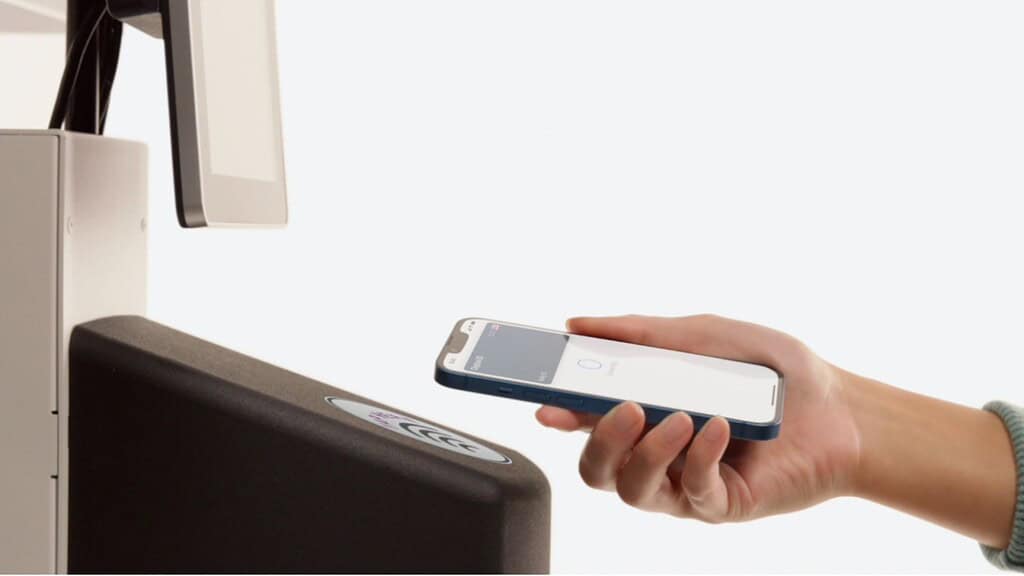
When you go to present your digital passport, for example, at a TSA checkpoint, here’s what you should observe:
- Double-clicked the side button (or used the “Wallet” gesture) to open Apple Wallet on your iPhone (or Apple Watch).
- Tap your Digital ID (passport) card within Wallet.
- Hold the iPhone or Watch near the identity reader.
- The system will show which data was being requested (name, date of birth, etc.), and you’ll confirm with Face ID or Touch ID.
- The data is then transmitted securely, even though you don’t hand over your phone or unlock the entire device.
What You Should Know: Limitations & Tips
- Even though your digital passport is stored in Wallet, you must still carry your physical U.S. passport for international travel or in many other situations.
- Use is currently limited to select TSA checkpoints and domestic travel. Not all airports or states may support it yet.
- If the reading system fails, you should have your physical passport as a backup.
- Make sure your device is updated (both iOS and watchOS) and your settings (biometrics, passcode, Wallet) are enabled.
- Because the data is stored and encrypted on-device, if you lose your iPhone, your information remains protected via Face ID/Touch ID, and you can use Find My iPhone to lock or erase your device.
FAQ
The feature currently supports U.S. passports and domestic identity verification. It cannot be used for international entry or border crossings.
You’ll need your physical passport as a fallback. The digital credential relies on your device.
No. The credential is encrypted and stored locally on your device. Apple says it cannot see when or where your ID is used.
Potentially yes, as Apple’s digital ID platform expands, supported apps or services may request verification. But you’ll always approve what is shared.
Summary
- Confirm your device (iPhone model and iOS version) and that your U.S. passport is valid and chip-enabled.
- Open Wallet, tap the + button, select Digital ID, and follow prompts to scan passport, read the chip, and complete selfie verification.
- Use your digital passport by selecting it in Wallet and holding your device near a compatible reader, confirming with biometrics.
- Recognize limitations: domestic use only, not a replacement for physical passport, and acceptance still rolling out.
- Keep your physical passport as a backup and ensure your iPhone security is fully configured.
Conclusion
Adding your U.S. passport to Apple Wallet provides a more streamlined and secure experience for identity verification at supported locations. I found the process straightforward, once the device and eligibility conditions are met, and appreciated how the system kept control in our hands (biometric unlock, selective disclosure, encrypted storage). That said, it’s not a full replacement for the physical passport yet, especially for international travel or airports that don’t support the digital credential. If you travel domestically within the U.S., this digital option gives you a modern alternative, and I recommend setting it up before your next trip to see how it works for you.




Discussion