

iMessage group chats are one of the easiest ways to keep conversations organized across friends, family, or teams. When everyone in the thread is on iMessage, you get cleaner chats, better media handling, and more control over notifications. Once you understand how Apple treats group conversations, using them becomes very straightforward.
Below is a clear run-through of how to create a group, name it, add or remove people, manage notifications, and handle the moments when a blue chat suddenly turns green.
Table of contents
Create an iMessage Group
A conversation only works as a full iMessage group when every participant has iMessage enabled on an Apple device. If even one person doesn’t, the thread falls back to SMS/MMS (green bubbles), and you lose features like group naming, inline replies, and certain reactions.
Don’t miss the best of The Mac Observer
Set us as a preferred source and our Apple reporting ranks higher in your Google Search results and Discover feed — one tap, no account changes.
To start a group:
- Open Messages.
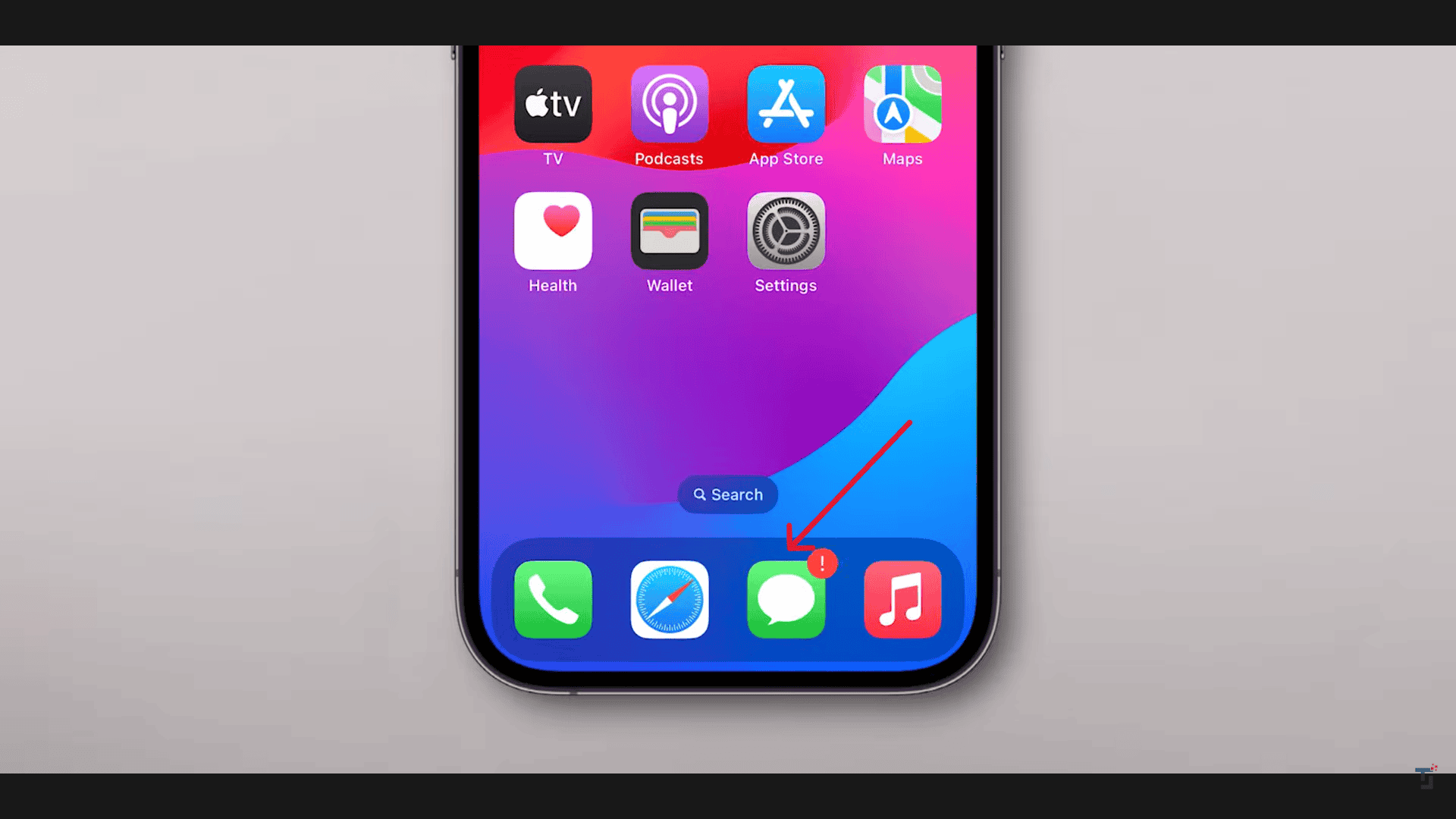
- Tap the Compose icon.
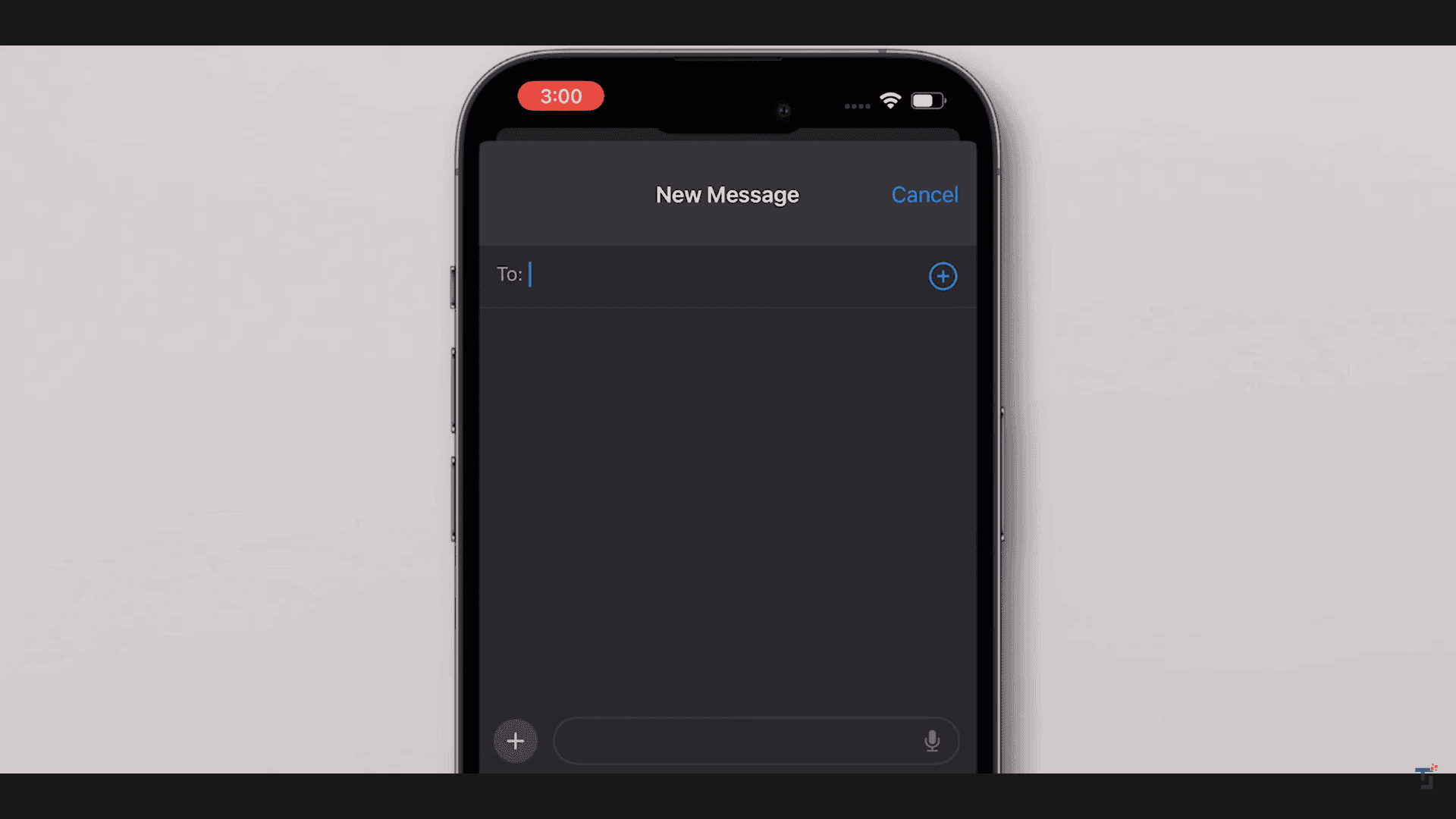
- Add two or more contacts.
- Type and send your first message.


If your messages stay green, fail to deliver, or randomly switch between blue and green, there might be a broader iMessage or network issue on your device. It can help to revisit the basics in a general guide, like how to use iMessage, which covers how Apple’s messaging layer actually works in the background.
Name Your Group Chat
You can only give the group a name if all members are on iMessage. If even one person is on SMS, the naming option disappears.
To name your group:
- Open the group conversation.
- Tap the group icon at the top.
- Select Change Name and Photo.
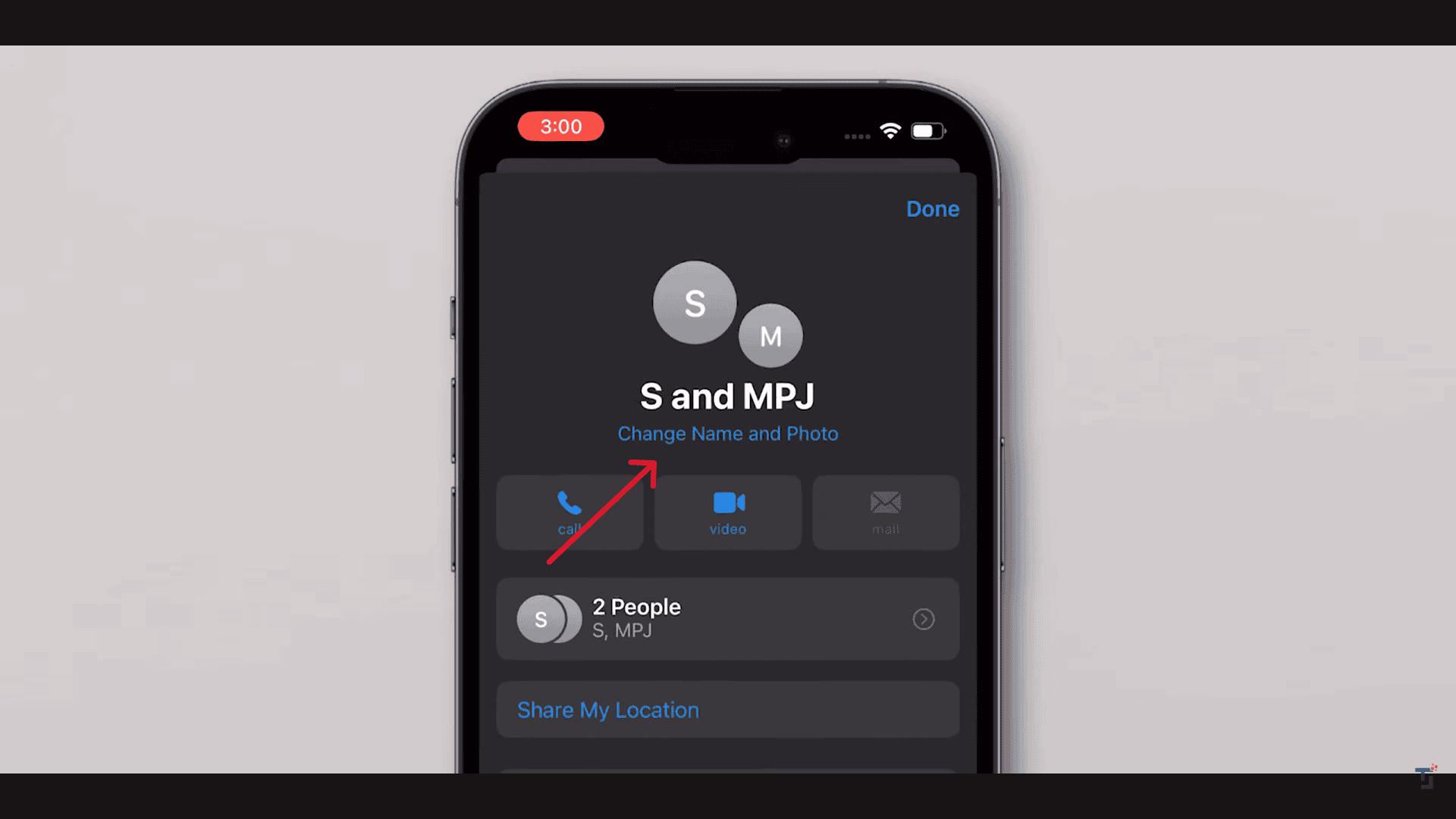
- Enter a name and pick an emoji or image.

- Tap Done.


If the option isn’t there, someone in the thread isn’t using iMessage. For a deeper understanding of what counts as an iMessage versus a regular text, the comparison of iMessages vs text messages is a useful reference.
Add or Remove People
Adding and removing participants only works for iMessage group chats.
To add someone
- Open the group.
- Tap the group icon.
- Tap Add Contact.
- Choose the person and confirm.
To remove someone
- Open the group.
- Tap the group icon.
- Press and hold the person’s name.
- Select Remove From Conversation.
You can’t remove yourself from a group; you need to leave the conversation instead. If you want more context on when groups behave like iMessage versus SMS, the breakdown in how to make a group text on iPhone with iMessage or SMS explains the differences clearly.
Leave a Group Chat
You can leave the group if:
- It’s an iMessage group, and
- At least three other participants remain.
To leave:
- Open the group chat.
- Tap the top banner.
- Select Leave This Conversation.
If that option is greyed out, the chat is running as SMS/MMS, not iMessage. Apple details this behaviour in its iMessage and SMS/MMS overview, including why some controls appear or disappear depending on the type of thread.
Mute Group Notifications
When a group starts blowing up with messages, muting it lets you stay in the conversation without constant interruptions.
- Open the conversation.
- Tap the top banner.
- Toggle Hide Alerts.
You’ll still receive messages, but without notification sounds or banners.
Shared Photos, Links, and Locations
iMessage group chats keep shared content organised so you don’t have to scroll back endlessly.
- Tap the group icon to view sections like Shared with You.
- Review photos, links, files, and locations in one place.
- Long-press a message to react, reply inline, copy, or translate.
If content loads slowly or reactions show up late, you may be dealing with a broader messaging or network issue rather than just a group-chat quirk. Apple’s page on if you can’t send or receive messages on iPhone walks through the main checks that usually resolve these glitches.
When a Group Chat Turns Green
If your previously blue iMessage group suddenly turns green, it means the thread has fallen back to SMS/MMS. Common reasons:
- Someone turned off iMessage
- Someone switched to an Android device
- A participant has no mobile data or Wi-Fi
- There’s an iMessage activation problem on one device
- Apple’s iMessage service is temporarily unavailable
The rules behind this switch are the same ones Apple lists for individual messages in its iMessage and SMS/MMS overview. Group chats simply inherit that behaviour: if even one device fails the iMessage conditions, the thread moves to SMS.
Final Thoughts
iMessage group chats feel effortless when everyone in the conversation is on iMessage and staying online. Features like group naming, inline replies, reactions, and easy media handling all depend on that blue-bubble environment. Once a single participant drops to SMS, the entire thread changes.
Understanding what controls that shift and knowing where to check settings, connectivity, and device status means your group chats stay smoother, less confusing, and easier to manage in the long run.


Discussion