

If you’re trying to use iPhone Mirroring on iOS 26 and all you get is a Timed Out error, you’re not the only one. The feature is supposed to make your iPhone and Mac work together without effort, but right now many people run into the same wall: the devices see each other, you hit connect, the spinner turns, and then it all falls apart with a Timed Out message. Annoying, especially when the setup looks perfect on paper.
Let’s break it down and walk through the fixes that actually help.
Table of contents
Why iPhone Mirroring Times Out in the First Place
Most failures come down to the communication layer between your Mac and iPhone. If anything in that chain misbehaves, the connection stalls and times out. The usual suspects include:
Don’t miss the best of The Mac Observer
Set us as a preferred source and our Apple reporting ranks higher in your Google Search results and Discover feed — one tap, no account changes.
- Network settings on one device drifting out of sync
- WiFi privacy settings blocking the connection
- A VPN rerouting your traffic
- ScreenContinuity files on the Mac getting corrupted
- A simple but stubborn pairing hiccup
The good news is that you can fix all of these yourself.
Fix 1: Restart and Reconnect in the Right Order
A restart sounds basic, but the order matters. This specific flow tends to give the pairing process the clean slate it needs.
- Restart your iPhone

- Unlock it the first time so it fully boots
- Lock it again with the side button
- Now start the connection from your Mac without unlocking the iPhone

This keeps the phone in the locked state that Mirroring prefers during the handshake. Many people see the error disappear after trying it this way.
Fix 2: Turn On Rotating Private WiFi Address on Both Devices
Here’s something most people overlook. iPhone Mirroring relies heavily on WiFi integrity. If one device uses a rotating private address and the other doesn’t, the pairing can fail instantly.
On iPhone:
- Settings
- Tap your network
- Details
- WiFi
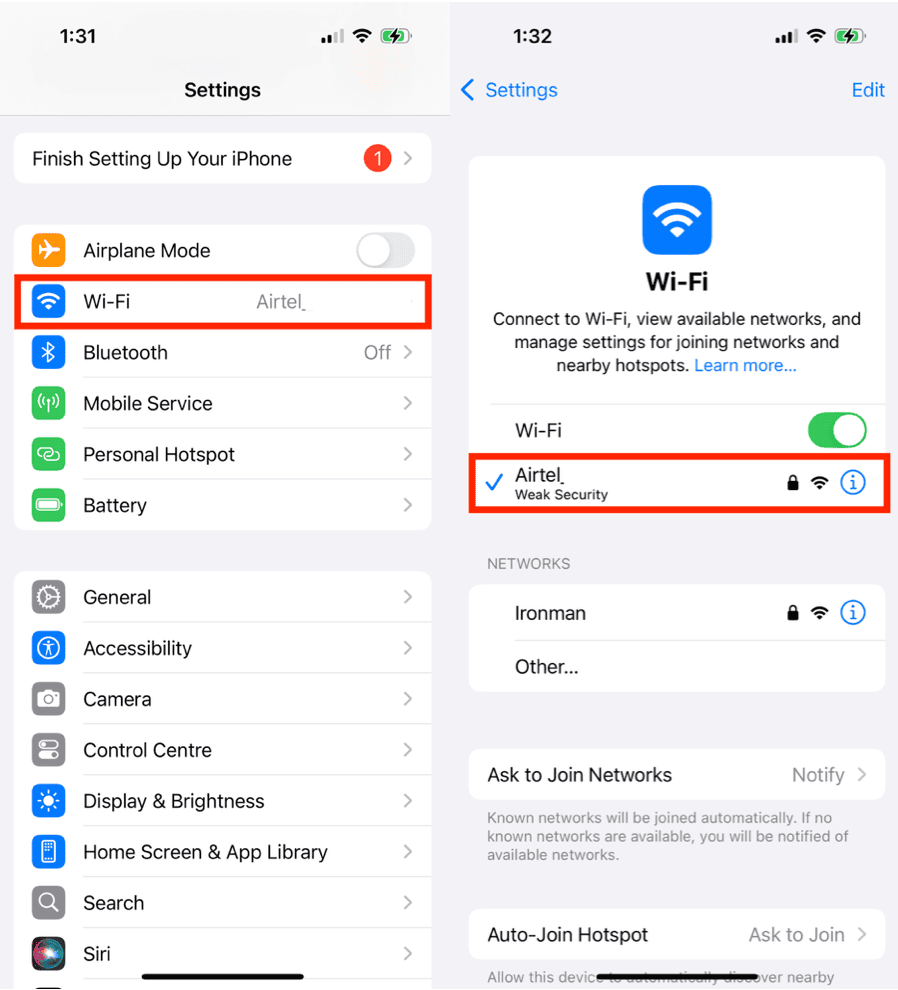
- Turn on Rotating Private WiFi Address

On Mac:
- System Settings
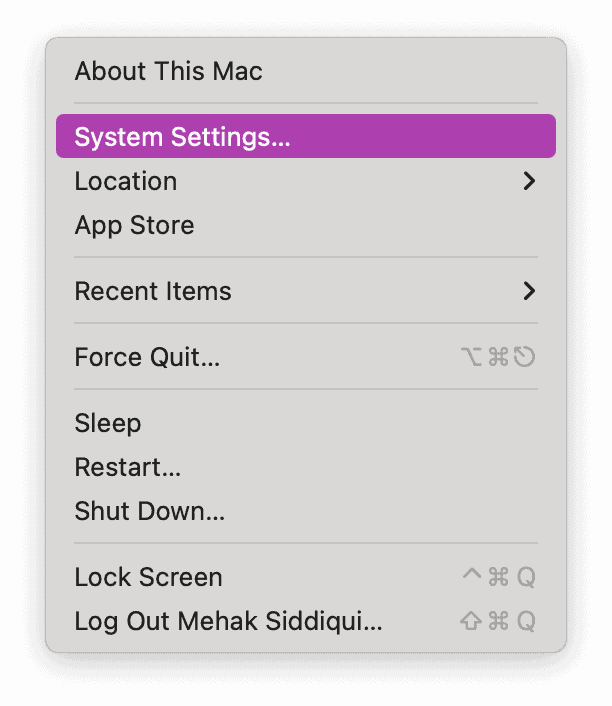
- Network
- Your WiFi
- Details
- Enable Rotating Private WiFi Address

Once both devices match, try pairing again. This one small toggle solves the timeout issue more often than you’d expect.
Fix 3: Reset Network Settings on iPhone
If your iPhone’s network stack is tangled, Mirroring will time out no matter what you do. Resetting network settings gives it a clean baseline.
- Settings
- General
- Transfer or Reset iPhone
- Reset
- Reset Network Settings
Your phone will reboot and forget every WiFi network and Bluetooth device you’ve saved, so you’ll have to reconnect everything afterward. But this fix knocks out a surprising number of hidden network problems.
Fix 4: Turn Off VPN on Both iPhone and Mac
VPNs are great until they get in the way. iPhone Mirroring depends on local network traffic, and a VPN can reroute or block that traffic without warning.
On iPhone:
- Settings
- VPN and Device Management
- Turn off VPN
On Mac:
- System Settings
- Network
- VPN
- Disconnect
Once VPN is off on both sides, try the connection again. If it works, you’ve found your culprit.
Fix 5: Reset ScreenContinuity Preferences on Mac
If none of the above steps work, your Mac might be holding on to corrupted ScreenContinuity settings. Removing the preference file forces macOS to rebuild it.
- Close the iPhone Mirroring app
- Open Terminal
- Run this command to go to the correct folder:
- cd ~/Library/Containers/com.apple.ScreenContinuity/Data/Library/Preferences
- Delete the preferences file:
- rm com.apple.ScreenContinuity.plist
- Reopen iPhone Mirroring and try again
Once the file is gone, your Mac treats iPhone Mirroring as a fresh setup. In many cases, the Timed Out error disappears right after this reset.
Final Thoughts
iPhone Mirroring in iOS 26 is promising, but the connection process can be picky. Most timeouts aren’t permanent issues. They’re just symptoms of mismatched network settings, privacy toggles, or leftover system files.
Try the fixes in this order. Start simple, work your way up, and you’ll likely get the connection flowing again without diving into anything too technical.



Discussion