
If you keep seeing Apple Music or iCloud Music Library error codes 4007 or 4010 on macOS or Windows, the issue usually comes from network problems, temporary Apple server outages, or software glitches in the Music or iTunes apps. You can try a few focused checks on both Mac and PC to confirm whether the problem is local or on Apple’s side.
Table of Contents
Solutions
Check Apple Service Status for Apple Music
When many users see errors 4007 or 4010 at the same time, Apple Music or iCloud services may be degraded. The best way to find out if this is the case is checking Apple’s official System Status page.
Time needed: 5 minutes
- Open a web browser on your Mac or Windows PC.
- Go to Apple’s official System Status page for online services.
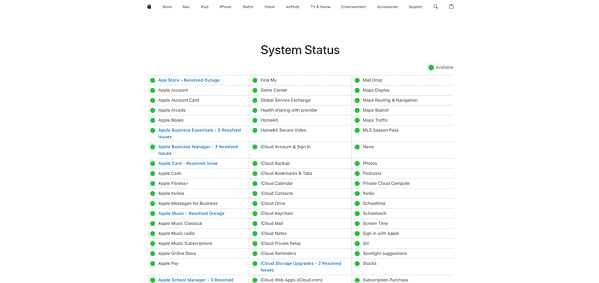
- Look for entries related to Apple Music and iCloud Music Library.
- If they show issues, wait and try syncing again later.

Test Your Internet Connection and Router
Error 4007 often indicates a network problem, so you should confirm that your connection is stable and unrestricted.
Don’t miss the best of The Mac Observer
Set us as a preferred source and our Apple reporting ranks higher in your Google Search results and Discover feed — one tap, no account changes.
- On your Mac or PC, open a browser and visit several websites.
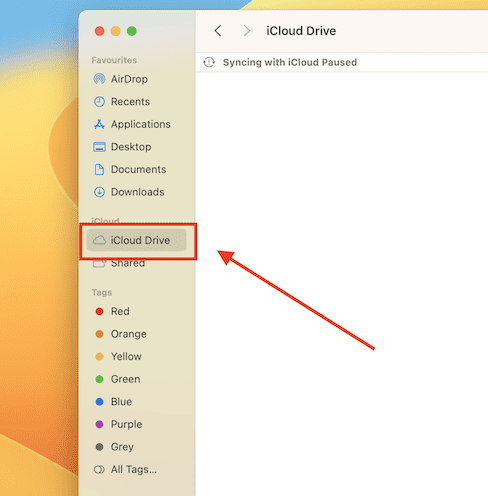
- Upload a test file to iCloud Drive to confirm stable transfers.
- Turn off any VPN or proxy software temporarily.
- Restart your router, then try updating the Cloud Library again.

Update macOS, Windows, and the Music App
Outdated system software or app versions can cause sync errors, especially after recent Apple Music backend changes.
- On Mac, open System Settings > General > Software Update.
- Install any available macOS and Music app updates.
- On Windows, open the Microsoft Store or Apple Software Update.
- Update Apple Music and iTunes, restart the computer, then test sync again.
Check Firewall, Antivirus, and Corporate Network Rules
Some Windows firewalls, antivirus apps, or corporate networks can block the ports that Apple Music uses for cloud sync.
- On Windows, open Settings > Network & Internet and confirm you are on a trusted network.
- Temporarily disable third-party firewalls or security suites.
- Add Apple Music and iTunes to allowed apps in your firewall settings.
- Try another network, such as a home Wi-Fi hotspot, and sync again.
Contact Apple Support With Recent Error Details
If multiple devices and networks show the same 4007 or 4010 codes, Apple Support can confirm whether the problem is server-side.
- Take screenshots of the exact error messages on macOS and Windows.
- Write down when errors started and which versions you use.
- Visit Apple’s support site and start a chat or schedule a call.
- Share your screenshots, error codes, and steps already attempted.
Try Apple Music on the Web as a Workaround

If desktop apps keep throwing errors 4007 or 4010, the Apple Music web player can confirm whether your library is intact on Apple’s servers.
- Open a browser on your Mac or Windows PC.
- Go to the Apple Music web player site.
- Sign in with the same Apple ID used in the Music app.
- Check if your albums, playlists, and recent uploads appear correctly.
Tips
- Use the same Apple ID on every device that syncs with Apple Music.
- Avoid heavy downloads on your network while updating the cloud library.
- Keep macOS, Windows, and the Music app updated regularly.
- Note error times in case Apple Support requests additional diagnostics.
- Use the Apple Music web player when desktop apps misbehave temporarily.
FAQ
No. These errors often happen when Apple Music or iCloud Music Library servers have issues, especially when many users report them together.
Usually not. Your purchases and matched tracks stay on Apple’s servers, even if the desktop app temporarily fails to sync correctly.
If service status looks normal and errors persist across networks and devices, contact Apple Support and provide full details and screenshots.
Summary
- Check Apple service status
- Stabilize your internet connection
- Update operating systems and apps
- Escalate with Apple Support
- Use the Apple Music web player
Errors 4007 and 4010 can appear even when your Mac or Windows PC seems fine, especially when Apple Music or iCloud services experience temporary problems. By checking Apple’s service status, testing different networks, updating software, and using the web player, you can confirm whether the issue is local or server-side. If the codes continue for several days, sharing detailed information with Apple Support helps them investigate and restore normal sync behavior.


Discussion