

Apple rolled out the iOS 26 update. Many iPhone users rely on Screen Time features. They found a frustrating bug afterward. The “One Minute” extension grants brief single-app access. Now it incorrectly applies across all app categories. Consequently, the device disables nearly every application. This locks users out entirely after the minute expires. Fortunately, the community found several workarounds. These fixes help you regain control of your iPhone usage.
Table of contents
Restoring Control: Practical Solutions for the Screen Time Bug
Screen Time issues often stem from software conflicts. Data corruption can also cause problems. You must systematically apply these community-tested fixes. Therefore, you can temporarily bypass this system limitation. A permanent solution requires an official patch. These solutions adjust or reset the boundaries of the Screen Time feature itself.
1. Temporarily Disable Screen Time Entirely
Users report this as the most direct solution. You can bypass the buggy feature completely. Do this until Apple releases a system update. If this bug prevents essential functions, turn off Screen Time. This action immediately eliminates the “One Minute” glitch.
Don’t miss the best of The Mac Observer
Set us as a preferred source and our Apple reporting ranks higher in your Google Search results and Discover feed — one tap, no account changes.
- Navigate to Settings on your iPhone.
- Tap on Screen Time.
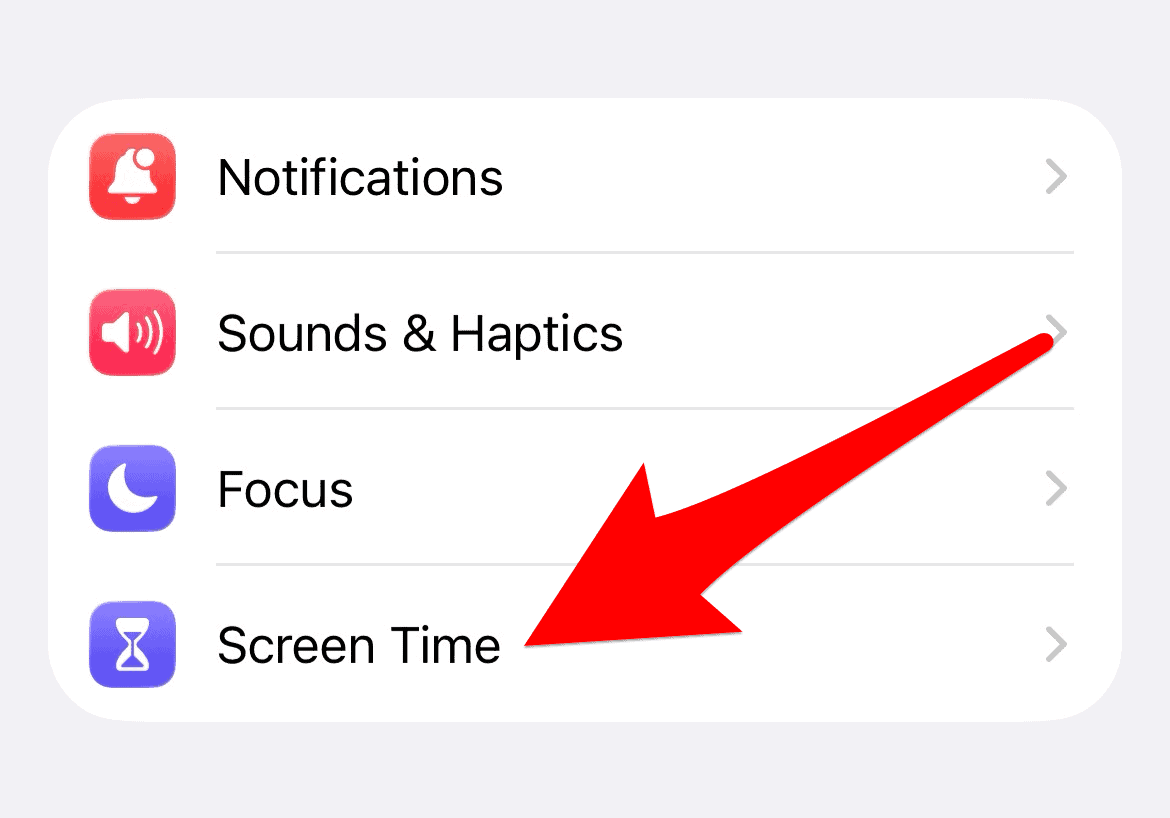
- Scroll down to the bottom. Select Turn Off Screen Time.
- Confirm the action. Enter your Screen Time Passcode if the phone prompts you.

2. Adjust the Timing of Your “One Minute” Allowance
Community testing suggests a bug correlation. The issue spikes when users activate the “One Minute” extension during scheduled Downtime. A key workaround exists. You must hit your App Limit (not Downtime) before requesting the extension.
- If Downtime currently locks your device, grant yourself extra Downtime. Alternatively, wait until Downtime ends.
- Use your chosen apps. Continue until you hit a specific App Limit.
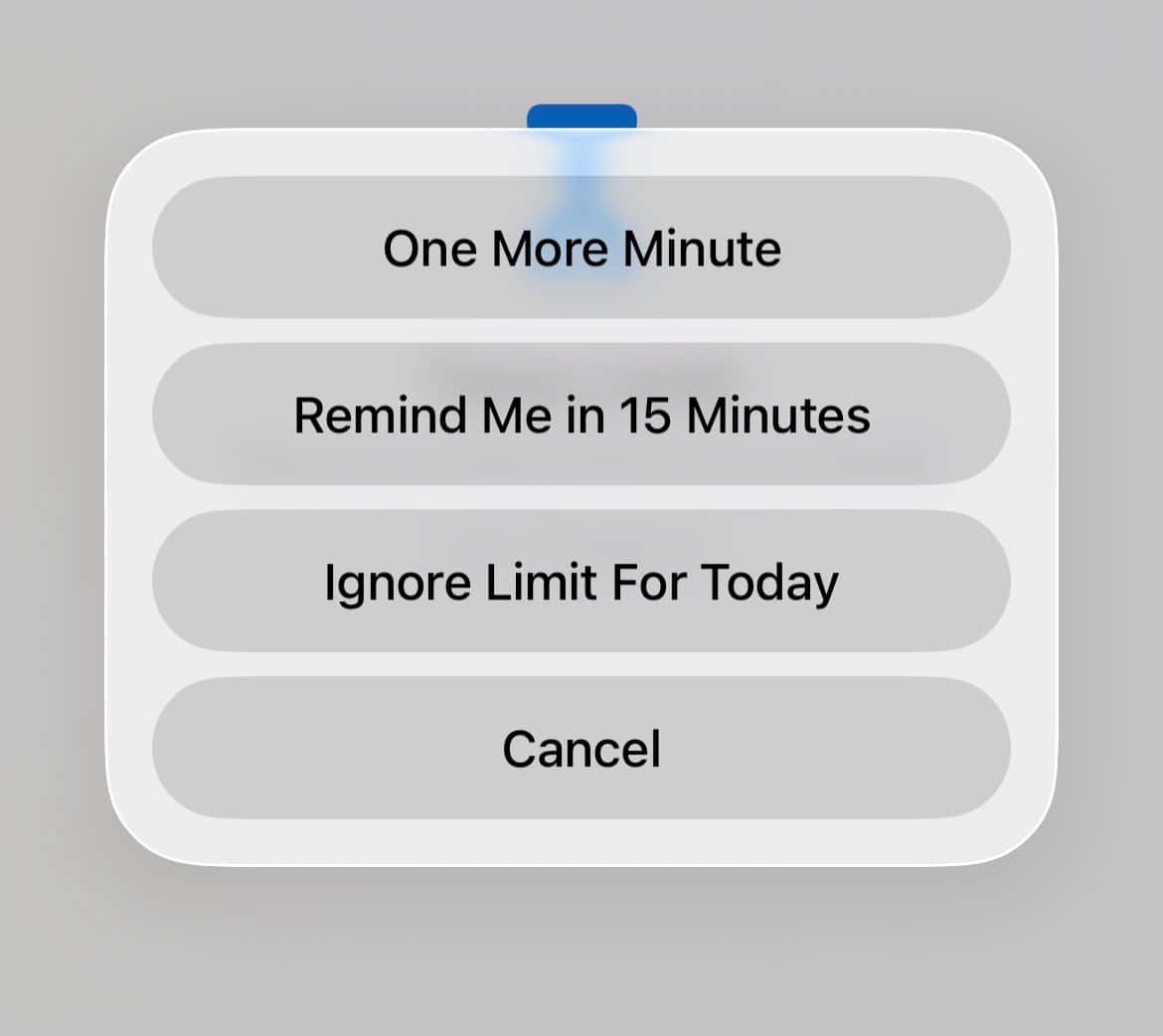
- The “Time Limit” screen appears next. Request the “One Minute” allowance then. This specific timing often limits the minute only to the restricted category. It avoids locking the entire device.

For similar troubleshooting guidance, learn how to fix Vision Pro taking a long time to turn on.
3. Remove and Re-add Existing App Limits
The corruption may link to existing App Limits definition. Remove them and then set them again. This action forces the operating system to rewrite the relevant parameters. Furthermore, rewriting sometimes clears software glitches. This fix helps when you see repeated issues. Previous system versions had similar problems. For instance, consider the iOS 18 Screen Time bug.
- Go to Settings > Screen Time > App Limits.
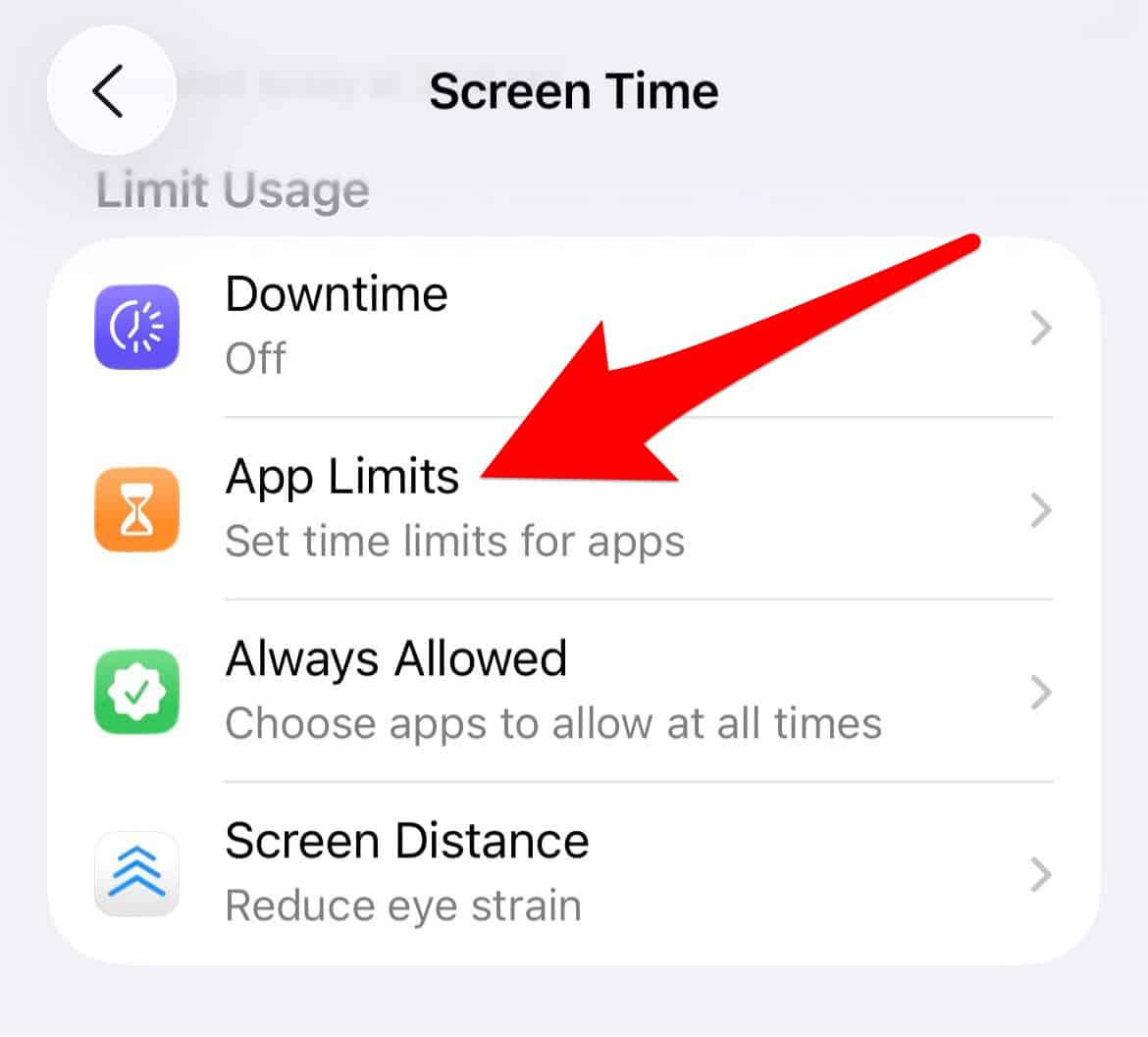
- Select the app or category limit causing the issue.
- Tap Delete Limit.
- After deleting all affected limits, restart your iPhone.
- Return to App Limits. Tap Add Limit to re-establish your restrictions.

4. Check Content & Privacy Restrictions
Sometimes the Screen Time data corrupts deeply. It may inadvertently trigger Content & Privacy restrictions. This mimics an overall device lock. Reviewing this section helps isolate the configuration error. You can then fix the underlying issue. For users tracking activity, settings affect usage goals. Similarly, you sometimes need to change Apple Watch activity goals.
- In Settings, go to Screen Time > Content & Privacy Restrictions.
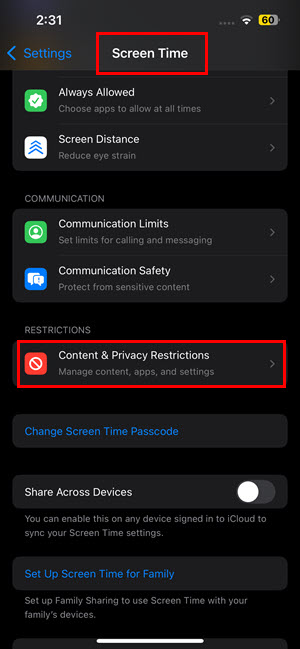
- Toggle the main Content & Privacy Restrictions switch Off. Then switch it back On.
- Check “Allow Changes” specifically. Select this for Passcode and Account changes. This ensures the system can modify its settings.

5. Report the iOS 26 Bug Directly to Apple
This widespread issue requires official action. Many users confirm it across community forums. Reporting the bug officially is crucial. User-to-user solutions are temporary. Providing feedback accelerates an official fix. This solution should appear in a subsequent iOS update (e.g., 26.0.1).
- Visit the official Apple Feedback page for iPhones on your device.
- Choose “Bug Report” as the Feedback Type.
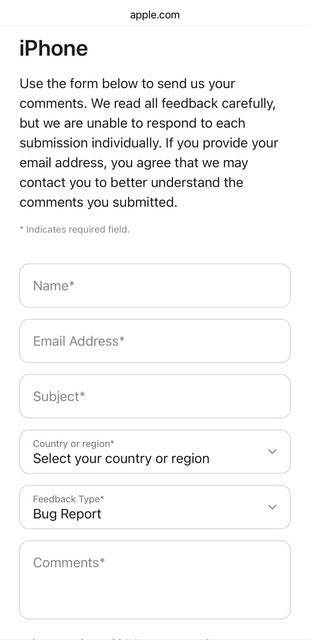
- Detail the issue. Specifically mention the “iOS 26 One Minute setting affecting all apps.” Describe when the problem started.

FAQ
No, it will not. Turning off Screen Time only stops usage tracking. It also disables restrictions. Conversely, your apps and data remain safe. Everything stays completely accessible on your iPhone.
Apple does not share exact timelines for bug fixes. However, more user reports increase priority. The official Feedback page is the best place to report it.
Regaining Control Over Your iPhone Usage
A critical operating system bug can feel disruptive. Yet, applying these community-drawn methods helps. You can mitigate the immediate impact of the “One Minute” glitch. Temporarily disable the feature. Adjust your limit configurations. Finally, report the problem to Apple. This helps pave the way for a permanent solution. If your apps still misbehave after an update, check residual restrictions. You may need to review why apps are disappearing after the iOS 26 update due to restrictions.


It seems that iOS 26.5.2 fixes this bug. I still saw that “one more minute” option on my kid’s iPhone with iOS 26.5.1 but just installed 26.5.2 and it no longer appears when an app reaches its time limit!
I could not change a screenphone setting in iOS 26.3 without turning the password security on it OFF. This needs to change. I need my settings locked for security, including disabling the camera. But when I need the camera on quickly I run into a blank screen. I don’t want to haveto reset all my screentimes settings just to unlock the camera.