

A HomePod that won’t power on feels dramatic in the moment. The lights don’t glow, the touch panel is dead, and Siri is nowhere to be found. But here’s the thing: most “dead” HomePods aren’t dead at all. They’re caught on a power issue, a network hiccup, or a software loop. With a few smart checks, you can usually revive it without a trip to Apple.
Let’s break it down step by step.
Table of contents
Start With the Power Source

It sounds obvious, but don’t skip it. HomePods don’t run on battery power, so one loose cable or a faulty outlet can make the whole thing look lifeless.
Don’t miss the best of The Mac Observer
Set us as a preferred source and our Apple reporting ranks higher in your Google Search results and Discover feed — one tap, no account changes.
What to do:
- Try a different outlet you know is working.
- Make sure the cable is firmly seated on both ends.
- Check for damage on the cord, especially on original HomePod models where the cable is not meant to detach.
If you’re using a HomePod mini with a third-party USB-C brick, confirm the power adapter meets Apple’s power requirements. Cheap adapters can underdeliver power and cause immediate shutdowns.
Make Sure Wi-Fi Isn’t the Culprit

A dead HomePod and a disconnected HomePod look surprisingly similar. If your Wi-Fi is struggling, the speaker can appear unresponsive in the Home app or refuse to react.
Check your network:
- Confirm your Wi-Fi is online and stable.
- Reconnect your iPhone to Wi-Fi, then open the Home app to see if the HomePod appears with alerts.
- If you changed your network name or password recently, the HomePod will need to be moved to the updated network through the Home app settings.
Strong Wi-Fi isn’t just nice—it’s required. A HomePod with one or two bars of signal may misbehave or show “No Response” even though it’s technically on.
Restart the HomePod
If the power and Wi-Fi look fine, try a restart. This fixes most glitch loops.
Two ways to do it:
- Unplug it. Wait ten seconds, then plug it back in.
- Use the Home app:
- Open Home → tap your HomePod → scroll to the bottom → Reset HomePod → Restart HomePod.
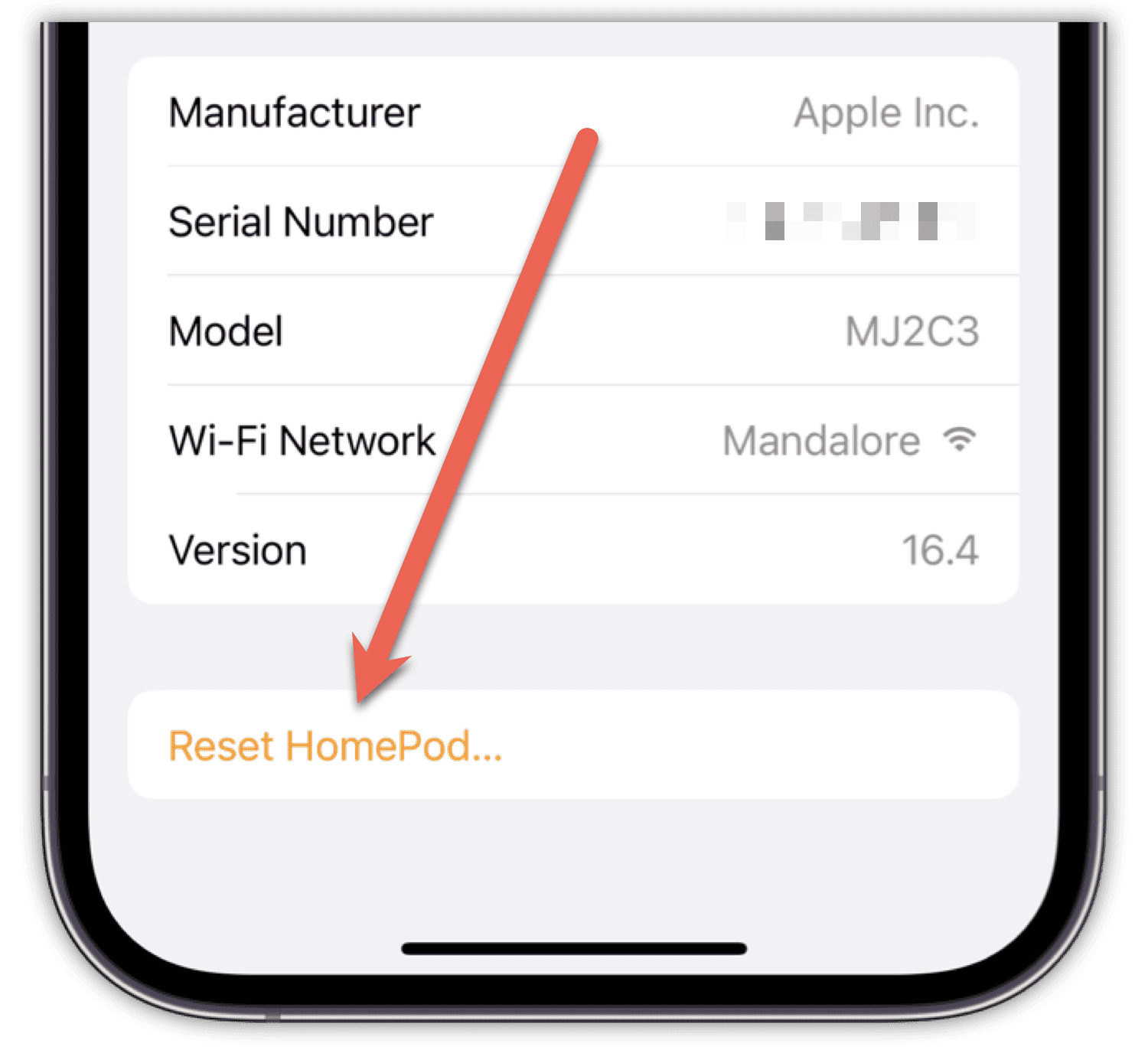
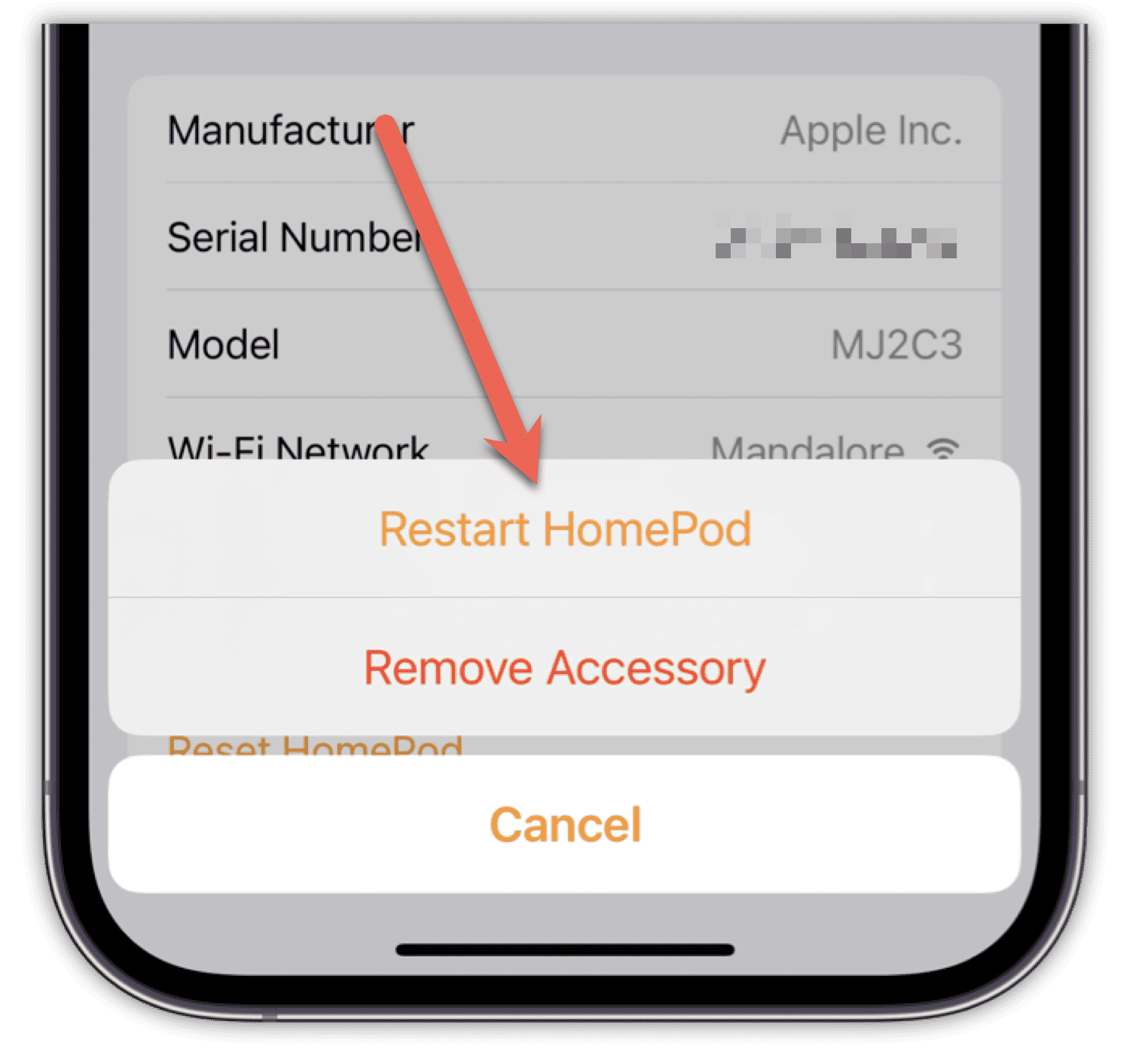
- Open Home → tap your HomePod → scroll to the bottom → Reset HomePod → Restart HomePod.


If you have a stereo pair, restart each speaker individually.
Check Whether Siri Is Alive
Sometimes the lights fail, but Siri is still running in the background.
Say: “Hey Siri.”
If she responds, the touch surface or visual indicators might be the issue rather than the system itself.
Update the HomePod Through the Home App
A buggy or incomplete software update can freeze a HomePod so hard it feels like it’s bricked.
To check for updates:
Home app → Home Settings → Software Update → Update All.
It doesn’t matter if the HomePod looks unresponsive—if it’s getting power, you can still trigger the update from your iPhone or Mac.
Reset the HomePod
If restarts and updates don’t work, try a reset. This removes it from your Home setup and forces a clean start.
From the Home app:
- Long-press HomePod → Reset HomePod → Remove Accessory.
Or reset manually:
- Unplug the HomePod.
- Wait ten seconds, plug it back in.
- Press and hold the top until the light turns red.
- Keep holding until you hear three beeps.
This wipes it back to factory state.
The Nuclear Option: Restore via Computer
Only do this if your HomePod still refuses to power on properly after a factory reset.
For HomePod mini (the only model that supports this):
- Connect it to a Mac or PC using a certified USB-C cable.
- Open Finder or iTunes (on Windows) and restore the device.
- An orange light on the mini means the restore is in progress.
When the flashing stops, the restore is complete.
When It’s Time to Call Apple
If the HomePod still won’t respond, you’re likely dealing with hardware failure—often in the power supply, logic board, or touch sensor.
At this point:
- Book an Apple Support appointment.
- If you have AppleCare+, now’s when it pays for itself.
Bottom Line
A HomePod that appears dead often isn’t. Work through power, Wi-Fi, restarts, and resets before assuming the worst. Most problems clear up with a simple fix, and even the stubborn ones usually yield to a restore. Only when none of these steps make an impact is it time to involve Apple.




Discussion