

If you’ve ever plugged in your iPhone and thought, “It would be so much cooler if it played the old Mac startup chime,” you’re absolutely right. And the good news is that you can make that happen. Apple won’t let you replace the system charging tone directly, but you can use a Shortcut that plays the classic chime the moment your iPhone connects to power. It takes a few minutes to set up, and once it’s done, your phone will greet every charge with pure Apple nostalgia.
Let’s walk through it in a way that actually makes sense.
Table of contents
Step 1: Get the Classic macOS Startup Sound
Here’s the thing — Shortcuts can only play a sound you give it. That means you need the startup chime file first.
Don’t miss the best of The Mac Observer
Set us as a preferred source and our Apple reporting ranks higher in your Google Search results and Discover feed — one tap, no account changes.
What you’ll need:
- A short audio clip of the classic Mac chime (MP3, WAV, or AIFF works)
- Saved in your Files app on iPhone
If you already have the sound, perfect. Move it into the Files app so Shortcuts can access it:
Files → Browse → On My iPhone → Save it anywhere you’ll remember.
Step 2: Create a Charging Automation in Shortcuts
Now you’ll tell your iPhone, “When I plug you in, play this sound.”
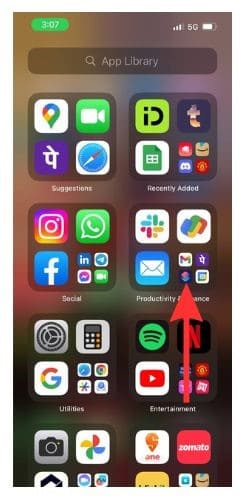
- Open Shortcuts
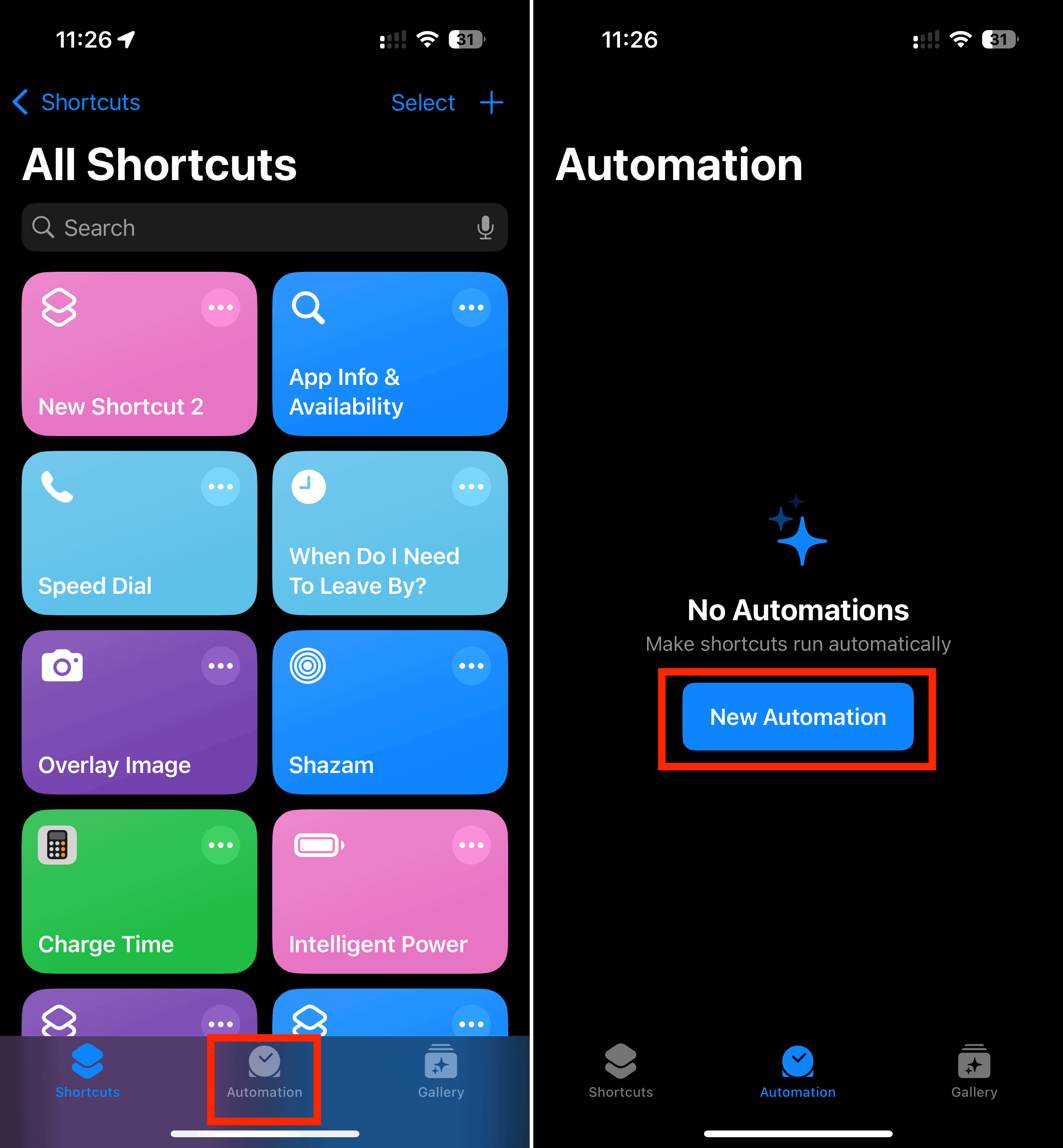
- Tap Automation at the bottom
- Tap New Automation
- Scroll down and choose Charger
- Select Is Connected
- If you also want the sound when unplugging, toggle Is Disconnected too
- Turn on Run Immediately
- Tap Next


You’ve now created the trigger — time to add the iconic sound.
Step 3: Make Your iPhone Play the Chime
Shortcuts gives you a couple of ways to play audio, but using Play Sound with your saved chime file is the simplest.
- Tap Add Action
- Search for Play Sound and select it
- Tap the small arrow next to “Play Sound”
- Choose Variable → Clipboard, OR pick the file directly (depending on your iOS version)
- If using Clipboard: go into Files → Share → Copy the chime file before adding the action
- If you can select a file directly: tap File and pick the chime audio
- Tap Done
You now have a working automation. Plug in your iPhone and enjoy the startup bong.
Step 4: (Optional) Silence the Default Charging Chime
Here’s the part most people overlook:
Your iPhone will still play its built-in charging sound unless you silence it.
If you want the classic mac chime to be the only sound:
- Flip your iPhone into Silent Mode
- Go to Settings → Sounds & Haptics → turn off System Haptics
Just remember: Silent Mode means calls and notifications will also be silent. If that’s an issue, set a second automation that turns sound back on when you unplug:
- Shortcuts → Automation → +
- Choose Charger → Is Disconnected
- Add the action Set Silent Mode → Off
- Tap Done
Now your phone quietly charges, plays the classic Mac sound, and automatically restores normal ringer mode when you unplug.
Why This Actually Feels Good
It’s funny how something so small — a little startup chime — can make your phone feel more personal. You plug in your device, hear that nostalgic sound, and for a moment you’re transported back to the days of booting up a Mac that felt like magic. It’s a tiny hack, but it sparks joy every time you charge your phone.
And once you know how this works, you can swap the sound for anything: a voice line, a meme clip, your own recording, even a full song. The Shortcut doesn’t care — it just runs.




Discussion