
When your HomePod or HomePod mini refuses to show up in the Home app, it feels bizarre. This thing is supposed to pair itself the moment your iPhone gets near it, yet there you are, waving your phone like you’re trying to summon a ghost. The good news is that this problem has a short list of causes, and once you move through them in order, the HomePod usually pops right back into view.
Let’s break it down step by step, starting with the simple stuff and moving toward the fixes that actually solve the stubborn cases.
Table of contents
Start With the Setup Requirements
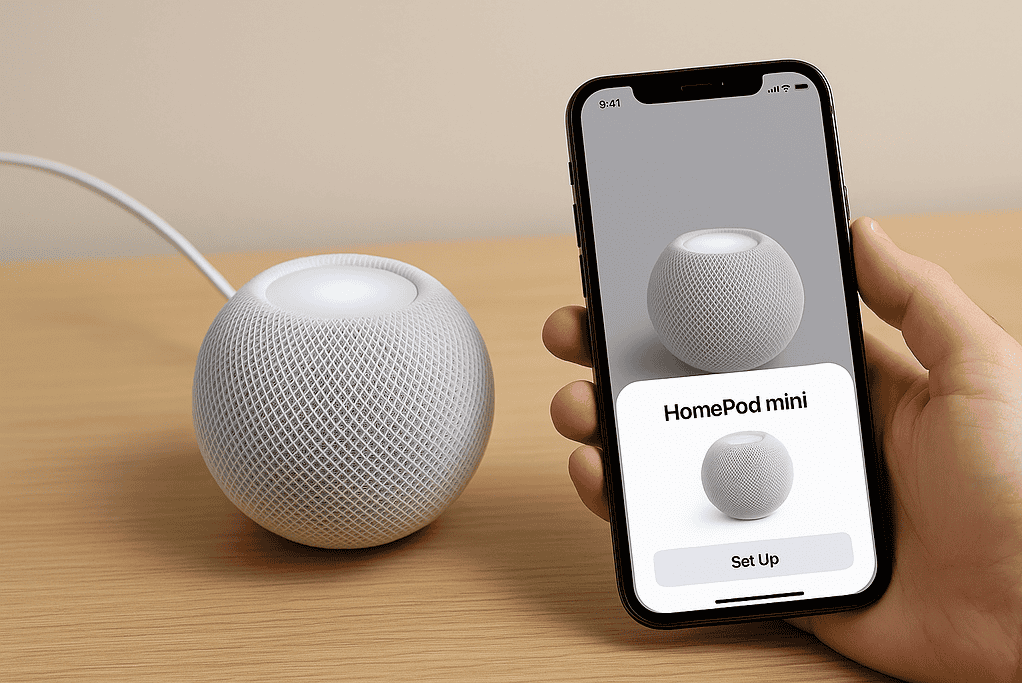
Here’s the thing: the HomePod won’t pair unless every part of Apple’s checklist is met. That includes the software on your iPhone or iPad, iCloud settings, and your Wi-Fi network.
Don’t miss the best of The Mac Observer
Set us as a preferred source and our Apple reporting ranks higher in your Google Search results and Discover feed — one tap, no account changes.
Make sure your iPhone or iPad is updated.
You need iOS or iPadOS 16.3 or later for newer HomePod models. Older versions of iOS are a common reason the setup screen never appears.
Confirm you’re on Wi-Fi, not a hotspot.
HomePod follows the network your iPhone is using. If you’re on a guest network, a school network, a hotspot, or anything with device isolation, the setup can fail silently.
Check that Bluetooth is on.
No Bluetooth means no setup screen.
Verify iCloud settings.
Keychain, iCloud, and two-factor authentication must all be enabled. The Home app relies heavily on iCloud syncing, so missing any of these breaks discovery.
If all the basics are in place and the HomePod still doesn’t appear, move on to the actual fixes.
Fix 1: Restart or Reset the HomePod
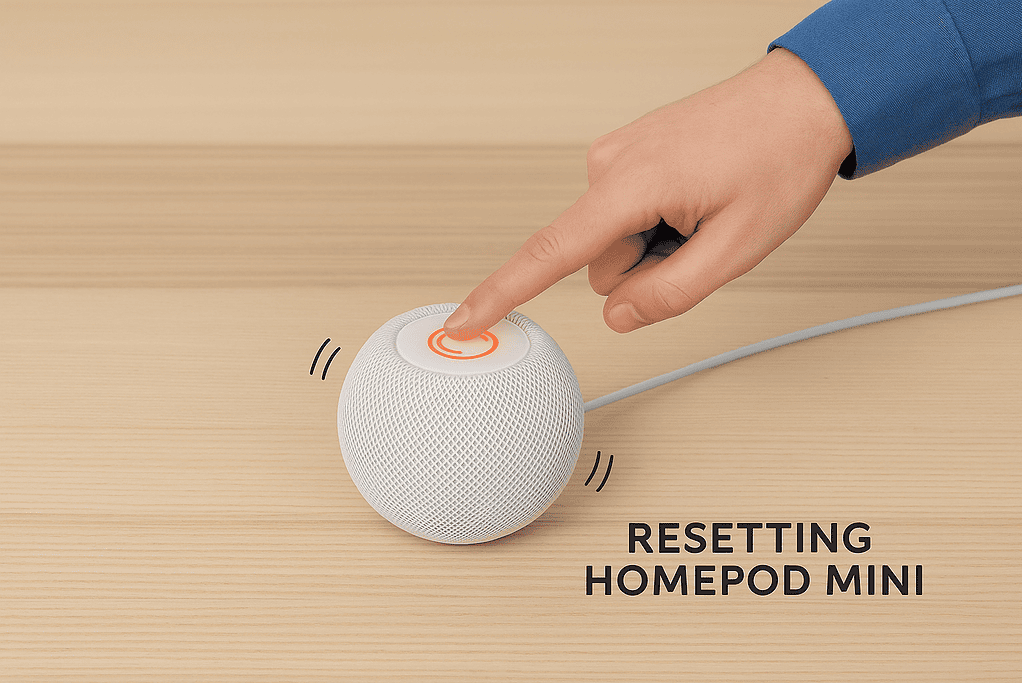
This is the simplest fix and it works more often than it should.
Restart the HomePod:
Unplug it for 10 to 20 seconds, plug it back in, and wait for the white pulsing light.
If it still refuses to show up, do a full reset:
- Unplug HomePod for five seconds.
- Plug it back in and wait until the white spinning light appears.
- Touch and hold the top until the light turns red.
- Keep holding until you hear three beeps.
Once it resets, try pairing again with your iPhone unlocked and held near the speaker.
Fix 2: Restart or Reconfigure Your Wi-Fi Network
A surprising number of HomePod pairing failures come down to Wi-Fi weirdness.
Restart your router.
Give it a full power cycle. Let everything reconnect.
Check if your router isolates devices.
Some routers offer client isolation, private Wi-Fi mode, or guest networks that block device-to-device discovery. HomePod cannot pair through these.
Turn off your VPN.
If your iPhone routes traffic through a VPN, the HomePod handshake may fail.
Match your network names.
If your router uses different SSIDs for 2.4 GHz, 5 GHz, and 6 GHz, HomePod may complain or refuse to join. Apple prefers unified network names across all bands.
Once the Wi-Fi setup is stable, try pairing again.
Fix 3: Reinstall the Home App

Yes, the Home app itself can glitch.
- Long-press the Home app.
- Remove the app.
- Reinstall it from the App Store.
When the app reloads, sign back into iCloud and give it a moment. Sometimes it takes a minute or two for the Home architecture to re-sync.
Fix 4: Restore HomePod Using a Mac or PC
This is the heavy-duty fix for HomePods stuck with an orange flashing light, endless pairing loops, or firmware issues.
- Connect the HomePod mini to your Mac or PC with a USB-C cable.
- Open Finder (or iTunes on Windows).
- Select the HomePod under Locations.
- Click Restore.
After the restore, set it up again as if it were brand new.
Fix 5: Check Your Home App “Home” Configuration
People often overlook this part, but it matters.
Make sure you’re signed into the correct Apple ID.
If you’re not signed in with the Home owner’s Apple ID, the HomePod may never appear.
Enable Home in iCloud:
Settings → Your Name → iCloud → Show All → Home.
Remove and rebuild your Home architecture if it’s stuck.
Sometimes the Home app gets trapped in “Loading Accessories and Scenes” for 30 minutes or more. When that happens, it will eventually prompt you to reset your entire Home. If your Home app has been buggy for a long time, this reset can actually be the cleanest solution.
Tips to Prevent This Mess in the Future
- Keep your iPhone close to the HomePod during setup.
- Avoid public or enterprise networks with device restrictions.
- Keep iOS and HomePodOS updated.
- Use the same Apple ID for iCloud and the Home app.
- Don’t switch Wi-Fi networks halfway through setup.
- Make sure your router isn’t blocking peer-to-peer connections.
Final Thoughts
A HomePod not showing up in the Home app feels random, but it almost never is. Once you confirm the basics—software, Wi-Fi, iCloud, Bluetooth—you’re usually a restart or reset away from everything working again. If you’ve checked the network settings, reset the HomePod, restored its firmware, and the Home app still refuses to cooperate, you’re dealing with a rare Home architecture issue. Resetting your Home often clears it.
Once the HomePod finally appears, setup usually completes in seconds. And after that, you can forget the troubleshooting ever happened.




Discussion