

iOS 26 gives the iPhone a serious glow-up with a new trick called Spatial Scenes. This is Apple’s take on a holographic lock screen. Instead of a flat photo, your wallpaper shifts as you tilt your phone, creating a layered 3D look that feels alive without being gimmicky. If you’ve seen parallax wallpapers before, this is the grown-up version people actually want to use. Let’s break down how it works and how to make it look good on your phone.
Table of contents
What Spatial Scenes Actually Do

Think of Spatial Scenes as depth-aware wallpapers. iOS takes a photo, pulls your subject forward, separates it from the background, and creates subtle motion that reacts to how you move the phone. The effect is only on the lock screen, which keeps the home screen calm unless you choose to match them.
The best part is that the effect doesn’t ruin readability. The clock and widgets stay clear because iOS adjusts their layering automatically.
Don’t miss the best of The Mac Observer
Set us as a preferred source and our Apple reporting ranks higher in your Google Search results and Discover feed — one tap, no account changes.
Pick the Right Photo

Not every picture will turn into a great hologram. The phone needs something with a clear subject and obvious depth.
A few tips that make a big difference:
- Use photos with a subject in the foreground and a clean background
- Portraits, pets, buildings, and landscapes usually work
- Avoid images where the main subject sits too close to the top
- Skip heavily edited or filtered photos
- Download full-resolution images first if your library uses Optimize Storage
If you try a photo and the Spatial Scene icon doesn’t appear, it’s usually because the depth can’t be mapped cleanly.
How to Create a Holographic Lock Screen
The setup takes about ten seconds once you know where to tap.
- Wake your iPhone and press on the lock screen until you see your wallpaper gallery.
- Tap Customize or hit the plus button to start fresh.
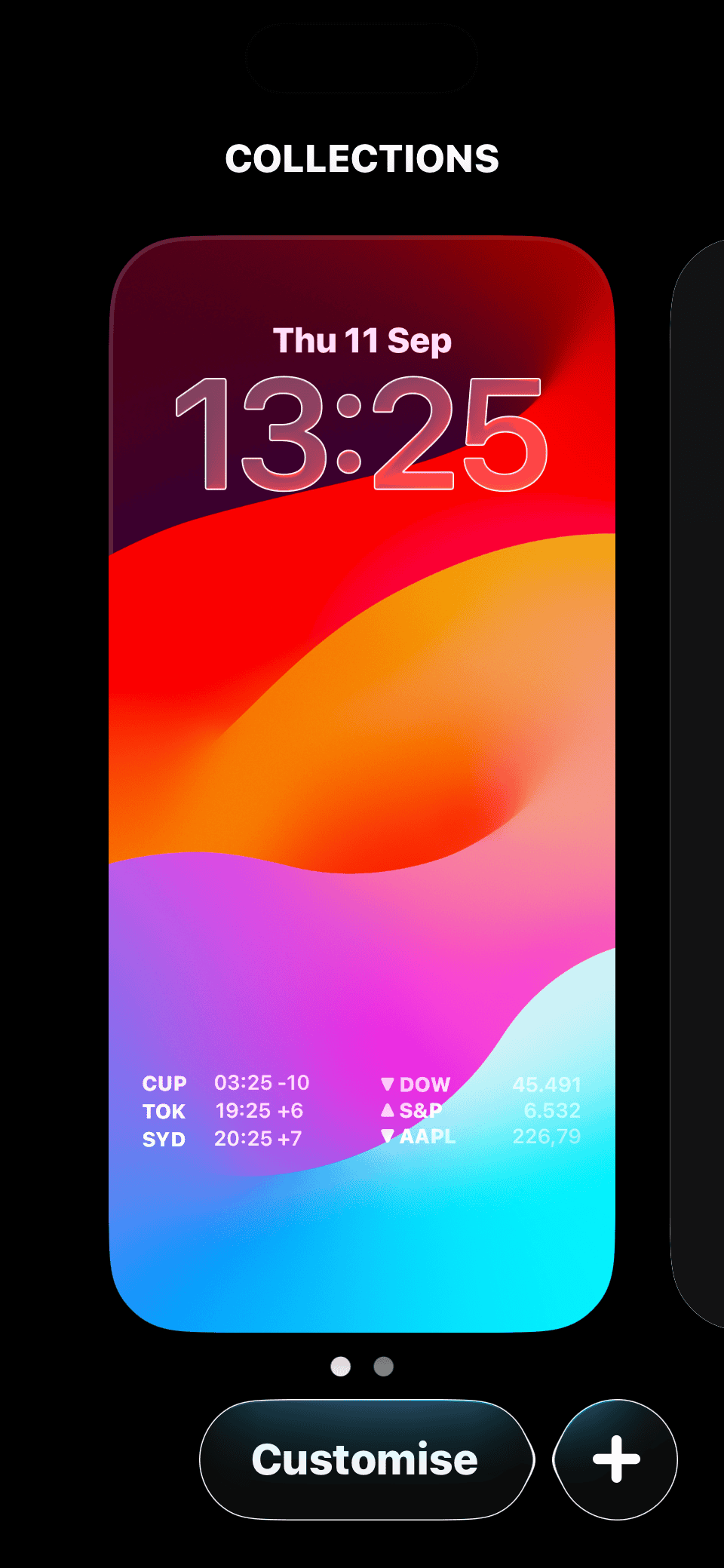
- Choose Photos and pick an image with good depth.
- When the preview loads, look for the small hexagon icon in the bottom-right corner.
- Tap it. iOS will process the image and build the depth map.
- Adjust the framing so your subject doesn’t collide with the clock or widgets.
- Tap Add or Done. Choose whether you want this only on the lock screen or paired with the home screen.
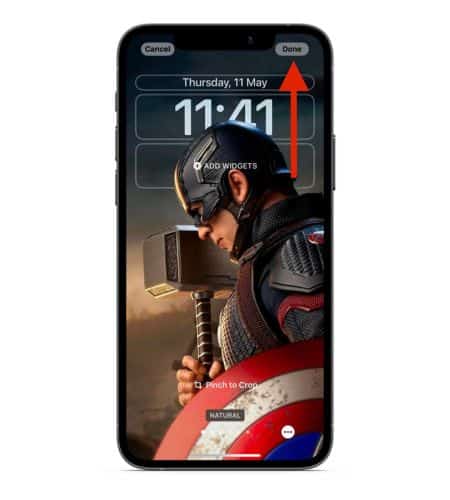


Tilt your phone and you’ll see the foreground and background drift separately. The effect is subtle but instantly noticeable.
Tips to Make the Effect Look Better
Spatial Scenes are supported on iPhone 12 and newer. If the effect looks off or doesn’t move at all, try these quick checks:
- Turn off Low Power Mode
- Make sure Reduce Motion is disabled in Accessibility
- Restart your phone if the depth effect seems stuck
- Try a photo with clearer separation between subject and background
Wide landscapes and portrait-mode photos tend to produce the most convincing results.
Enjoy the Holographic Look
Once everything is set, your lock screen reacts naturally to the way you hold your iPhone. It’s a small touch, but it makes the device feel more personal. And if you ever want to switch back, just long-press the lock screen again and tap the hexagon to disable the effect.


Discussion