

A smooth Family Sharing experience starts with clear settings, not trial and error. Most of the issues people run into come from mismatched Apple IDs, unclear permissions or a shared payment method that no one has reviewed. When those pieces are set correctly, shared apps, iCloud storage, subscriptions and location services work predictably for everyone.
Table of contents
Set up your family group the right way
Before anything else, your family group structure determines how smoothly everything else functions. A clear setup prevents ownership conflicts, hidden purchases and data mix ups.
Don’t miss the best of The Mac Observer
Set us as a preferred source and our Apple reporting ranks higher in your Google Search results and Discover feed — one tap, no account changes.
1. Add or remove members
- Open Settings on your iPhone or iPad.
- Tap your name.
- Select Family.
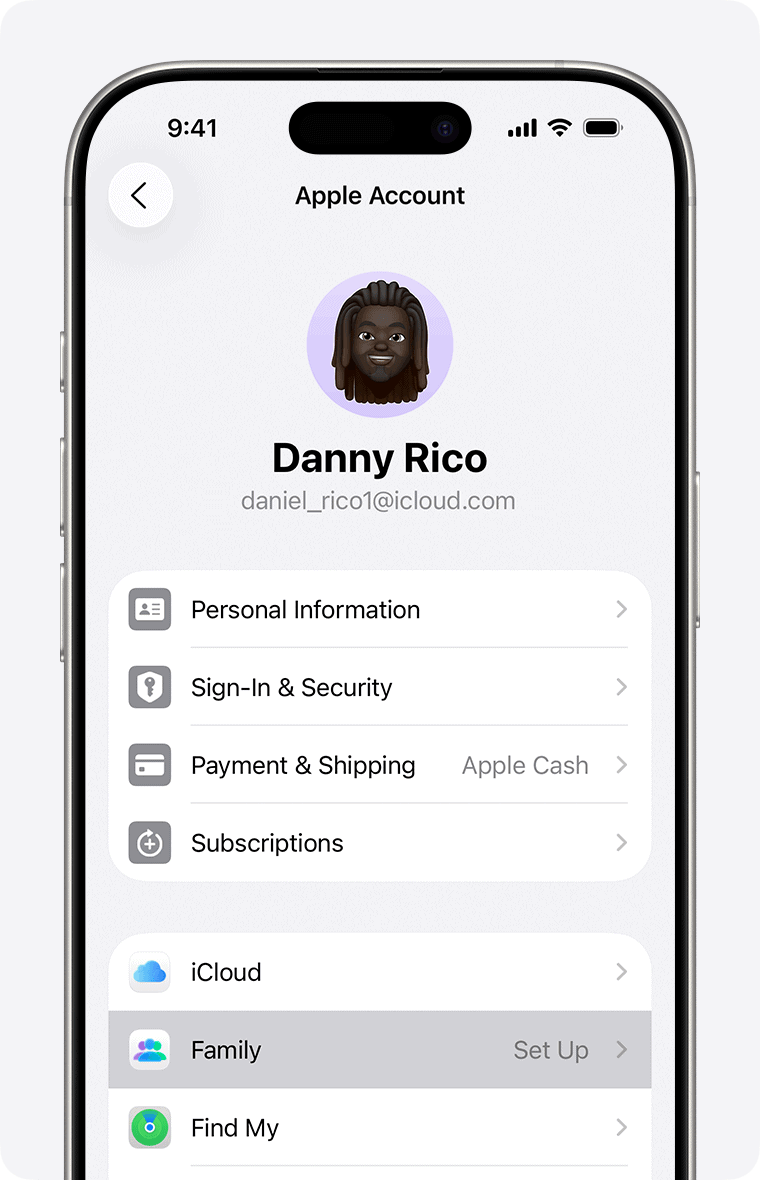
- Tap Add Member and invite by iMessage or directly enter an Apple ID.
- To remove someone, select their name and choose Remove.

2. Create child accounts
- In Family Sharing, tap Add Member.
- Choose Create Child Account.
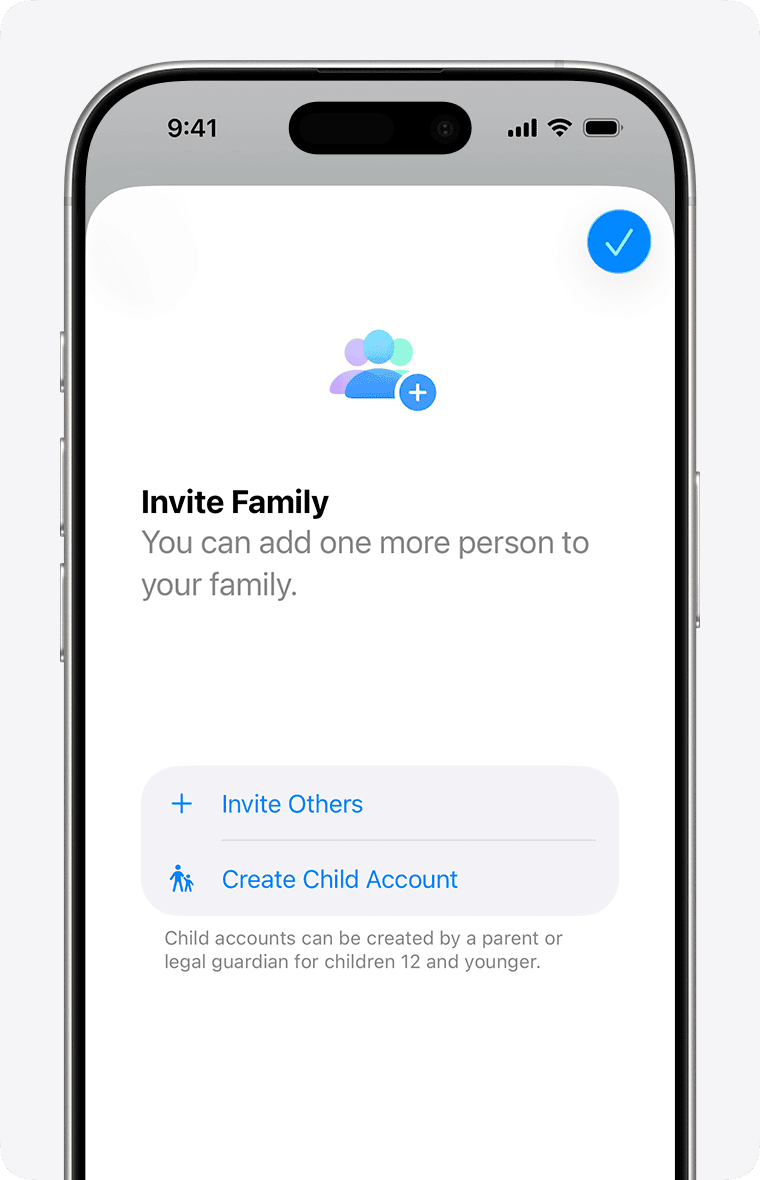
- Follow the on-screen prompts to set a birthdate and create an Apple ID.

3. Assign roles
- Go to Family Sharing.
- Tap each member and adjust permissions such as Parent/Guardian.
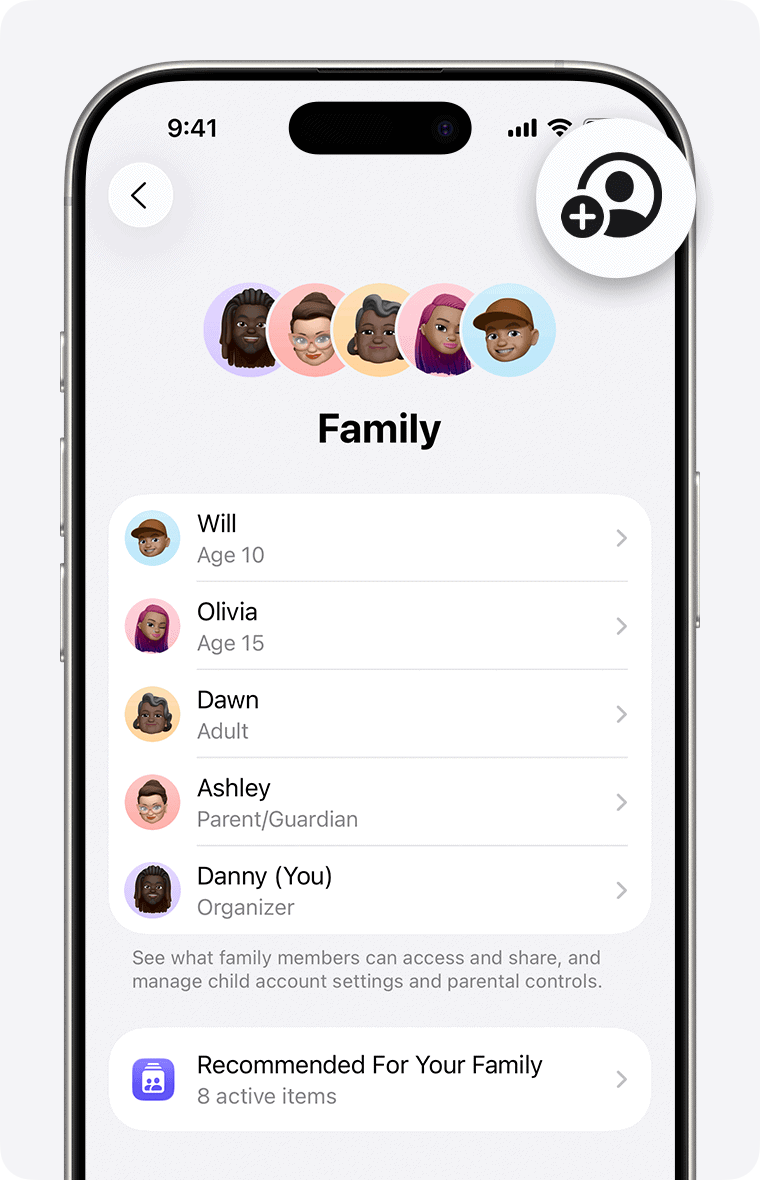
- Confirm who can approve purchases or location changes.

Manage purchase sharing without confusion
Purchase Sharing is powerful, but it’s also the top cause of mix ups. I keep it simple by deciding whose payment method the family will use and limiting who can buy without approval.
1. Turn on Purchase Sharing
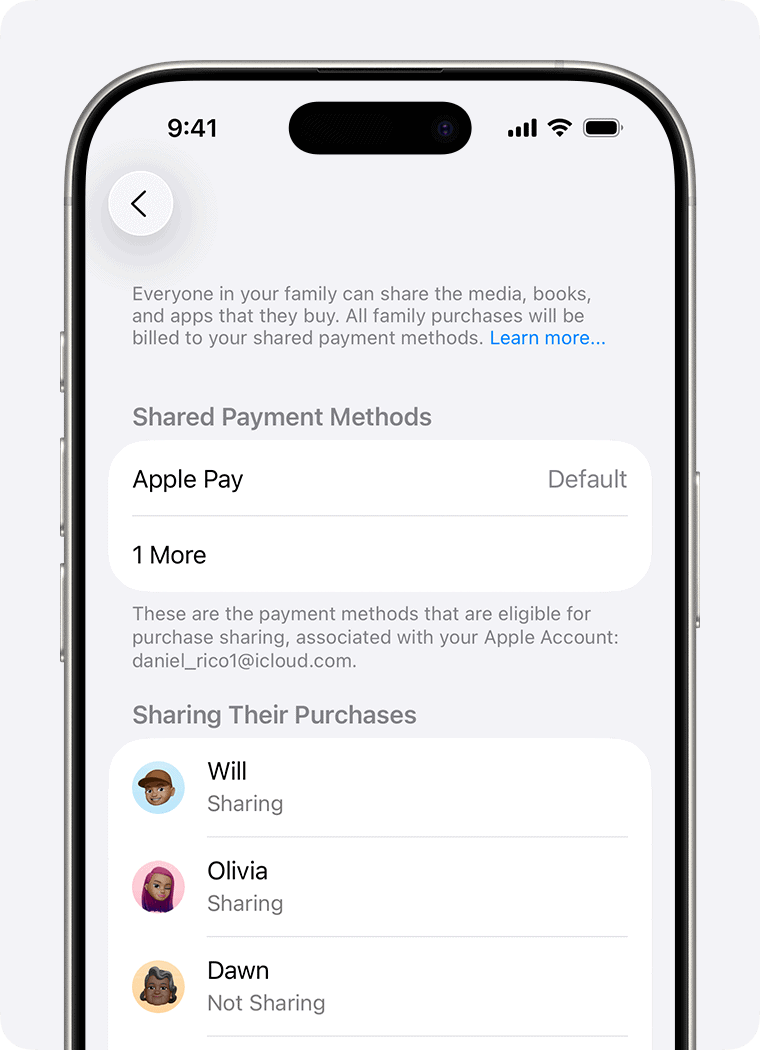
- Open Family Sharing.
- Tap Purchase Sharing.
- Enable Share Purchases with Family.
- Confirm the shared payment method.

2. Approve child purchases
- Go to Family Sharing.
- Select Ask to Buy.
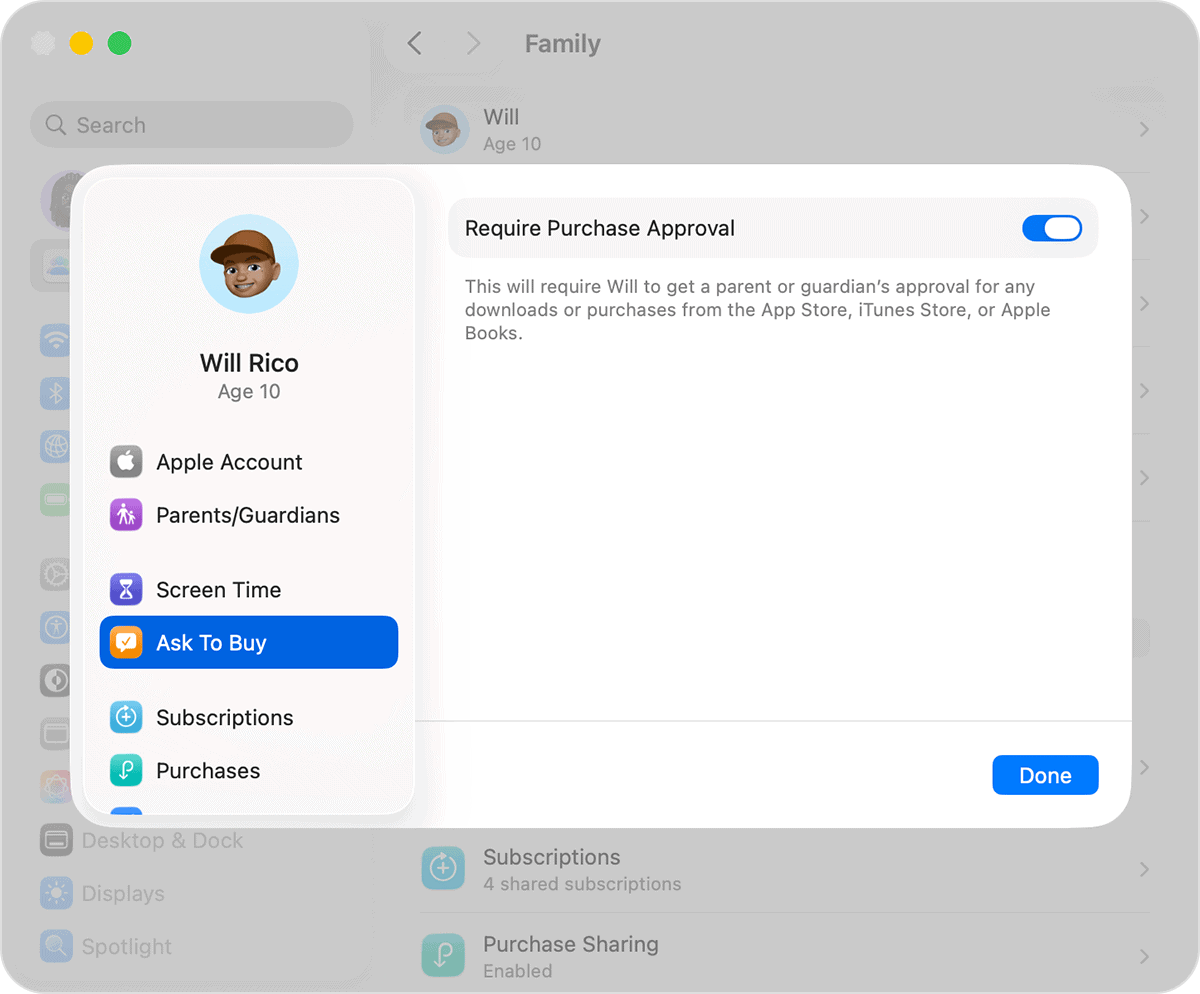
- Turn it on for each child account.

3. Fix hidden or missing purchases
- Open the App Store.
- Tap your profile and choose Purchased.
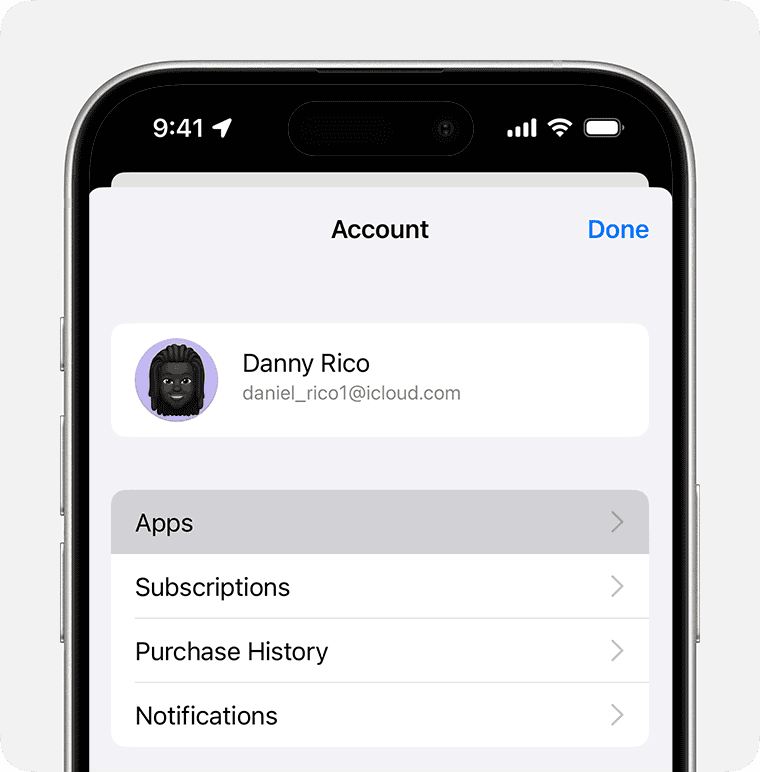
- Check My Purchases or Family Purchases.
- If an item is hidden, tap your name again and select Hidden Purchases to unhide it.

Share iCloud storage without sharing private files
iCloud storage plans can be shared across the family while keeping everyone’s documents private. I recommend choosing the plan size that matches your photo and device backup needs, then reviewing what each person is storing.
1. Enable iCloud storage sharing
- Open Family Sharing.
- Tap iCloud+.
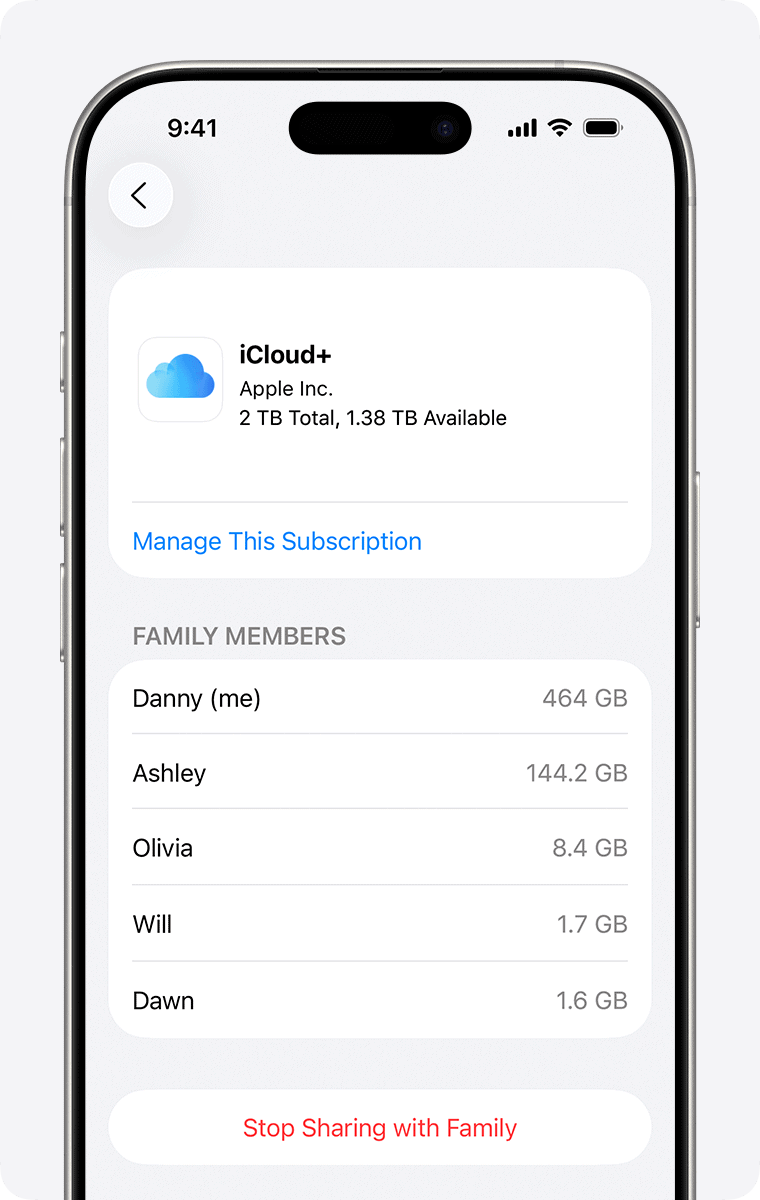
- Select Share With Family.
- Confirm or upgrade your plan if needed.

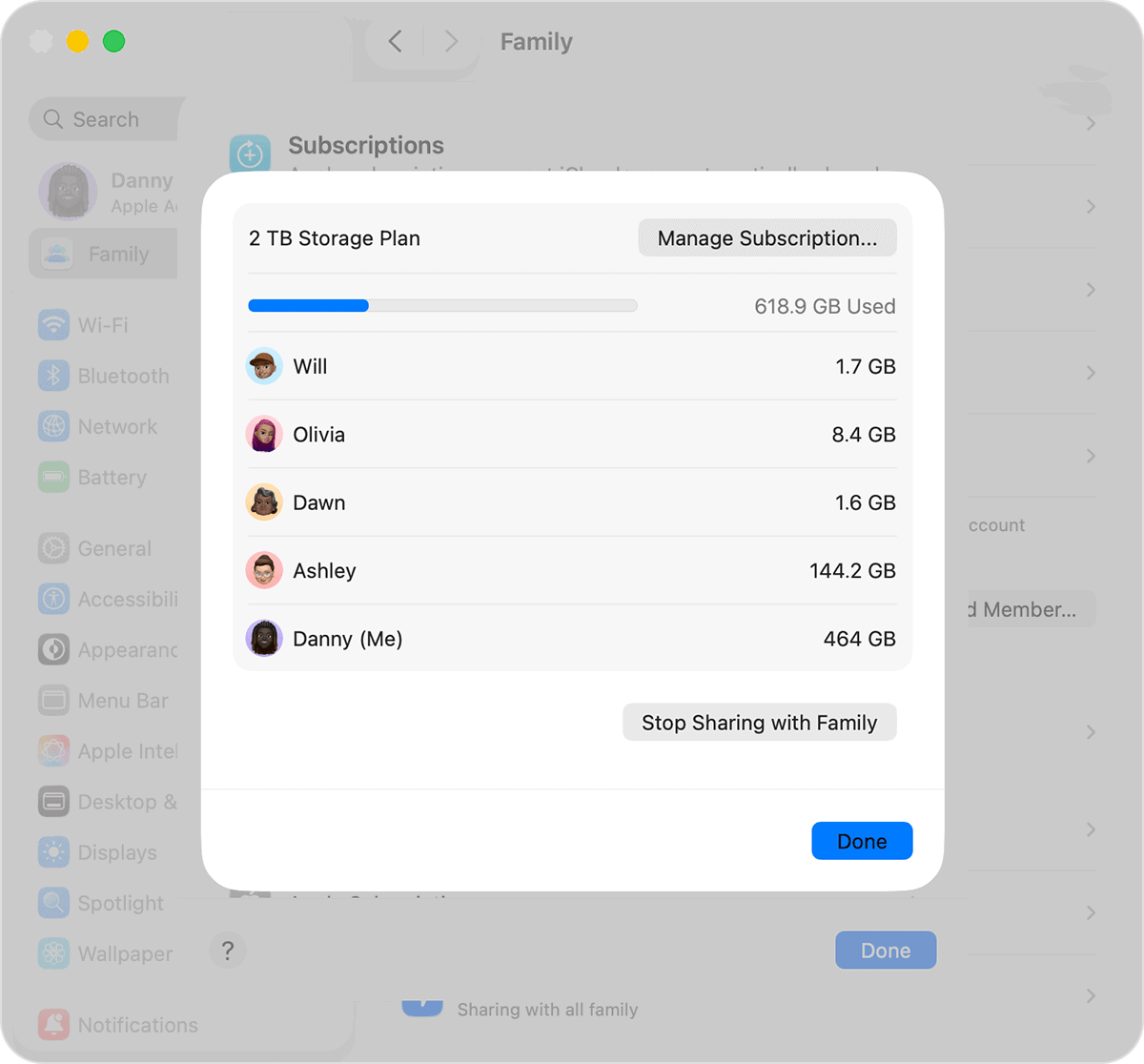
2. Check individual storage usage
- Go to Settings.
- Tap your name and select iCloud.
- Review Manage Account Storage to see what is using space.

3. Adjust backups
- In iCloud, select Device Backups.
- Tap each device and turn backup on or off as needed for children or secondary devices.
Keep location sharing accurate and intentional
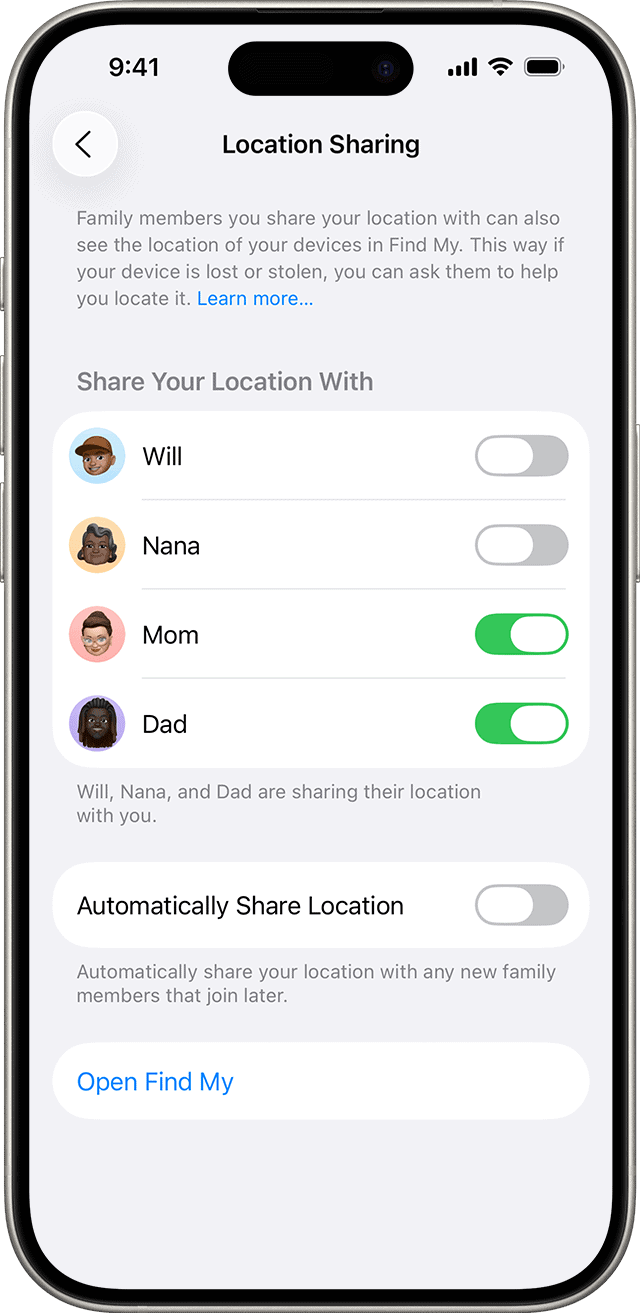
Location sharing is helpful, but only when everyone understands who can see what. I use this section to clean up map data, tracking permissions and device lists.
1. Turn on location sharing
- Go to Settings.
- Tap your name.
- Select Family.
- Select Location Sharing.
- Toggle on the button next to the family member.

2. Manage device visibility
- Open the Find My app.
- Tap Devices.
- Verify that each family member’s device is assigned to the correct Apple ID.
- Remove old devices that should not appear.
3. Share or stop sharing with specific people
- In Find My, open the People tab.
- Select a family member.
- Choose Share My Location or Stop Sharing My Location depending on your preference.
Control Screen Time and content settings clearly
Screen Time can reduce arguments if you set expectations from the start. I set limits based on categories rather than individual apps and give older kids partial control so they feel included.
1. Set up Screen Time for a child
- Open Settings.
- Tap Screen Time.
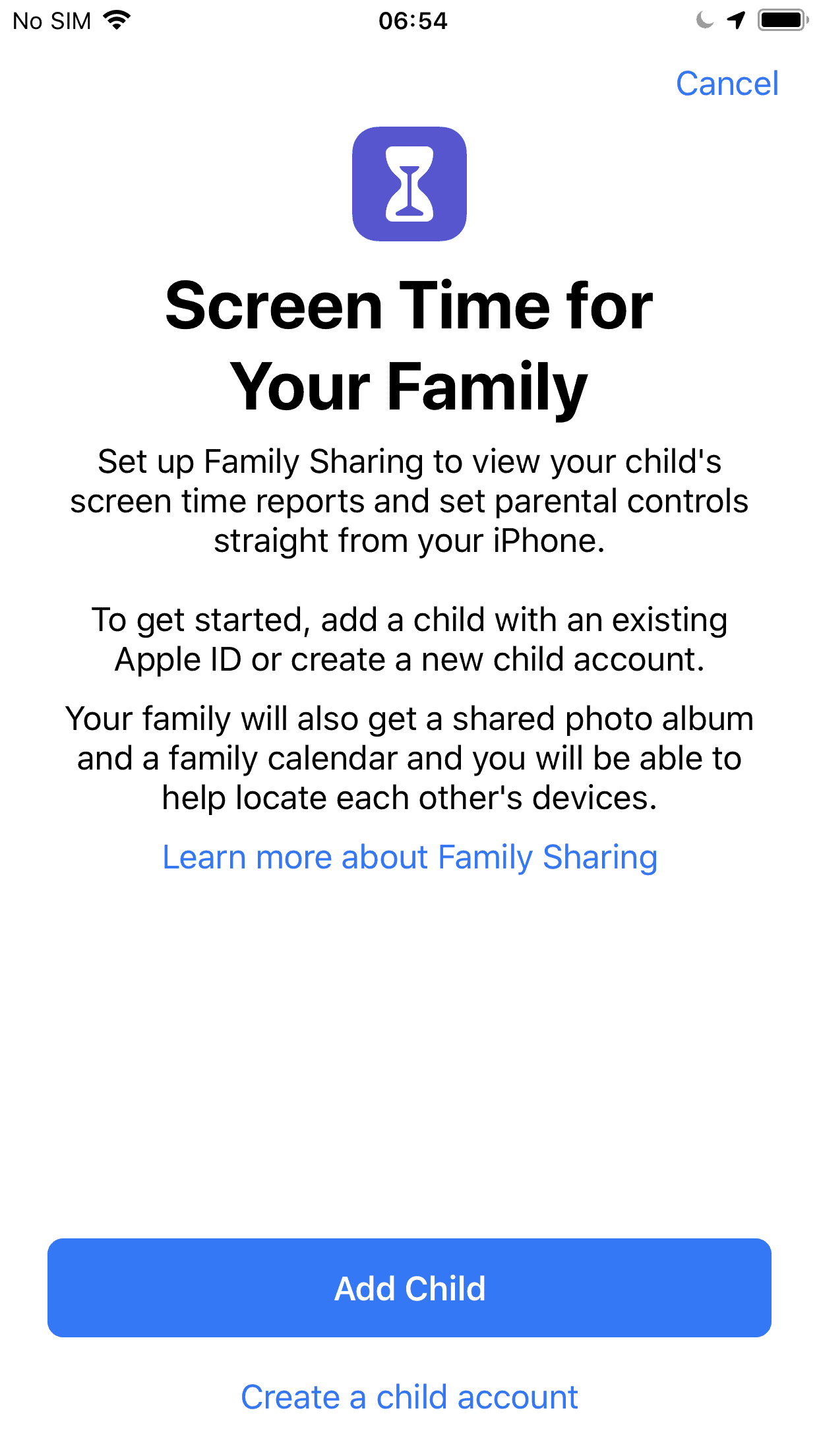
- Select your child’s name.
- Enable Screen Time and follow prompts.

2. Apply app limits
- Under your child’s Screen Time settings, tap App Limits.
- Add categories such as social, entertainment or games.
- Set daily time allowances.

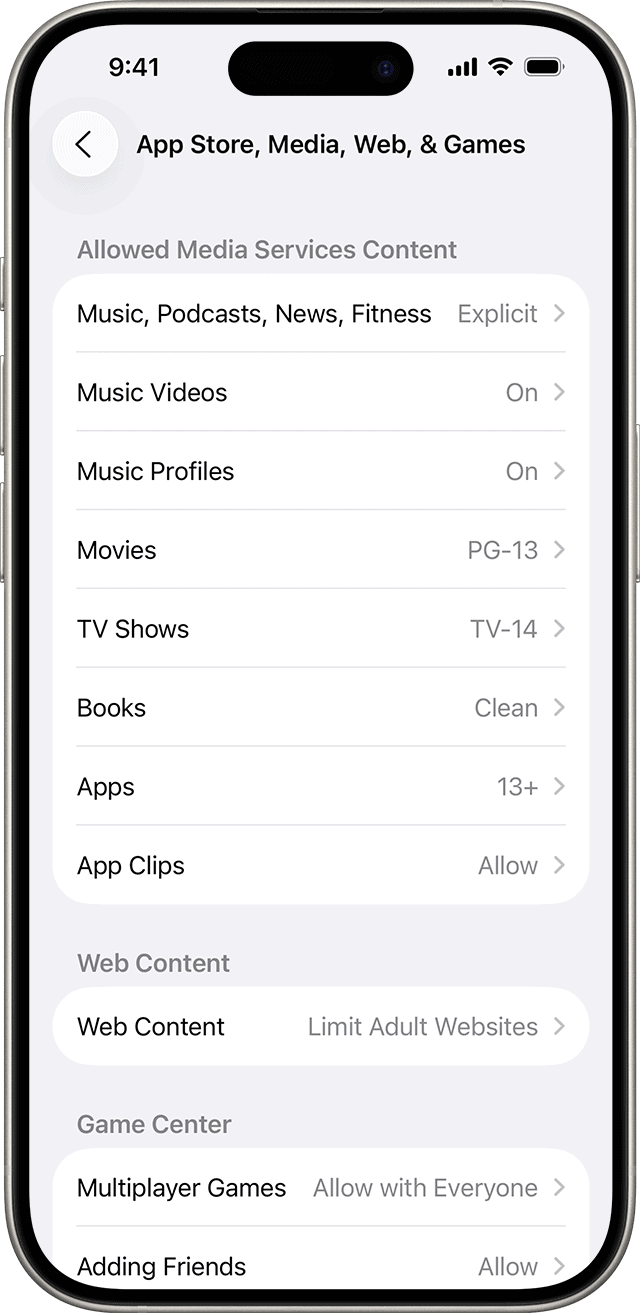
3. Adjust content and privacy
- Go to Content & Privacy Restrictions.
- Turn on the toggle at the top.
- Set restrictions for media, web content and store purchases.
Tips for keeping Family Sharing running smoothly
- Review the shared payment method quarterly.
- Remove unused devices from Find My.
- Confirm that all Apple IDs use the correct region.
- Encourage each member to update their device software.
- Revisit iCloud storage usage every few months to avoid hitting limits.
- For kids, adjust Screen Time settings as schedules change.
FAQ
Yes. In the App Store, go to your profile and select Hidden Purchases. Hidden items remain linked to the Apple ID but do not appear in shared lists.
Not fully. Android users cannot join an Apple Family Sharing group with an Apple ID. Only iOS, iPadOS and macOS devices support the full feature set.
Everyone keeps items they already downloaded, but they lose access to new downloads from other members’ libraries. Subscriptions may also stop working unless the individual maintains them.
Yes. The current organizer must remove the child, and the new organizer must accept the account. Apple requires a parent or guardian to manage the account until the child turns 13.
No. Messages and personal photos are not shared automatically. Those remain private unless you explicitly share albums or conversations.
Summary
- Start with a clean family structure and assign roles correctly.
- Enable Purchase Sharing only after confirming the shared payment method.
- Share iCloud storage while keeping individual data private.
- Use Find My intentionally to share locations only with the right people.
- Set up Screen Time with clear boundaries and category-based limits.
- Revisit settings periodically to keep everything organized.


Discussion