

If your Mac stops during startup and throws up the message an internet connection is required to verify this startup disk, it feels like hitting a wall for no good reason. You enter your Wi Fi password, hit Join, and nothing changes. The alert comes back. Sometimes there is not even a network to choose from. Here’s the thing: this error is less mysterious than it looks, and in most cases, you can fix it without panic.
Let’s break it down.
Table of contents
Why Your Mac Is Asking for the Internet

On Macs with the Apple T2 Security Chip or certain Secure Boot settings, macOS verifies that the operating system on your startup disk is legitimate. That verification sometimes needs to check integrity data online. If your Mac cannot connect properly during this step, startup stalls.
Don’t miss the best of The Mac Observer
Set us as a preferred source and our Apple reporting ranks higher in your Google Search results and Discover feed — one tap, no account changes.
This usually happens for a few reasons:
- Secure Boot is set to Full Security and needs online verification
- Your Wi Fi is unstable or blocked in Recovery mode
- There is disk corruption preventing a clean check
- A macOS update was interrupted and left the system half sealed
The message is not saying your disk is broken. It is saying verification could not finish safely.
First Fix: Change the Connection

Before touching system settings, try a different network. A mobile hotspot often works when home Wi Fi does not. Even better, use a wired Ethernet connection if you can. Many people fix this instantly by plugging in a cable, because Recovery mode networking is basic and wired connections are simpler.
If Wi Fi does not even show up, that is a strong hint to move on to the next step.
Adjust Startup Security Settings
If the Mac still refuses to verify, you may need to lower boot security temporarily.
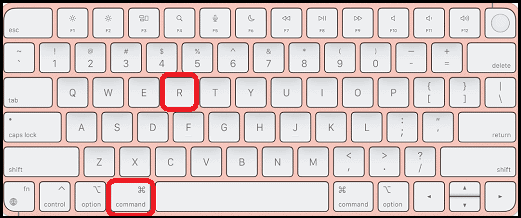
- Restart and hold Command and R to enter macOS Recovery.
- Choose Utilities, then Startup Security Utility.
- Authenticate with an admin account.
- Change Secure Boot from Full Security to Medium Security.
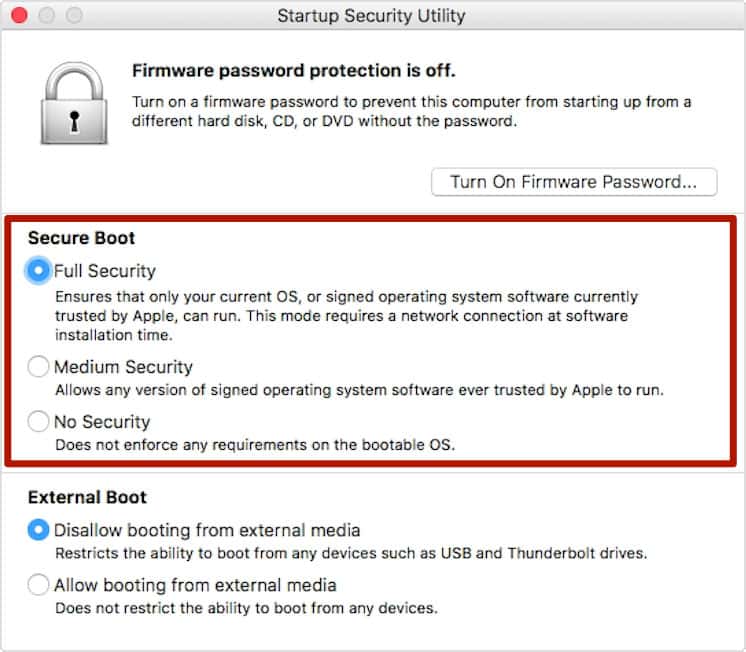


This tells your Mac to verify locally instead of checking Apple servers. Restart and see if the disk verifies.
Check the Disk Itself
If the error keeps looping, run Disk Utility.
- In Recovery mode, open Disk Utility.
- Click View and select Show All Devices.
- Select the startup disk and run First Aid on every volume, starting from the bottom and working up.
Disk errors can block verification even when the internet is fine.
Last Resort: Reinstall macOS
If nothing else works, reinstalling macOS from Recovery often clears the issue. This replaces system files without touching your personal data in most cases. It takes time, but it is reliable.
The Bottom Line
This error looks dramatic, but it is usually about security checks and connectivity, not a dead Mac. Start simple, change the connection, adjust Secure Boot if needed, then repair the disk. In most cases, one of those steps gets you past the wall and back to a normal startup.


Discussion