
If Parallels Desktop suddenly tells you this copy may not be genuine and that you could be a victim of software counterfeiting, it is hard not to assume the worst. The message sounds serious, and sometimes it is. Other times, it is triggered by something simple and fixable. Here’s the thing: the alert is meant to protect you, not scare you into guessing.
Let’s break it down.
Table of contents
Why Parallels Shows This Warning
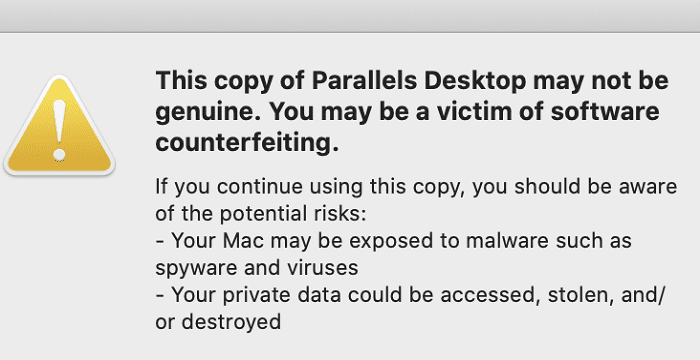
Image Source: Apple tool box
Don’t miss the best of The Mac Observer
Set us as a preferred source and our Apple reporting ranks higher in your Google Search results and Discover feed — one tap, no account changes.
Parallels checks licensing and system integrity to make sure the app has not been altered. When something looks off, the software flags it. That can happen for a few reasons.
One is obvious. If Parallels came from a third party download site, the copy may actually be modified. Pirated versions are often bundled with malware or altered licensing files.
The other cause is less dramatic. Incorrect date and time settings on your Mac or inside the Windows virtual machine can break license validation. When the clock is wrong, Parallels cannot verify the license properly and assumes the copy may not be genuine.
Start With Date and Time Settings
Before uninstalling anything, check your clocks.
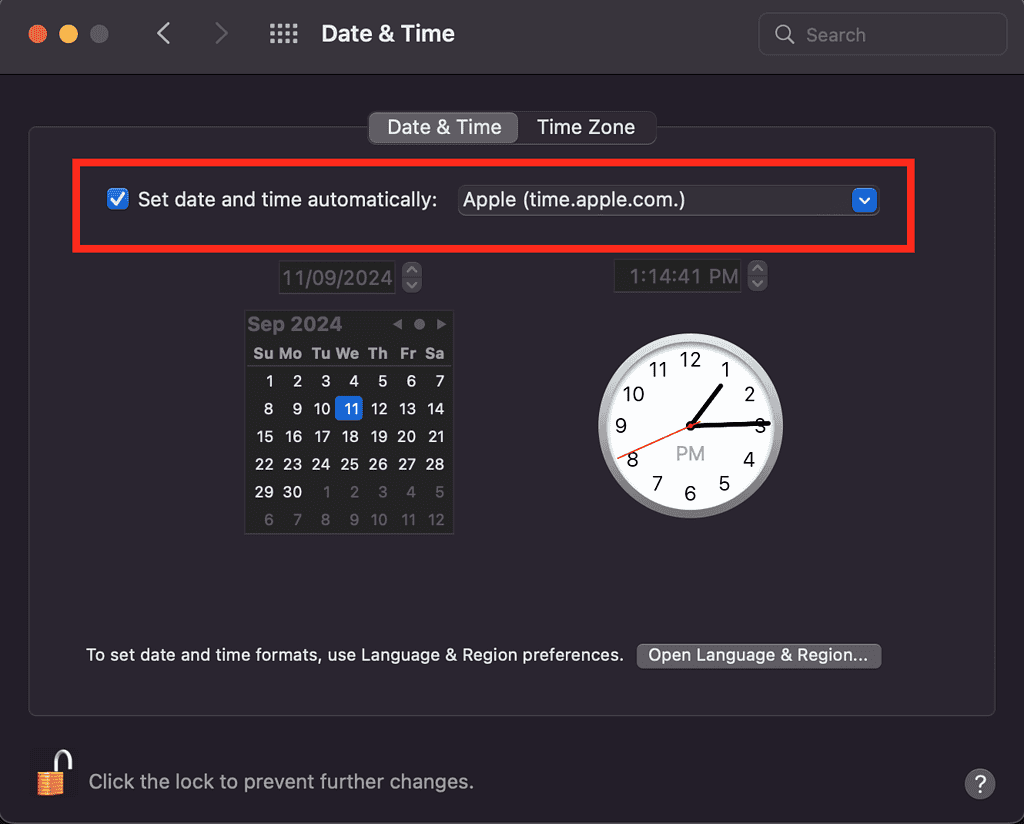
On your Mac, open System Settings and go to Date and Time. Turn on the option to set time automatically and make sure Apple’s time server is selected.
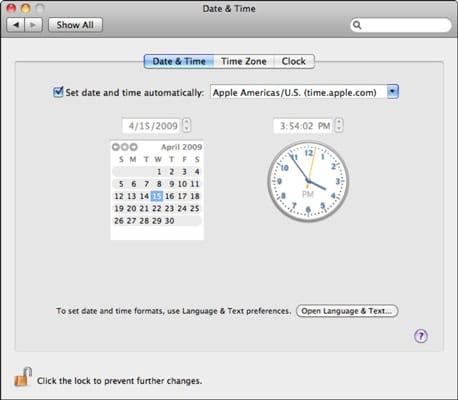
Image Source: Dummies
Then check the Windows virtual machine. Open Settings, go to Time and Language, and enable automatic time and time zone.
Quit Parallels, restart your Mac, and launch it again. In many cases, the warning disappears right here.
If You Installed Parallels From a Third Party Site
If you did not download Parallels from the official website or the Mac App Store, assume the warning is real.
Delete Parallels from your Applications folder and empty the Trash. Do not skip that step.
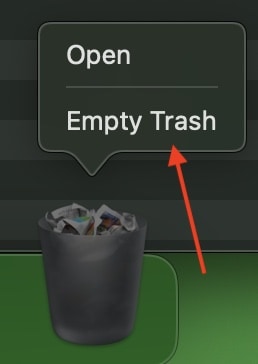
Next, scan your Mac for malware. Tools like Malwarebytes can catch adware or background processes that piggyback on cracked software. Running a system check with a utility like EtreCheck can also help spot anything unusual.
Once your system is clean, download Parallels again from the official source and activate it with a valid license.
When to Contact Parallels Support
If you bought Parallels legitimately and the warning keeps coming back, contact Parallels support. Have your activation key ready. They can confirm whether the license is valid and help reset it if needed.
The Bottom Line
This warning does not always mean your Mac is compromised, but it should never be ignored. Start with date and time. If the app came from an unofficial source, remove it and clean your system. If everything checks out and the alert persists, Parallels support is the final step. The goal is simple: make sure the software you are running is safe, legitimate, and fully under your control.




Discussion