

If an app freezes, ignores your taps, or just refuses to behave, force quitting it is often the fastest fix. Not to save battery. Not to tidy things up. Just to get the app unstuck and move on with your day. Here’s the thing: Apple designs iOS and iPadOS to manage apps intelligently in the background, so you only need to close an app when it’s clearly misbehaving. Let’s break it down by device.
Table of contents
When You Should Force Quit an App

Force quitting makes sense when an app is frozen, stuck on a loading screen, crashing repeatedly, or not responding to touch or voice input. If an app is working fine, leave it alone. Closing apps constantly does not improve performance or battery life, and Apple has said this outright.
If force quitting doesn’t help, a quick device restart usually does.
Don’t miss the best of The Mac Observer
Set us as a preferred source and our Apple reporting ranks higher in your Google Search results and Discover feed — one tap, no account changes.
iPhone With Face ID
This applies to iPhone X and newer models.
- Swipe up from the bottom of the screen and pause in the middle.
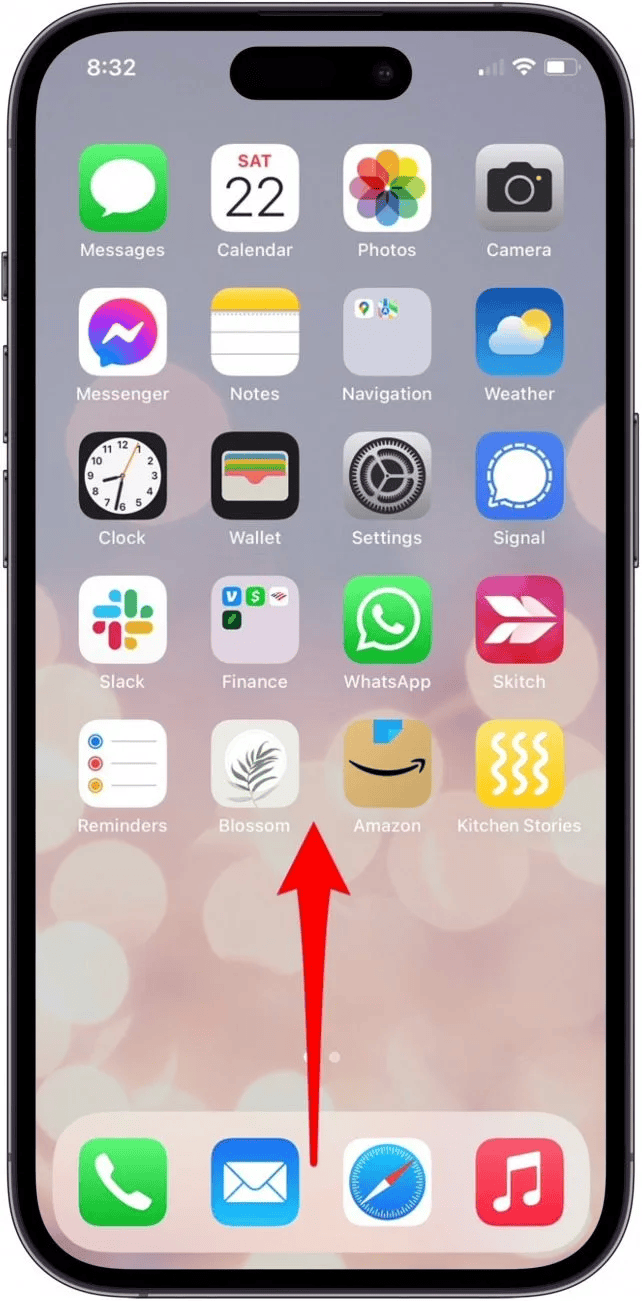
- You’ll see the app switcher with previews of open apps.
- Swipe left or right to find the app you want.

- Swipe up on the app preview to close it.



You can also use two or three fingers to swipe up multiple apps at once if more than one is acting up.
iPhone With a Home Button
This covers iPhone SE models, iPhone 8 and earlier, and iPod touch.
- Double click the Home button quickly.
- Scroll through the open apps.
- Swipe up on the app preview to force quit it.
- Press the Home button again to return to your screen.
If double clicking is difficult, you can slow down the Home button click speed in Accessibility settings.
iPad Force Quit Steps
The process is the same on most modern iPads, whether or not they have a Home button.
- Swipe up from the bottom of the screen and hold.
- Find the app in the app switcher.
- Swipe up on the app card to close it.
On very old iPads, double clicking the Home button brings up the same view.
Reopening the App
Once closed, reopen the app from the Home Screen, App Library, Spotlight search, a widget, or by asking Siri. If the problem returns immediately, check for app updates or restart your device.
The Bottom Line
Force quitting apps is a tool, not a habit. Use it when an app stops responding, then move on. If apps regularly freeze, the issue is usually the app itself, not your device. Keep your system updated, restart when needed, and let iOS do the rest.




Wow, I don’t think Apple could have said it any better, themselves. So for my take away, “Good luck with that!”