

Recently, a number of users have reported a persistent connectivity deadlock between the Virgin Media 360 box and the Apple TV app. You launch the app, and instead of the sleek Apple interface, you get a “Connection Failed” error or an infinite load screen, despite your other apps working flawlessly.
You can put down the Ethernet cable and stop toggling your router. The solution is likely far simpler and less invasive than a full network overhaul. Here is how to fix the issue and get back to your watchlist.
Table of contents
“Soft Reboot” Solution
Don’t miss the best of The Mac Observer
Set us as a preferred source and our Apple reporting ranks higher in your Google Search results and Discover feed — one tap, no account changes.
It is crucial to distinguish this from a simple power cycle (turning it off and on again). We are looking to refresh the operating system without purging your hard drive.
- Press the Home button on your Virgin 360 remote and scroll over to the Settings gear icon.

- Select System from the menu.
- Look for the Factory Reset or Reset options.
- Critical Note: You will see options here regarding your data. Select the option to “Keep Recordings.”
- This process acts as a “soft” factory reset. It wipes the system cache and login data for apps but leaves your recorded shows and scheduled recordings intact.
- Once the box has completed its reboot cycle (which may take a few minutes), navigate back to the Apple TV app.
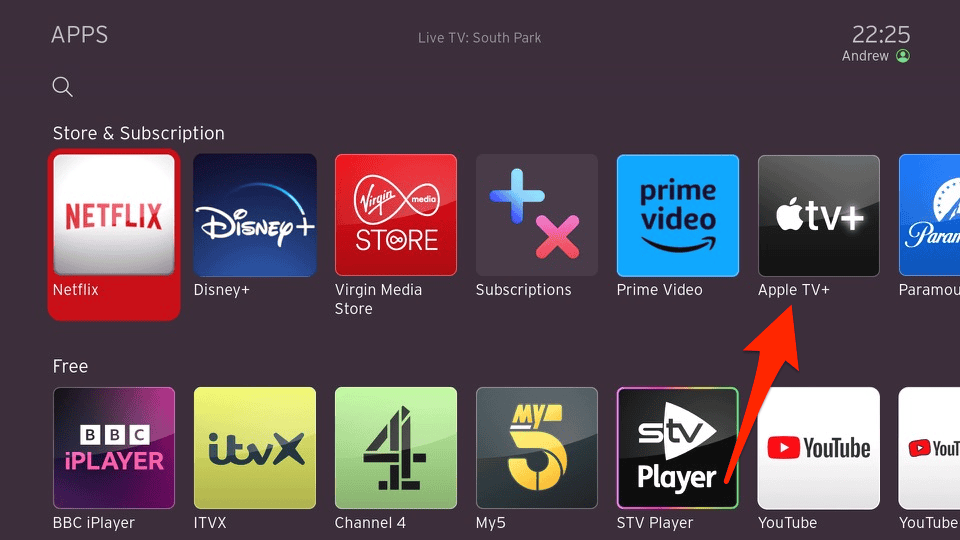
Image credit: Drew1440: Blog - Open the app. It should now connect immediately. You may need to sign in with your Apple ID credential once more, but the connectivity blockage should be cleared.


Why this works: Often, the Virgin 360 box keeps corrupt temporary data related to specific app handshakes. A standard standby cycle doesn’t clear this cache, but a settings-based reset forces the OS to reinitialize its network protocols for third-party applications.
Apple TV Sign-in not working? Check out our separate articles for more solutions.
Other Potential Culprits
If the above solution, which has a high success rate, does not yield results, consider these secondary troubleshooting vectors:
- HDCP Handshake Issues: Ensure your HDMI cable is firmly seated in both the box and the TV. Occasionally, the copyright protection protocol (HDCP) fails, causing apps like Apple TV+ (which require strict security) to refuse to load.
- DNS Latency: Check if your router is using ISP default DNS settings. While you cannot change DNS on the Virgin box directly, ensuring your router isn’t blocking Apple’s servers is a prudent check.
For further reading, take a look at how to watch Apple TV on Android.
FAQ
No. As long as you explicitly select the option to “Keep Recordings” (sometimes phrased as “Save my recordings”), your Series Links and existing library will remain untouched. You will, however, have to sign back into apps like Netflix, Prime Video, and Apple TV.
Apple’s tvOS applications often require higher bandwidth stability and stricter security handshakes than other streaming apps. If the Virgin box has a cached error regarding its secure connection status, Apple’s app is often the first to fail while others continue working.
No. This is a hardware/software communication issue on the Virgin box side, not an authentication issue with your Apple account.
Summary
If you are stuck at the Apple TV connection screen on Virgin 360, remember:
- Don’t panic about Wi-Fi: If other apps work, your internet is likely fine.
- Use the Settings Menu: A pull-the-plug restart often isn’t enough; use the software menu.
- Preserve your Data: Always choose the “Keep Recordings” option during the reset process.
- Re-login: Be prepared to enter your login details for your streaming apps again.
Give the box a fresh start, and you should be back to the ecosystem in no time.


I didn’t realize that a regular power cycle wouldn’t clear the app cache—this article explains it clearly. Following the soft factory reset steps fixed my Apple TV connection instantly.