
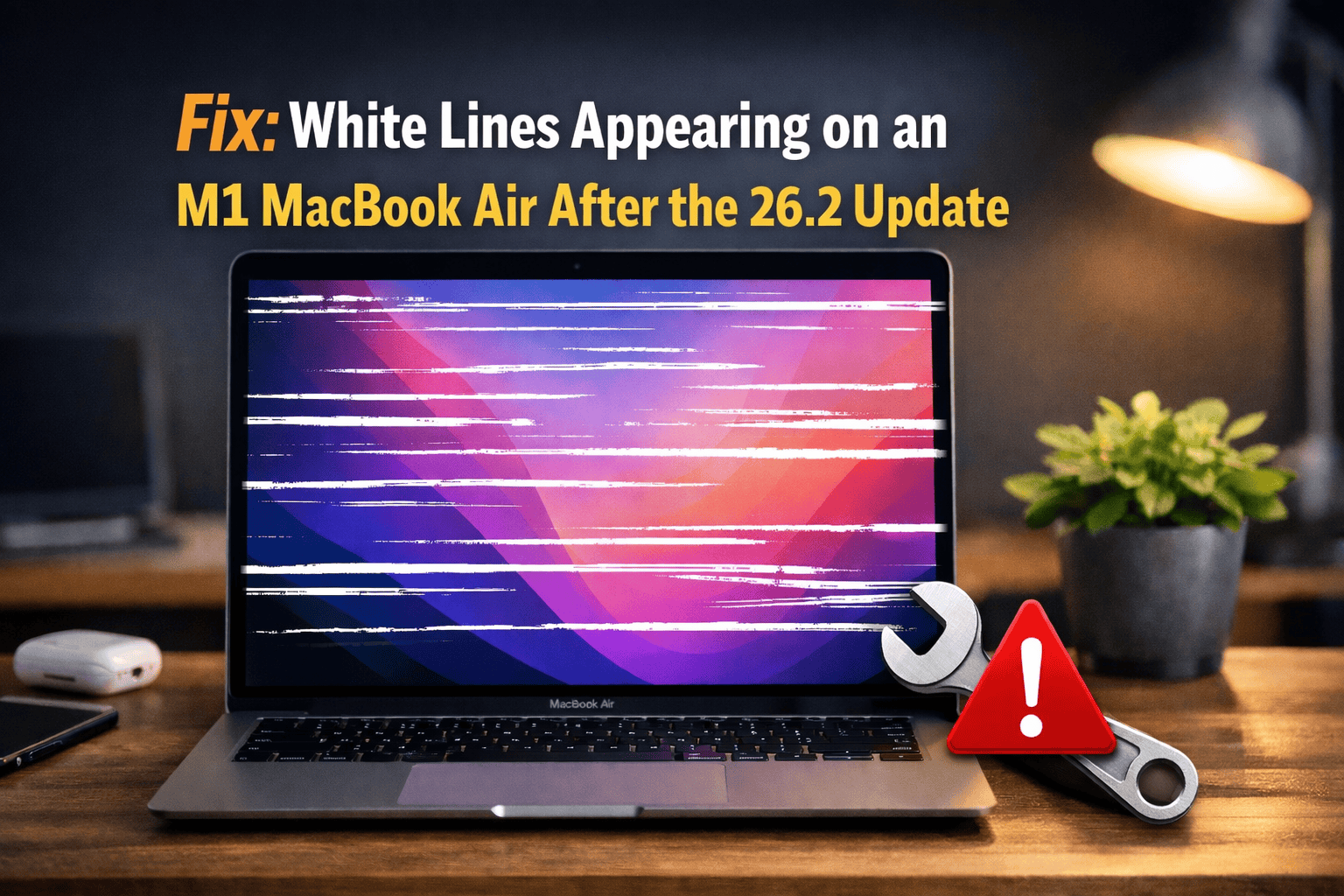
If white vertical lines suddenly showed up on your M1 MacBook Air right after updating to macOS 26.2, you’re not imagining things. This is a real issue that tends to surface after system updates, and it sits right at the uncomfortable intersection of software bugs and underlying hardware sensitivity. Here’s the thing. The timing matters. When lines appear immediately after an update, software is the first suspect, not a cracked panel or a dying GPU.
Table of contents
Why the 26.2 Update Can Trigger Screen Lines
macOS updates touch display drivers, power management, and graphics handling. On Apple silicon Macs like the M1 Air, the GPU is integrated into the system on a chip. That means a bug in graphics drivers or power control can show up as visual artifacts fast.
Common causes after an update include:
Don’t miss the best of The Mac Observer
Set us as a preferred source and our Apple reporting ranks higher in your Google Search results and Discover feed — one tap, no account changes.
- Display driver glitches introduced by the update
- Power management issues affecting the panel
- Temporary GPU rendering error
- Existing hardware weaknesses exposed by new software
If the Mac was working fine before 26.2 and the lines appeared right after, odds favor software.
First Checks That Tell You a Lot
Before assuming the worst, do these quick tests.
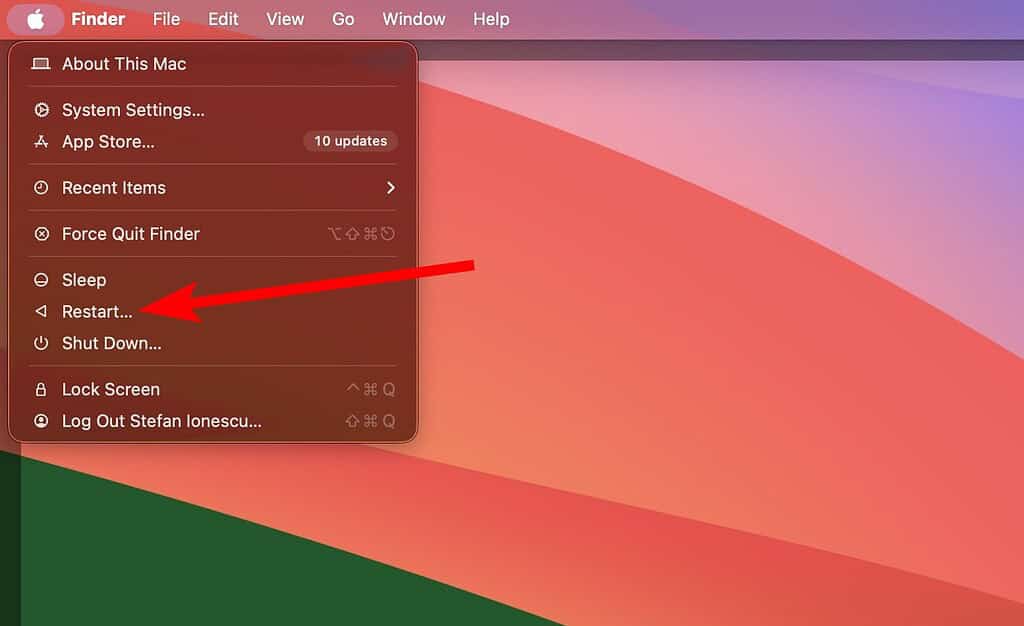
Restart the Mac. It sounds basic, but it clears temporary driver issues more often than people like to admit.
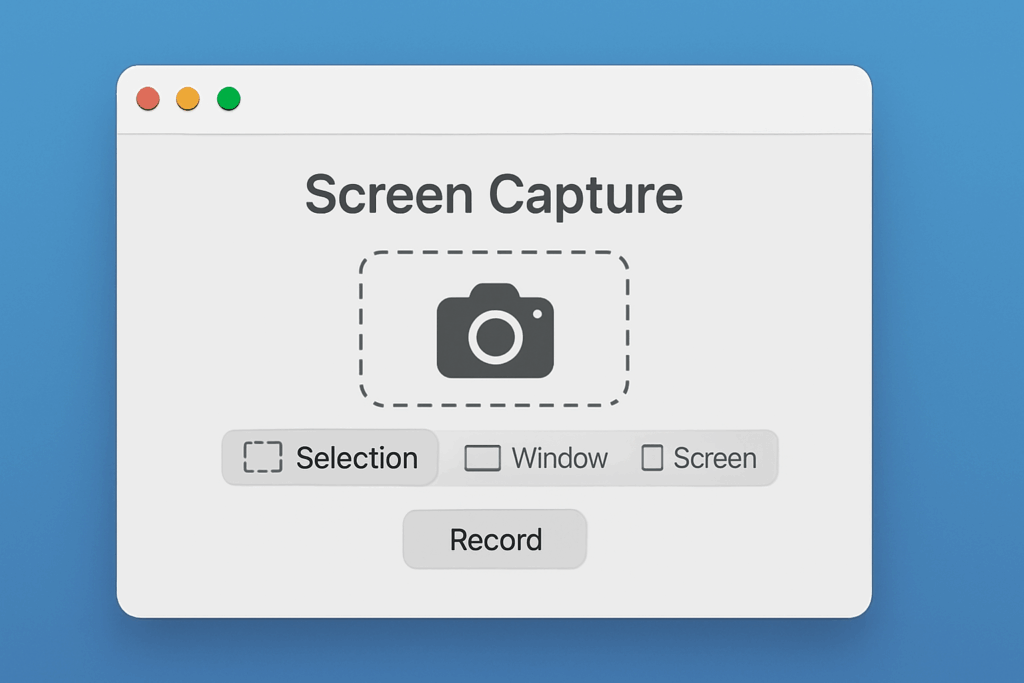
Take a screenshot. If the white lines do not appear in the screenshot, the issue is almost certainly the display panel or its connection. If they do appear, the GPU or software is involved.
Connect an external monitor. If the external display looks normal, the internal screen is the problem. If both show lines, look at software or the GPU.
Fixes Worth Trying Before Panicking
Check for Additional Updates
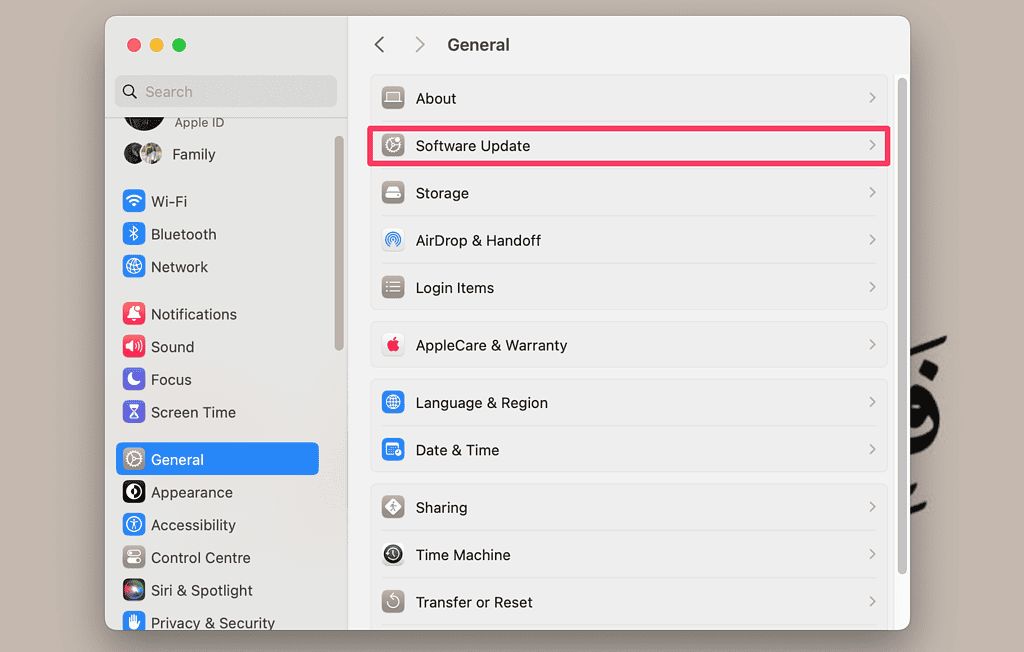
Apple often ships silent fixes shortly after a problematic release. Go to System Settings, Software Update, and install anything available.
Let the Mac Cool Down
Overheating can exaggerate display issues. Shut the Mac down, unplug it, and let it cool for 20 minutes before powering it back on.
Reset Power Management
On M1 Macs, this is simple. Shut down the Mac, plug it into power, wait 30 seconds, then start it up. This resets low level power behavior without complicated steps.
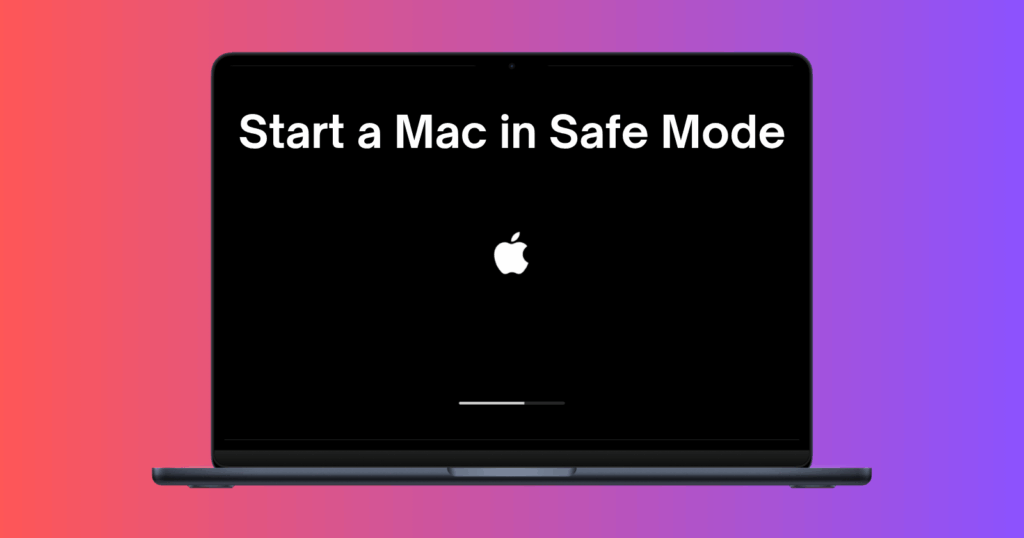
Boot Into Safe Mode
Safe Mode loads minimal drivers. If the lines disappear in Safe Mode, that’s a strong signal the issue is software related.
Reinstall macOS
If nothing else helps, reinstalling macOS replaces system files without deleting your data. It sounds drastic, but it often resolves update related display bugs.
When It’s Probably Hardware
If white lines persist across restarts, Safe Mode, reinstalls, and external displays behave differently, hardware becomes likely. The display cable, panel, or logic board could be involved. At that point, Apple Diagnostics or a Genius Bar visit makes sense.
The Bottom Line
White lines after the 26.2 update are usually not random. They’re often triggered by software changes stressing parts of the display system. Start with software fixes. Move slowly. Test each step. If the lines stay no matter what you do, that’s your cue to get professional help before the problem worsens.




Discussion