
Doomscrolling isn’t a lack of willpower problem. It’s a design problem. Apps are built to keep you pulling the lever, and vague intentions like I’ll scroll less never stand a chance. If you want to stop doomscrolling in 2026, you need limits that create friction. Real friction. The kind that interrupts the habit loop instead of politely suggesting you stop.
Table of contents
What Hard App Limits Really Mean

Hard limits are different from soft nudges. A soft nudge is a reminder. A hard limit blocks access, dims the app, or forces you to make a conscious choice to continue. The goal is to snap you out of autopilot.
Both iOS and Android now offer tools that do this surprisingly well if you set them up properly. Most people don’t.
Don’t miss the best of The Mac Observer
Set us as a preferred source and our Apple reporting ranks higher in your Google Search results and Discover feed — one tap, no account changes.
Set App Timers You’ll Actually Respect
On iPhone, iPad, and Mac, Screen Time app limits are your foundation.
- Go to Settings, then Screen Time, then App Limits.
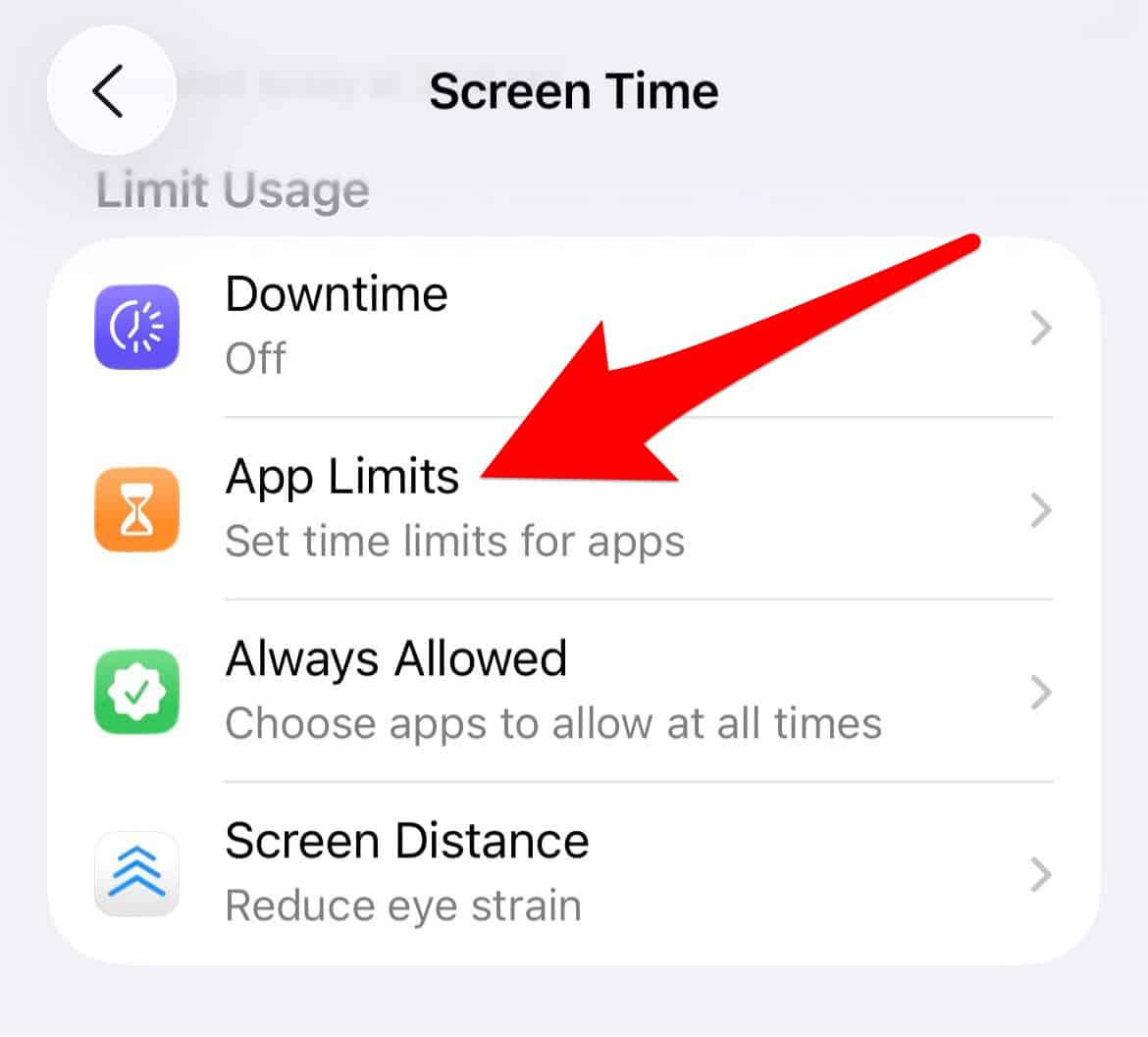
- Add limits for social media, news, or specific apps that eat your time.

Here’s the key move most people skip. Do not set generous limits. Thirty minutes feels reasonable, but it’s still enough to lose a chunk of your day. Start lower. Ten or fifteen minutes. You can always adjust later.
When the limit hits, the app locks. The icon grays out. That visual alone is powerful. Yes, you can tap Ignore Limit, but now you’re making a deliberate decision instead of mindlessly scrolling.
Android does the same thing through Digital Wellbeing.
- Open Settings, tap Digital Wellbeing and Parental Controls.
- Select the app, and set a timer using the hourglass icon.
When time’s up, that’s it until tomorrow.
Use Downtime and Bedtime to Kill Late Night Scrolling
Doomscrolling loves quiet hours. That’s why scheduled downtime matters.
- On iOS, go to Screen Time, then Downtime.
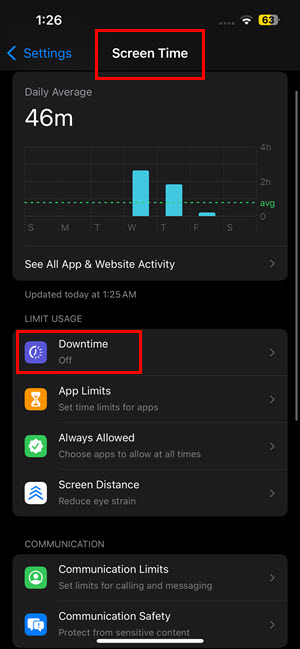
- Set a window where only essential apps are allowed.

Messaging, calls, maybe maps. Everything else stays locked.
On Android, Bedtime Mode does something similar. It silences notifications, dims the screen, and can even turn everything grayscale. Color is addictive. Removing it works.
Set these to turn on automatically. Don’t rely on yourself to remember.
Remove the Triggers, Not Just the Apps
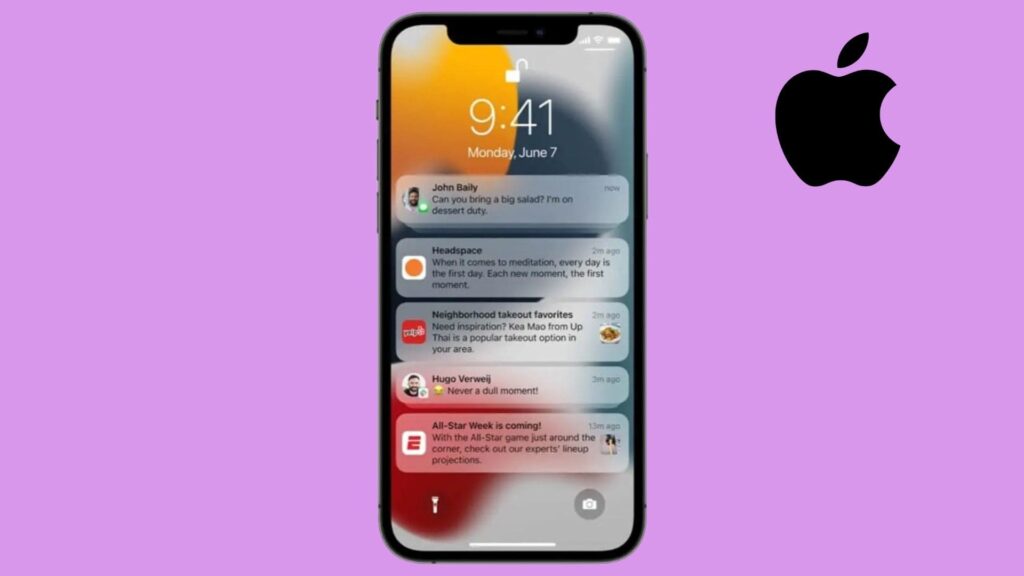
Notifications are doomscrolling’s delivery system. Turn them off aggressively. News alerts, social updates, anything that pulls you back in without asking.
If an app doesn’t need to interrupt you, it shouldn’t.
For extreme cases, uninstall the app. You can still access it on the web if needed, but the extra step is the point.
Add One Final Speed Bump
If you’re on iPhone, create a simple shortcut that triggers when you open a problem app. Have it display a blunt message or delay access for a few seconds. That pause matters more than you think.
Here’s the thing. Hard limits work because they change behavior at the moment it matters, not after the damage is done.
You don’t need a dumb phone. You don’t need to disappear. You just need systems that make the easy choice the better one.
Set them once. Let your phone do the enforcing.




Discussion